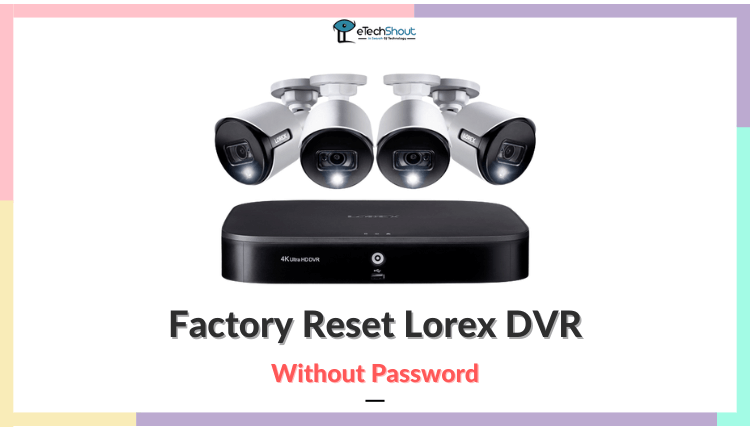
If you’re looking for a way to restore your Lorex DVR to its original settings when you’ve forgotten the password, you’re in the right spot to learn how to do it. Here, you’ll find step-by-step instructions on resetting your Lorex DVR without needing the password.
Suppose you’ve set a password on your Lorex DVR and now you can’t remember it. No worries, because I’m here to guide you through the process of resetting your Lorex DVR to its factory settings, even if you don’t have the password handy.
If you’ve encountered a situation where you can’t access your Lorex DVR due to a forgotten password, you’re not alone. Many people find themselves in similar situations. Thankfully, there’s a solution – resetting your Lorex DVR to its original factory settings without a password.
The process might sound a bit technical but don’t worry, I’ll break it down into simple steps that you can easily follow. Just stick with me and you’ll soon be on your way to resetting your Lorex DVR without the need for a password.
How to Factory Reset Lorex DVR without Password
Sadly, resetting a Lorex DVR yourself with the software without knowing the password is generally not possible.
In this case, you’ll need to reach out to the support team and ask them to help you by changing the password temporarily. This way, they can guide you through the process of resetting the DVR.
However, you can use a simple method to do a factory reset using the physical components of the device itself, and this approach works even when you don’t have the password.
Before we proceed, it’s a good idea to test the default DVR password, which could be “00000” or “000000” for certain models of Lorex DVR. It’s either five zeros or six zeros.
Keep in mind: If the default password doesn’t give you access, we’ll then move on to the first method, which involves accessing the internal components of the Lorex DVR device.
Don’t worry if you’re not familiar with technical procedures. I’m here to walk you through the process step by step, making sure you can reset your Lorex DVR quickly.
Factory Reset the Lorex DVR with Reset Button
Now, for this method, you will actually open up the Lorex DVR device to access the reset button located on the motherboard. Using this button allows you to restore the device to its factory settings even if you don’t know the password.
Don’t worry if this seems a bit technical. I’m here to make sure you understand every step clearly, so you can carry out the reset on your Lorex DVR confidently and without any issues.
Step 1: Turn Off Your System
Before you start working with the inside of the DVR, you need to make sure your system is completely turned off.
This means you should switch off the DVR and disconnect its power adapter to prevent any complications.
To turn off the system completely, press the power button on the DVR and wait for it to shut down.
Once you can’t hear any activity from the DVR, unplug the power adapter and give the DVR about 5 minutes to fully discharge.
Helpful Tip: It’s a good idea to also disconnect the power adapter from the DVR while you’re working on it. This extra precaution will keep things safe and smooth during the process.
Step 2: Remove the Screws from the Back Panel
Take out the screws that are holding the back panel of the DVR. This will expose the inner components of the device.
You can find these screws on both ends of the back panel. To remove them, you’ll need a screwdriver with a Philips head.
Make sure you have a screwdriver and start undoing all of the screws until they come out completely.
Remember: Keep the screws safe because you’ll need to put them back later on. It’s important to keep track of them so you can reattach the back panel properly. If you’re unsure, you can use a small container to hold the screws during the process.
Step 3: Take Off the Back Panel
Now that you’ve removed the screws securing the back panel of your Lorex DVR, you can proceed to detach the back panel from the device.
Gently apply some pressure and pull the cover towards yourself until you hear a clicking sound.
Once you hear that click, it means the panel is no longer attached to the latches and you can easily remove it. This will expose the inner workings of the DVR.
Important: As you’re removing the cover, make sure to handle it with care so that you don’t accidentally cause any harm to the internal components of the DVR. Being cautious at this step will help you avoid any potential issues.
Step 4: Find the Reset Button
Look for this reset button within your DVR. It’s located next to the passive cooler of the DVR, typically on the right-hand side.
This button is quite small, so if you can’t find it check around the coolers. The button is connected to the DVR using a metal plate and latches.
Remember: You don’t need to disconnect any other parts apart from the back panel to access the factory reset button. Just follow these steps, and you’ll be all set.
Step 5: Press and Hold the Reset Button
Now, you need to press and hold down the reset button for around 15 seconds. Although Lorex suggests that the reset might take about 10 seconds, it’s a good idea to hold it for a bit longer.
After holding the button for at least 30 seconds, release it. Afterward, you can put the back cover of the DVR back in place.
Simply plug in the DVR’s power adapter and you’re good to go!
Helpful Tip: In order to put the back panel back on easier, you can use a magnetic Phillips-head screwdriver. This can help keep the screws in place as you reattach the cover.
Reset LHV/LNR Series DVR/NVR without Password
To reset an LHV/LNR Series DVR/NVR to its original settings, follow these easy steps:
- Right-click on Live View to access the Quick Menu.
- Go to the Main Menu.
- Open the Setting icon and then select Setting.
- Choose Default from the options.

- You can either individually select the menu options you want to reset or simply click on All if you want to reset everything.
- Save the changes by clicking on Apply.
- After you’re done, click OK to exit and complete the process.

This quick and simple process will help you restore your DVR/NVR to its default settings, making it as good as new. Just remember to follow the steps one by one for a successful reset.
Reset Lorex ECO Series DVR without Password
If you wish to reset your ECO Series DVR to its original settings, follow these simple steps:
- Right-click on the Live View to open the Quick Menu.
- Click on the Main Menu icon.
- Go to Advanced.

- Navigate to the Maintainance tab.
- Click on Load Default.

- Now, you can pick the specific menus you want to reset to default settings. If you wish to reset the entire system, you can select All. (Note: If you choose All, it will also reset the Network settings. You’ll need to set up remote network access again to use your DVR online.)
- After you’ve made your selections (either individual menus or All), click on Apply.
- Confirm by selecting OK to initiate the default settings restoration.
- Click OK again to return to the menu.
- Choose Exit to go back to the previous menu and return to Live View.
- You’ll have to restart it in order to apply the changes.
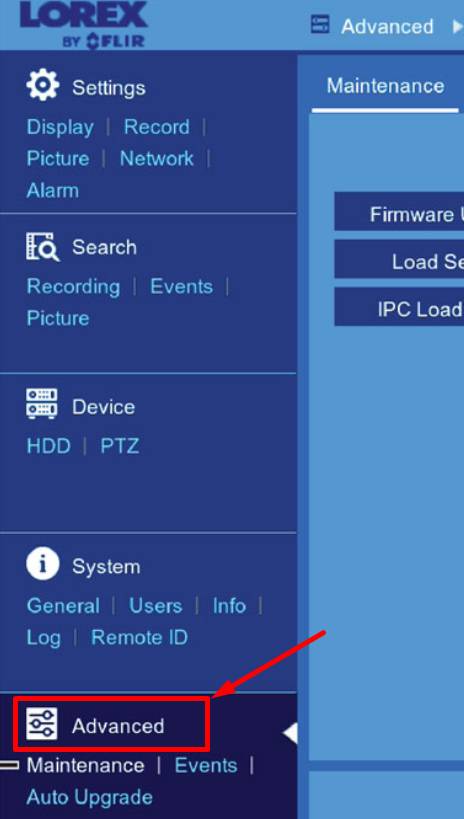
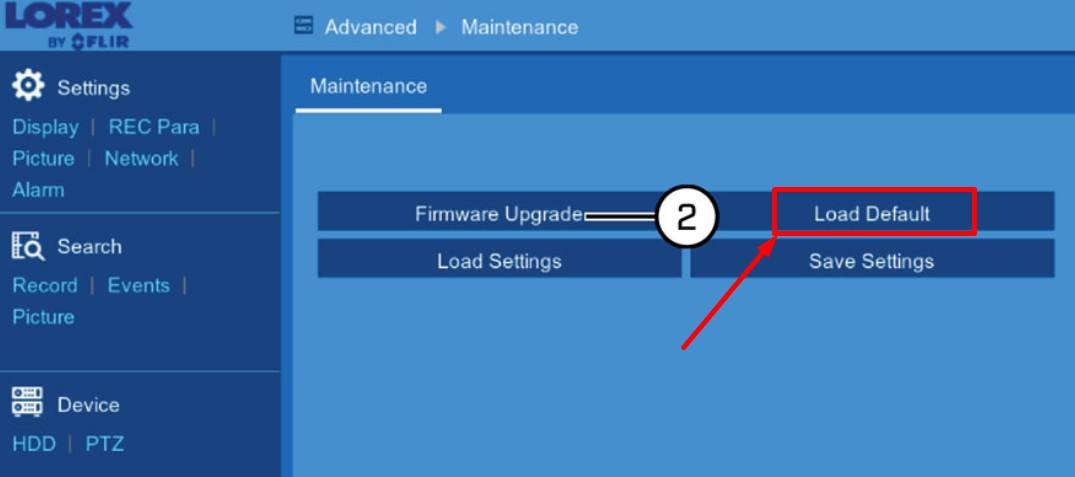
This easy-to-follow process will help you bring your DVR back to its default settings. Make sure you follow the steps carefully so that you can reset your device successfully.
Factory Reset Lorex DVR through the Support Team
If you can’t remember the password to log into your DVR and are unable to locate the reset button on the device, there’s still a solution. You can reach out to Lorex’s support team to obtain a temporary password.
Obviously, you’ll need to verify that you’re the rightful owner of the DVR. This involves providing them with your name and the serial code of the unit.
Step 1: Visit the Lorex Website
Lorex has streamlined the process for users who prefer not to make phone calls. They now offer the option to receive new passwords through email. Visit the Lorex official website and log in using your account details.
Step 2: Click on Send Reset Instructions
After successfully logging into your account on the Lorex website, simply click on the “Send Reset Instructions” button
Upon clicking this link, Lorex will send a new password to the email address linked to your Lorex web account.
Note: If there are any instructions that pop up on the screen after clicking the reset button, make sure to follow them closely. These instructions will guide you through the necessary steps for resetting your password.
Step 3: Get Your New Password
Within a few minutes, you should receive the new password from Lorex in your email.
Remember, it might take some time for them to process your request and send you an email containing the freshly created password.
Helpful Hint: Check your email regularly. Once you receive the email, make sure to save the new password for your records. This way, you’ll have it handy whenever you need to log in.
Step 4: Perform the DVR Reset
Now that you have your new password, it’s time to reset the DVR using the settings.
Follow these steps to reset your Lorex DVR:
- Log in to your DVR using the new password.
- Navigate to the Maintenance tab.
- Select Load Default.
- Choose either All or select specific ones based on your preferences.
- Tap on Confirm and be patient while the reset takes place.
Important: After the reset is finished, the password will go back to its default value, which is “000000“.
By following these steps, you’ll successfully reset your DVR and be ready to use it with the new settings.
Tip: You can also contact Lorex Technical Support either through email at support@lorextechnology.com or by phone at 1-888-425-6739.
I believe that the information provided here has met your expectations and the step-by-step instructions shared in this article have simplified the process for you to confidently reset your Lorex DVR and restore it to its factory settings. In case you forget your password again, return to this guide to easily complete the Lorex dvr password reset without a password.