Google Assistant is a big part of how many people use their Android phones. It helps with voice searches, reminders, quick answers, and daily tasks. When a phone stops during setup and shows the message “The Google Assistant isn’t available for this account. The Google Assistant needs Activity controls that your device administrator has limited on this account. Check with your administrator or switch accounts and try again,” it leaves many users unsure about what just happened. The message refers to activity controls and a device administrator, even though no such settings were ever added.
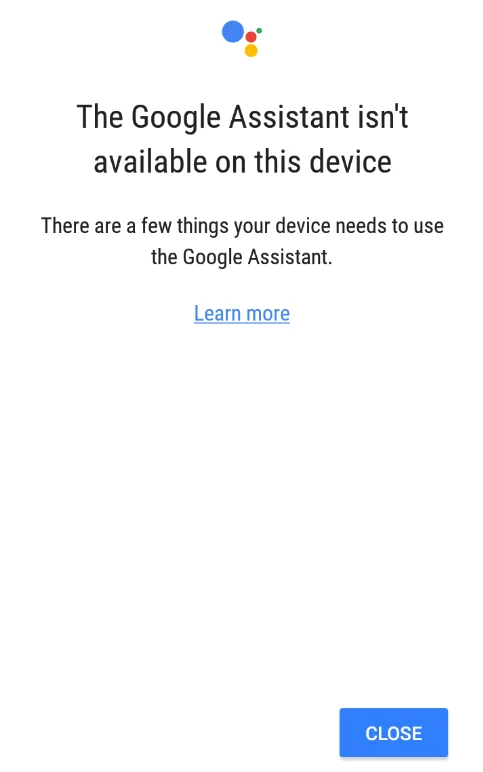
This usually shows up right after a factory reset. A reset is often needed when someone buys a used phone, sells their old one, fixes software trouble, or just wants a clean start. While a reset clears old data, it also forces the phone to recheck account permissions during setup. If anything does not line up between the phone and Google services, the setup can stop right at the Assistant screen.
The main issue is that the message gives no clear explanation or next step. After dealing with the same screen earlier and finally fixing it, the steps that worked are shared next and can help others facing this issue too.
3 Quick Fixes for “Google Assistant isn’t available for this account” Error
Set Up the Phone Without an Internet Connection
One effective way to get past this screen is to complete the phone setup without any internet access. After signing in, turn off Wi Fi and cellular data so the device cannot load the Google Assistant setup page. Without an active connection, the phone skips the Assistant step and allows the setup to continue.
Another option is to begin the setup process without connecting to Wi Fi or mobile data at all. Once you finish the basic setup, go back to the home screen, and then sign in to your Google account later from the phone settings.
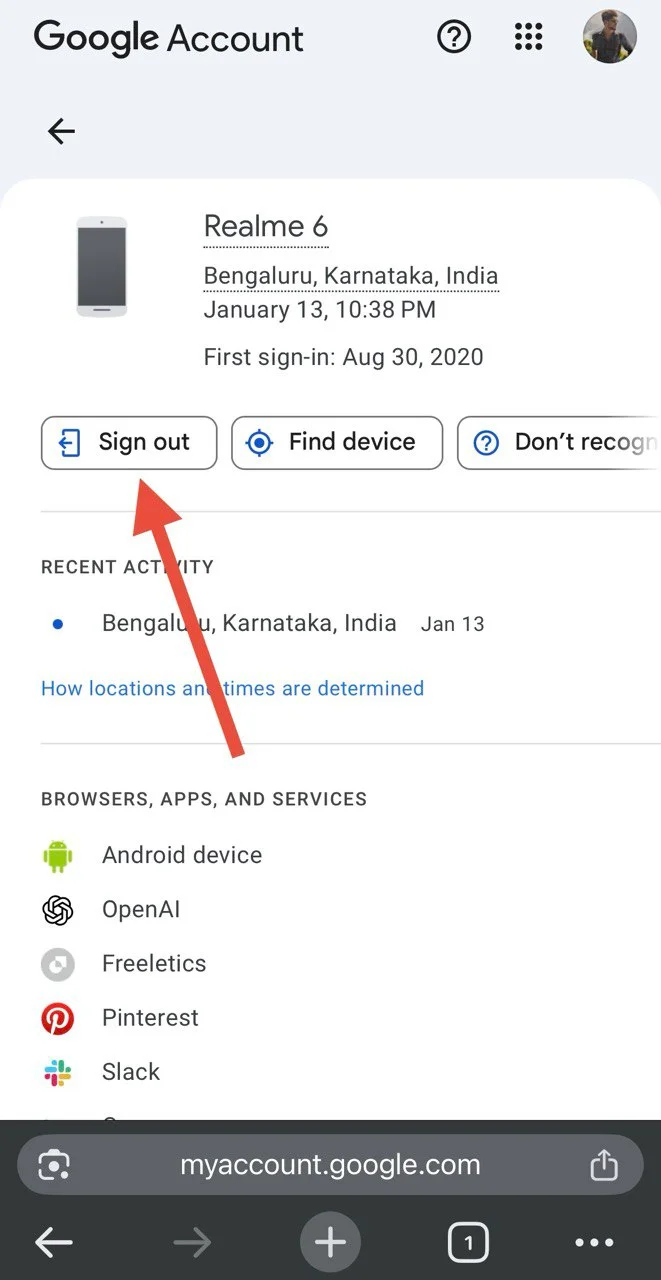
Sign Out the Phone from the Google Account Activity
Another way that has helped many users is to remove the phone from your Google account activity list.
- Open a browser on another device and visit the Google device activity page.
- Now, log in using the same Google account you tried on the phone.
- Once you are there, tap on the mobile phone in the list of devices linked to your account.
- Now, click on the Sign out option.

- After doing this, go back to the phone and continue the setup.
Change the Language and Country During Setup
Another fix that has worked for some users is changing the language and country during the setup process. Instead of selecting English United States or English United Kingdom, choose Arabic Egypt or any other from the list. Continue the setup using that option.
Once the phone finishes setting up and reaches the home screen, the language and country can be changed back to the original choice from settings.
If Google Assistant still does not work after fixing the error using the steps above, just update the Google Assistant app from the Play Store.
Hope this guide helped you move past the problem. If you found another way that worked for you, feel free to share it with others as well. Thanks for reading.