In this post, we will delve into the root of the Hisense TV red light blinks 6 times problem and provide you with easy-to-follow steps to troubleshoot the issue on your own, before contacting Hisense customer support or a local TV repair shop.
We understand how frustrating it can be to have a malfunctioning TV but don’t worry, we’ve got you covered. With our simple guide, you’ll be able to identify and fix the Hisense TV won’t turn on red light flashes 6 times issue in no time. So, let’s get started!
Why Does My Hisense TV Red Light Blinks 6 Times?
When your Hisense TV’s standby red light starts blinking, it is usually an indicator that there is a problem with your TV. The number of times the red light blinks in standby mode is a feature that helps identify the specific issue at hand.
The cause of the blinking can be due to several factors, including a circuit short, a burnt capacitor, faulty backlights, and more. It’s essential to identify the underlying issue accurately to determine the most effective solution to get your Hisense TV working properly again.
Fix Hisense TV Won’t Turn On Red Light Flashes 6 Times
Power Cycle your Hisense TV
One effective fix for the issue of the 6 times red light blinking on your Hisense TV is power cycling. This simple process involves turning the TV off and then back on again, which can often resolve most minor problems.
To power cycle your Hisense TV, start by ensuring that it is turned off. Then, unplug the power cord from the back of the TV. Leave the TV unplugged for about 30 seconds to ensure that any residual electrical charge is dissipated.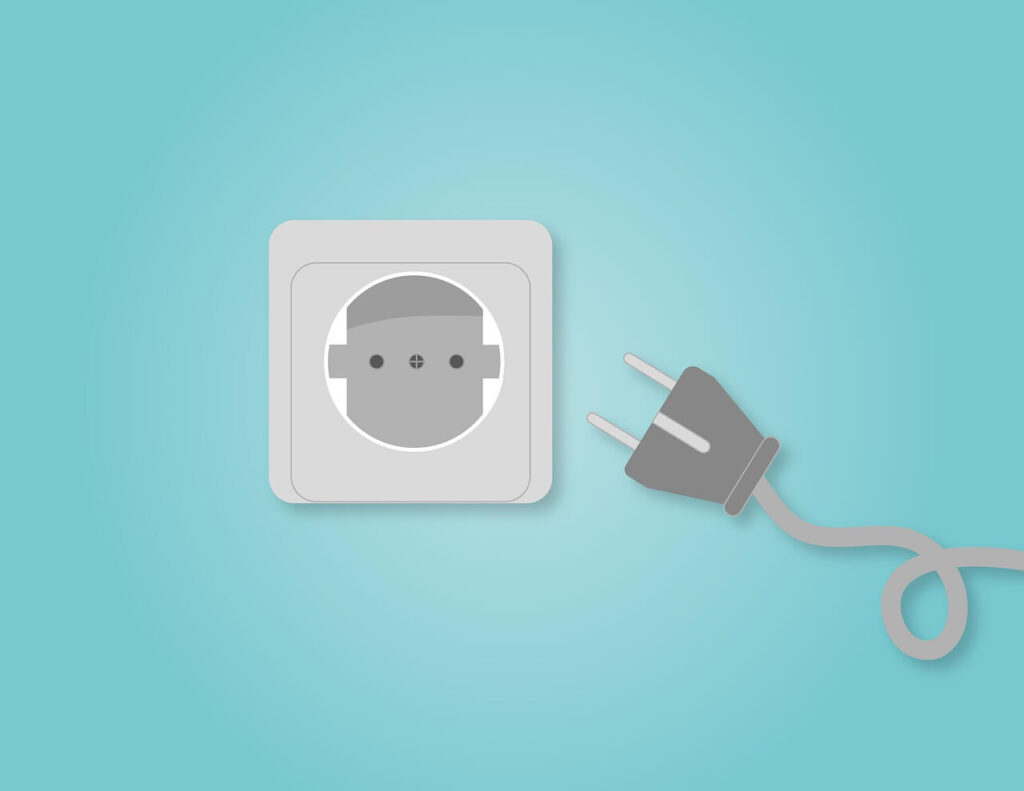
After waiting, plug the power cord back in and turn on the TV. This should reset the TV’s internal circuits and potentially solve the blinking standby red light issue.
Power cycling is a simple and effective solution for many common TV problems, including Hisense TVs. However, if your Hisense tv flashes 6 times even after these steps, head over to the next step.
Reset Your Hisense TV
Another handy solution to the problem of the Hisense tv power light blinks 6 times is to reset it to factory settings. Using this method can resolve issues like frozen screens, lagging applications, or other technical glitches.
To reset a Hisense TV with an Android operating system, simply use your TV’s remote control. With the remote control, access the TV “Settings“. From there, navigate to “Device Preferences” and then go to “Reset.”
You will be prompted to confirm that you want to erase everything, so make sure to double-check before proceeding. Once the TV has been reset to factory settings, you can reconfigure it as you wish.
For older models of Hisense TVs, the reset process is slightly different. To reset an older Hisense TV, access the menu with your remote control and select the “Support” option. From there, click on “Self-diagnosis” and then press “Reset.” It may take a while for the reset to complete.
Perform a Power Supply Check
When the standby red light starts blinking on your Hisense Smart TV, a faulty power supply may be to blame. A simple solution is to try plugging the TV into a different outlet or plugging another device into the outlet to see if it resolves the problem. Also, check that cables or wires are firmly connected. The loose connections will also cause numerous issues.
Nevertheless, if the problem persists, you may need to check the power supply in the back panel of the TV. Please keep in mind that opening the TV’s rear panel can be risky and should not be attempted by those without electronics repair experience.
Therefore, in such cases, contacting a qualified technician who is capable of correctly diagnosing and fixing the problem is the best option. It will be their job to safely open the back panel, diagnose the problem, and replace any defective components.
ALSO READ:
- Hisense TV Red Light Blinks 3 Times: Troubleshooting Guide
- (Fix) Hisense TV Red Light Blinks 2 Times (EASY)
Contact Hisense Customer Support Team
In the case of a Hisense TV still under warranty, the best way to resolve the problem is to contact the brand’s customer service department. So, you can get help troubleshooting your TV from Hisense’s technicians.
Whenever you attempt to fix your TV yourself, it’s a good idea to check whether it’s still under warranty.
Even if your Hisense TV’s warranty is expired, you can still get assistance from customer support. The customer service representative may be able to provide some tips on how to resolve the issue or recommend a reputable TV repair shop in your area.
Take your Hisense TV to the Nearest TV Repair Shop
If none of the troubleshooting steps work, you should visit the nearest TV repair shop. A knowledgeable tv repair technician can diagnose and fix the problem.
Often, the fix for the problem is simple and does not require any major repairs. There may be a need to replace parts such as a capacitor or backlight or make some minor adjustments.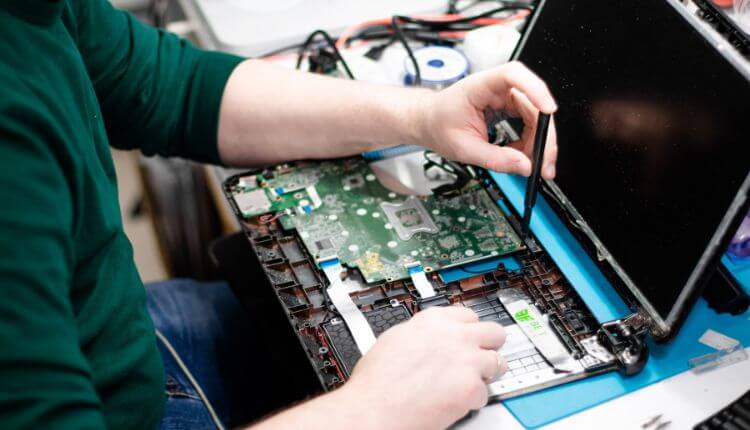
If the issue is more serious and requires major repairs, you will be notified of the need for repairs and given a quote for the work. They may also be able to provide you with a loaner TV while your Hisense TV is being repaired.
If you’ve followed all the above troubleshooting methods and the 6 times blinking red light on your Hisense TV continues, it’s best to seek professional help.
As mentioned earlier, if your TV is still under warranty, you can contact Hisense customer support for assistance. Their technicians will be able to guide you through the necessary steps to resolve the issue.
If your TV is out of warranty, it’s best to consult with a local TV repair technician. Attempting to fix the issue on your own by opening the TV board or handling the internal circuits of the TV can cause further damage and even make it unrepairable.
A professional TV repair technician has the knowledge and expertise to diagnose the cause of the Hisense tv red light blinks 6 times and fix it accordingly.