That loud camera click on Snapchat can feel awkward when you are trying to be quiet. You might want to take a quick photo in a library, class, or meeting, and the sound grabs attention right away. It can ruin the moment and make you think twice before tapping the camera button.
Snapchat opens straight to the camera, which makes sharing quick photos and videos feel natural. You see filters and lenses right away, and it pushes you to capture moments fast. Still, the camera sound can take away from that easy feeling when silence matters.
A lot of users end up searching for answers about this sound. Snapchat still does not offer a simple option to turn off the camera sound, and it never clearly explains why this feature is missing. Because of that, many users end up confused when the sound behaves differently on different phones. Below, we share a few alternative ways that work on both Android and iOS, so you can take snaps quietly without the camera sound.
QUICK ANSWER: Snapchat does not include a switch to mute the camera sound inside the app. Still, you can keep things quiet by changing a few phone settings. Lower the phone volume, use Do Not Disturb mode, or turn off the camera sound from your Android camera app.
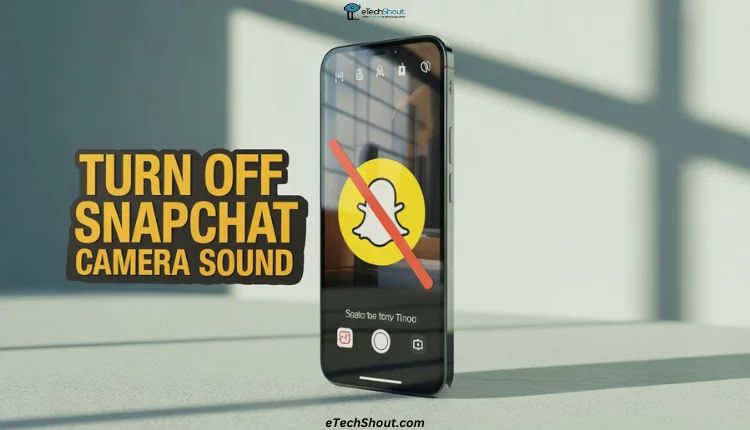
4 Quick Ways to Turn Off Camera Sound on Snapchat on iPhone/Android
Put Your Phone on Silent Mode
One of the easiest options is switching your phone to silent mode. When your phone is silent, all app sounds stop, including alerts and camera clicks. This means the Snapchat shutter sound will not play while you take photos.
You can turn on silent mode using the sound buttons or the sound settings on your phone.
- On iPhones, there is a small action button switch near the volume buttons.

- On Android phones, you can change sound modes from the volume panel or quick settings.
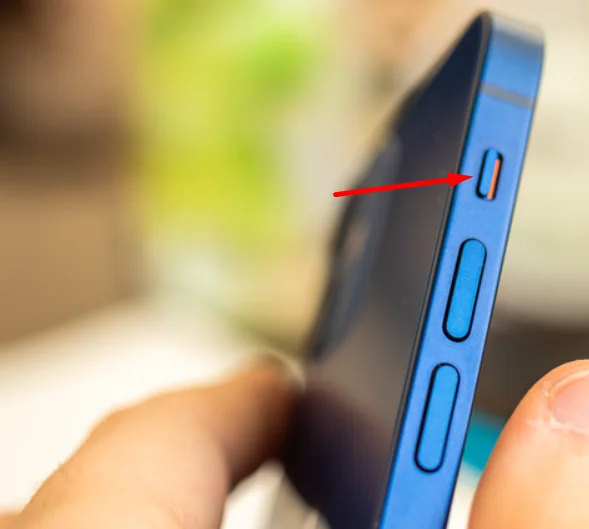
Keep in mind that calls, messages, and alerts will also stay muted until you turn the sound back on.
Turn Off Camera Sound Using Your Phone Camera App
This option uses your phone’s main camera settings to control the sound. Snapchat follows the system camera rules on many Android phones, so changing the sound there can affect how Snapchat behaves too.
Please note that this option is currently limited to Android devices. iPhones and iPads do not allow changes to camera sound from system settings, so this method will not work on Apple devices.
The steps may look a little different based on your Android phone brand, but the option stays the same.
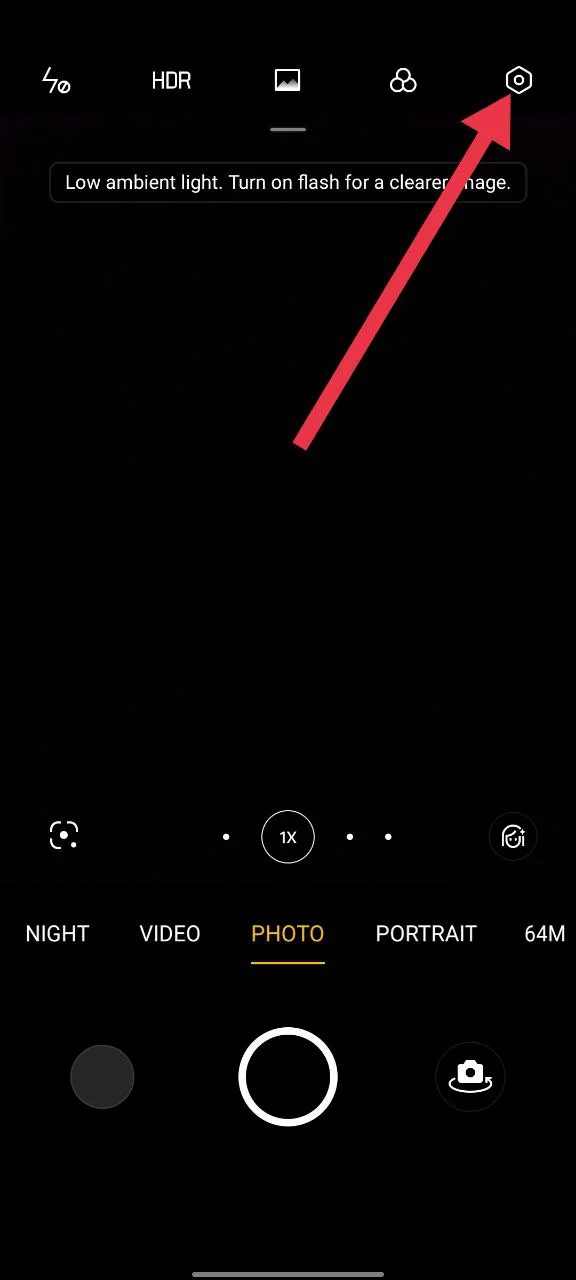
- Open the Camera app on your Android phone
- Tap the settings icon inside the camera screen

- Now, find the option related to camera sounds and turn off the shutter sound

- Open Snapchat and take photos without the camera noise.

Lower Your Phone Volume
This option works on both Android and iPhone devices. Snapchat uses your phone’s sound level, so lowering the volume can quiet the camera click when you take a snap.
You can do this right before taking a photo. Use the physical volume buttons on your phone to reduce the sound. On most Android phones, these buttons sit on the right side. On iPhones, they are usually on the left. Press the volume down button until the sound is fully lowered, then open Snapchat and take your photo.
If you are an iPhone user, you can also open the Control Center and lower the volume slider. If your iPhone has a silent switch near the volume buttons, flip it to silent mode to mute all sounds on the device, including the camera sound.
For iPhones running iOS 12 or older
Older iPhones allow volume control through AssistiveTouch, which gives quick access to sound controls on the screen.
- Open the Settings app on your iPhone
- Tap Accessibility
- Select Touch
- Tap AssistiveTouch
- Turn it on and return to the home screen
- Once enabled, tap the AssistiveTouch icon on your screen.
- Choose the device option to control sound.
- From there, you can lower the volume or mute the phone, which also silences the Snapchat camera sound while taking snaps.
Use Do Not Disturb Mode
Another easy way to mute the camera sound is by using Do Not Disturb mode. This option is available on both Android and iPhone devices and pauses all alerts and sounds on your phone for a while.
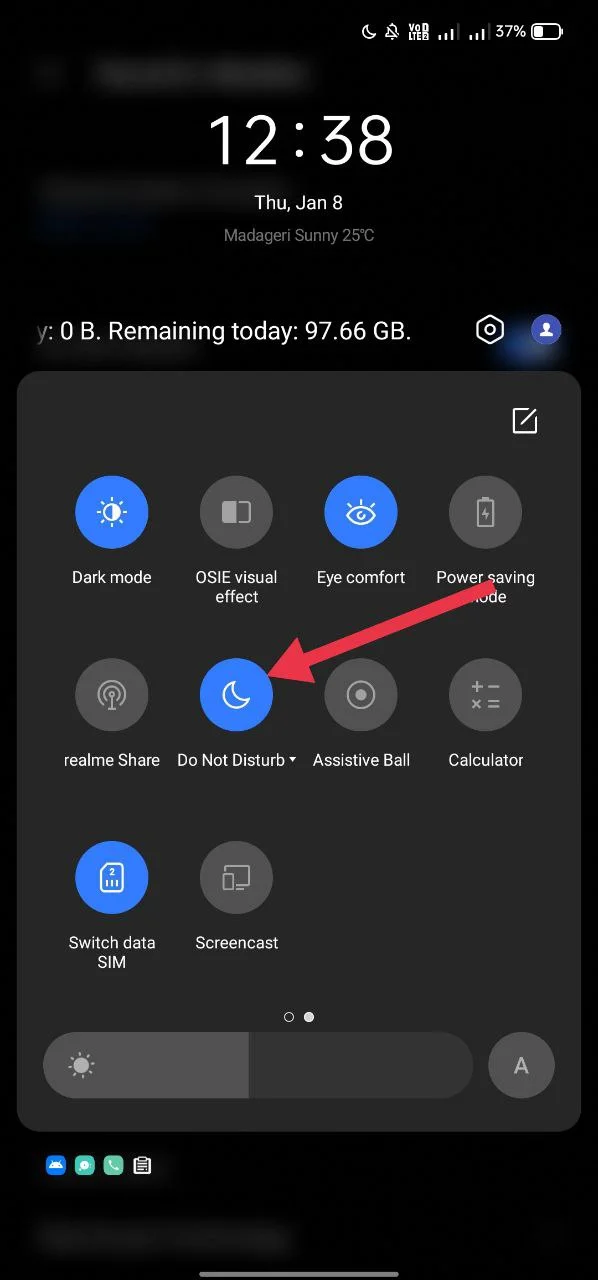
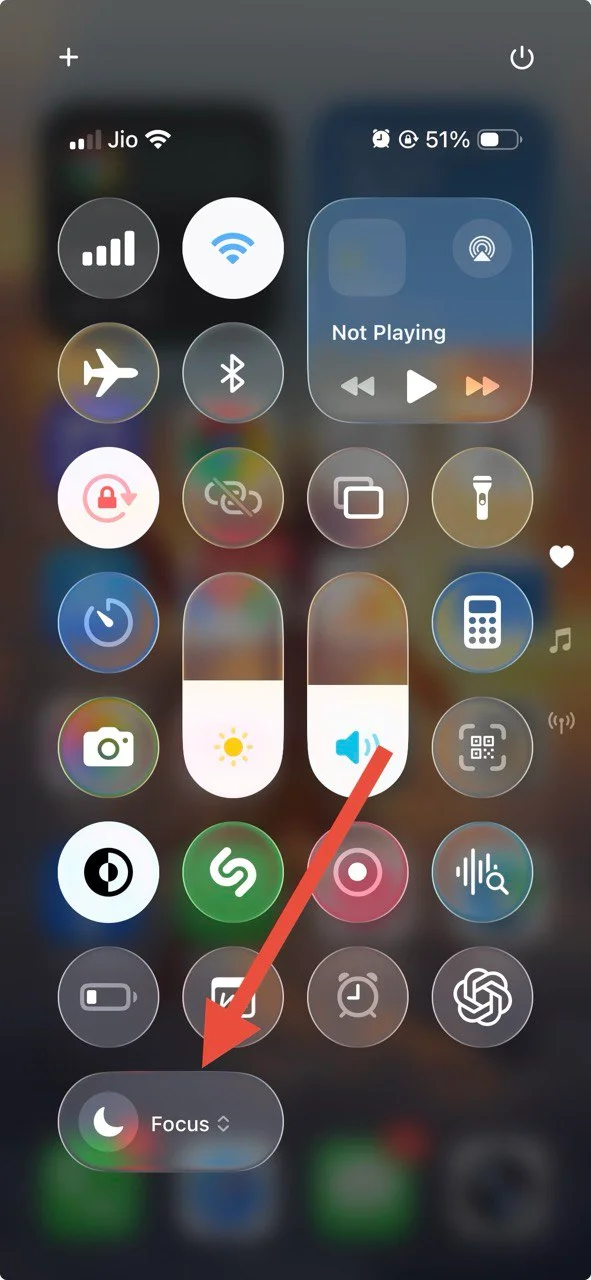
- On an Android phone, swipe down from the top of the screen to open the notification panel. On an iPhone, swipe to open the Control Center.
- Now, find the Do Not Disturb option, which usually looks like a moon icon, and tap it to turn the mode on.

- On iPhone, click on the Focus option and select Do Not Disturb

- Then open Snapchat and take your photos without the camera noise.
Note: If you do not see the Do Not Disturb option in the notification panel or Control Center, open your phone Settings and search for Do Not Disturb to turn it on from there.
After you finish taking your snaps, do not forget to switch Do Not Disturb off. Leaving it on can block calls, messages, and other alerts that you might want to check right away.
RELATED GUIDES:
- How to Fix ‘Oops! Snapchat is a Camera App’ Error
- (Fixed) Your Camera Roll Isn’t Backed Up by Snapchat
Sadly, Snapchat does not include a setting to mute the camera sound. It would be great to see this added in future updates. Until then, the methods shared above can help reduce or silence the camera click while taking snaps.
With these options, you can capture photos without pulling attention toward yourself or disturbing people around you. If you know another way that works, feel free to share it with us.