Dropbox has become a big part of everyday online life for a lot of people. Many of us use it to save photos, share files, or keep important work documents in one place. It is the kind of service you open without thinking twice, because you expect your files to be right there when you need them.
In today’s fast online world, services like Dropbox need to be available all the time. People move quickly, deadlines matter, and waiting around for a page to load is not an option anymore. With so many cloud storage platforms out there, users expect quick access and reliable performance every single day.
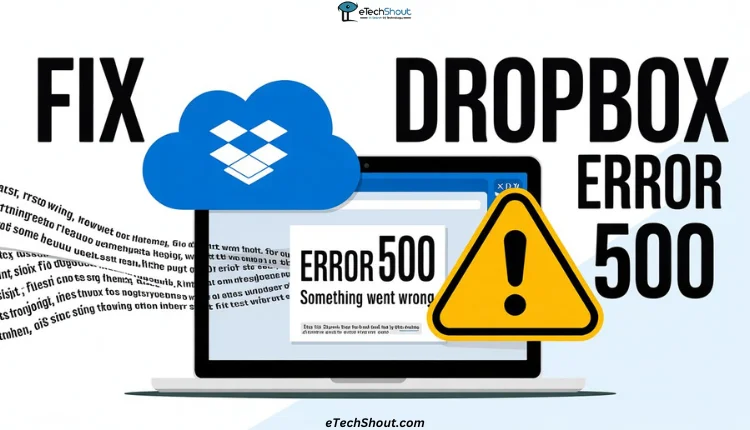
That is why seeing a Dropbox error 500 can feel worrying. One moment, you are trying to sign in or download a large folder, and the next moment, the page shows the error message. When this happens, questions naturally come up about file safety and what went wrong. This guide is written to help you understand why Dropbox error 500 shows up and what it really means before moving on to fixes.
What Does Dropbox Error 500 Mean?
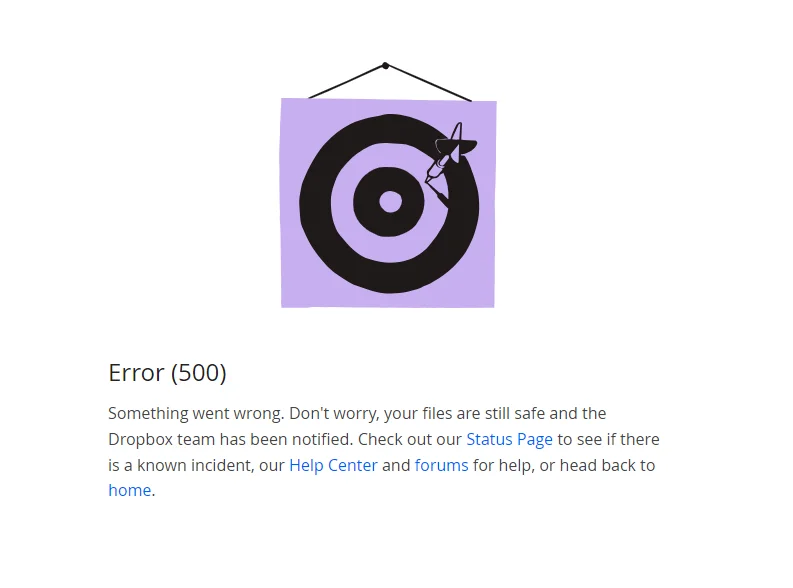
When Dropbox shows the message Error 500 and says something went wrong, it usually points you to the help center or community pages. That message does not explain much and often leaves you waiting instead of finishing your work.
Error 500 on Dropbox is a general server-side issue. It can appear when you try to sign in on the web, open a file, or download large folders. Since the message looks the same in many cases, it does not clearly say what caused it. All you know is that Dropbox did not complete the request you made.
This error can show up for a few common reasons. It may happen when too many files are downloaded at once, when Dropbox services face an outage, or when stored browser data causes trouble.
How to Fix Dropbox Error 500
Download Files in Smaller Groups
If you see Dropbox Error 500 while trying to download a large folder, the size of the download may be the reason. When too many files are requested at the same time, the server may fail to complete the task and show the error message instead. This is common when folders contain a large number of files or very large file sizes.
So, as a fix, split the download into smaller parts. Open the main folder, select a few files or subfolders, and download them one group at a time. Many users notice that once they switch to smaller batches, the error no longer appears.
Check Dropbox Server Outages
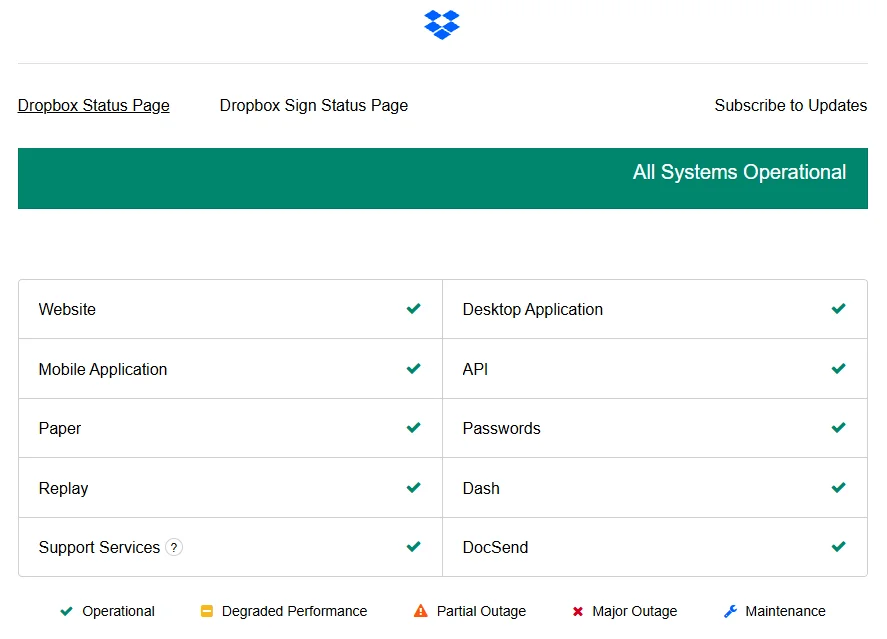
Dropbox error 500 can also appear when the issue is on Dropbox’s side. In this case, the problem is not related to your files, browser, or account. The servers handling sign-ins or downloads may be facing trouble, and only Dropbox can sort that out.
The quickest way to confirm this is by visiting the official Dropbox status page. It shows live updates about outages, slowdowns, and ongoing maintenance. If the web app or download service is marked as down, the error you see makes sense. When a server issue is confirmed, there is not much an end user can do except wait.
Try Another Browser
Dropbox error 500 often shows up while using the web version. In many cases, the issue is tied to the browser you are using at that moment.
Today, there is no lack of browsers at all. You can easily find hundreds of options to choose from. Try opening Dropbox in Chrome, Edge, Firefox, Opera, Brave, Vivaldi, Safari, or any other browser you prefer and repeat the same action.
Clear Your Browser Cookies
Computers also collect junk files as days go by. In some cases, harmful software picked up from unsafe websites can slow down the system and interfere with web-based services like Dropbox
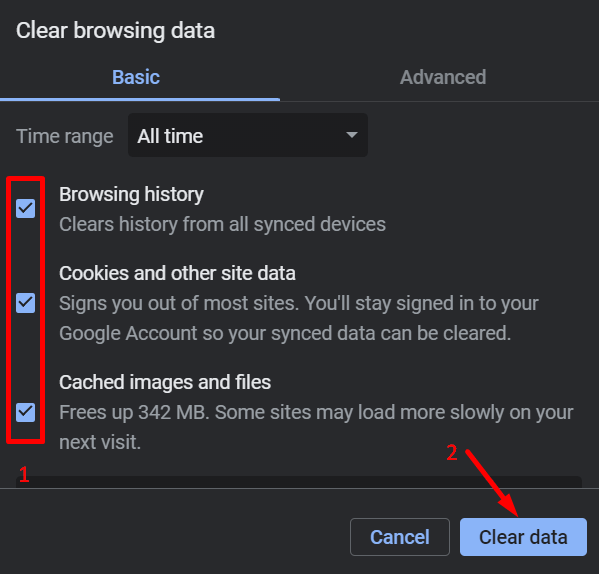
If Dropbox error 500 keeps showing up on every browser, even in private or incognito windows, clearing browser cookies and temporary files is worth trying. Over time, browsers store a lot of extra data from different sites, and this stored data can block pages from loading the right way.
To open the Clear Browsing Data window quickly, use Ctrl + Shift + Delete on Windows or Linux, or Cmd + Shift + Delete on Mac.
In the menu that opens, choose cached images and files and set the time range to All time, then clear the data.
Check Your Internet Connection
If the Dropbox page fails to load or actions stop midway, it is worth making sure your device has a steady connection. Open a few other websites to confirm the network is working fine, then return to Dropbox once the connection looks reliable.
Contact Dropbox Support
If nothing else works, reaching out to Dropbox support is the final option left. You can report the login or 500 error issue using their official help page. Replies may not come fast, and many times the first response is automated, but when all other options fail, this step is still worth trying.
- RELATED: 4 Ways to Fix Dropbox Error 400
Hope this guide was useful for you to resolve error 500 on Dropbox. Feel free to share it with others who may need it, and let us know which method worked for you or if you found any other solution that helped.