Dropbox has been around for a long time, and many of us use it almost every day without thinking twice. People use it to store photos, work files, videos, and important documents all in one place. Even in today’s fast-changing digital era, Dropbox continues to be widely used because of its simplicity, reliability, and support across devices.
Sharing links is one of the main reasons people stick with Dropbox. You upload a file or folder, copy the link, and send it off. Clients can open it without logging in or asking questions. For freelancers, agencies, and businesses, this saves time and keeps work moving without delays or extra steps.
Lately, many users have noticed an error 400 message when opening Dropbox share links. You send a link that looks fine, but when it is clicked, the page does not load as expected. In some cases, a new link works later, while the earlier one keeps showing the same message. I put this guide together to explain why Dropbox error 400 shows up and to share clear fixes you can try right away to resolve it.
What is Dropbox Error 400
Dropbox error 400 usually shows up when a shared link gets changed before it is opened. The link looks fine when you copy it from Dropbox, but the platform where you paste or post it alters the URL structure. When the link is clicked later, Dropbox cannot read it correctly and shows a “Something went wrong” message.
This mostly happens because of how HTML handles special characters. The ampersand symbol has a special meaning in web code, so many websites automatically change it to a coded version. When this happens more than once, the link keeps getting altered again and again. By the time someone clicks it, the original Dropbox link is no longer intact.
In simple terms, Dropbox error 400 is not always caused by Dropbox itself. It often appears because the platform where you shared the link modified parts of the URL, which leads Dropbox to reject it as an invalid request.
How to Fix Dropbox Error 400
Use a URL Shortener Service
One easy way to avoid Dropbox error 400 is by using a URL shortener before sharing your link. When you shorten the Dropbox link, it removes long parameters and special characters that often get changed by websites, email tools, or content editors. The shortened link stays clean and simple, so it is less likely to be modified.
After copying your share link from Dropbox, paste it into a URL shortener like TinyURL or Bitly and create a short link. Now, you can then share this shortened URL with your client or audience instead of the original one. Since the short link does not expose the full structure of the Dropbox URL, platforms cannot alter it.
Check Dropbox Server Status
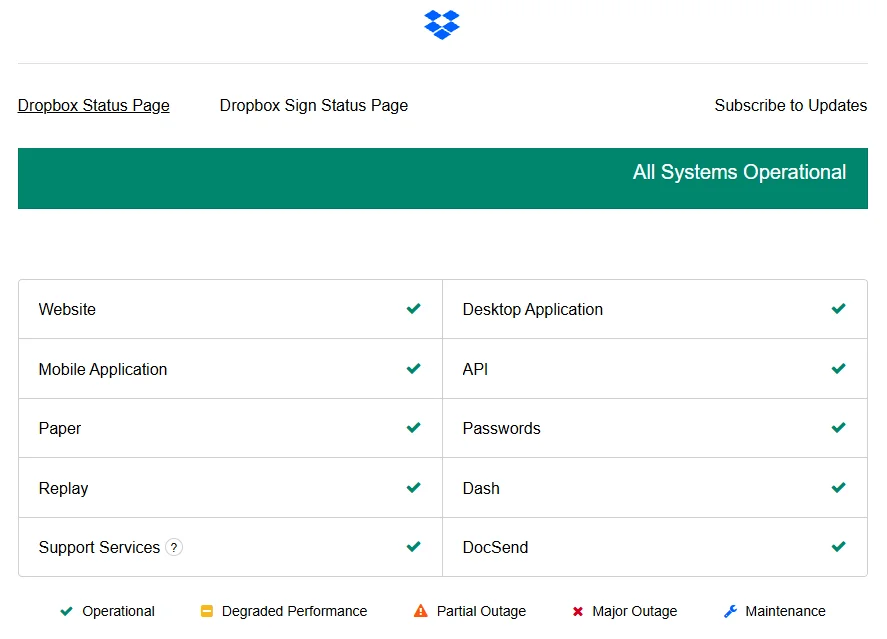
When the Dropbox service has an outage or delay, shared links may show error 400 even if everything looks fine on your side.
You can check this by visiting the official Dropbox status page. This page shows live updates about file sharing, links, and other core services. If you see any alerts or ongoing incidents, the issue is likely coming from Dropbox servers.
When the status page shows a reported issue, the best move is to wait until Dropbox clears it. Once the service is fully available again, newly shared links usually work without showing the error message.
Check the File Again
Another simple step is to review the file or folder you are trying to share. Open it in your Dropbox account and confirm it still exists and loads without issues. If the file was moved, renamed, or deleted, the old link may no longer work.
Make sure the sharing permission is still set correctly, and that access is allowed for anyone with the link. Even a small change in access settings can cause the link to fail when someone tries to open it.
Once everything looks right, create a new share link and test it yourself before sending it out. I always recommend opening it in a private browser tab to be sure the link works exactly the way your client will see it.
Clear Dropbox App Cache
If you are using the Dropbox app, clearing its cache is worth trying. This removes stored temporary files that may affect how share links open. Your files stay safe, and nothing is removed from your account.
Android
- Open your device Settings > Apps > Installed Apps > Dropbox > Storage > Clear cache.
Windows
- Open File Explorer on Windows
- Paste %HOMEPATH%\Dropbox\.dropbox.cache in the address bar and press Enter
- Delete all files inside the cache folder and empty the Recycle Bin
macOS
- Open your Dropbox folder in Finder
- Press Shift Command and the period key to reveal hidden folders
- Open the .dropbox.cache folder and move all files to Trash
Linux
- Open a new Terminal window
- For personal accounts, run rm -R ~/Dropbox/.dropbox.cache/*
- For team or linked accounts, delete the .dropbox.cache folder from the related Dropbox directory.
ALSO READ:
Alright, guys, one last tip before you leave. When the Dropbox error 400 shows up, always compare the Dropbox link you copied with the link you shared. You will often notice extra text, long strings, or special characters that look different from the original link.
When that happens, using a URL shortener is the easiest fix. Share the short link instead of the full Dropbox link. It keeps the link clean and stops other platforms from changing it in the background. In most cases, this alone fixes the issue.
I hope this guide was useful for you. If it helped, feel free to share it with others and drop a comment telling me which method worked for you or if you found another fix that did the job.