Android phones have changed the way we use technology in our daily lives. These days, our phones do much more than make calls. We use them to capture memories, attend video calls, and share important moments with the people we care about. The camera is one of the most used features on any Android device. You usually do not think much about it until one day it refuses to work.
Many Android users have reported seeing the “Failed to open camera” error when trying to launch the Camera app or use the camera in apps like WhatsApp.
In the sections below, I will share the most common fixes that can help you find the cause of the problem.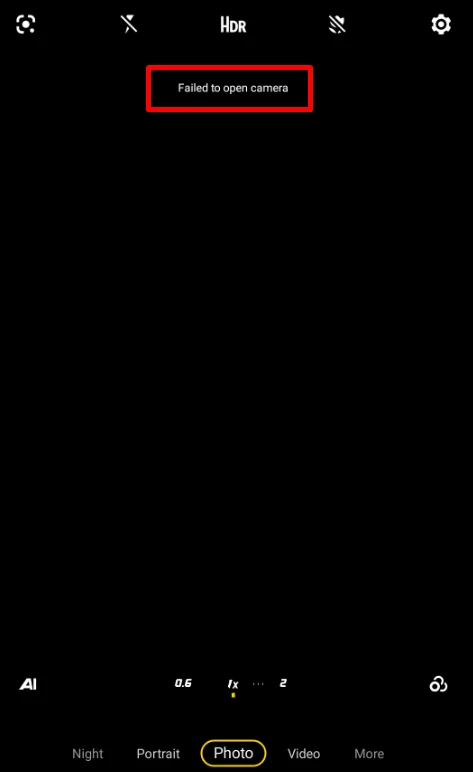
5 Easy Fixes for “Failed to open camera” Error on Android
Reset the Camera App
- Open the Settings app on your phone.
- Tap Apps & notifications.
- Tap on the Camera from the list of system apps.
- Open Storage & cache.
- Tap Clear cache.

- Now, launch the Camera app to check if it opens normally.
- If the same error message still appears, return to the Storage & cache screen.
- Tap Clear storage or Clear data.


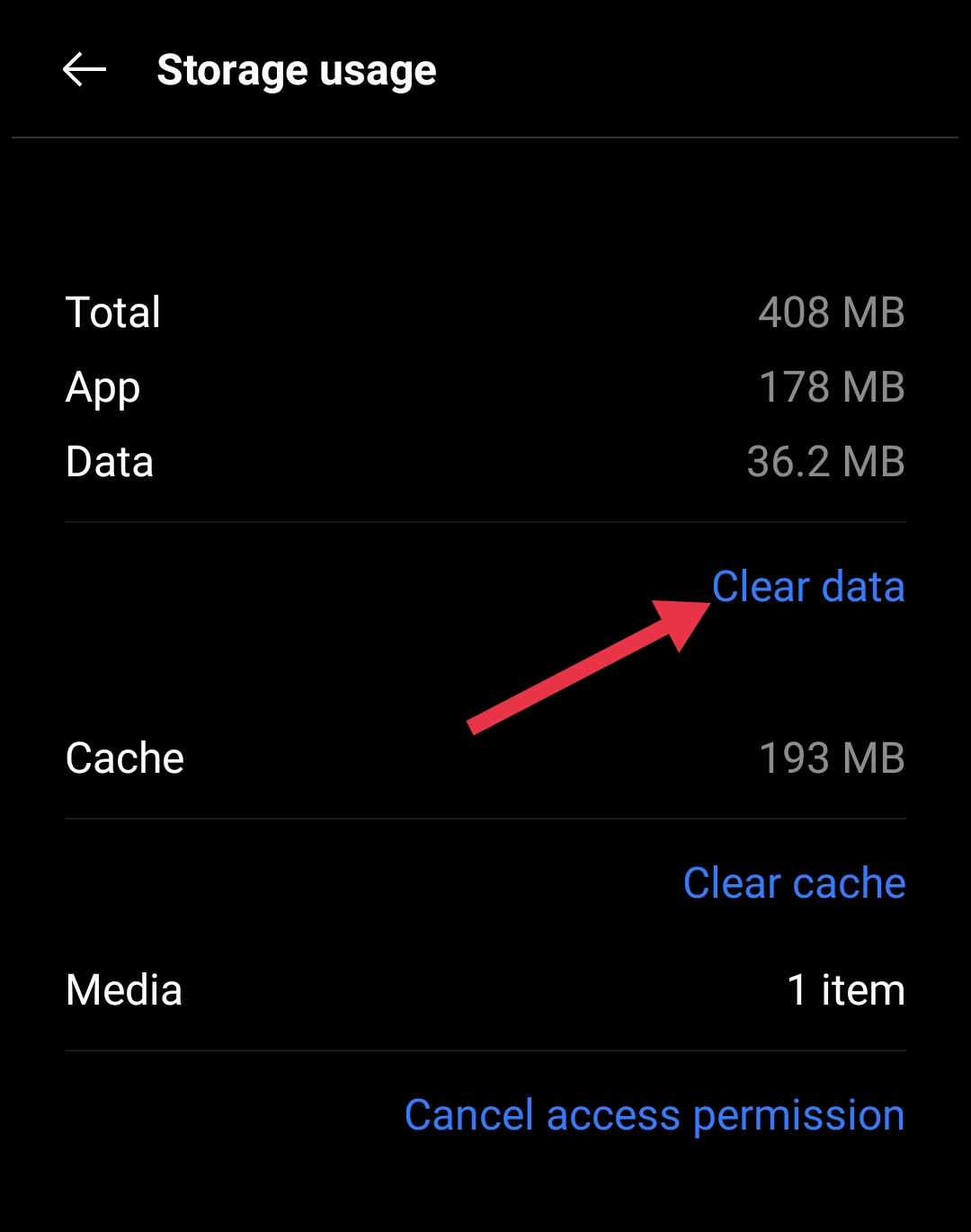
Note: If you clear the Camera app’s data, its settings will go back to default, and you may need to adjust them again. Don’t worry, though, your photos and videos will remain safe.
Test the Camera With Another Camera App
Using a different camera application can help determine where the problem is coming from. If another camera app can access the camera without any issues, the fault is likely related to the default Camera app. If the same error appears in multiple camera apps, the issue may be linked to the device software or camera hardware. To test this:
- Open the Google Play Store on your Android phone.
- Download and install a third-party camera app such as Open Camera.
- Now, launch the newly installed camera app.
- Grant the required camera permissions if prompted.
- Try taking a photo or recording a short video.
If neither app can access the camera, continue with the remaining fixes to investigate the issue further.
Wipe the System Cache from Recovery Mode
If this error started appearing suddenly, clearing the system cache through Recovery Mode may help remove temporary files that could be causing the issue. This process does not delete your personal photos, videos, or other data.
- Turn off your Android phone completely.
- Press and hold the Power button and Volume Down button together until the Recovery Mode screen appears.
- Choose English as the language if prompted.
- From the Recovery Mode menu, tap Wipe data & cache.
- Select Wipe cache from the available options.
- When the confirmation message appears, choose Yes to continue.
- Wait for the cache cleaning process to finish, then select Reboot to restart your device.


Check for a Software Update
If the camera stopped working after a recent system change or if your phone has not been updated for a long time, installing the latest software version may help.
Simply head to device Settings > About Phone > Software Update. If you find a new update, install it and restart your phone. Before updating, make sure your battery is sufficiently charged and connect to a WiFi network if possible.
Factory Reset
Since a factory reset can resolve deeper issues, it is worth considering when the camera error continues to appear after trying every other solution.
This process removes all data from your phone and restores it to its original factory settings. Before you proceed, make sure to back up your important data, including photos, videos, contacts, messages, and documents. Once the reset is complete, this information cannot be recovered unless it has been backed up.
To perform a factory reset, open Settings > Factory Reset, and follow the on-screen instructions. 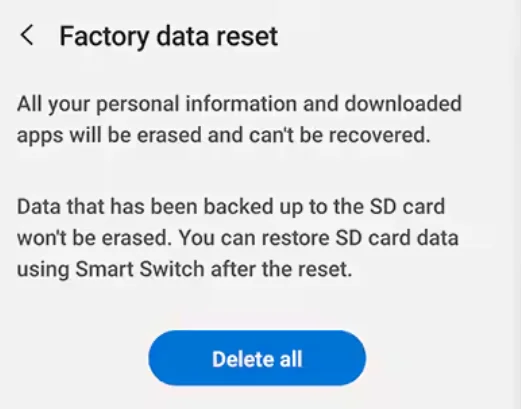
I hope this guide helped you fix the “Failed to open camera” error on your Android phone. If you found it useful, feel free to share it with others who might be facing the same issue. Also, if you discovered another fix, either by accident or through your own troubleshooting, let us know in the comments. Your experience could help other readers solve the problem more quickly.