Sideloadly has become a popular choice for iPhone and iPad users who want to install apps without going through the App Store. It lets you sideload IPA files using your Apple ID, making it useful for trying apps that aren’t available through the usual route. AltStore is another well-known option, but many users prefer Sideloadly for its straightforward installation process.
I’ve used Sideloadly to install apps on iOS, and it can be frustrating when an installation suddenly fails without a clear explanation. One error that has been troubling users is “Install failed: Guru Meditation”, which sometimes appears with messages such as “Login failed (-22421)” or “Login failed (-80046).”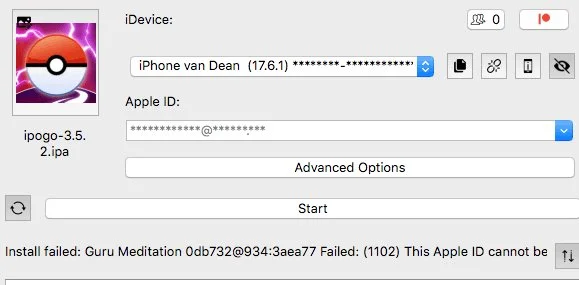
I ran into this error while trying to understand what was preventing Sideloadly from completing an installation. After looking into the issue, I also found several users reporting the same problem, even on the Windows OS. So, it doesn’t seem to be an isolated case affecting just one person.
I’ve put together several solutions worth trying to get rid of the Sideloadly Guru Meditation error. Check out the methods below and see which one works for your setup.
How to Fix Sideloadly “Guru Meditation” Error
Sign In to Your Apple Account in iTunes
I spent some time trying to figure out why Sideloadly kept throwing the Guru Meditation login error, and the actual reason turned out to be something I hadn’t noticed. I was signed out of iTunes on my computer, which was apparently causing trouble when Sideloadly tried to authenticate my Apple account.
To check whether you’re facing the same issue, launch iTunes on your computer and see if you’re still signed in with your Apple account. If not, sign in and let it complete the login process. Once you’re signed in, close iTunes completely before trying to install the IPA file again through Sideloadly.
Reauthenticate Your Apple Account in iTunes
If Sideloadly keeps returning the Guru Meditation error, I’d try signing out of iTunes and connecting your Apple account again rather than repeatedly attempting the same installation.
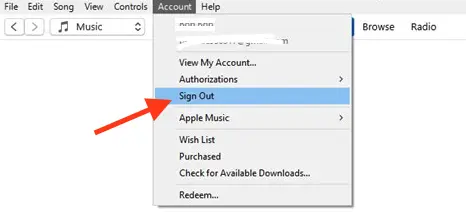
- Open iTunes on your computer and click Account in the menu bar.
- Choose Sign Out and wait for the account to disconnect.

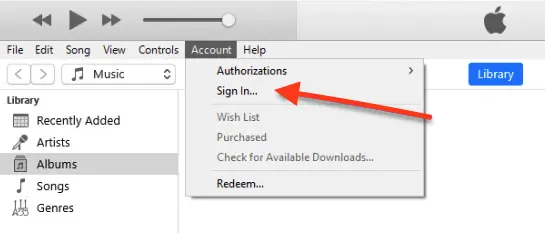
- Next, open the same menu, select Sign In, and enter your Apple Account credentials to log in again.

- After iTunes confirms your login, close the application completely and launch Sideloadly.
- Then try installing the IPA file once more to see whether the error has disappeared.
Install iTunes and iCloud Directly from Apple’s Website
One thing worth checking on Windows is where you downloaded iTunes and iCloud from. Sideloadly relies on Apple’s software components to communicate with your iPhone, and the installation source can make a difference when you’re dealing with login or connection errors.
If you installed iTunes and iCloud through the Microsoft Store, uninstall both applications from your computer first and download their Windows versions directly from Apple’s official website using the links provided below.
Once you’ve installed both applications, restart your computer, then open iTunes after the restart and sign in to your Apple Account before launching Sideloadly again. Then, connect your iPhone and retry the installation.
Reset the ADI Folder in Windows
If Sideloadly keeps reporting the “Login failed” error, the problem may be related to the authentication data stored on your Windows computer. Resetting Sideloadly’s local Apple authentication data is another method worth trying specifically for Windows users. Before making any changes, close iTunes and make sure it is no longer running in the background.
- Press Windows + R to open the Run dialog box.
- Type %ProgramData% and press Enter.
- Open the Apple Computer folder, followed by the iTunes folder. The full path should be C:\ProgramData\Apple Computer\iTunes
- Find the folder named adi. Rename it to adi.bak so you have a backup, rather than deleting it permanently.
- Now, launch Sideloadly and try installing your IPA file again. You may be prompted to enter your Apple Account password.
If the error remains, open iTunes, sign in to your Apple Account again, and retry the installation.
Sideloadly and Apple’s software should regenerate the necessary authentication data when required. If the existing data was causing the login problem, this may allow the authentication process to work again.
Note: Rename only the specified adi folder, and don’t modify other files in the directory. This method targets the Windows setup; the same folder path does not apply to macOS.
Try a Different Apple ID and Download the IPA Again
I’d also try switching to a different Apple ID if Sideloadly keeps rejecting your login. If you have access to another account, use it to test whether the Guru Meditation error is tied to your current account.
If changing the account doesn’t help, download a fresh copy of the IPA and save it to a different folder on your computer instead of using the existing file. Now, select the newly downloaded file in Sideloadly and attempt the installation again.
Check Whether Windows Security Is Blocking Sideloadly
Windows Security can sometimes interfere with applications or files that Windows considers suspicious. If you’re running Sideloadly on Windows 10 or Windows 11 and still encountering the Guru Meditation error, open Settings on your computer and search for Virus & threat protection.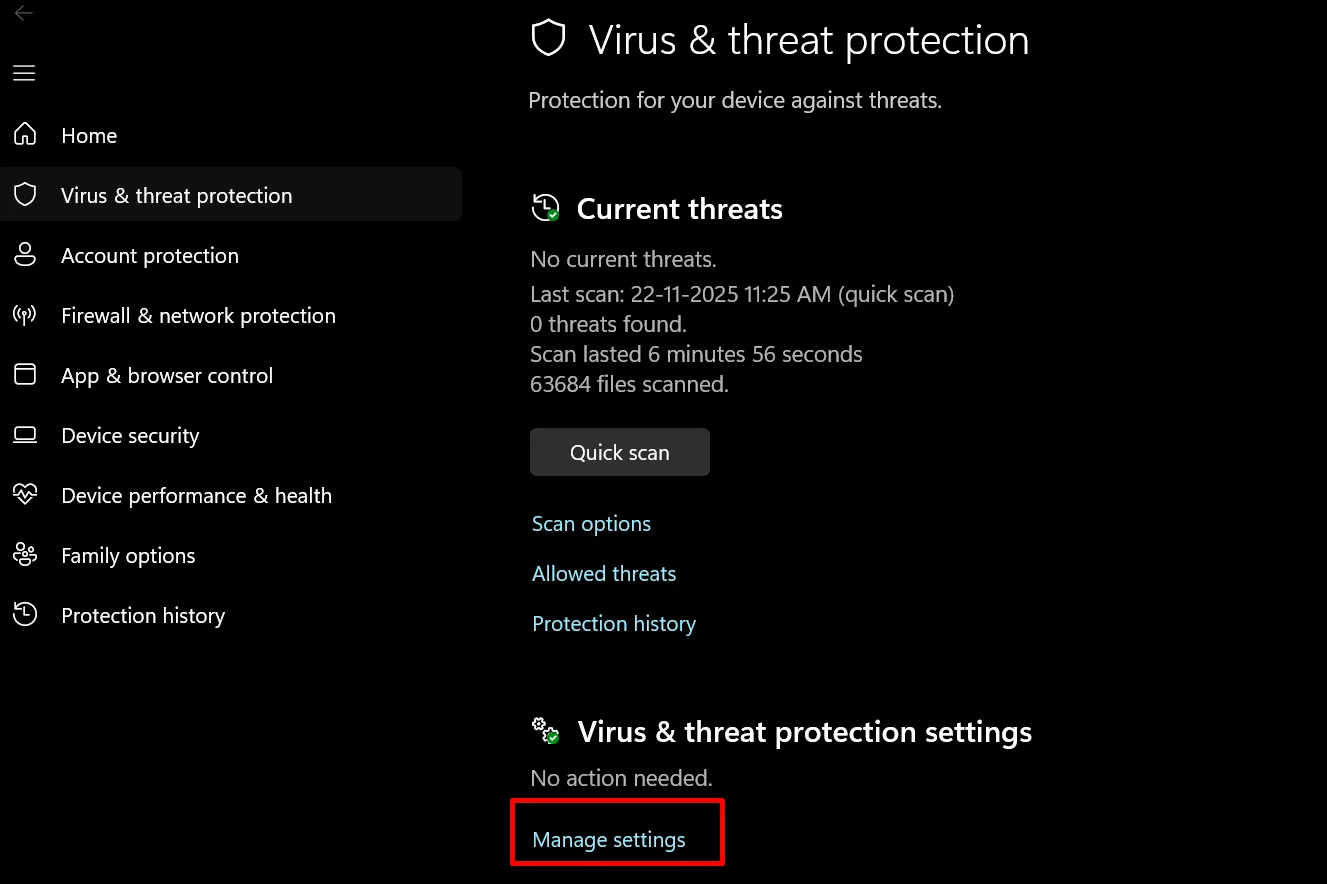
Select the matching result to open Windows Security, then click Manage settings under the “Virus & threat protection” settings section. Check whether Windows has flagged or blocked any Sideloadly-related files.
I wouldn’t recommend turning off every security setting just to get Sideloadly working. Instead, review the protection history first and confirm whether anything related to Sideloadly was blocked. If you identify a specific issue, address that item rather than leaving your computer unprotected.
Try an Alternative Sideloading Tool
If you’ve worked through the previous methods and Sideloadly still refuses to install your IPA file, you might want to try a different sideloading tool instead of repeating the same troubleshooting steps.
While looking for a way around this issue, I came across reports of other sideloading tools experiencing problems too. After trying different approaches, I found that iLoader worked for me. If Sideloadly continues to display the Guru Meditation login error, iLoader may be worth testing as an alternative.
Keep in mind that sideloading tools can behave differently depending on your device, iOS version, and Apple account. I can’t guarantee iLoader will work for everyone, but it’s another option to consider when the usual Sideloadly fixes haven’t helped.