If you want to install iOS apps using IPA files without jailbreaking your iPhone or iPad, Sideloadly is one tool you might have come across. It became popular among users because it makes sideloading fairly simple with an Apple ID and a computer. AltStore and SideStore are other options, but I wanted to try SideLoadly for installing an IPA file on my iPhone.
Things didn’t go as expected, though. I was using Sideloadly v0.71.1 when it asked me to enter the verification code sent to my iPhone. I entered the correct code, expecting the installation to continue, but instead, I got this message: “Unknown error: Error description not available (-22435).”
I tried to understand what the error meant, but the message itself didn’t give me much to work with. It even suggested requesting another verification code, which left me wondering whether the problem was with my Apple ID or Sideloadly.
While looking into it, I came across other users who had run into the same “Description not available” error. So, if you’re seeing this message too, you’re definitely not the only one dealing with it.
I looked into the issue and put together the solutions below. If you’re stuck at the same verification step, check them out and see which one helps you get Sideloadly working again.
5 Easy Ways to Fix Error Description Not Available on Sideloadly
Sign-in to iTunes First
If you’re getting the “Description not available (-22435)” error in Sideloadly, try signing in to iTunes with your Apple ID before attempting to install the IPA file again. This is worth trying because Sideloadly relies on Apple’s software and authentication services to sideload apps.
- Open the official Sideloadly website and download iTunes
- Now, install it on your Windows PC if you haven’t already. Make sure you use a compatible version for your computer.
- After that, launch iTunes and click Account > Sign In. Enter your Apple ID and password, then complete the verification process if prompted.
- After signing in, click Account > Authorizations > Authorize This Computer. Enter your Apple ID details if requested and wait for the confirmation message.
- Close iTunes and open Sideloadly again. Select your connected iPhone or iPad, choose your IPA file, and try installing it once more.
If you’re using a Mac, you don’t need to install iTunes separately. Just sign in to your Apple Account in the relevant Apple app or service on your Mac and complete any requested verification.
Once you’ve signed in, open Sideloadly again and try installing your IPA file. Check whether the error has disappeared and the installation proceeds normally. If you’re still getting the same message, move on to the next solution.
Check Whether the IPA File is Valid
If signing in to iTunes didn’t resolve the error, the next thing I’d check is the IPA file you’re trying to install. Sometimes, the file itself may be incomplete, corrupted, or incorrectly packaged, which can prevent Sideloadly from reading the app’s information properly.
- Find the IPA file you’re trying to install on your computer. I’d recommend keeping a backup before inspecting its contents.
- Since an IPA file is basically a ZIP archive, you can open it using ZArchiver or 7-Zip on Windows or an archive utility on your Mac. If your computer doesn’t open it directly, use a compatible archive tool.
- Once you’ve opened the archive, look for a folder named Payload. Open it and check whether it contains a folder ending in .app.
- Open the .app folder and look for a file named Info.plist. This file contains important information about the app. If it’s missing or the archive appears damaged, Sideloadly may have trouble reading the app’s details.
- If you notice anything unusual, try downloading the IPA again from a trusted source. If you’re creating the IPA yourself, rebuild it and export a fresh copy.
Update Sideloadly to the Latest Version
If the first two solutions didn’t work for you, check which version of Sideloadly you’re currently using. I was using version v0.71.1 when I encountered this error, so it’s worth checking whether an updated version is available.
- Open the official Sideloadly website in your browser.
- Download the latest version available for your operating system. Make sure you’re downloading it from the official website rather than an unknown third-party source.
- Once the download is complete, close Sideloadly if it’s currently running. Run the downloaded installer and follow the on-screen instructions to update the application.
- After the installation finishes, restart your computer if necessary, then launch Sideloadly again.
- Select your device and IPA file, then try sideloading the app once more to see whether the error has disappeared.
Check Your Apple ID and Signing Certificate
If you’re still getting the “Description not available” error, check your Apple ID and the certificate Sideloadly uses to sign the app. Since the error can sometimes appear during Apple ID verification, make sure your account details are correct and that there isn’t an issue with the signing process.
- Open Sideloadly and check whether you’ve entered the correct Apple ID. Make sure you’re using the same account you used to sign in to iTunes, and complete any verification prompts that appear.
- Check your Apple ID’s two-factor authentication settings. If Sideloadly requests a verification code, enter the code sent to your trusted device or phone number.
- If you’re having trouble authenticating your account, check Sideloadly’s current instructions for your setup before trying an app-specific password. Don’t assume one is required for every Apple ID or Sideloadly version.
- Check whether your app-signing certificate is still valid. If you’ve previously encountered signing errors, the certificate may need to be renewed or recreated. Avoid revoking certificates unnecessarily, as this can affect apps you’ve already signed.
Keep in mind that a free Apple ID has certain sideloading limits. Apps signed with a free developer account generally need to be refreshed every seven days, and Apple’s restrictions on app registrations may apply. These limitations don’t necessarily mean they’re the cause of this particular error.
Run Sideloadly as Administrator
If you’re using Windows, try running Sideloadly with administrator privileges.
- First of all, close Sideloadly if it’s already running.
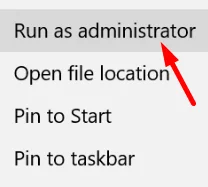
- Right-click the Sideloadly shortcut or application file and select Run as administrator.

- If Windows displays a User Account Control prompt, click Yes.
- Now try installing your IPA file again and check whether the error is resolved.
I hope this guide helped you get past the “Description not available” error in Sideloadly and install your IPA file successfully. If one of these solutions worked for you, share your experience in the comments. Found another way to fix this error? Let me know what worked on your device, as it might help someone else facing the same problem.