VLC Media Player has been around for years, and its simple design, wide format support, and free open source nature have helped it build a huge fan base. It does not push unnecessary features or force users into subscriptions, which is one reason many people continue to rely on it for playing videos and music. After all these years, VLC is still a common choice on Windows PCs.
However, VLC can sometimes develop strange problems after being installed for a while. One issue some Windows users have reported is that VLC takes much longer to open a video or audio file than it used to. A clip that once started within a few seconds may take 10 seconds, 30 seconds, or even around a minute to begin playing. The problem has been reported with both 1080p and 4K videos, and some users have also noticed unusually high CPU or GPU activity during the first launch.
There is an interesting reason behind at least some of these reports. VideoLAN, the team behind VLC, has pointed the finger at a Microsoft Defender bug that can interfere with VLC’s plugin cache on some Windows PCs. The issue has been reported by users on both Windows 10 and Windows 11, and VideoLAN has said that VLC can take as long as 33 seconds to start playing an MP3 in certain cases. If VLC has recently started taking far too long to open on your Windows PC, the methods below can help you deal with the problem.
How to Fix VLC Media Player Slow to Open on Windows OS
Add VLC to Windows Defender Exclusions
A lot of VLC users found the same fix, and it turned out Windows Defender was slowing down VLC while it was opening. Every time VLC launched, Defender kept checking its files, which added a long wait before the player appeared.
It only takes a minute to check if this is happening on your PC. Just add the VLC folder to Windows Defender’s exclusion list and then open VLC again.
- Open Windows Security from the Start menu.
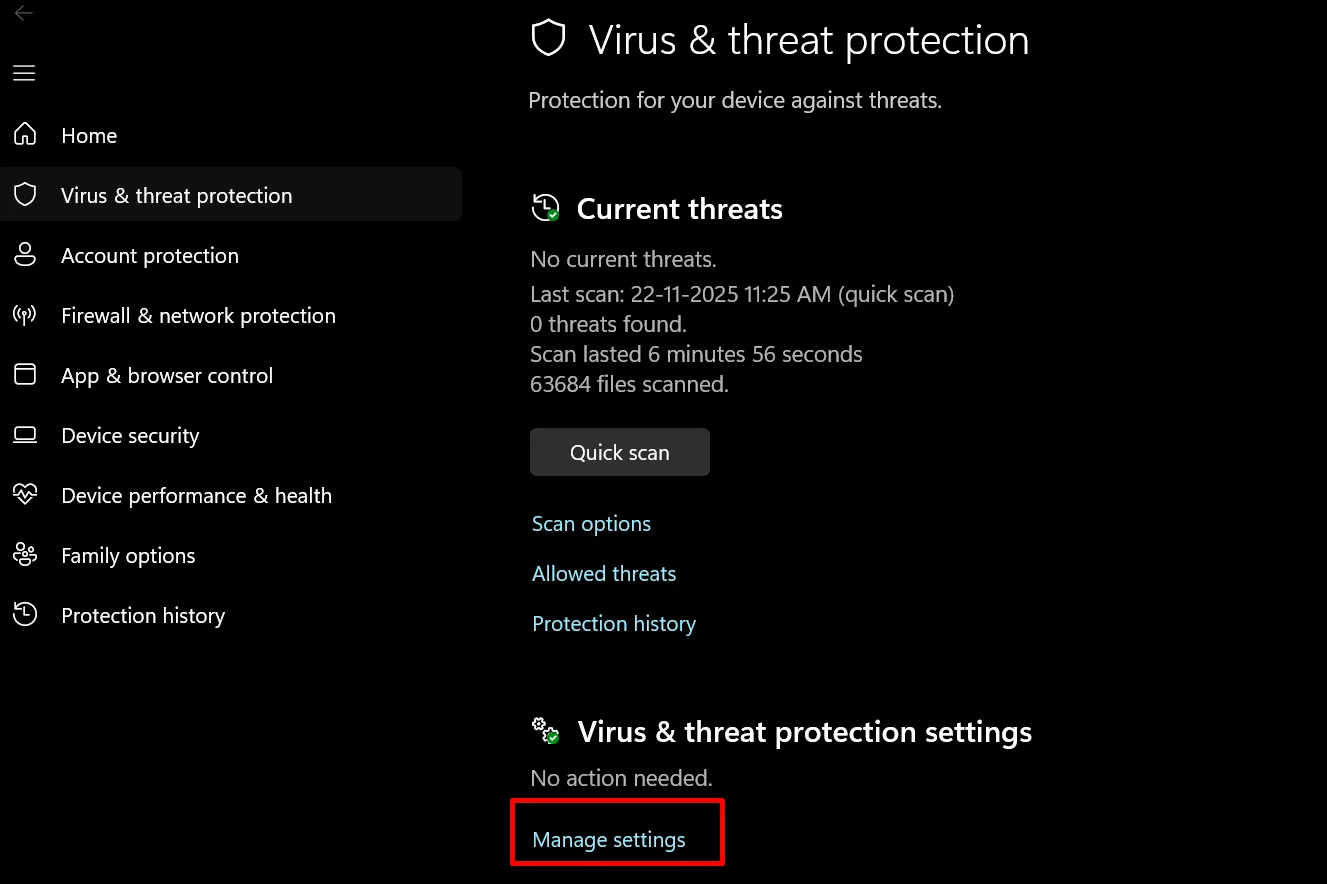
- Click Virus & threat protection.
- Under Virus & threat protection settings, click Manage settings.

- Scroll all the way down until you see Exclusions.
- Click Add or remove exclusions.

- Click Add an exclusion and choose Folder.

- Open this folder: C:\Program Files\VideoLAN\VLC
- Select the VLC folder and click Select Folder.

- That’s it. The VLC folder is now added to the exclusion list.
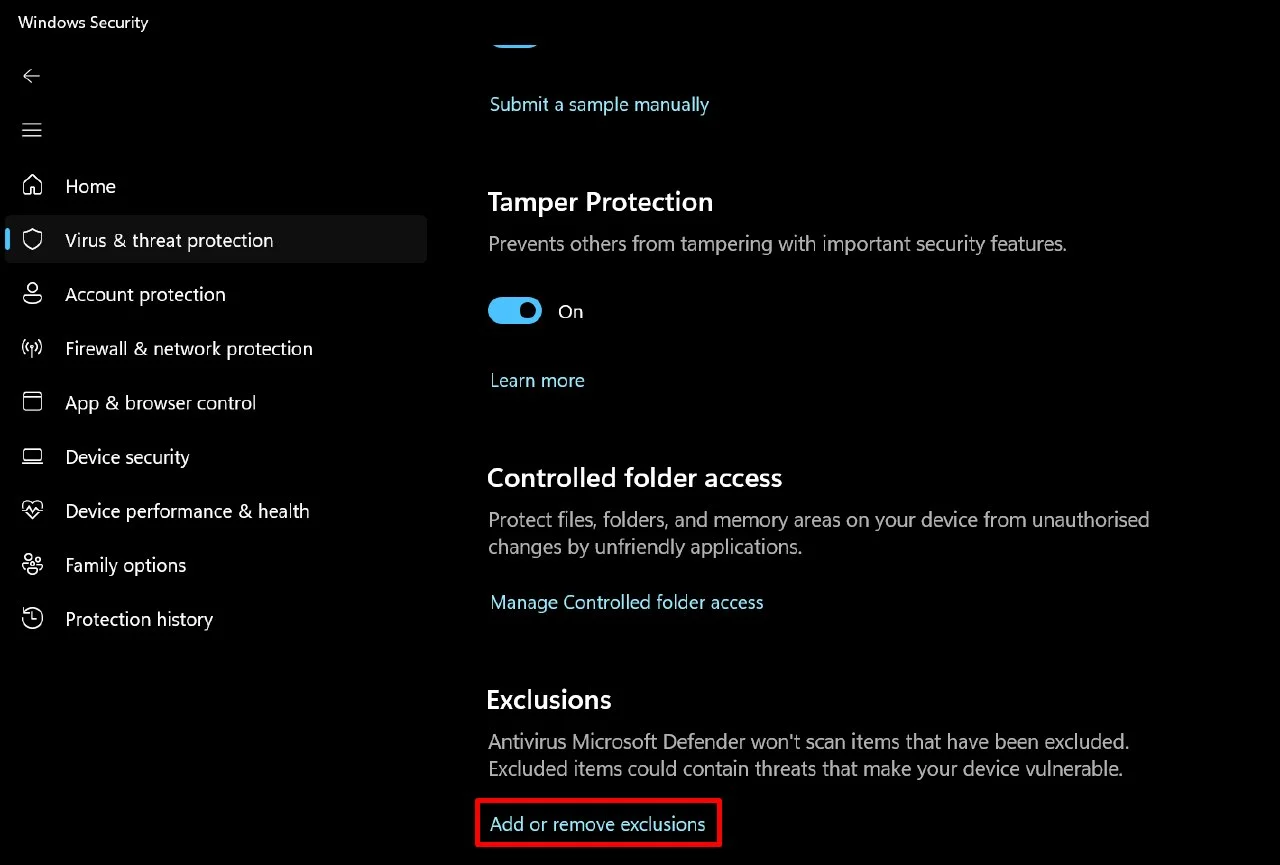
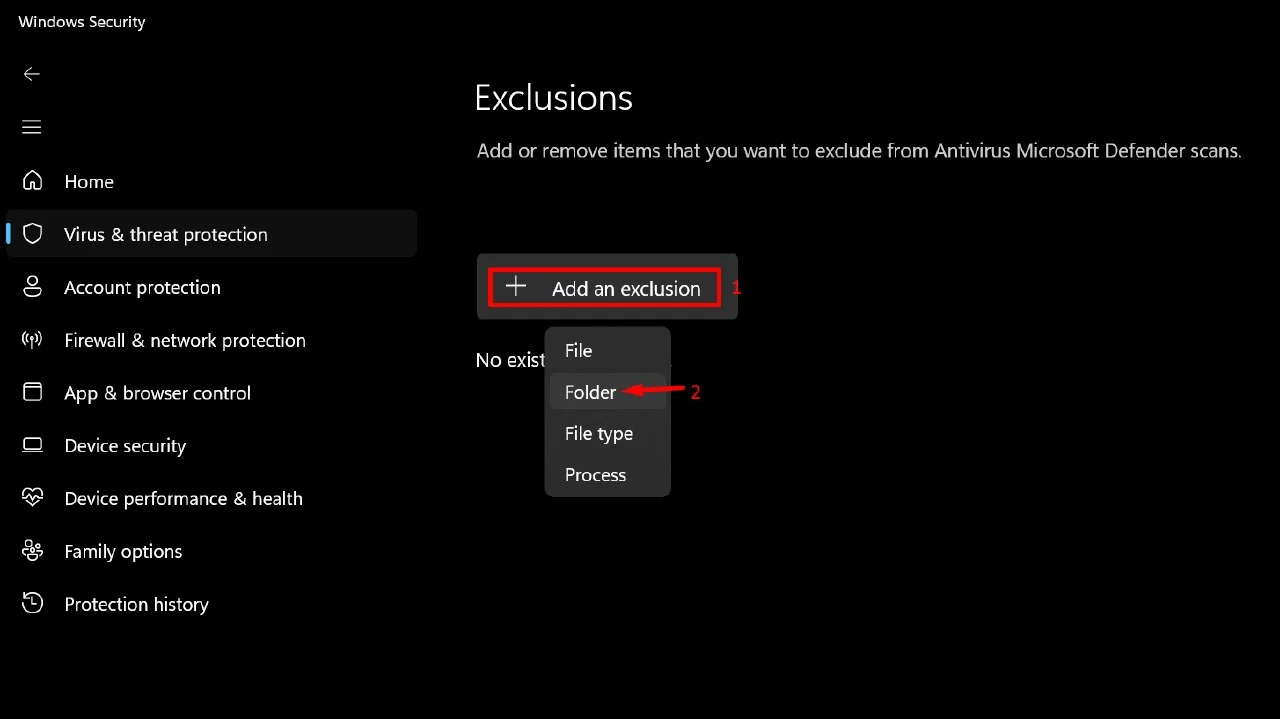
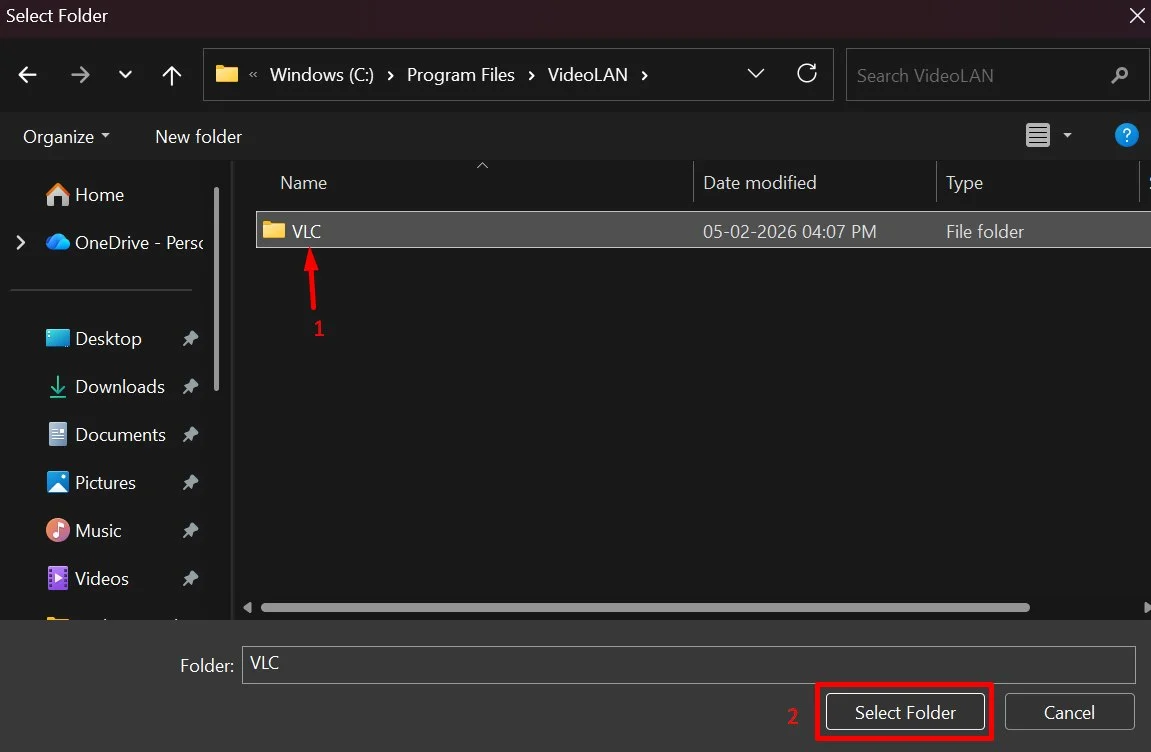
Now close Windows Security and open VLC again. If Windows Defender was causing the delay, VLC should open much quicker than before.
Regenerate VLC’s Plugin Cache
VLC has a plugin cache that helps it load its different components when the player opens. If that cache has an issue, rebuilding it may reduce the time VLC takes to launch.
You can regenerate the cache using a file that is already inside the VLC installation folder.
- Open File Explorer on your PC.
- Go to the folder where VLC is installed. If you used the default installation location, look here: C:\Program Files\VideoLAN\VLC
- Find vlc-cache-gen.exe inside the VLC folder.
- Open Command Prompt in this folder. You can click the address bar in File Explorer, type cmd, and press Enter.
- In the Command Prompt window, enter vlc-cache-gen.exe plugins
- Press Enter and wait for the command to finish.
- Once the cache has been regenerated, close Command Prompt.
- Open VLC and check if it now launches faster.
The important part here is the plugins directory. The command tells VLC’s cache generator to rebuild the cache using the plugins stored in that folder.
Reinstall VLC Player
If rebuilding the plugin cache did not change the startup time, a reinstalling the player creates the plugin cache again, so any issue with the existing installation or cache is cleared during the process.
- Open Settings on your Windows PC.
- Go to Apps > Installed apps.

- Click the three dots next to VLC media player and select Uninstall.
- Follow the instructions on screen to remove VLC from your PC.
- Once VLC has been removed, download the latest installer from the official VideoLAN website.
- After downloading, run the installer and follow the setup steps.
- Then launch VLC after the installation finishes.
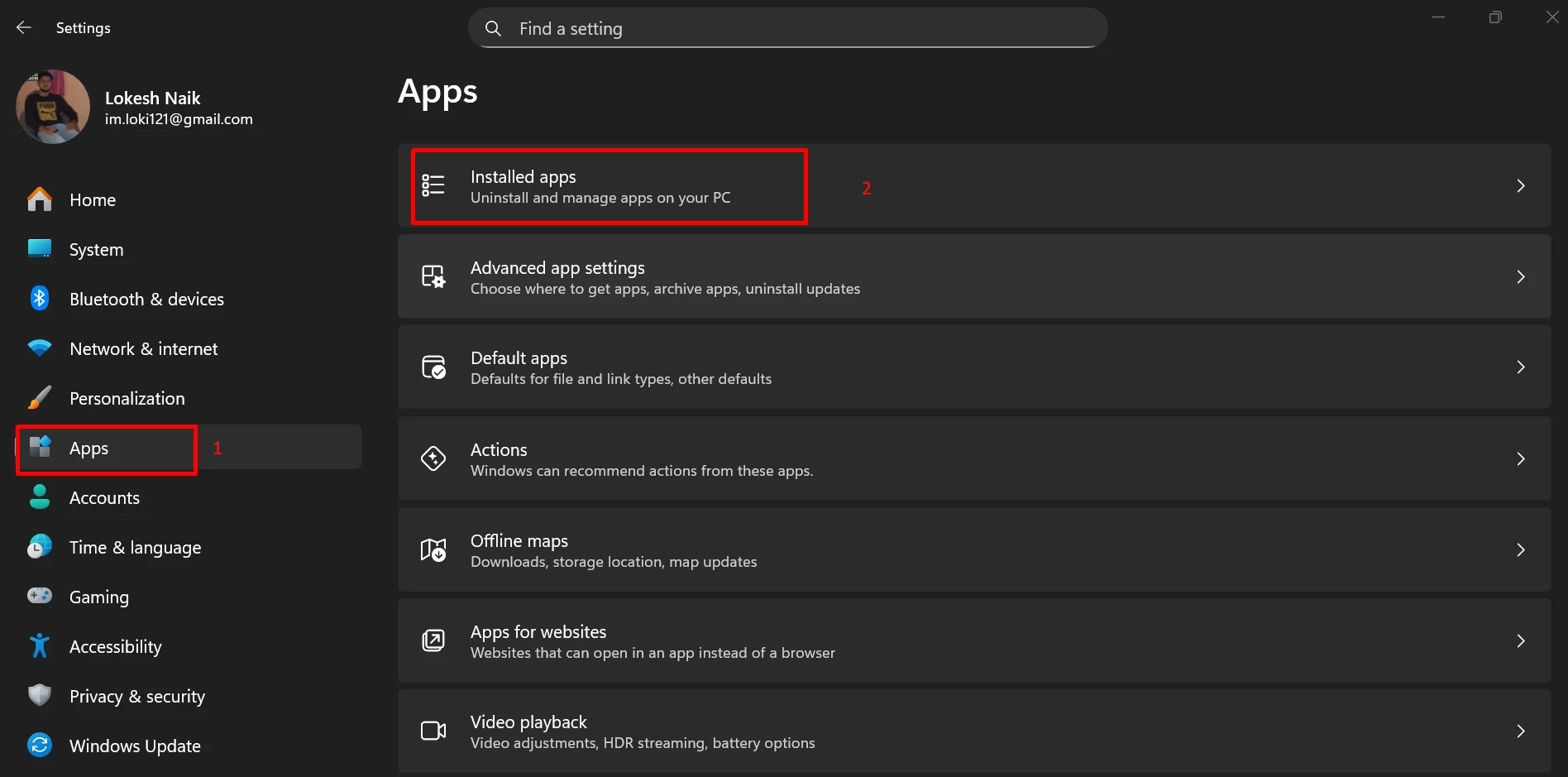
Install the 64-bit Version of VLC
If your Windows PC is 64 bit but you are still using the 32 bit version of VLC, switching to the 64 bit release is another method worth trying. A 32 bit VLC installation can remain in use for years through regular updates, even after the computer itself has moved to a 64 bit version of Windows.
Using the 64 bit release gives VLC a version that matches the architecture of a 64 bit Windows installation. If the slow startup is tied to the older 32 bit installation or its accumulated configuration, installing the 64 bit release can help resolve the delay.
- First, check your Windows system type. Go to Settings > System > About and look for System type. If it says 64 bit operating system, you can install the 64 bit version of VLC.
Follow these below steps:
- Open Settings and go to Apps > Installed apps.
- Uninstall the currently installed VLC media player from your PC.
- If you are asked about keeping your VLC preferences, keep them if you want to retain your existing settings.
- Now, download the 64 bit version of VLC from the official VideoLAN website.
- Run the installer and complete the installation.
- Open VLC and test a few video or audio files.
Disable Scanning for New Plugins
VLC checks for new plugins when it launches, and that check can add extra time to the startup process. If VLC has started taking much longer to open, you can turn off this plugin scan from its advanced settings.
- Open VLC Media Player.
- Click Tools in the top menu and select Preferences.

- At the bottom left, look for Show settings.
- Select All to switch from the basic settings to the advanced settings.
- In the left sidebar, uncheck the option called Scan for new plugins.
- Click Save.

- Close VLC and open it again to check the startup time.
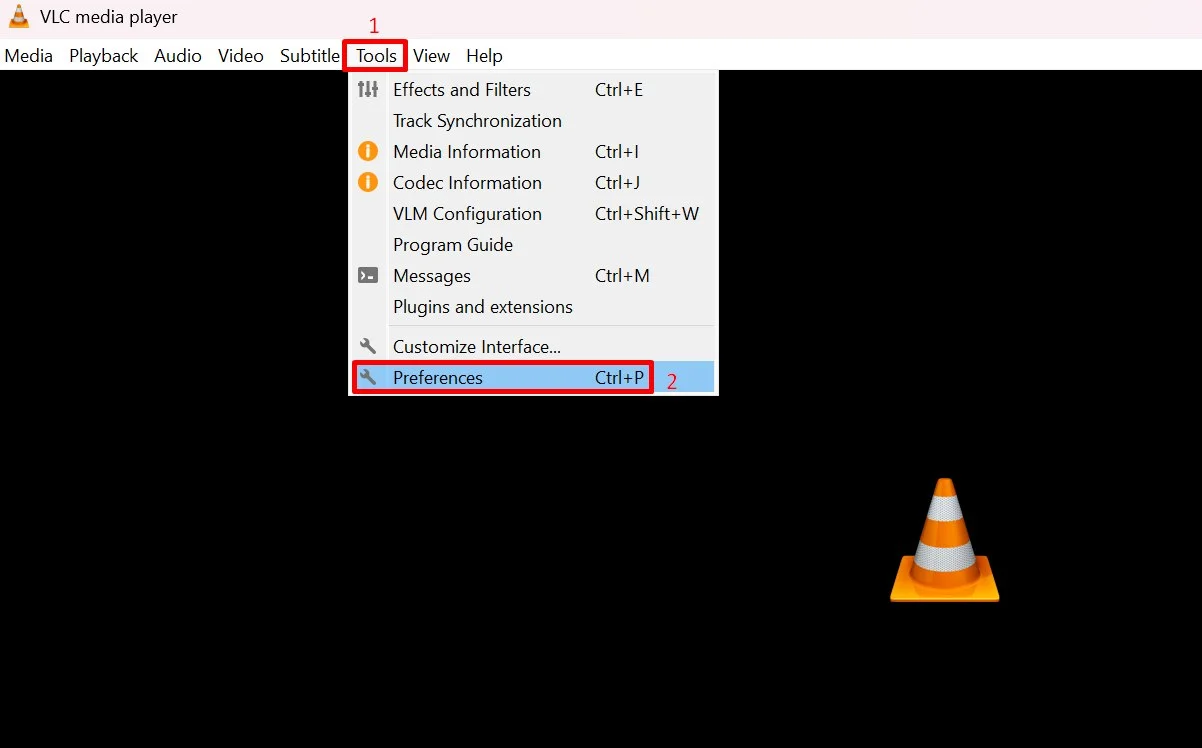
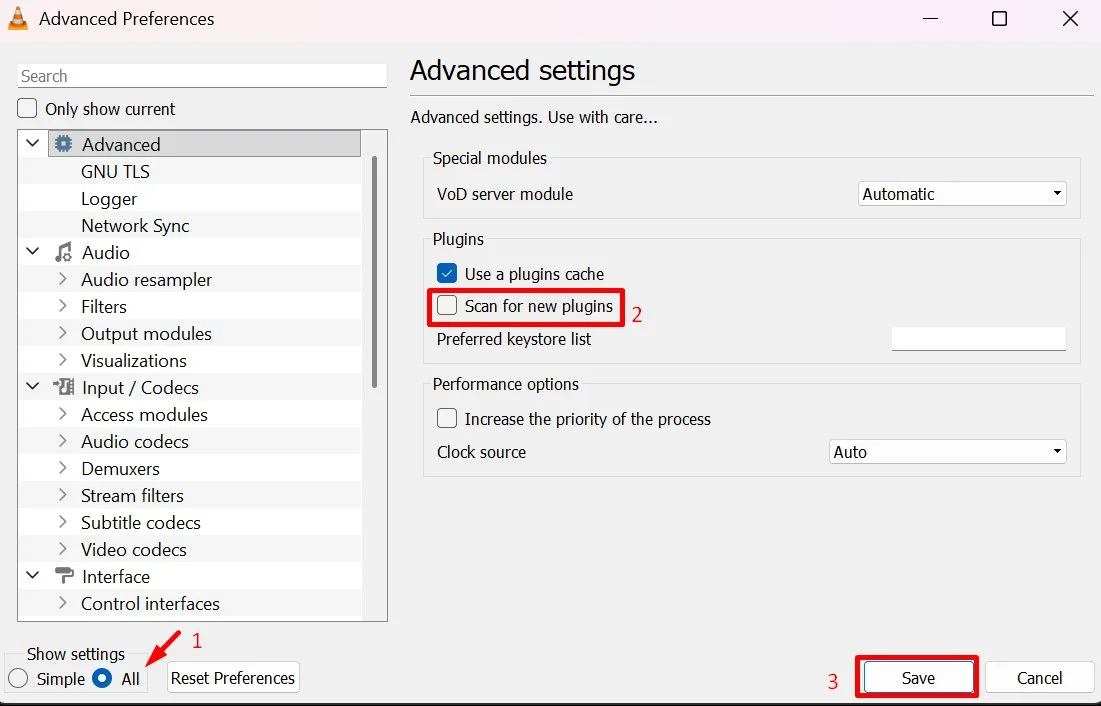
If the plugin scan was adding a delay during launch, disabling it can reduce the time VLC needs before it starts playing your media files.
Clear VLC Settings and Cache
VLC stores its settings and cache files inside your Windows user profile. If one of these files has become corrupted or is causing a startup delay, clearing the VLC folder can give the player a fresh set of configuration files.
Note: Before doing this, keep in mind that VLC preferences and custom settings stored in this folder will also be removed.
- Close VLC Media Player completely.
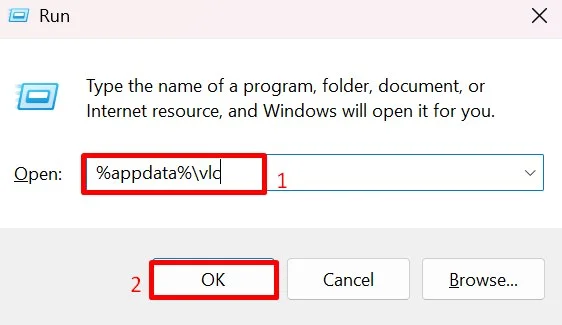
- Press Windows + R to open the Run window.
- Type %appdata%\vlc

- Now, press Enter and a folder named vlc will open.
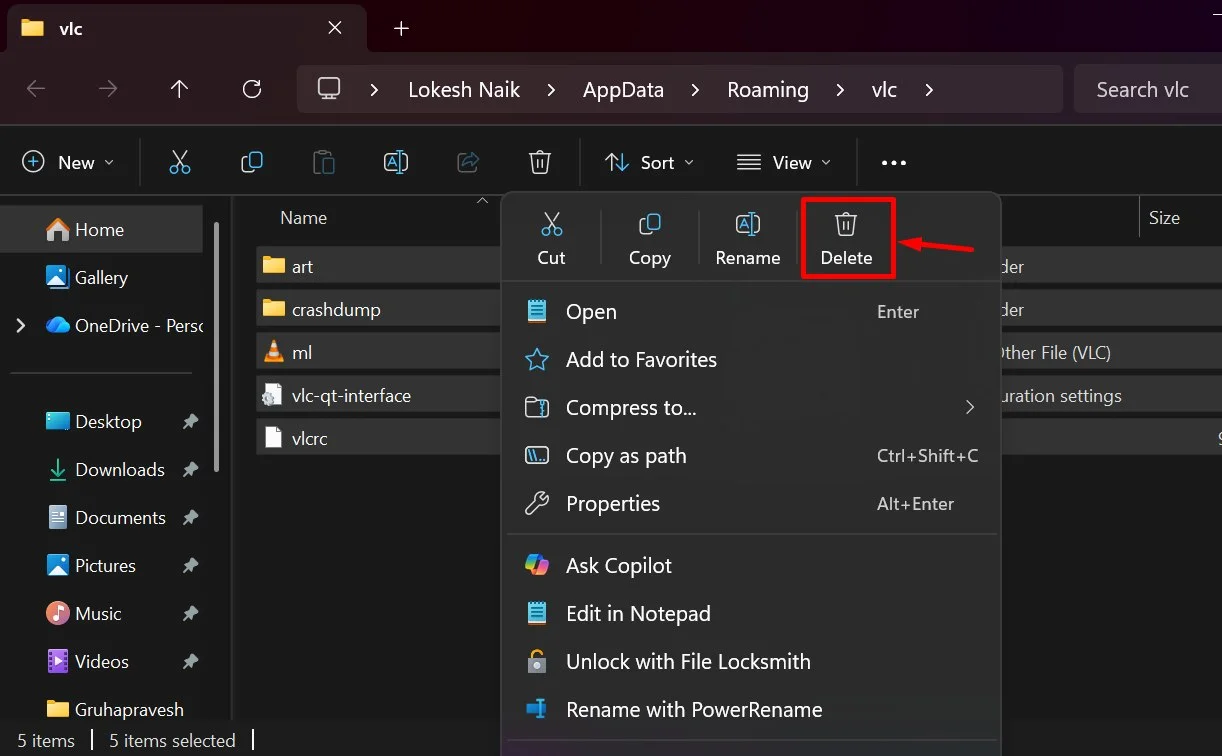
- Select all the files and folders inside it.
- Delete the selected contents.

- Open VLC again.
Change the Audio Output Backend
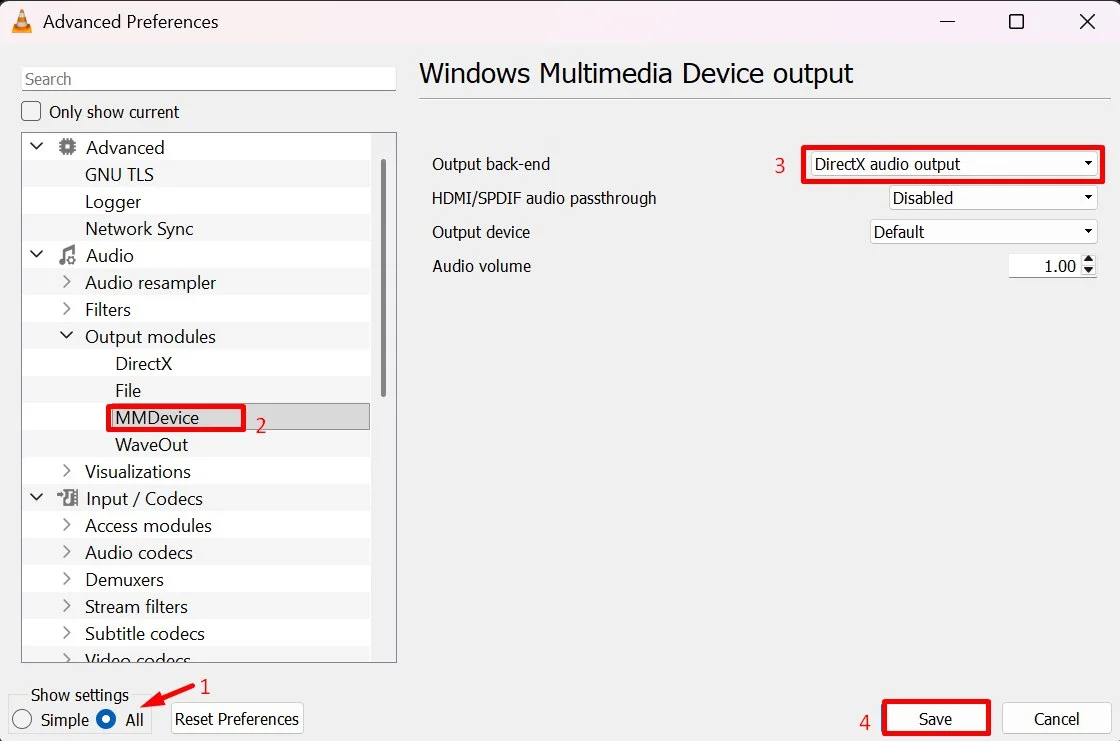
There is one more setting worth checking if VLC takes a long time to open only when your Bluetooth headset is connected. The audio device itself may be causing VLC to wait before playback begins. Changing the audio output backend is a quick test, and you can switch it back later if it does not help.
- Open VLC Media Player.
- Click Tools > Preferences.
- At the bottom left, find Show settings and select All.
- In the left side menu, open Audio.
- Expand Output modules.
- Click MMDevice.
- Look on the right for Output back end.
- Change it to DirectX audio output.
- Click Save.

- After that, close VLC and open it again while your Bluetooth headset is connected.
VLC can be a great media player, but waiting 30 seconds or even a few minutes before a video starts is a different story. If VLC Media Player is slow to open on your Windows PC, try the fixes above one at a time and see which one makes a difference on your system. The issue could be linked to Defender, the plugin cache, VLC settings, the audio output, or even the version of VLC you have installed.
Now I want to hear from you. Which fix worked for you? Did you find another way to make VLC open faster that I have not mentioned here? Drop it in the comments and share the steps if you can. It may save another reader a lot of time. And if you are still waiting forever for VLC to launch, let me know what you have tried so far in the comments.