CapCut has a huge library of templates for video editing, including ready-made subtitle styles, transitions, and visual effects. I use these templates to maintain the same editing style across videos without having to recreate every detail manually. The problem starts when a template I used in an earlier project suddenly disappears from the list.
Imagine editing three videos with the same subtitle design. Everything looks fine, and the original projects still show those subtitles exactly as you created them. A few days later, you open CapCut to edit another video and search through the template library, and the design you used earlier is nowhere to be found.
What makes this issue more unusual is that the template order may also change each time you open the app. A subtitle style that appeared near the top yesterday may be somewhere else today. In some cases, even familiar effects such as fade ins seem to disappear from their usual places.
The bigger question is why CapCut changes its template library and what happens to templates that are already used in existing projects. This can be a real concern when you need to maintain an identical editing style across multiple videos, particularly when working with projects shared through CapCut Space.
This guide covers the missing template issue in CapCut on desktop, Android, and iPhone, including cases where subtitle styles, video templates, and other editing effects suddenly disappear from the app.
CapCut Template Not Showing or Missing? Here’s How to Fix It
Restart CapCut and Check the Template List Again
There is one unusual thing about CapCut’s template library. The templates may not always appear in the same order every time you open the application. A design you used in an earlier project may seem to have disappeared, even though it is still somewhere in the library.
On Android and iPhone, open the Recent Apps screen or App Switcher and swipe CapCut away to close it completely. On Windows, click the X button in the top corner to close CapCut. Make sure the application is no longer running in the background, then launch it again.
Once CapCut opens, head to the Templates section and check the entire list. The missing design may now appear in a different position. This is not a permanent fix, but it is a useful workaround when a previously available template suddenly goes missing.
Update CapCut to the Latest Version
CapCut regularly changes its editing tools and template library, and an older desktop or mobile version may not display all the available templates. The update notification may also appear when you launch the PC app.
For Android and iPhone
- Open the Google Play Store or Apple App Store.
- Search for CapCut.
- Check if an update button appears next to the app.
- Tap it and wait for the installation to finish.
For CapCut on PC
- Open CapCut on your computer.
- Click the menu icon in the top right corner.
- Install the available update, if one is listed under the Check for Updates section.
- Once downloaded and installed, open CapCut and check the Templates section.
One more thing! CapCut templates are also accessible through TikTok, so an outdated TikTok app can affect what you see there. Update TikTok from your device’s app store too. However, remember that not every TikTok video is made with a CapCut template, so you won’t find a template link on every video.
Check Your Internet Connection
CapCut needs an active internet connection to load its online templates, effects, and other editing resources. You might be able to open your existing projects without any trouble, but the template library may remain empty or take a long time to load when your connection is poor.
Open a few apps or websites in your browser and see if they load normally. If other apps/websites are also taking too long, the issue may be with your internet connection rather than CapCut.
Clear CapCut Cache on Mobile
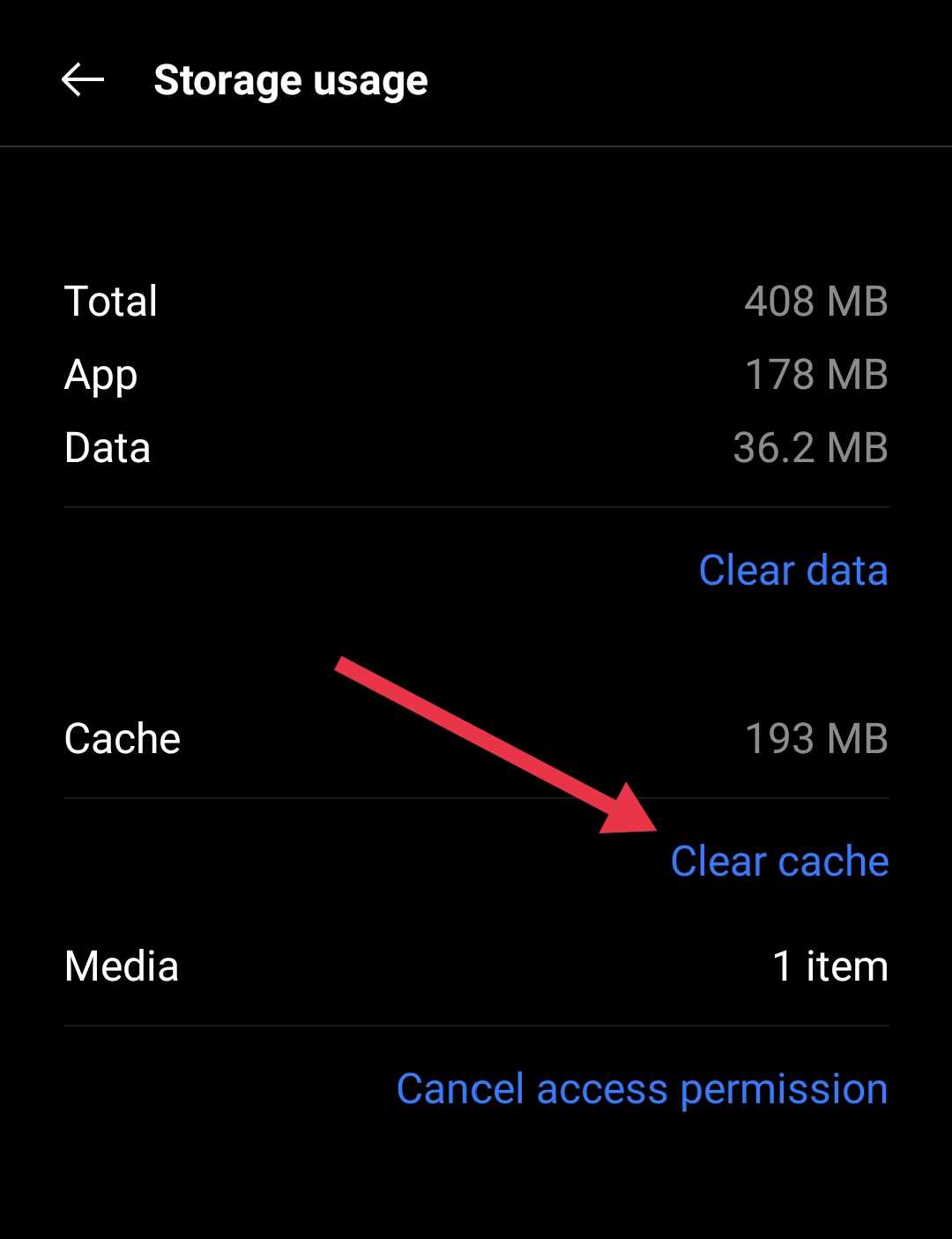
CapCut keeps temporary data on your phone while you edit videos, browse templates, and use different effects. This data can sometimes cause display or loading issues inside the app. Clearing the stored cache is worth trying, particularly if the template section is not loading while other parts of CapCut are working.
On Android
- Open your phone’s Settings.
- Head to Apps and select CapCut.
- Go to the Storage section and select Clear Cache.

Apple does not provide a separate cache clearing option for individual apps. You can use the Offload App feature instead from Settings > General > iPhone Storage > CapCut > Offload App. Then click on ‘Reinstall App’ once the offloading process is complete.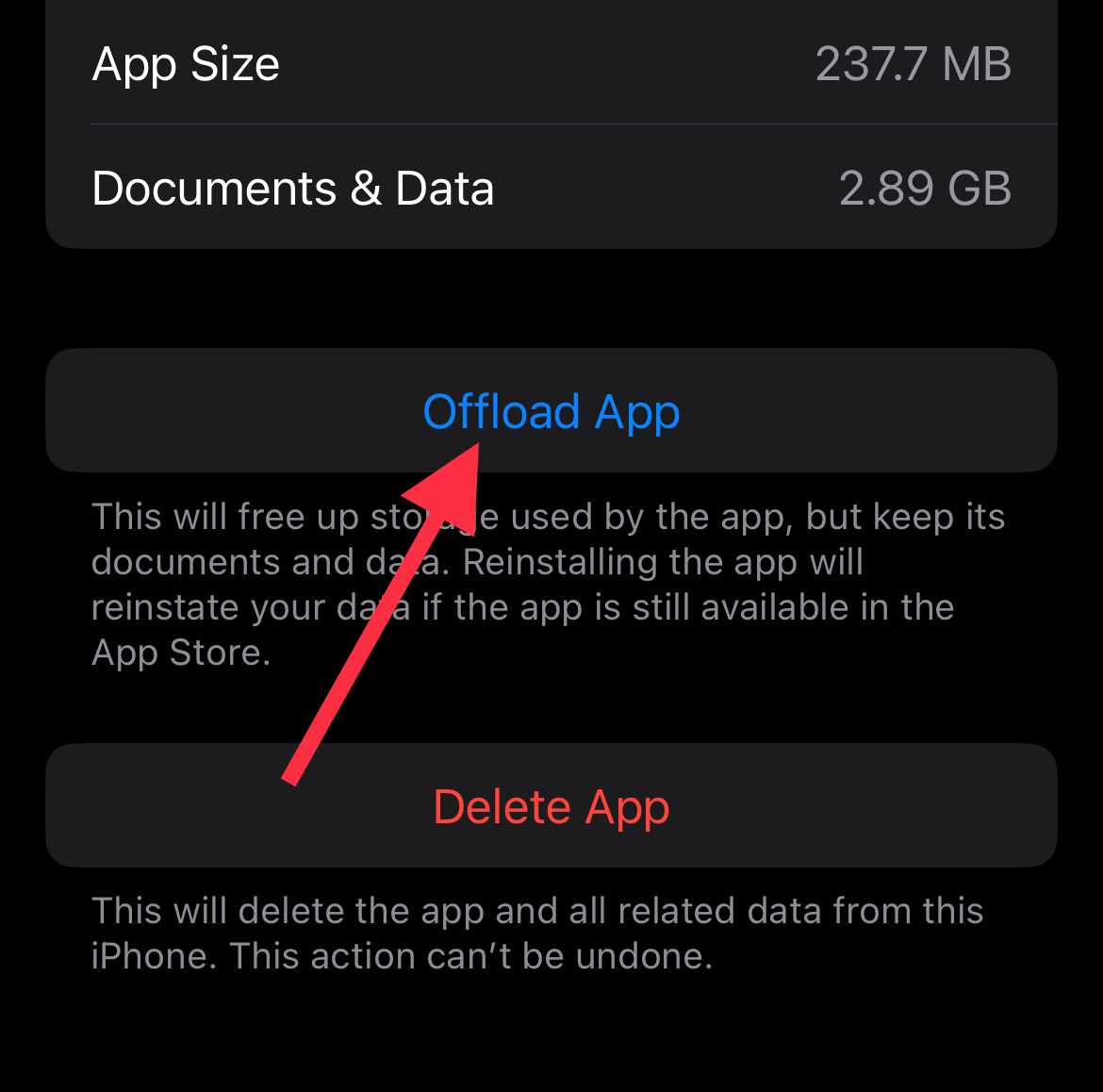
Try the VPN App
CapCut does not make every feature or template available in all countries, so the content you see may depend on your location. In some regions, users may also see a message such as “CapCut template not available in your region.” This can happen even when the app itself opens and the other editing features are accessible.
A VPN is one way users try to access region-restricted content. It routes your internet traffic through a server in another country, changing the apparent location of your connection.
Reinstall CapCut
At this point, it is worth checking if the problem comes from the CapCut installation rather than the templates themselves. For example, you may have installed an update recently, and the missing template issue started right after that. In this case, removing CapCut and installing a fresh copy is worth a try.
Remove CapCut from your phone or computer and download a fresh copy from its official website or the respective app store. Once installed, open your existing account and check the template section again. If you use CapCut on a PC, download the Windows version directly from CapCut’s official website.
Interestingly, the latest version may not always be the best option for everyone. If the template issue appeared right after a recent update, you can try installing an older version from a trusted third party source. Android and Windows users can look for previous releases through trusted software repositories. Just make sure you download a genuine installation file.
Before removing the app, keep a backup of your important video projects. Uninstalling CapCut may delete locally stored project files, so make sure your unfinished edits are safe.
Use CapCut Online Video Editor
If the application continues to hide the templates you need, try opening CapCut directly in your browser. The online editor works without installing the app, so you can check its available editing tools and template collection separately.
Open the CapCut Online Video Editor on your browser and sign in to your account. You can also visit the CapCut Templates page to browse the available designs. Find a template that matches your editing style and see if it is available for your project.
Keep in mind that the browser version may have a different template collection from the app. Still, it gives you another way to continue editing without depending entirely on the installed CapCut app.
RELATED GUIDES:
- How to Fix CapCut No Internet Connection Issue
- How to Fix CapCut ‘Too Many People Are Using This Feature Now’ Error
Hopefully, you can now see your missing templates in CapCut and continue editing your videos without having to recreate those designs from scratch. If CapCut is still not showing the templates on your device, leave a comment below and tell us what you have tried so far. Also, share any other method that worked for you so other readers can try it too.