iOS has always been popular for its clean interface, regular updates, and close connection with Apple’s devices. While some people prefer Android for its flexibility and customization, others stick with iPhones because of their simplicity and long-term software support. However, even Apple users who rarely face software problems can run into unexpected issues when installing a new iOS update.
I recently faced one such problem while trying to update my iPhone. The update appeared normally under Software Update, but the download never moved past the “Update Requested…” screen. After waiting for some time, I received the message, “Software Update Failed. An error occurred downloading iOS.” What surprised me was that this happened with both automatic and manual update attempts. I looked into the issue and found that I was not the only one facing it. iPhone users have reported the same error across different iOS versions, sometimes appearing out of nowhere even when previous updates worked perfectly. 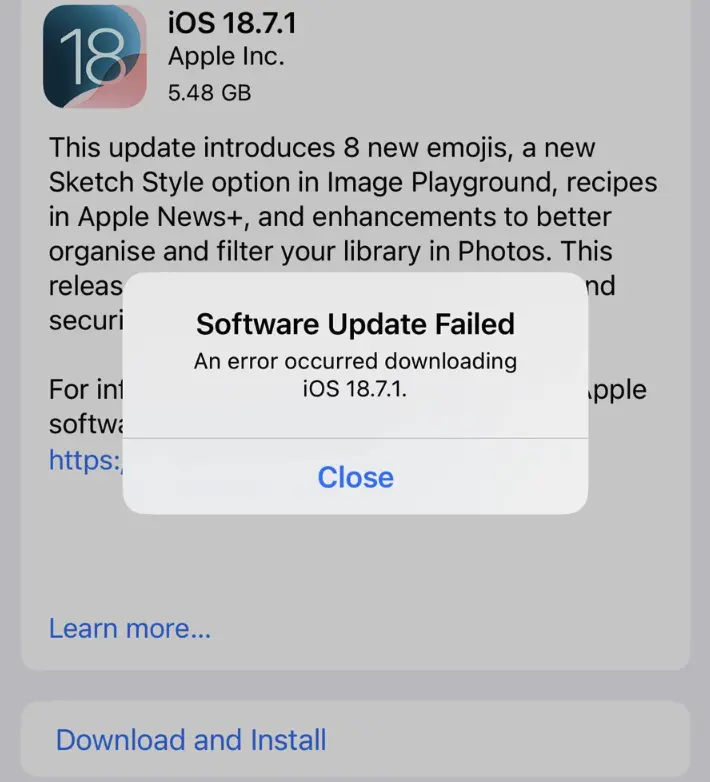
After trying a few things, I finally found a simple trick that worked for me. I have also looked into other methods that have helped people facing the same download error. In this article, I will share those methods so you can try them and hopefully install the latest iOS update without running into the same problem again.
Getting “Software Update Failed. An Error Occurred Downloading iOS”? Try These Fixes
Delete the Existing iOS Update File
This was the first thing I tried when my iPhone kept showing the download error, and surprisingly, it fixed the problem. I noticed that the update was already listed in my iPhone Storage, even though the installation had never completed. So, I decided to delete that file and give the download another try.
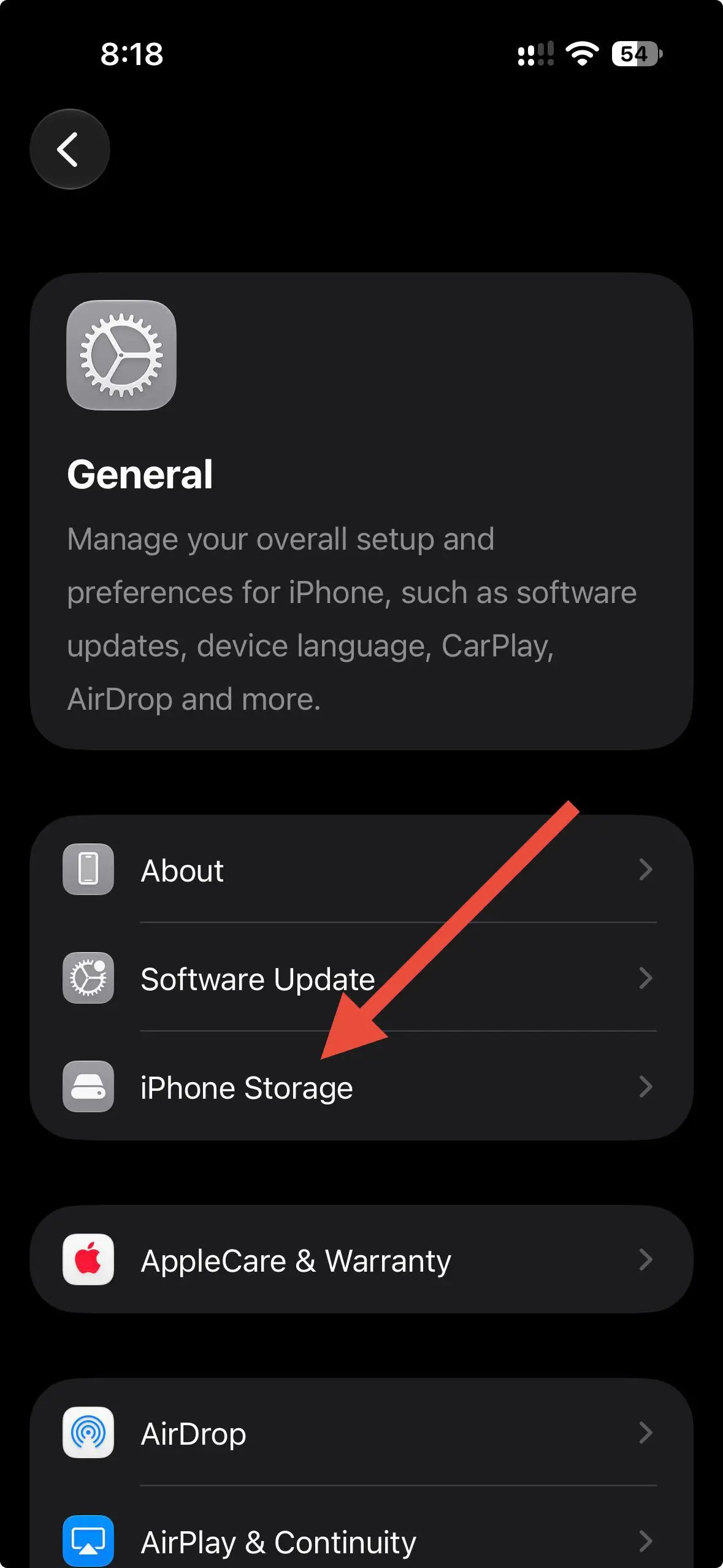
- Open Settings and go to General > iPhone Storage.

- Wait for the storage details to load, then search for “iOS”
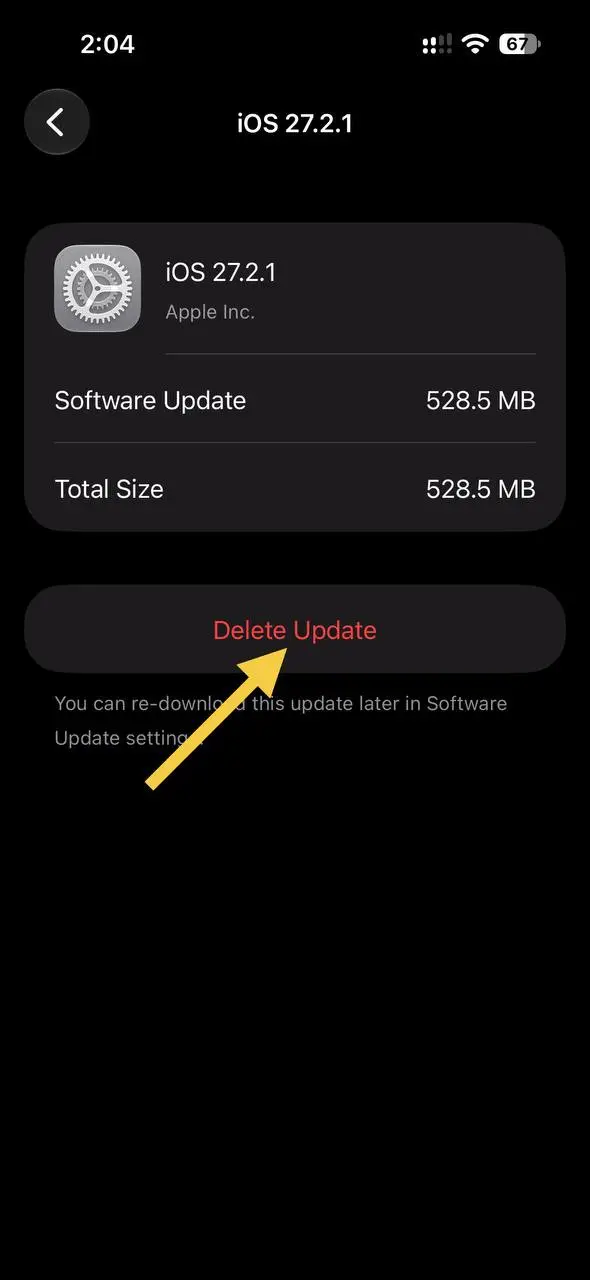
- You should see the iOS version your iPhone previously downloaded or attempted to download.
- Tap that update and select Delete Update.

- Once deleted, restart your iPhone.
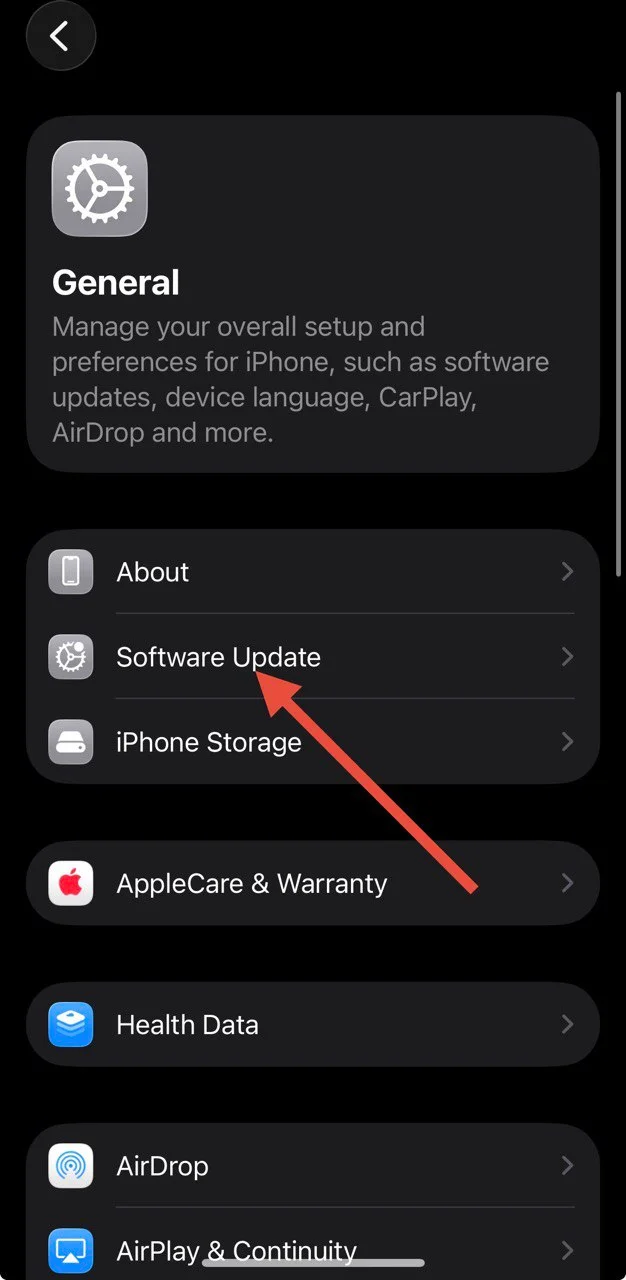
- After restarting, head back to Settings > General > Software Update and try downloading the update again.

Reset All Settings on Your iPhone
The first method may not work for everyone, so here is another thing worth trying. I found that resetting the iPhone’s settings can help when the update keeps failing despite appearing normally in Software Update. You won’t lose your photos, videos, installed apps, or personal files, but your saved settings will return to their defaults.
- Open Settings and tap General.
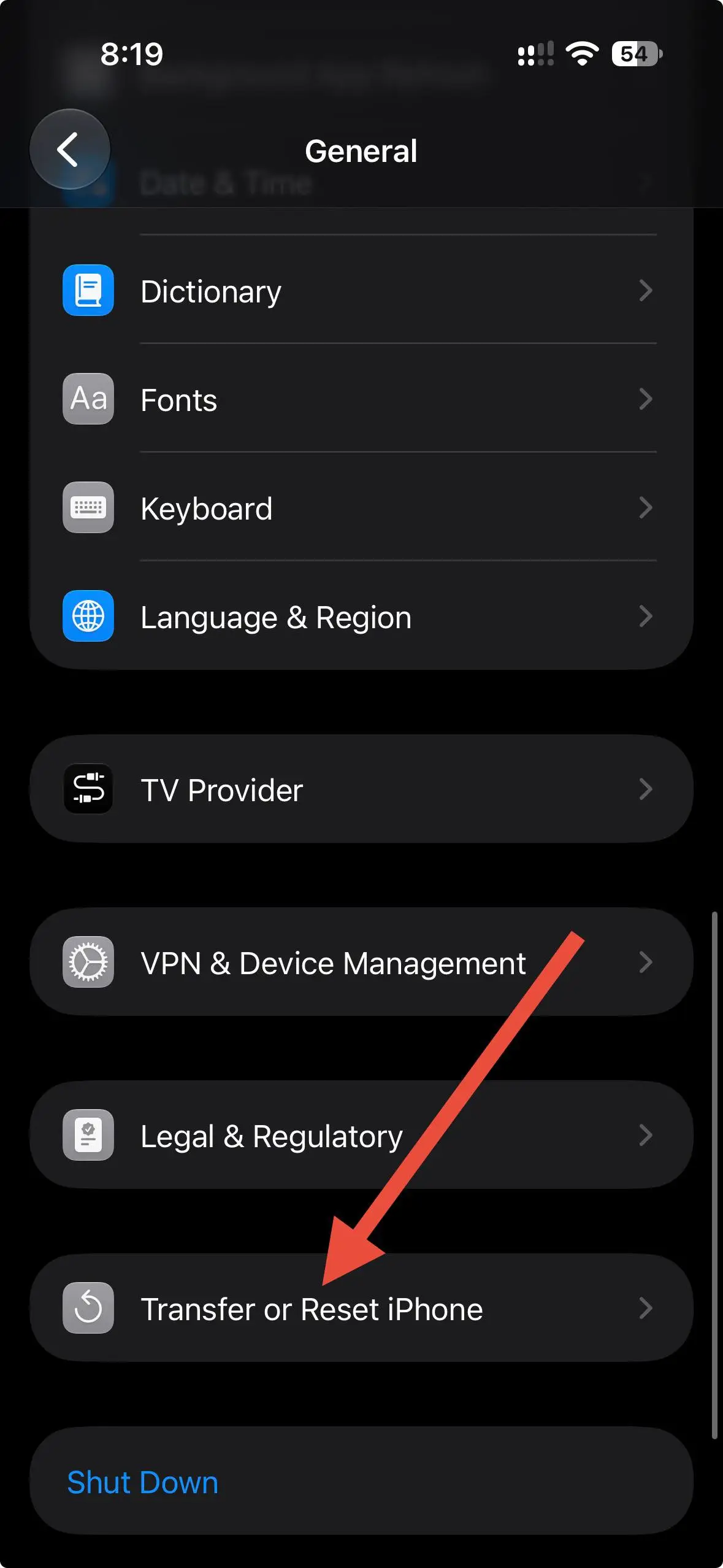
- Scroll down and select Transfer or Reset iPhone.
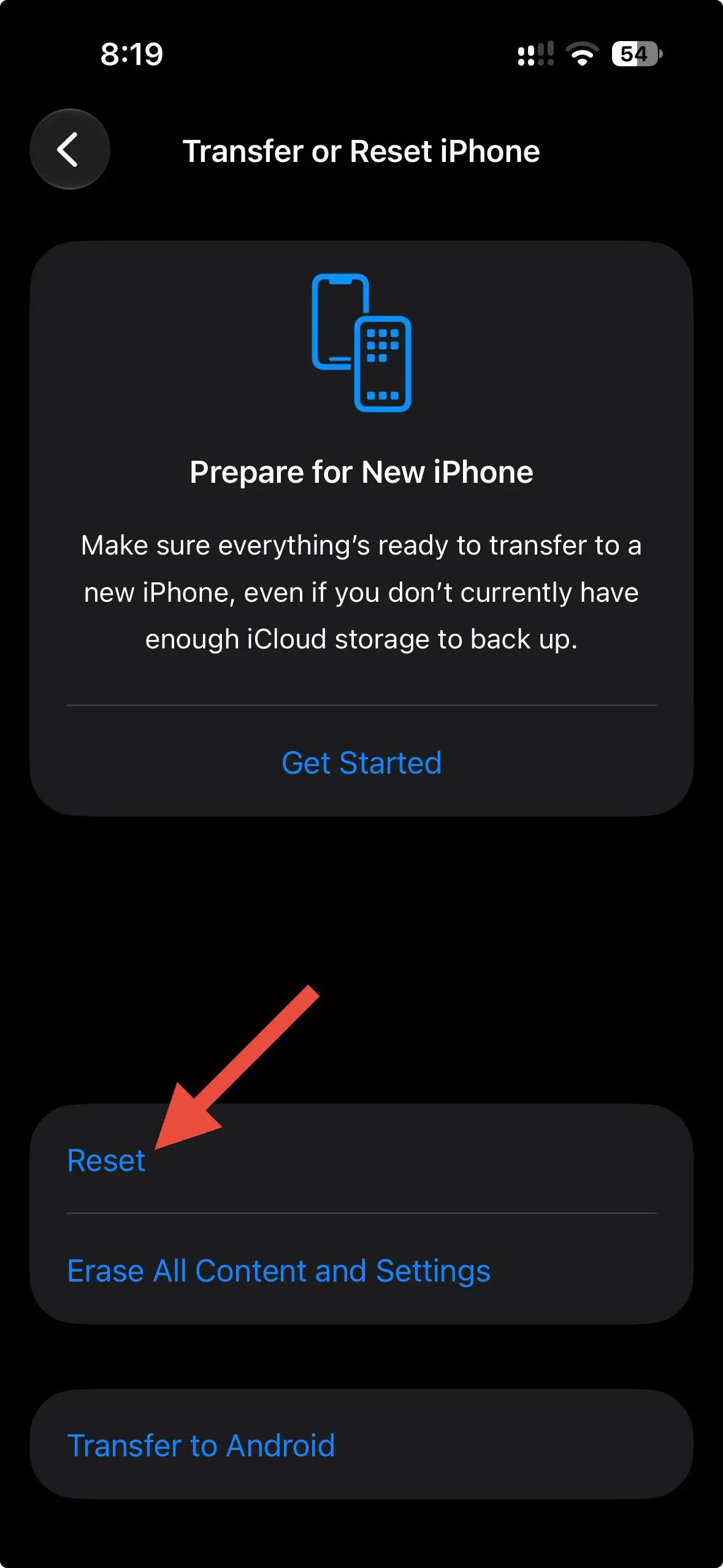
- Tap Reset, then choose Reset All Settings.
- Enter your iPhone passcode to continue.
- Tap Reset All Settings once again when the confirmation message appears.
- After this, restart your iPhone by either saying, “Hey Siri, restart my iPhone,” or by holding the side button and either volume button until the power-off slider appears. Slide to turn off your iPhone, wait a few seconds, then press and hold the side button to turn it back on.
After the phone boots up, head back to Software Update and try downloading iOS again. You will need to reconnect to your Wi-Fi network and adjust any settings you previously customized.
Temporarily Remove Some Apps to Free Up Storage
We tend to install apps for one purpose and forget about them later, but they continue occupying storage. If your iPhone is running low on space, try removing a few apps you don’t use regularly before attempting the update again.
- Open Settings and navigate to General > iPhone Storage.
- Now, find apps you haven’t opened in a long time.
- Select an app you can do without for now and tap Delete App.
- Repeat this with a few unused apps until you have freed up enough space.
- Restart your iPhone and go to Settings > General > Software Update to try the download again.
Update Your iPhone Using iTunes on a Computer
If you have tried downloading the update directly on your iPhone without any luck, try doing it through a computer instead. You can use your Windows PC or Mac to download the iOS update and install it on your device. I would give this method a try if the Software Update screen keeps getting stuck or showing the same error after multiple attempts.
- Open iTunes on your Windows PC or Mac. If you are using a Mac with macOS Catalina or later, open Finder instead.
- Connect your iPhone to the computer using a USB or USB C cable.
- Unlock your iPhone and tap Trust if a confirmation appears.
- In iTunes, click the small iPhone icon near the top left corner.
- Select the Summary tab.
- Click Check for Update.
- If an update is available, click Download and Update.
- Follow the instructions displayed on your computer and enter your iPhone passcode if prompted.
Keep your iPhone connected throughout the process. Your device will restart once the installation is complete, so don’t disconnect the cable until the update has finished.
In my case, deleting the existing iOS update file did the trick, but the other methods are worth trying if that doesn’t work on your device. If you are still seeing “Software Update Failed. An error occurred downloading iOS” error message, try the remaining methods and see which one works for your iPhone. If you managed to fix this error using another method, share it in the comments. It might help someone else facing the same problem.