Every day we use our phones to type messages, search the web, write emails, and post on social media. Almost everything we do on a smartphone depends on the keyboard. iPhones come with a keyboard that is already installed with iOS, but many users prefer other keyboards such as Gboard or Microsoft SwiftKey, because of the extra features they provide. These third-party keyboards offer better predictions, themes, swipe typing, and many customization options, which is why many people choose them over the default Apple keyboard.
However, many iPhone users have been facing a frustrating issue for the past few years. Even after setting Gboard or SwiftKey as the main keyboard, iOS sometimes switches back to the default Apple keyboard. This can happen when opening certain apps, tapping links inside apps, or while typing in different fields. Because of this bug, users often have to manually switch back to their preferred keyboard again and again.
I have faced the same issue for many years, and since I enjoy using SwiftKey, the constant switching to the Apple keyboard became very irritating. After trying several different methods to fix the problem, I finally found a few ways that can help reduce or stop this behavior. These solutions can work for SwiftKey, Gboard, or any other third-party keyboard you may be using on iOS.
It is surprising that such a big company like Apple still has this problem after so many years without a proper fix. Whatever the reason may be, the following sections will show some ways that may help you deal with this keyboard switching issue.
How to Fix iPhone Keyboard Keeps Switching Issue
Reinstall the Third-Party Keyboard App
Many users face this problem where the iPhone keyboard keeps switching even after selecting their preferred keyboard. One reason for the iOS keyboard automatically switching issue is stored data that builds up after using the keyboard for a long time.
Apple also places memory limits on third-party keyboards, and that can lead to the iPhone keyboard switching to the default keyboard again while typing in apps.
- First of all, delete the keyboard app you use (SwiftKey, Gboard, or any other) from your iPhone.

- After that, restart your iPhone.
- Open the App Store and install the keyboard app again.
- Go to Settings > General > Keyboard > Keyboards.

- Add the keyboard again and set it as your main keyboard.


Many users noticed that after doing this, the iPhone keyboard keeps switching to the default issue stops and the selected keyboard stays active.
Note: If you use SwiftKey, it is a good idea to sign in to your SwiftKey account before removing the app. SwiftKey saves your learned words and typing predictions in your account. When you reinstall the app and sign in again, your predictions and personal dictionary will return. If you remove the app without signing in, you may lose saved words, clipboard items, and other learned typing data.
Remove Other Keyboards from iPhone Settings
Another thing you can try is removing all other keyboards from your iPhone. When multiple keyboards are installed, the iPhone keyboard keeps switching between them or goes back to the Apple keyboard. This is one reason many people face the iOS keyboard automatically switching issue.
You can limit this by keeping only the keyboard you want to use.
- Open Settings on your iPhone.
- Tap General.
- Tap Keyboard.
- Select Keyboards.
- Now, remove all keyboards except the one you want, such as SwiftKey, Gboard, or any other keyboard you prefer.

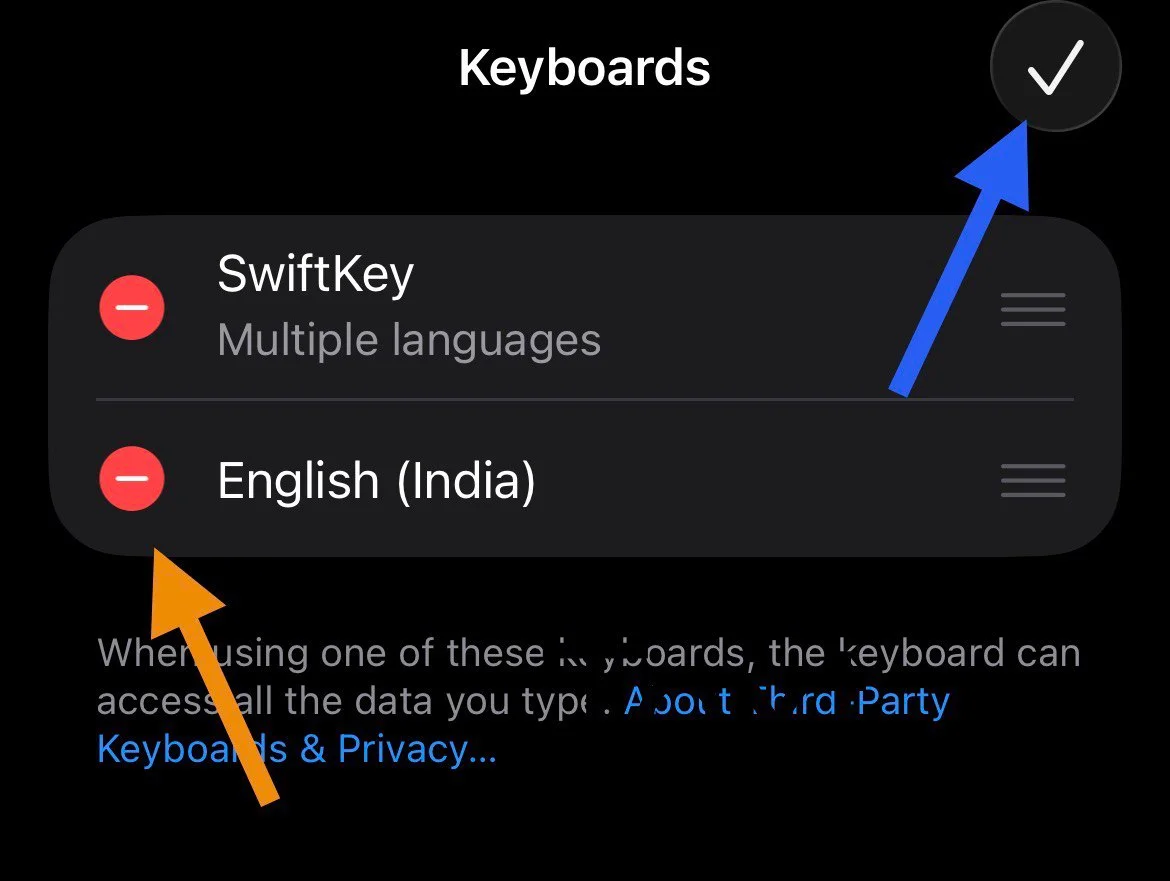
Note: There is one small thing to know. When you type passwords, iOS may still show the Apple keyboard for security reasons. After entering the password, your selected keyboard appears again.
Turn Off Full Access for the Keyboard
Another method that helped some users is turning off Full Access for the keyboard app. This setting allows third-party keyboards to connect to the internet for features like search or sharing data. In certain cases, this setting can be linked to the iOS keyboard automatically switching issue, where the iPhone keyboard keeps switching to the default keyboard while typing.
If you do not use extra features like built-in search in Gboard or similar tools, turning this option off may resolve it.
- Open Settings on your iPhone.
- Tap General.
- Tap Keyboard > Keyboards.
- Tap SwiftKey/Gboard or the keyboard you are using.
- Now, turn Allow Full Access off.

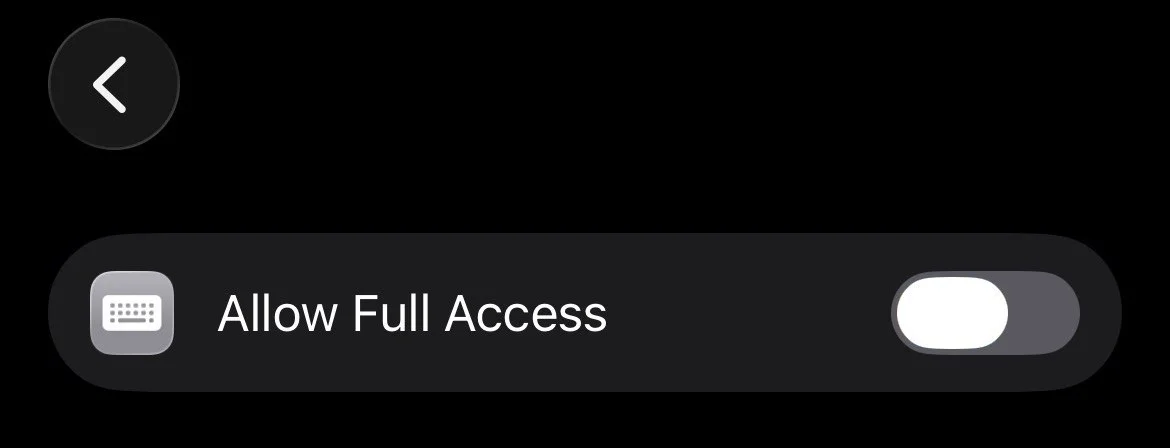
Note: If you prefer to keep Full Access enabled for features like search or syncing, try turning Allow Full Access off first and then turning it on again.
Turn Off Extra Features in the Keyboard App
Many keyboard apps include extra features like search tools, stickers, emoji suggestions, and other options. While these features can be useful, they can also increase background activity. Because of that, some users noticed the iPhone keyboard keeps switching or the iOS keyboard automatically switching issue appearing more often.
A simple method that worked for a few users was reducing the number of active features inside the keyboard app.
- Open the keyboard app on your iPhone, such as Gboard or SwiftKey.
- Go to the Settings inside the app.
- Now, turn off most features that you do not use.
- Keep only basic options like “Slide Typing” and “Auto Correct” enabled.
Update iOS on Your iPhone
In many cases, the iPhone keyboard keeps switching problem can also be linked to the iOS version running on the device. Apple controls how third party keyboards work on iPhone, and certain system rules may force the Apple keyboard to appear in places like lock screen replies, login pages, or other secure input fields.
Also, we feel that Apple keeps giving priority to its own keyboard even after a different one is selected as the default. By persistently imposing that priority even when a user has willingly chosen another keyboard, it creates the impression that Apple does not want strong competition when it comes to collecting keystroke data. Whatever the reason may be, this behavior has been reported by many iPhone users over the years.
One thing worth trying is updating iOS on your device. To check, open Settings > General > Software Update and install any available update.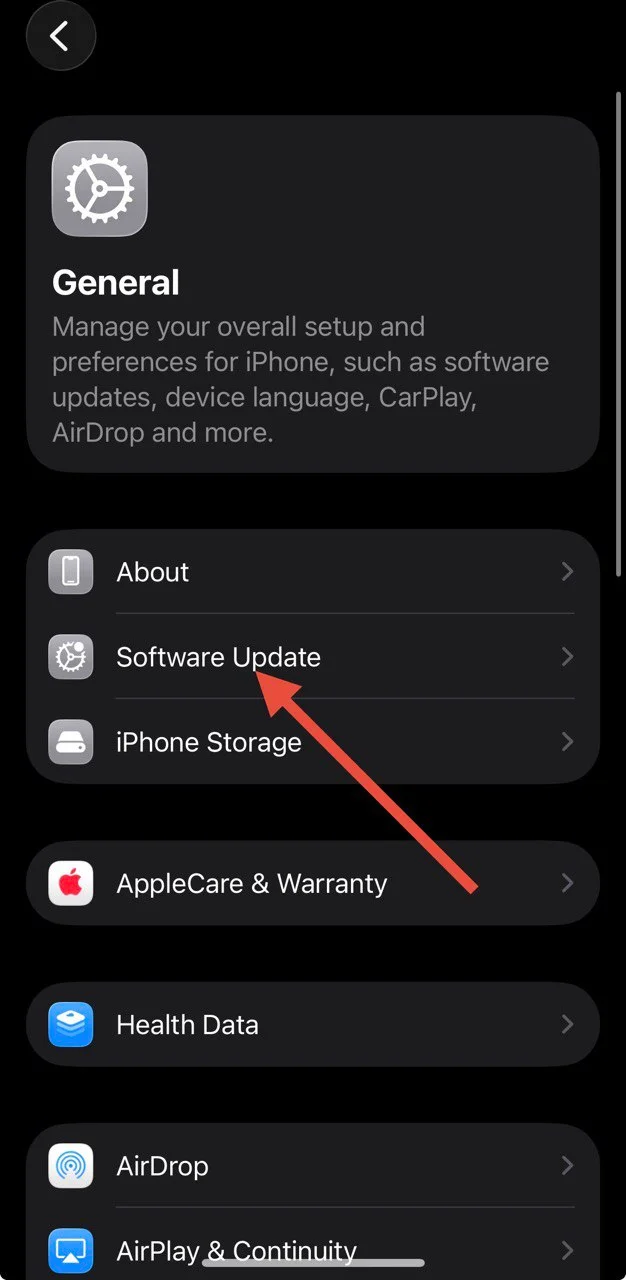
Hope this guide helped you fix the iPhone keyboard keeps switching issue. If one of these methods worked for you, feel free to share which one helped.
If you discovered another method that fixed the iOS keyboard automatically switching issue on your iPhone, do share it as well. It may help other users who are also dealing with the same issue while typing.