Recently, some iPhone users reported a strange error: “WhatsApp couldn’t start. Please restart your iPhone if the problem continues.” Instead of opening their chats, the app displays this message and leaves them stuck.
I recently faced this problem on my iPhone. The error appeared when I tried to open WhatsApp, and restarting my iPhone was the only thing I had tried. It also made me wonder whether the problem was with my phone or WhatsApp itself.
It can be difficult to know whether the issue is temporary or something that needs more attention, especially when you need to access your chats.
If you’re seeing the same message on your iPhone, here are the solutions below that you can try to resolve the “WhatsApp Couldn’t Start” problem.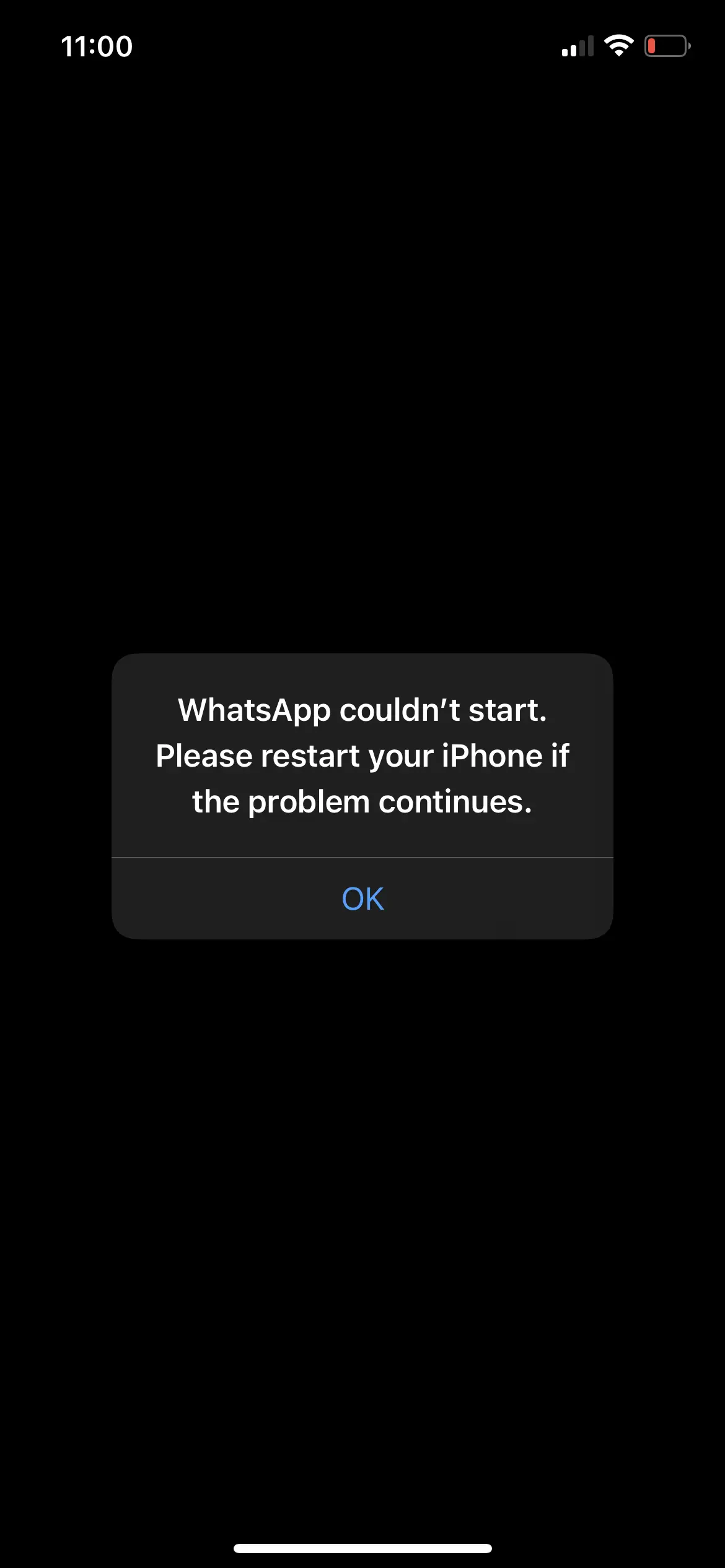
How to Fix WhatsApp “Couldn’t Start” on iPhone
Restart Your iPhone
Let’s start with the basic step, as the error message itself suggests restarting your iPhone. You can simply say, “Hey Siri, restart my phone,” and confirm the restart when prompted.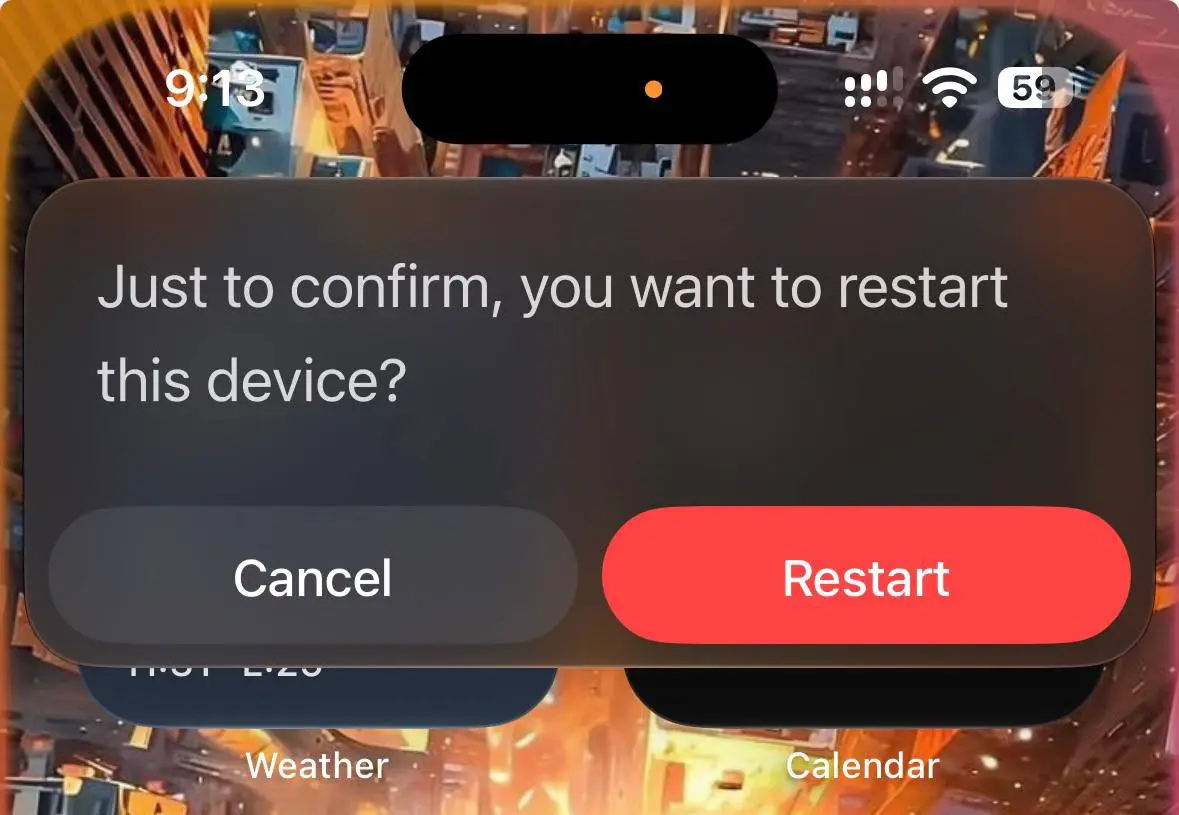
Alternatively, press and hold the side button and either volume button until the power-off slider appears. Slide it to turn off your iPhone, wait a few seconds, and then turn it back on by pressing and holding the side button.
Well, restarting my iPhone didn’t fix this error. Still, I’m adding this as the first solution because it’s the step suggested in the error message itself.
Update WhatsApp
I feel this error might be related to a bug in a particular version of WhatsApp. If other users installed the same version, they might have faced the same problem. WhatsApp may already be aware of the issue and could have released an update to fix it.
So, open the App Store on your iPhone and search for WhatsApp. Check whether a new update is available. If you see an Update button, tap it and let the installation finish before opening WhatsApp again.
Offload and Reinstall WhatsApp
This is the solution that fixed the “WhatsApp couldn’t start” problem on my iPhone. If restarting your phone or updating WhatsApp didn’t help, offloading the app is worth trying.
Open Settings > General > iPhone Storage and tap on WhatsApp in the list. Select the Offload App option and confirm your choice. This removes the app itself while keeping its documents and data on your iPhone.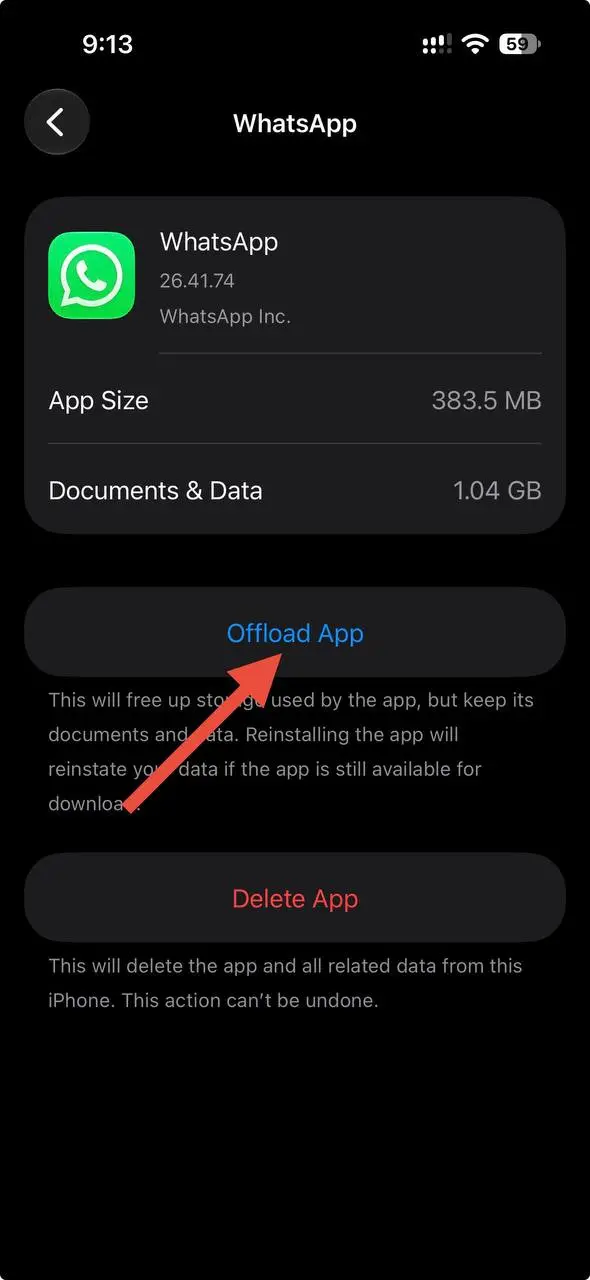
Once the offloading process is complete, tap the Reinstall App option to download WhatsApp again. After the installation finishes, open the app and check whether it starts normally.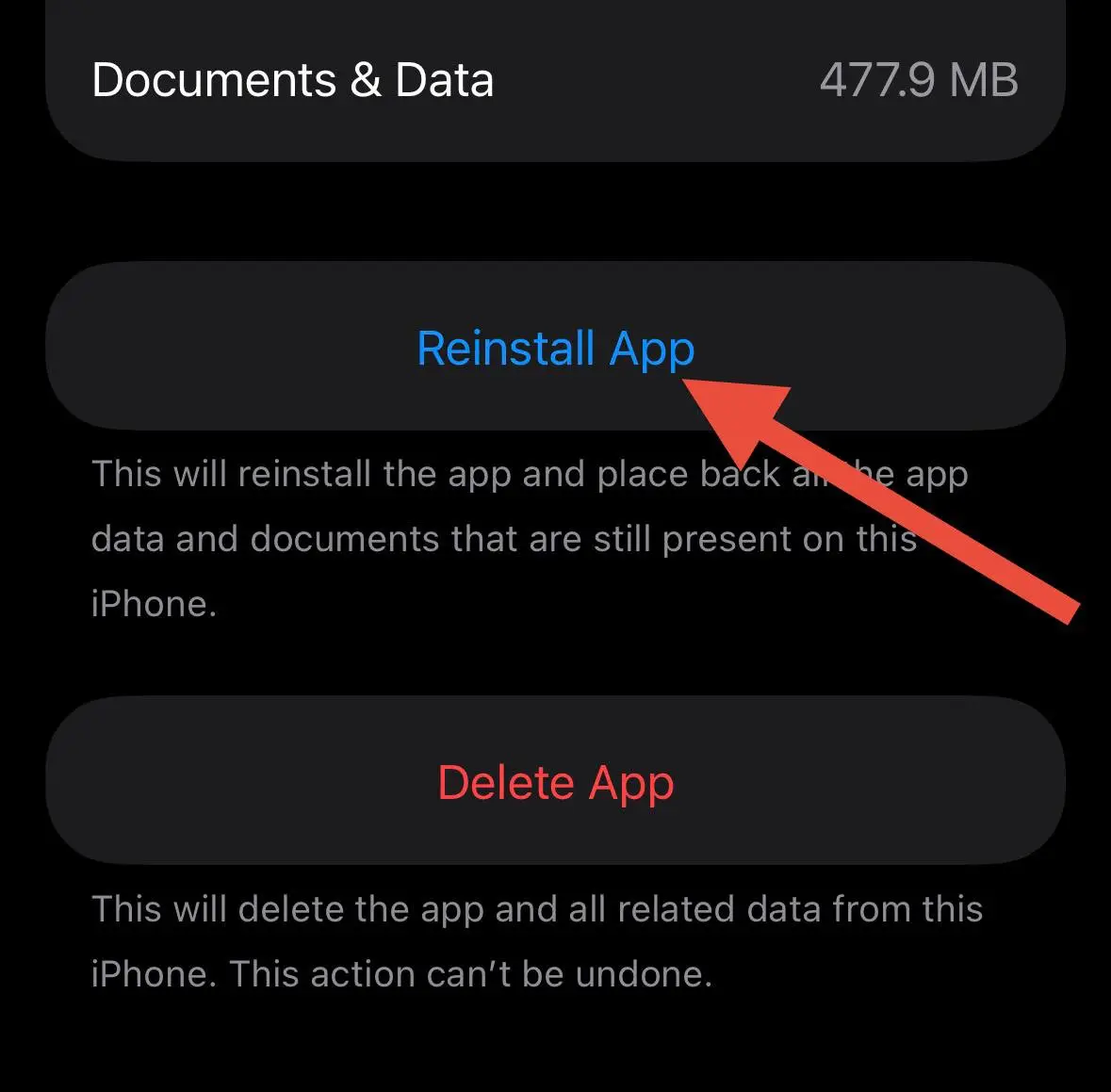
Note: Offloading is designed to preserve the app’s documents and data, but it isn’t a substitute for a backup. If your chats are important, make sure you have a recent WhatsApp chat backup whenever possible.
Update Your iPhone Software
Sometimes, app issues can be related to the iOS version running on your iPhone. If WhatsApp keeps showing the same error even after trying the above solutions, open Settings > General > Software Update and wait for your iPhone to check for available updates. If a new version is available, download and install it. 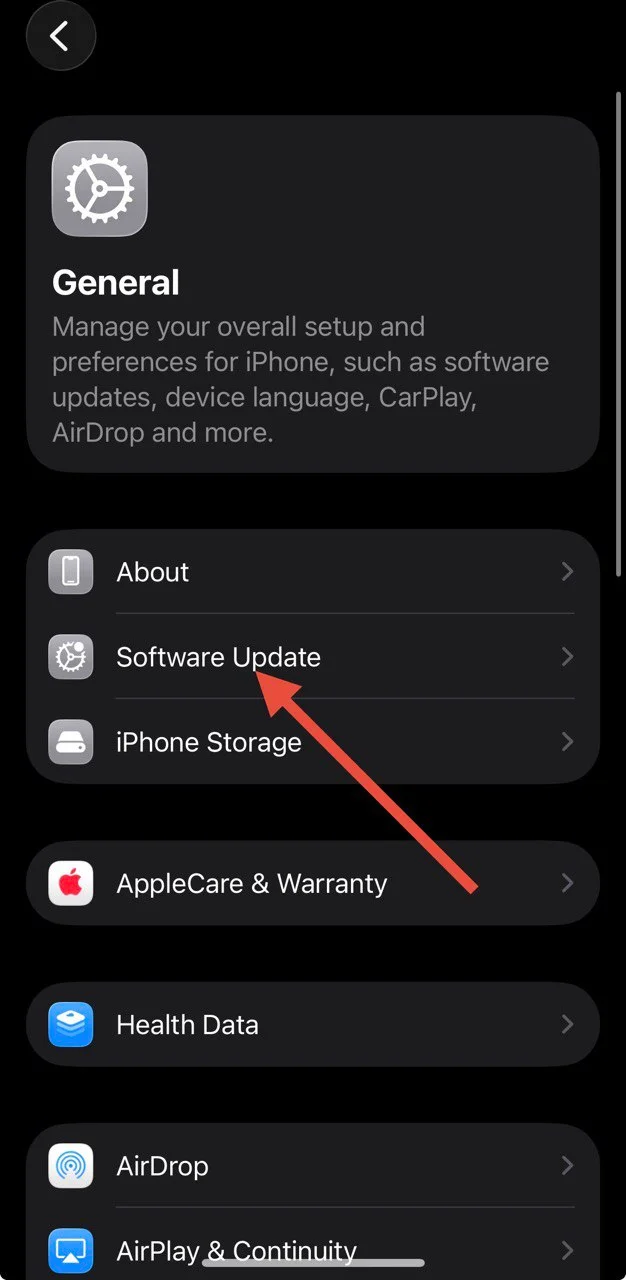
Make sure your iPhone has enough battery and a stable internet connection before starting the update.
Uninstall and Reinstall WhatsApp
Be careful with this step because deleting the app can remove its locally stored data, including chats that haven’t been backed up.
Before proceeding, open WhatsApp > Settings > Chats > Chat Backup and check whether you have a recent backup. If not, create one first if WhatsApp still opens and allows you to do so.
Once your backup is ready, touch and hold the WhatsApp icon on your iPhone, select Remove App, and then tap Delete App to uninstall it completely. Next, open the App Store, and install WhatsApp again.
After reinstalling, open WhatsApp and follow the prompts to verify your phone number and restore your chat history from the backup if prompted.
Important: Don’t uninstall WhatsApp until you’re sure your important chats are backed up. Any messages or media not included in your backup may be lost permanently.