Downloading an app from the Apple App Store is usually a simple task. However, your iPhone may ask for your Apple ID password every time you try to install an app, even when it is free. For users who download apps regularly, entering the same password again and again can become a daily hassle.
The repeated password request may appear on any iPhone. You might notice it while installing a new game, trying a useful app, or downloading a free app you need. Since no payment is involved, the extra security check may seem unnecessary.
What makes this more interesting is that iPhones also support Touch ID and Face ID for certain App Store activities. Naturally, users may wonder why a password is still required during free app downloads and if this behaviour is linked to their Apple account settings.
I faced this issue on my iPhone and wanted a simpler way to download apps without entering my password every time. If you are also looking for a way to turn off the password requirement for Apple App Store downloads, here are the simple methods I tried on my iPhone.
How to Turn Off Password Requirement for App Store on iOS
Turn Off and Turn On Face ID for the App Store
One thing that worked for me on my iPhone 16 was turning the App Store Face ID setting off. It is a simple thing to try if your iPhone keeps asking for your Apple ID password while downloading free apps.
- Open Settings on your iPhone or iOS device.
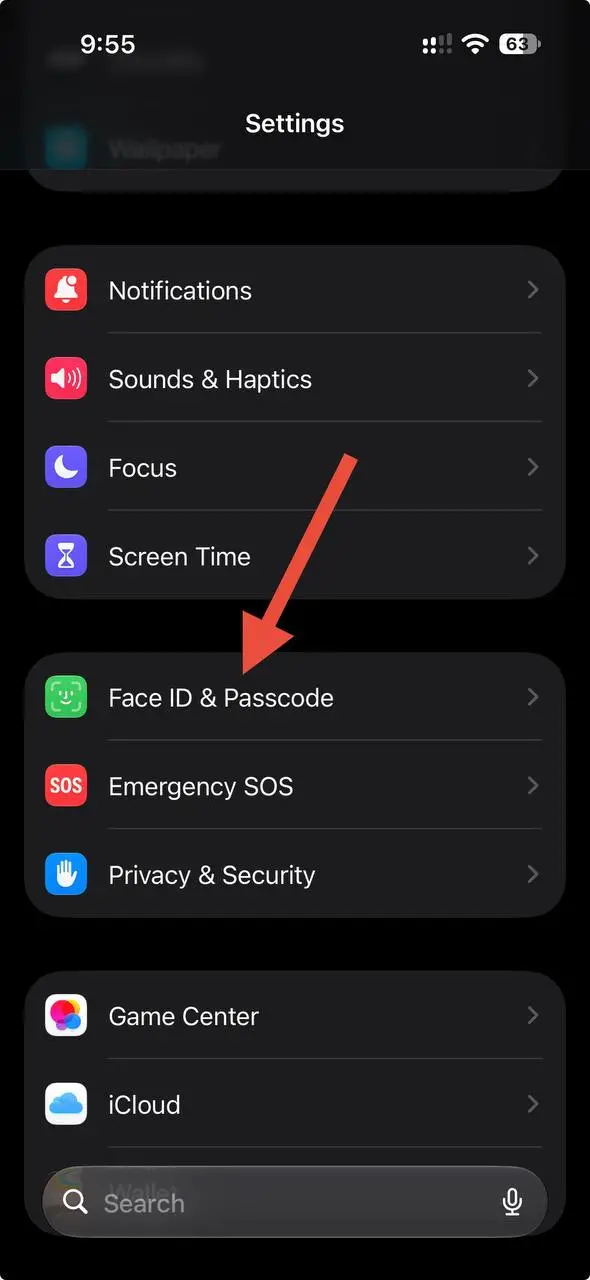
- Scroll down and tap Face ID & Passcode.

- Enter your iPhone passcode.
- Under Use Face ID For, turn the toggle off for iTunes & App Store.
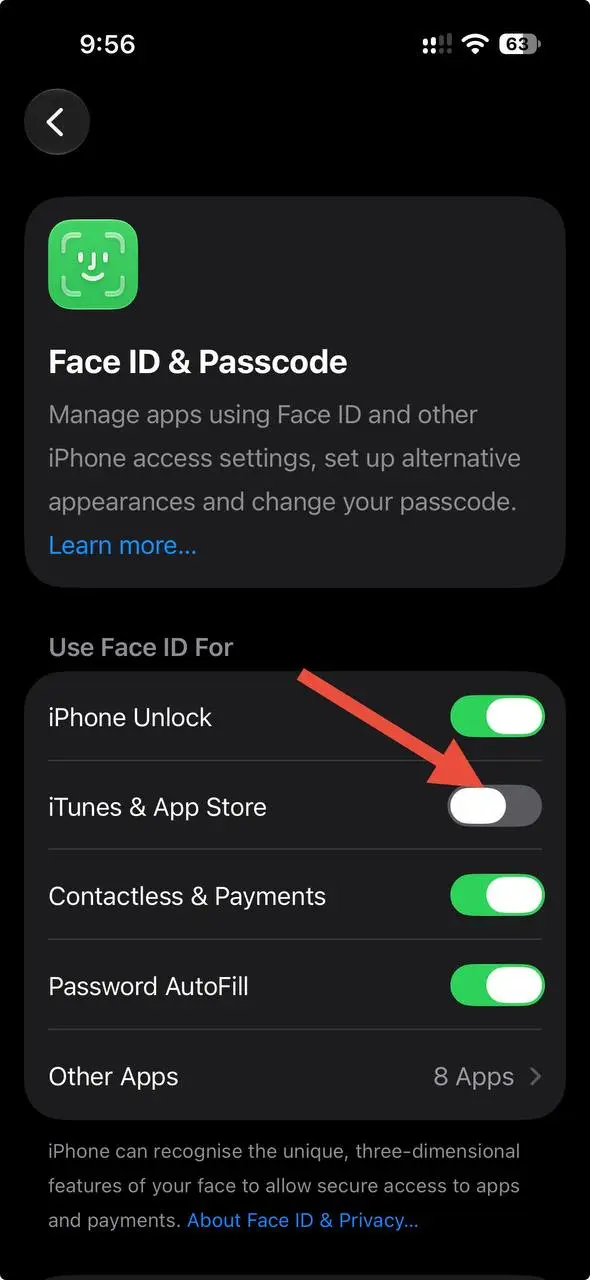
That is all you need to do. Now, open the App Store and try downloading a free app to see if it still asks for your Apple ID password.
Sign In to Your Apple ID Through Safari
I came across another method where signing in to your Apple account through Safari helped bring up the option to save the password for free downloads. Here is how you can try it on your iPhone.
- Open the App Store on your iOS device
- Now, tap your profile picture in the top right corner.
- Tap your Apple ID at the top.
- Your iPhone should open the iCloud website in Safari. Sign in to your Apple account on that page.
- Once you are signed in, return to the App Store and download any free app.
- You will have to enter your Apple ID password again for this download. That is expected. After entering it, look for a prompt asking if you want to save your password for free apps. Select the Save option.
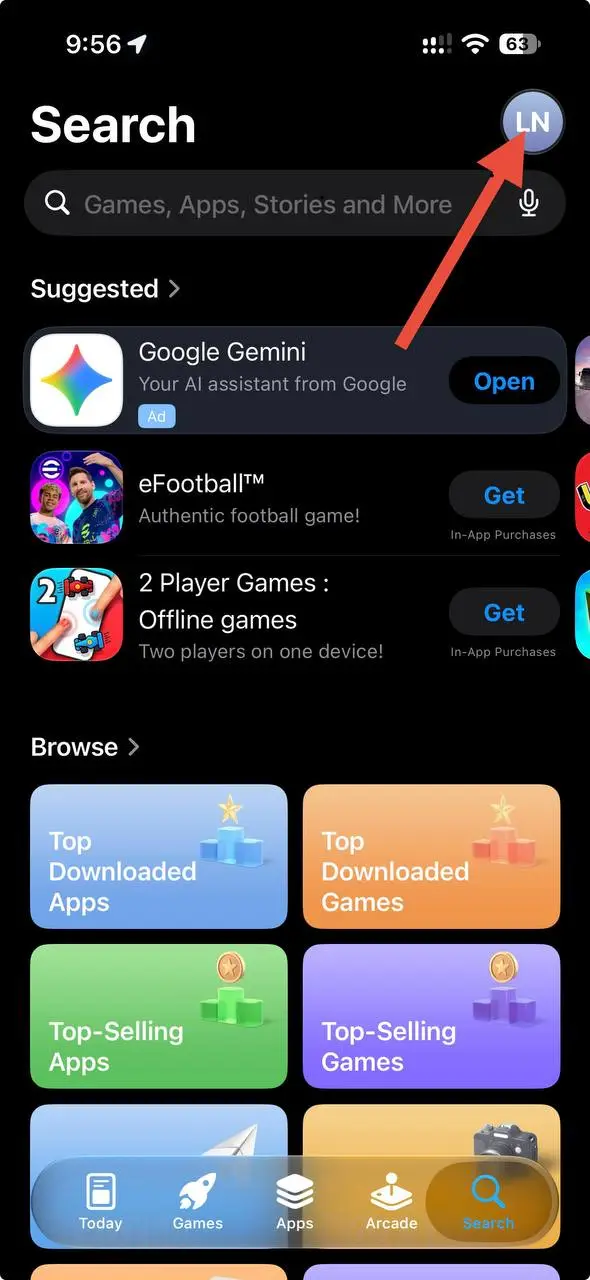
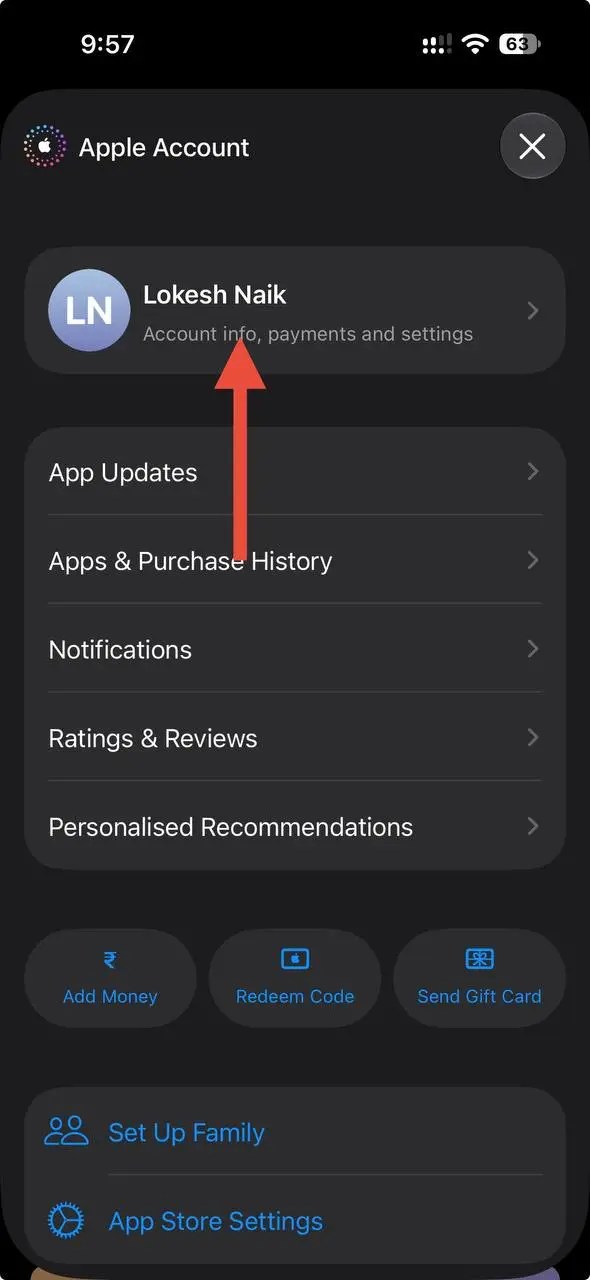
Now try downloading another free app. It should no longer ask for your password each time if the setting has been saved successfully.
Turn Off Password Requirement for Free Downloads
Your iPhone has a separate setting for free app downloads, and it is worth checking if the App Store keeps asking for your password. The option is inside your Apple account settings, so you do not need to change anything in the App Store itself.
- Open Settings on your iPhone/iPad
- Then tap your Apple ID at the top.
- Select Media & Purchases.
- Tap Password Settings.
- Now, set the “Free Downloads” to Never Require.

- That should do it. Open the App Store and try downloading a free app to see if the password prompt is gone.
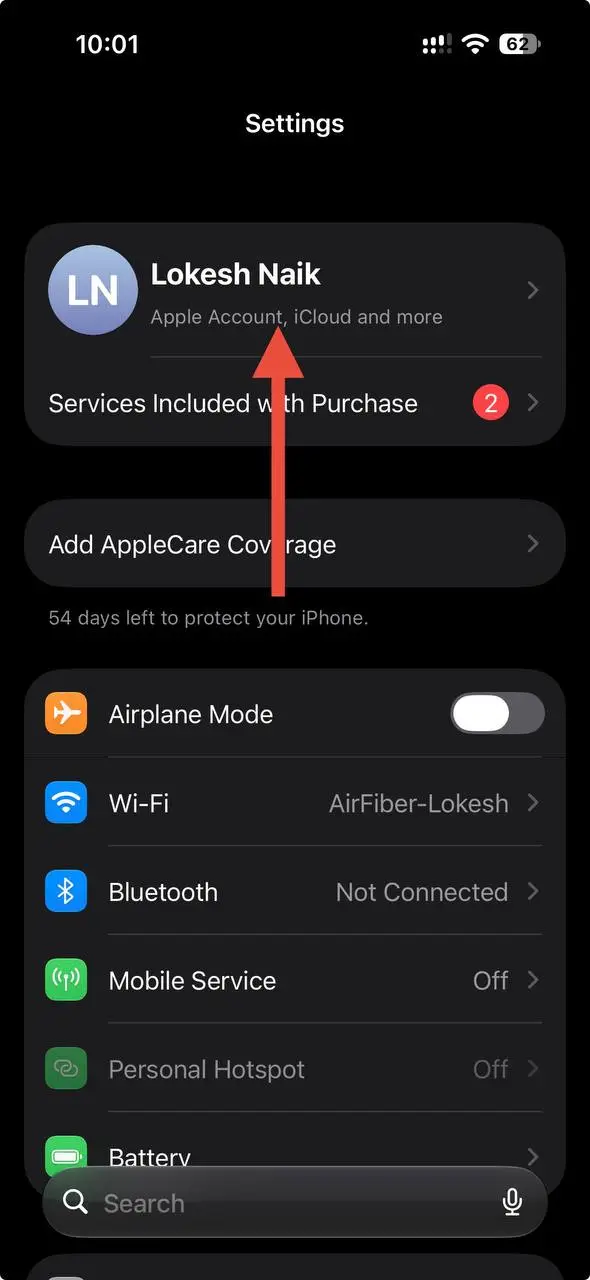
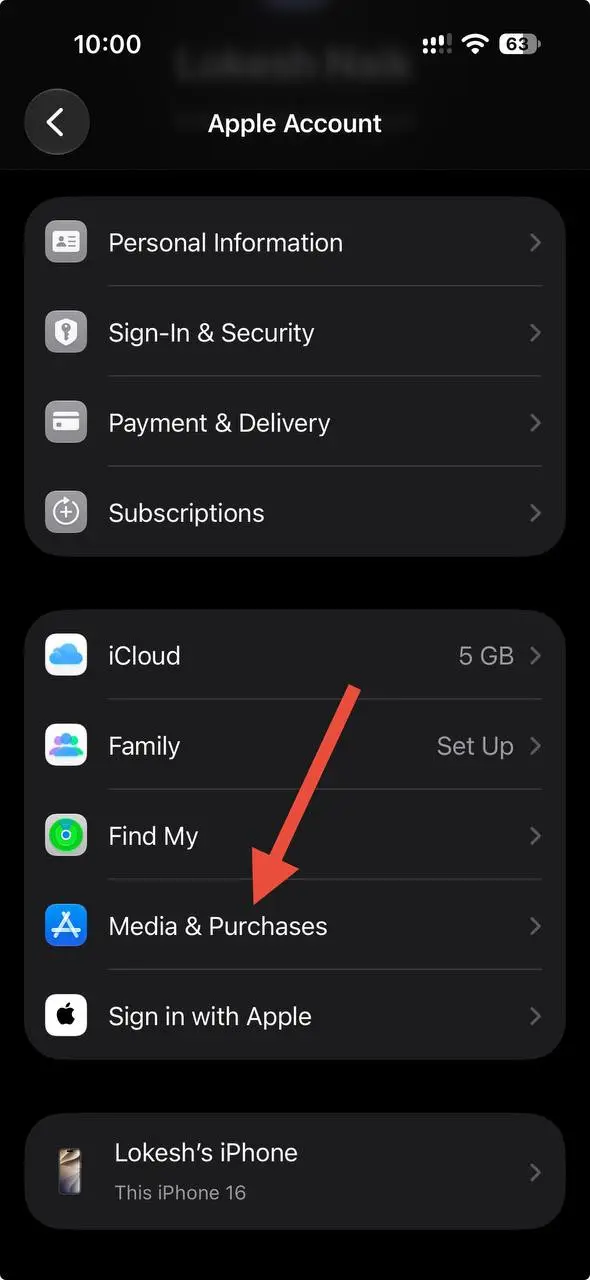
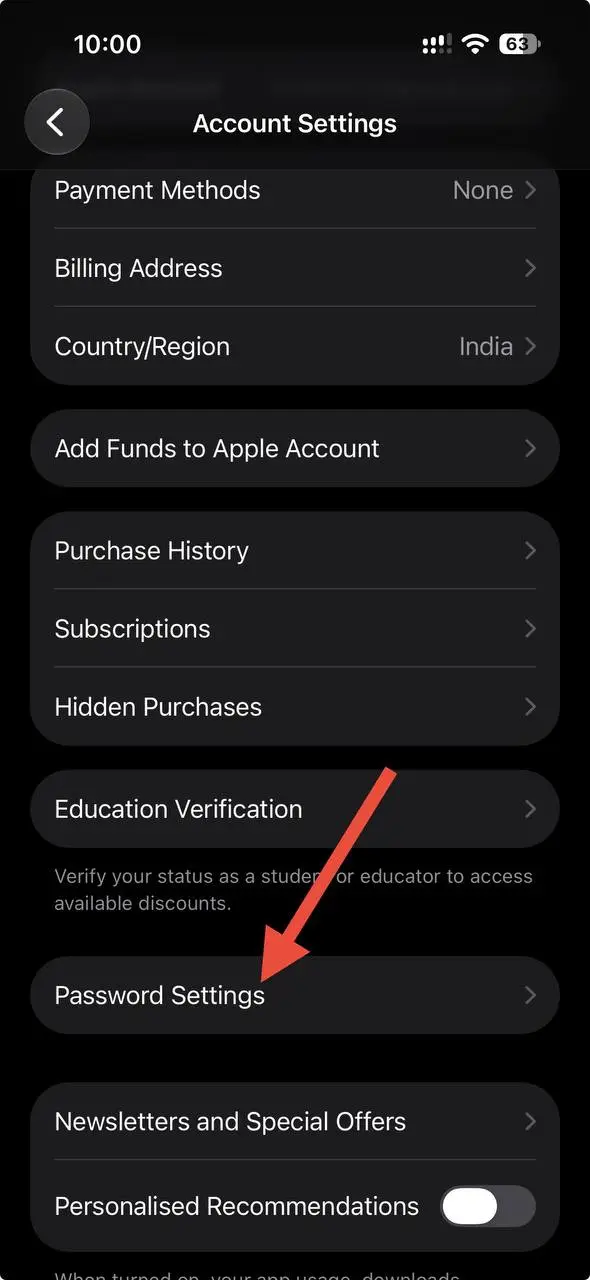
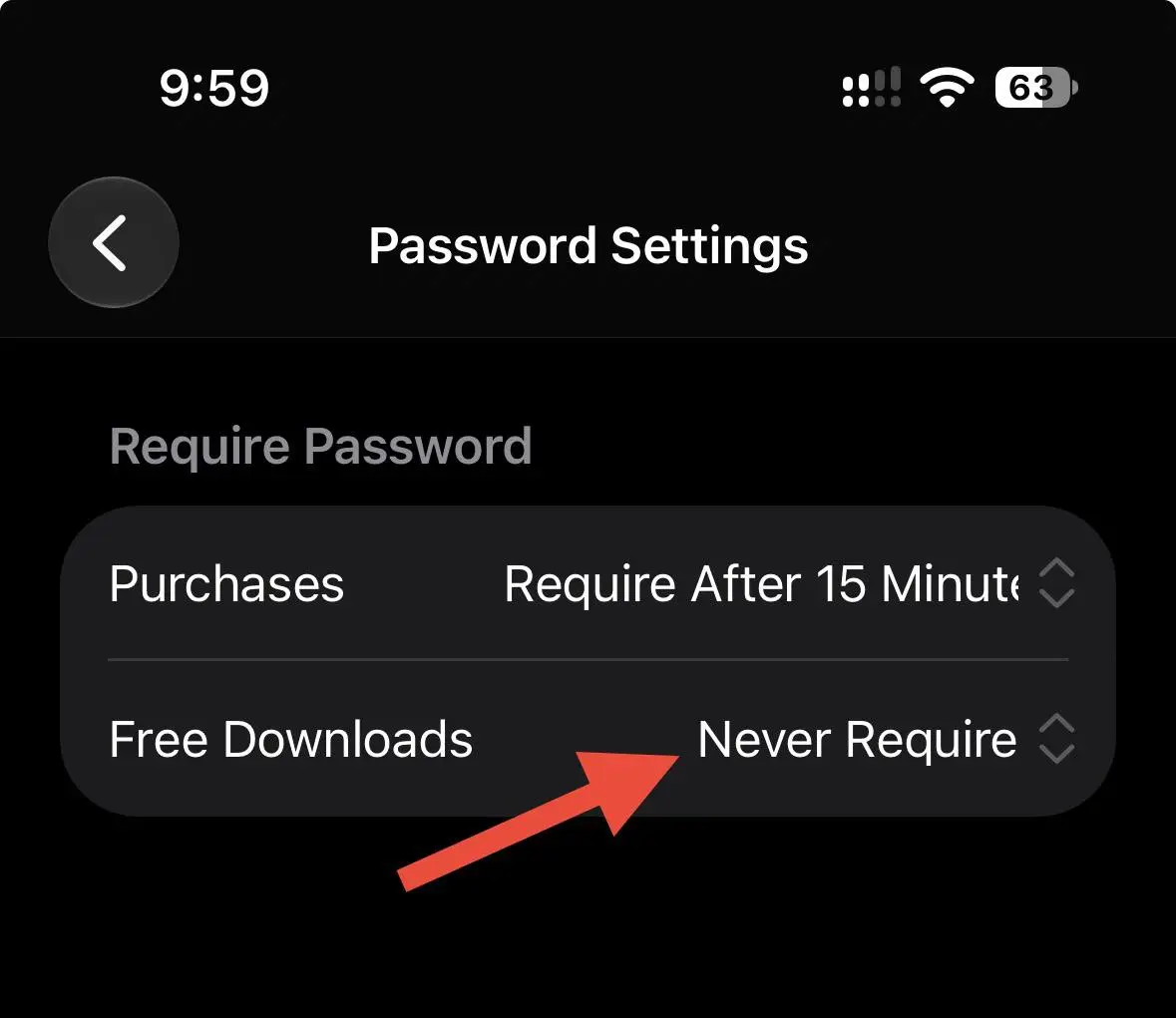
One thing to keep in mind: the Password Settings option may not appear if Face ID or Touch ID is enabled for iTunes and App Store purchases. The available options can vary depending on your iPhone settings and Apple account.
I hope this post helped you stop the Apple App Store from asking for your password every time you download a free app. If you found any of these methods useful, do share this post with others who might need it. Also, if you know another way to fix this issue, let us know in the comments so other readers can try it too!