Few gaming platforms have built a community as large as Roblox. Every day, people jump in to try new games, create their own worlds, and spend time with friends. Roblox is one of those platforms that people keep coming back to every day.
A huge part of the Roblox community uses Windows PCs to play. With such a large user base, it is common to see reports of technical issues from time to time. One error that has been showing up for some players is the “Roblox encountered an unexpected error” message. In most cases, the app closes right after the message appears, making it impossible to launch Roblox.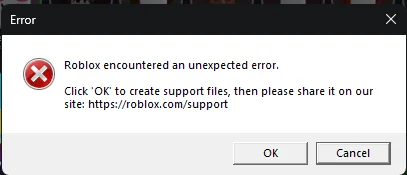
If that is exactly what is happening on your computer, keep reading. Below, I have put together a list of fixes that have helped other Roblox players solve this error.
7 Ways to Fix “Roblox Encountered an Unexpected Error”
Restart your PC
Before jumping into the main fixes, take a moment to restart your computer
- Open the Start Menu.
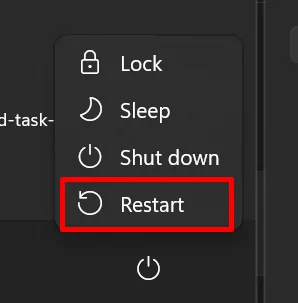
- Click the Power icon.
- Select Restart.

- Wait for your computer to reboot completely.
Turn Off Stack Protection and CFG for Roblox
The next fix I would recommend trying is adjusting a couple of Windows security settings for Roblox. Quite a few players reported that Roblox started opening normally after making this change. In my case, this was one of the fixes that worked as well.
- Press the Windows key and search for Exploit Protection.
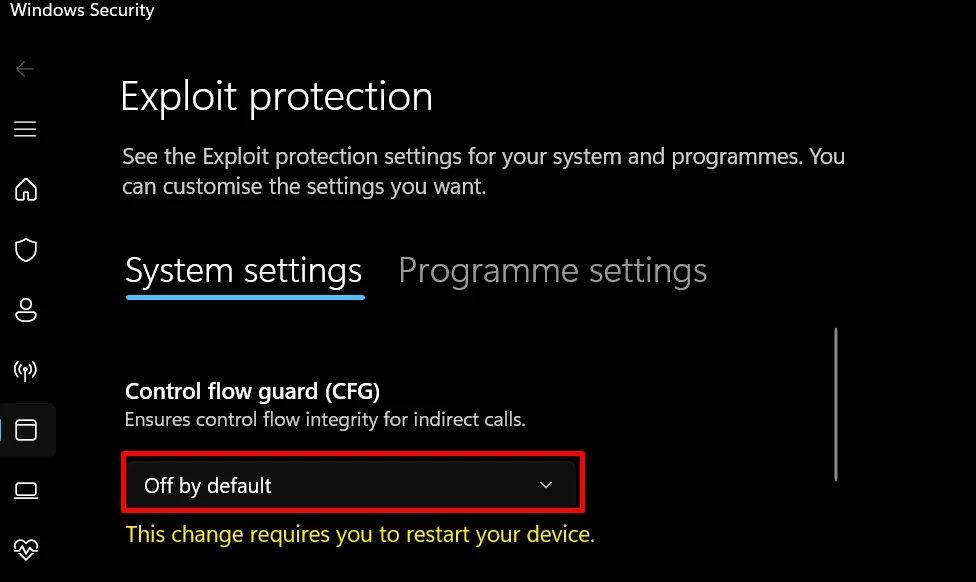
- Open it, set the Control Flow Guard (CFG) to Off by default.

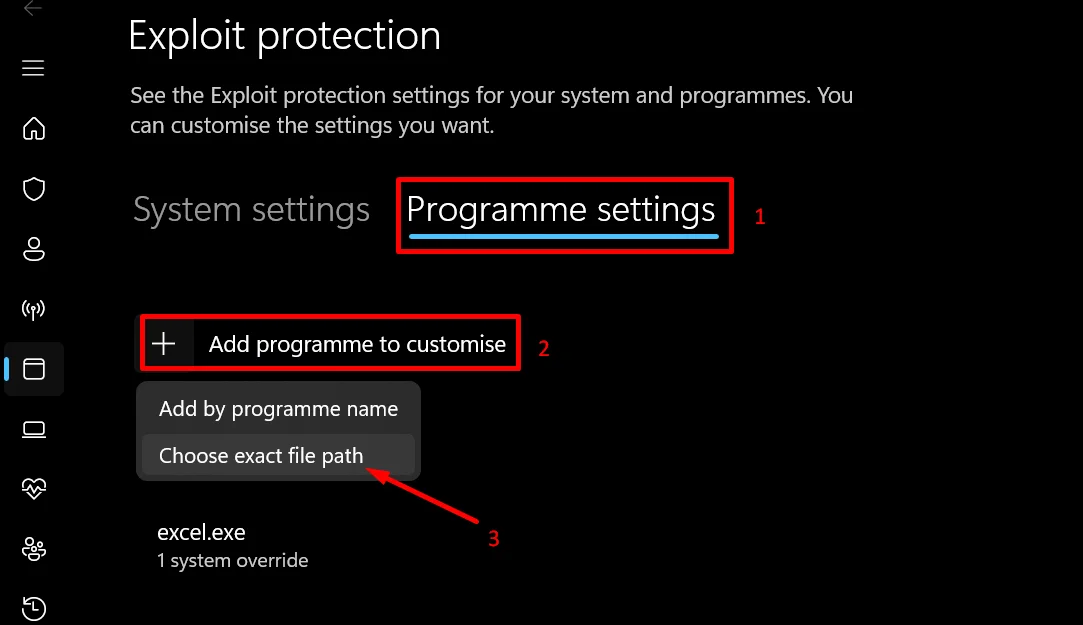
- Now, move to the Programme Settings tab.
- Click Add program to customize > Choose exact file path.

- Locate and select RobloxPlayerBeta.exe.
- Usually, you can find it inside: %localappdata%\Roblox\Versions\version-xxxx
- If you use Bloxstrap or a similar launcher, the file may be stored in a different folder.
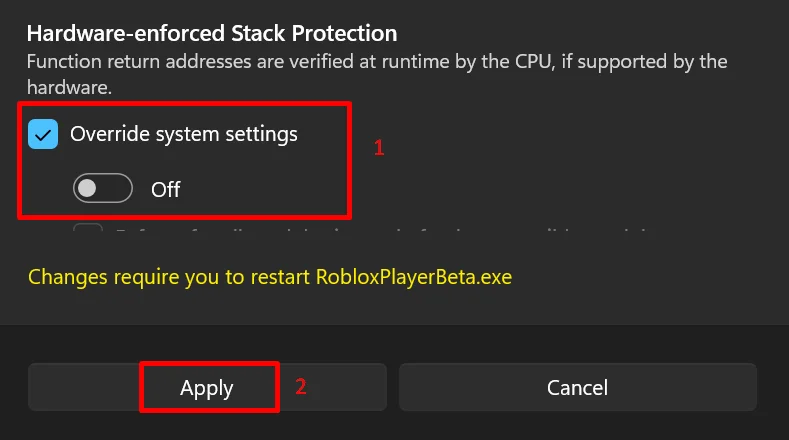
- Once Roblox has been added, scroll down until you see Hardware Enforced Stack Protection.
- Check the Override system settings and change the setting to Off.

- Keep scrolling until you find Control Flow Guard (CFG).
- Again, check the Override system settings and set it to Off.

- Save the changes and launch Roblox again.
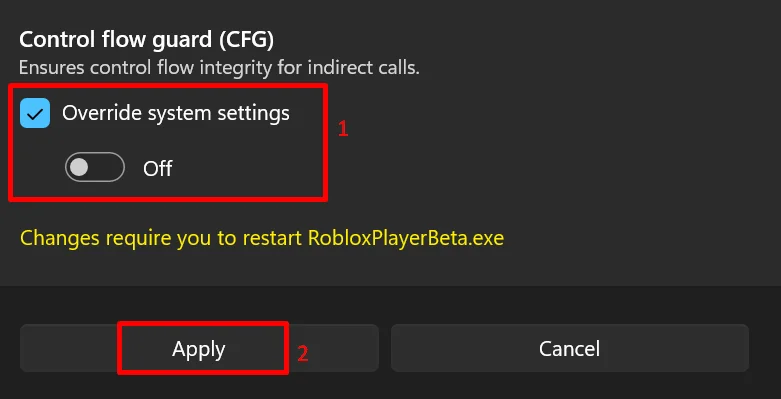
One important thing to remember here: disabling only Hardware Enforced Stack Protection is usually not enough. Make sure Control Flow Guard (CFG) is disabled too, otherwise Roblox may continue showing the same error.
Clear Roblox’s Stored Temporary Files
As the app is used, it saves temporary data on your computer, and removing it can help if the error is tied to files left behind from previous sessions.
- Make sure Roblox is completely closed.
- Press Windows + R on your keyboard.
- Enter %localappdata%\Roblox and hit Enter.
- Open the Roblox folder and look for folders such as Downloads, LocalStorage, and logs.
- Remove the files inside these folders.
- Restart your computer.
- Open Roblox again and see if the error still appears.
Open Roblox With Administrator Rights
Windows can occasionally restrict what an application is allowed to access, and when that happens, the app can close unexpectedly during startup. The solution for this is very simple:
- Close Roblox if it is currently running.
- Open the Start Menu or locate the Roblox shortcut on your desktop.
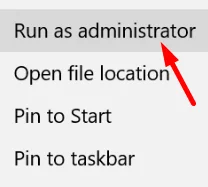
- Right-click on Roblox and choose Run as administrator.

- When the User Account Control prompt appears, click Yes.
- Wait for Roblox to open.
Clear the Windows Thumbnail Cache
This fix may sound unrelated to Roblox at first, but it has helped quite a few users. Windows stores thumbnail previews for images, videos, and other files to make folders load faster. If the issue is from those files, clearing the thumbnail cache is a good idea, and it is completely safe. Windows will automatically create a new cache the next time it needs one.
- Press the Windows key, and search for “Disk Cleanup.”
- Open the utility from the search results.
- Select your Windows drive, which is usually C:, then click OK.
- Wait for Windows to finish scanning the drive.
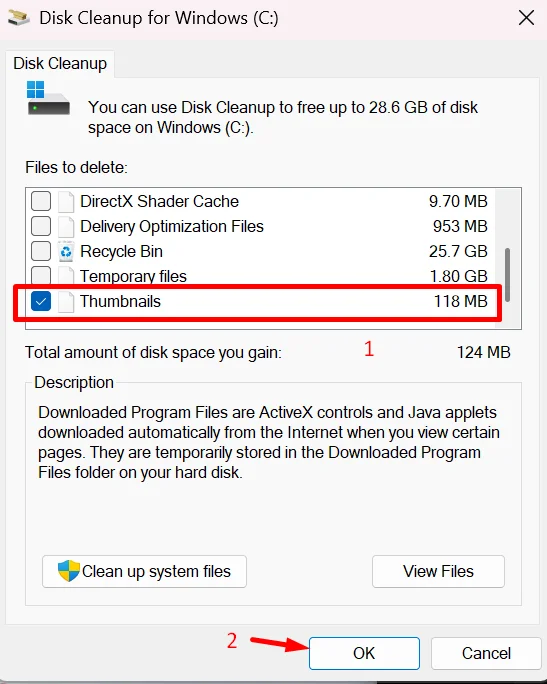
- In the list of items, tick the checkbox next to Thumbnails.
- If you only want to clear the thumbnail cache, leave the other options unchecked.
- Click OK.

- Select Delete Files to confirm.
Try Downgrading Roblox to an Older Version
A few players traced this error back to a recent Roblox update. If Roblox was working fine before an update and suddenly started crashing afterward, testing an older client version may be worth considering.
Some users have managed to launch Roblox again by switching back to an older client version. This is not an official fix from Roblox, but it can be useful for testing. If an older build works and the latest one does not, that is a strong sign that the update is causing the problem.
There is one catch, though. Roblox does not include a rollback button or a built-in downgrade feature. The client updates automatically, and older versions are not provided through official Roblox channels. Because of that, finding and installing a previous build can be difficult.
If you already have access to an older Roblox installer from a trusted source, you can uninstall the current version and test the older one. Just keep your expectations realistic. Roblox may update itself again the next time it launches, and older releases are not supported by the platform.
Reinstall Roblox
At this point, it is worth considering that the Roblox installation itself may be the source of the problem. f missing files, an incomplete update, or damaged app data is behind the error, reinstalling Roblox may help, as the process replaces all of those files with fresh copies.
Before you proceed, there’s no need to worry about losing your games or account progress. Everything is tied to your Roblox account and stored online. Just make sure you know your login details, as you’ll need to sign in again after the reinstall.
- Open Settings on your Windows PC.
- Go to Apps > Installed Apps.
- Click the three-dot menu next to Roblox and select Uninstall.

- Follow the prompts to remove the app.
- After that, restart your computer just as you did earlier.
- Now, download the latest Roblox installer.
- Run the installer and complete the installation process.
- Once done, open Roblox and sign in to your account with your details.

And that wraps it up. If Roblox is finally launching without the unexpected error, I’d love to know which fix solved it for you. Also, if you stumbled across another working solution for “Roblox encountered an unexpected error“, drop it in the comments and help out other players.