Roblox itself has a huge collection of games and keeps millions of players busy every day. Most of the time, jumping into a game takes only a few seconds. When loading problems appear, though, it can make certain games difficult to play. If you’re dealing with the same issue, the fixes below are worth trying before assuming there is a problem with your computer.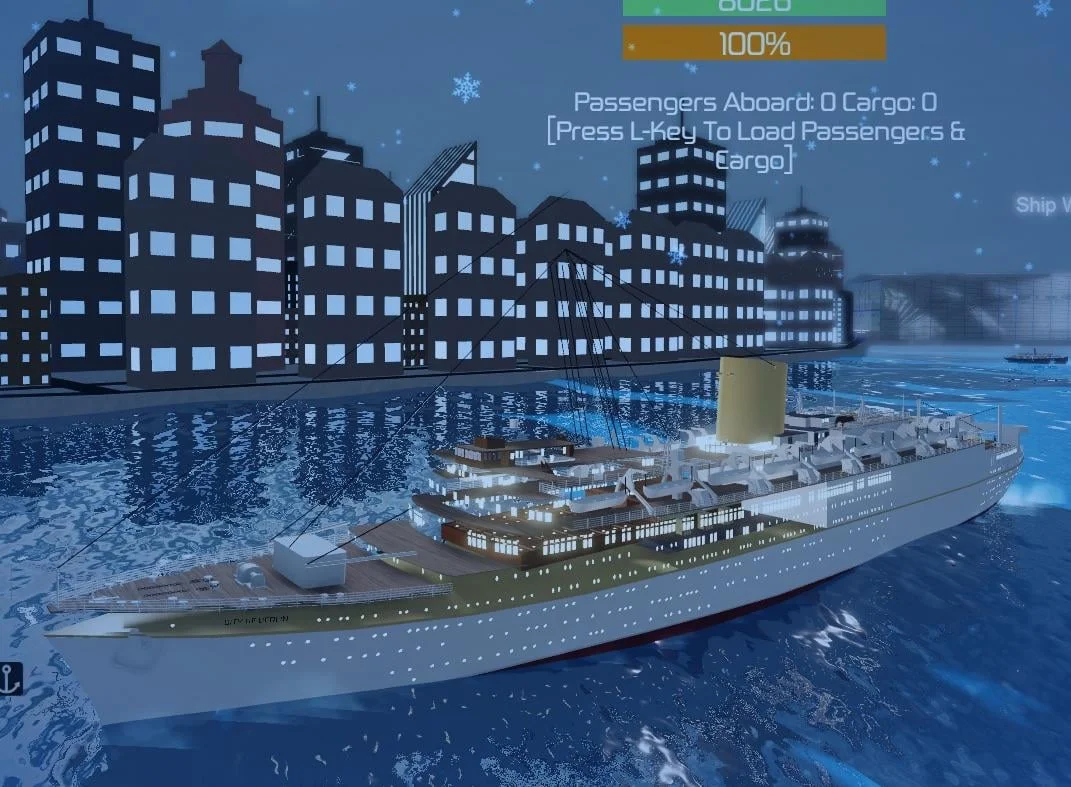
7 Easy Ways to Fix Roblox Games Not Loading Issue
Check Your Internet Connection
Before digging into Roblox settings, it helps to rule out the most basic requirement: a working internet connection. Roblox constantly downloads game assets, textures, and map data while you’re playing.
Check it by opening a few websites in your browser. If pages are taking a long time to open or are not loading at all, Roblox is unlikely to perform any differently. In that case, the issue may have nothing to do with the game itself.
In this case, try restarting your router by turning it off and leaving it unplugged for about a minute.
Try Connecting Through a VPN
In some cases, Roblox games that were failing to load completely began loading normally after the connection was routed through a VPN.
If games are loading with missing objects, textures, or parts of the map, try connecting to a VPN and choose a US server. Once connected, launch Roblox again and check if the game loads completely.
This could point to a routing or regional network issue between your internet provider and Roblox servers.
Turn Off IPv6 Temporarily
Roblox relies on a constant flow of data to pull in textures, models, and other game content. On some networks, IPv6 does not handle that connection as expected, which can leave parts of the game unloaded even though you have already entered the server.
Open Control Panel > Network and Sharing Center > Change Adapter Settings > right-click your network connection > Select Properties > Uncheck Internet Protocol Version 6 (TCP/IPv6).
Save the change, restart your PC, then launch Roblox again.
Make Sure Roblox is Not Having Server Issues

Every now and then, the real culprit sits on Roblox’s side rather than yours. A quick visit to the Roblox Status page can tell you if there are any ongoing incidents. It is also worth checking Roblox’s official social channels, where updates are often shared during larger outages.
Reset Roblox
By the time you reach this point, the problem has likely survived every common fix that would normally solve Roblox loading issues. Missing models, empty sections of the map, and assets that refuse to appear can sometimes point to a deeper issue within Roblox.
This is not a solution to jump into lightly. And more importantly, after a reset, you need to redownload everything. For that reason, it makes sense to keep this option at the very end of the list and only consider it after everything else has been ruled out.
- Press Windows Key + I to open Settings.
- Click Apps > Installed apps.
- Click the three dots next to Roblox and choose Advanced options.
- Scroll down and click Reset.
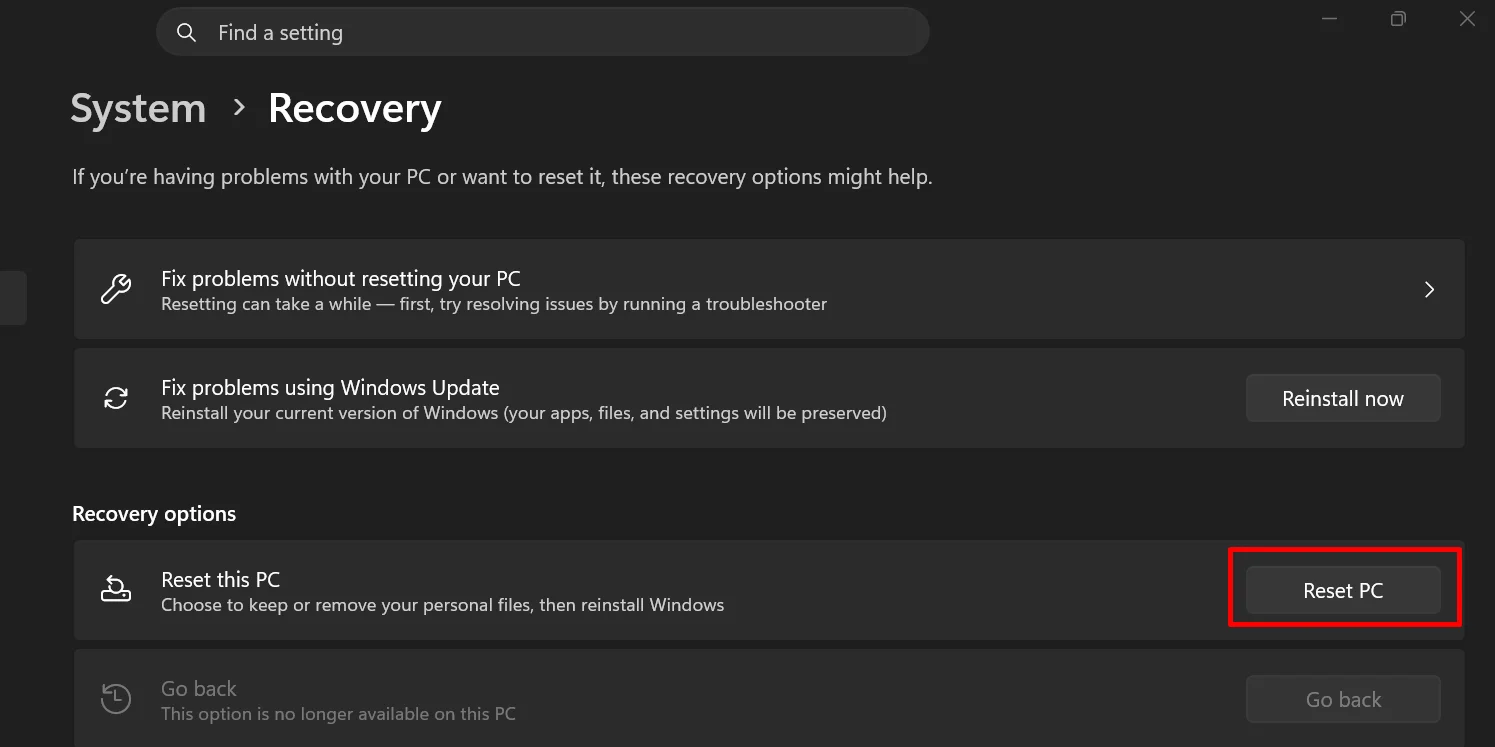
Reset Your PC While Keeping Personal Files
After working through every other fix, there may come a point where nothing seems to change. Roblox still loads incomplete maps, game assets remain missing, and the same issue follows you across different games. When that happens, the root cause may be buried somewhere within Windows itself.
A PC reset can remove damaged system settings, broken components, and software conflicts that are difficult to track down individually. Unlike a full factory wipe, this option allows you to keep your personal files while Windows reinstalls itself and returns to a clean state.
To reset your PC while keeping personal files:
- Press Windows Key + I to open Settings.
- Go to System > Recovery.
- Click Reset PC next to “Reset this PC.”

- Choose Keep my files.
- Follow the on-screen instructions to complete the reset.
Reinstall Roblox
There is only so much troubleshooting you can do before it becomes easier to replace the installation entirely. If Roblox games are still loading with missing textures, invisible objects, or incomplete maps, the installation itself may be part of the problem.
Since this process clears locally stored app data, it is best saved for the end of the list after everything else has been ruled out.
To reinstall Roblox:
- Open Settings and go to Apps > Installed apps.
- Click the three dots next to Roblox and select Uninstall.

- After that, restart your computer.
- Now, download and install the latest version of Roblox to test it.