ZArchiver has a huge fan base among Android users, and it is easy to see why. The app makes file management much simpler. You can open ZIP files, extract folders, copy files, move them around, and manage app or game files from one place. A lot of users also rely on ZArchiver when they need to work with files inside folders that are harder to access with the default file manager.
Lately, users on Android 11, Android 13, Android 14, and Android 15 have reported seeing the “Access is denied” message in ZArchiver. The issue often appears when opening the Android/data folder or trying to enter a specific app or game folder inside it. In some cases, the folder opens normally, yet the files inside cannot be accessed or changed.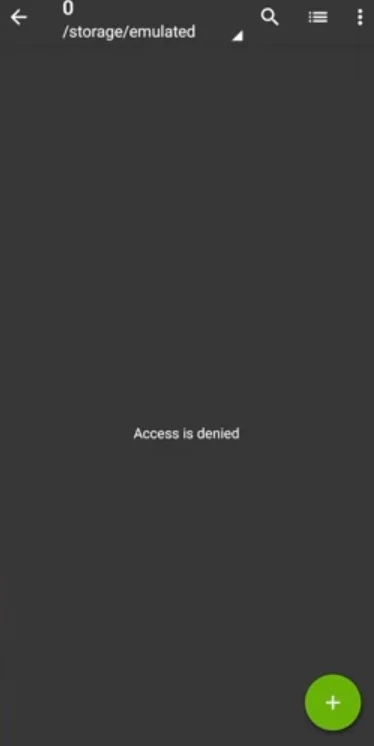
If you are seeing the ZArchiver Access is Denied error all of a sudden, there is no need to worry about losing your files or rooting your phone right away. There are a few simple methods you can try, and you can use them without deleting your personal data. Below, I have shared some of the easiest ways to fix this issue and access your Android/data files again.
How to Fix “Access is Denied” in ZArchiver on Android
Rename the Android Data Folder
One quick workaround worth trying is changing the name of the Android/data folder. Open your file manager, locate the data folder, and rename it to something like data123. Once the name has been changed, open the renamed folder through ZArchiver and check if the access restriction is gone.
This method does not involve deleting the folder or removing the files stored inside it. The folder and its contents remain intact; only the folder name changes. If ZArchiver allows access after the rename, you can continue working with the files from there.
Give ZArchiver Access Through Shizuku
If renaming the folder does not help, Shizuku is another option you can try. It lets supported apps use certain Android system permissions without requiring you to root the phone.
- First, install Shizuku from the Google Play Store and open the app.
- From there, go to Pairing and open your phone’s Developer options.

- Now, enable the Wireless debugging toggle.

- Choose Pair device with pairing code, then enter the displayed pairing code in Shizuku when asked.

- Once the pairing is complete, return to Shizuku and tap Start to launch the Shizuku service.
- Next, open the Authorized applications section in Shizuku and allow ZArchiver.
- Now launch ZArchiver, tap the three dot menu in the upper right corner, and open Settings.
- Under the Root section, choose Shizuku as the root access method.
- Enable the options related to using Shizuku for Android file operations.
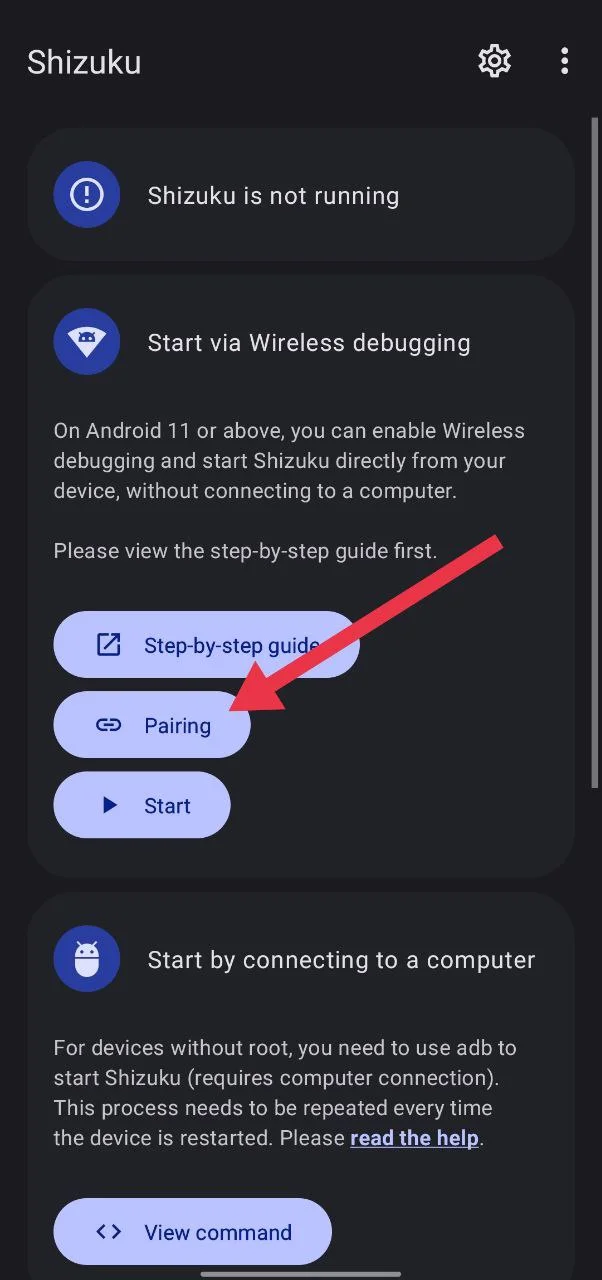
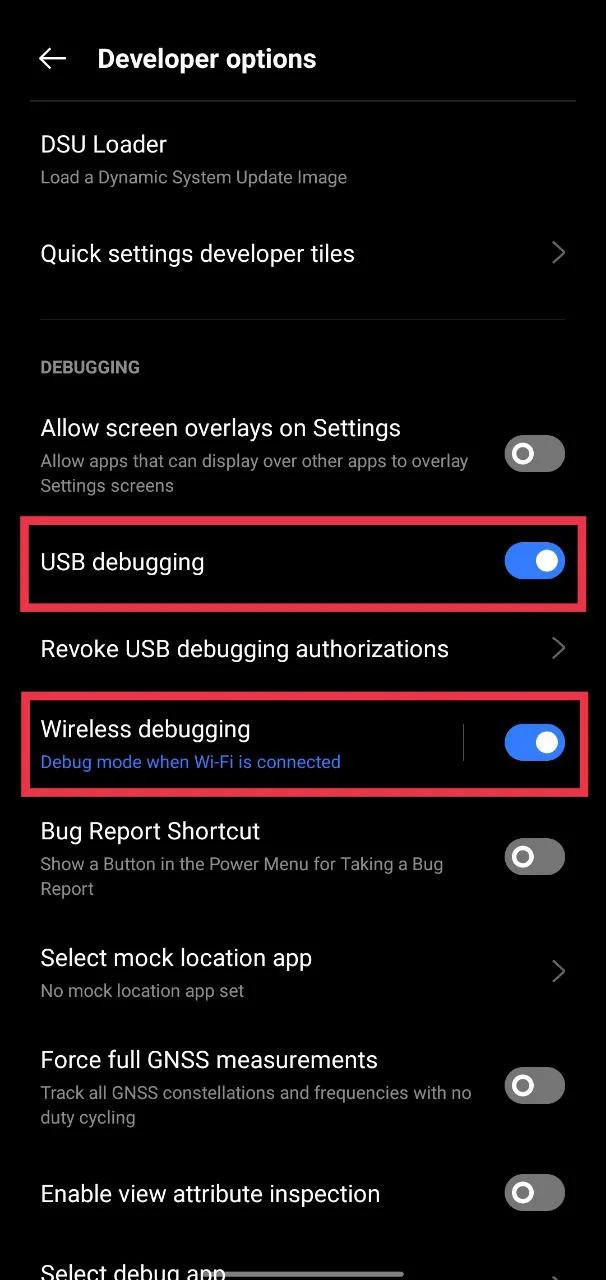
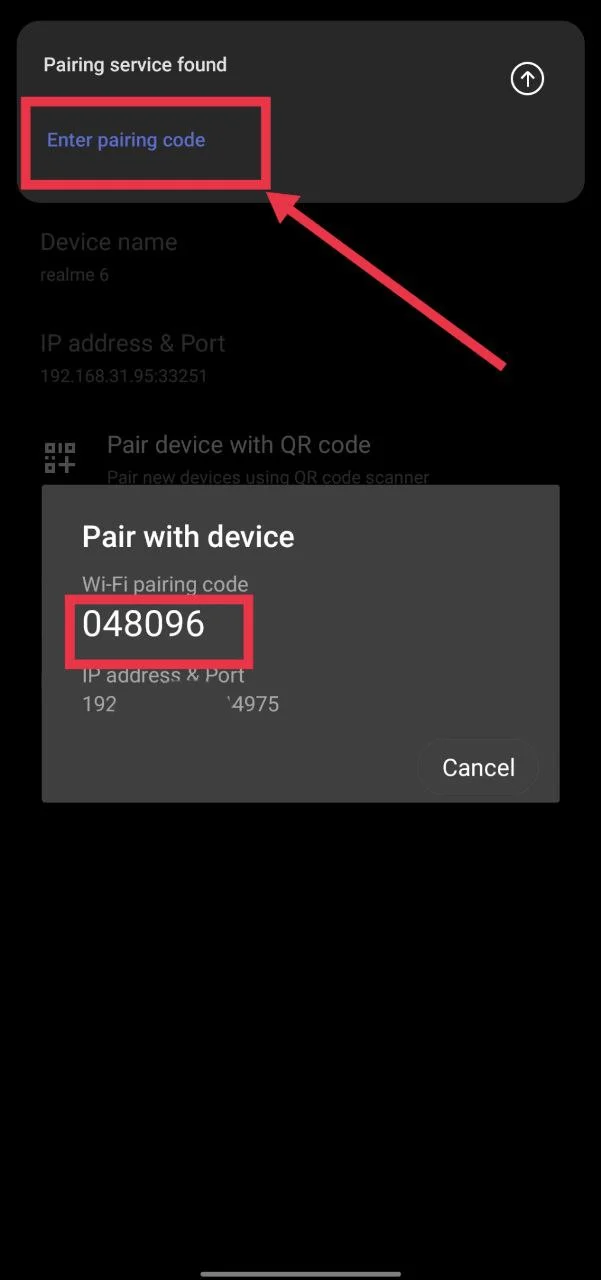
Once these settings are in place, open the Android/data folder in ZArchiver and check your file access. This method can be useful on newer Android versions where direct access to protected folders is restricted.
Try an Older Version of ZArchiver
If the problem showed up after a ZArchiver update, going back to an older version is worth a try. Some users have reported that ZArchiver 1.0.9 still lets them access folders that are restricted in newer releases.
So, if your phone is currently using latest version of ZArchiver, you can try an earlier release such as version 1.0.9 and check the Android/data and Android/obb folders again.
There are also claims that latest updates changed how access to these folders works, possibly due to Android or Google restrictions. That has not been officially confirmed, so I would treat it as a user theory rather than a confirmed explanation.
Try Alternative File Manager App to Access Android/data
If error is not resolved, you can also try Material Files or Files by Marc or X-plore File Manager. These apps can take you to the folder through Android’s file system. In Material Files, tap the three lines in the top left corner and select Android/data from the side menu. This should open the data folder so you can view its contents.
The access you have here can still be limited. For example, you may be able to rename or delete a file that is already inside Android/data, while copying a file into that folder may still be blocked. So this option is more useful for basic file management rather than full access to app data.
Files by Marc works a little differently from Material Files. It mainly acts as a shortcut to Android’s built in file picker, while Material Files works as a separate file manager. You can try both and see which one gives you the file access you need.
Access the Android Data Folder Using a PC
Here is a handy workaround if none of the methods above helped. Connect your phone to a PC or laptop with a USB cable, then choose File Transfer from the USB options on your phone. Once the computer recognizes the device, open your phone storage and head to Android > data.
From there, you can look for the folder belonging to the app or game you need to work with. You can then copy or move the required files using the computer. For a quick file transfer, this can be much easier than trying to manage the same folder from the phone.
Keep in mind that this is mainly a temporary workaround. It does not require root or any changes to your phone, though you will need a PC or laptop and a USB cable. If you only need to transfer a file into an app folder, this can be a useful option to try.
Update Your Device
If ZArchiver is still showing “Access is denied,” check your phone for a pending Android or system update. Make sure you install any available update and then check the Android/data folder in ZArchiver again.
So, did any of these methods work for you? If you managed to open the Android/data folder using a different trick, share it in the comments too. Your method might save someone else a lot of time. And if ZArchiver is still showing access denied error, keep an eye on upcoming app updates. A future release could fix the issue on your device.