WhatsApp has become one of the first apps we install whenever we buy a new phone. Even before setting up other apps on the phone, most of us want WhatsApp up and running because that is where our daily chats, photos, videos, and important messages are stored. To make moving to a new phone easier, WhatsApp introduced the chat transfer feature. It lets you move your chat history directly from your old phone to your new one without having to go through a lengthy process.
For people who have years of conversations saved on WhatsApp, this feature is really useful. We all have personal chats, family conversations, work messages, and photos that we do not want to lose when switching phones. So, when WhatsApp shows a QR code on the new phone, all we need to do is scan it using the old phone to begin the transfer. At least, that is how it is supposed to work.
However, I recently ran into a problem where my old phone could clearly see the QR code on the new phone, but WhatsApp simply failed to read it. Interestingly, the same phone could scan a WhatsApp Web QR code without any trouble, which made the issue even more unexpected. If you are seeing the “Invalid QR Code” error during WhatsApp chat transfer, I faced the same issue recently. I managed to fix it with a simple method, along with a few other fixes that may help you complete the chat transfer.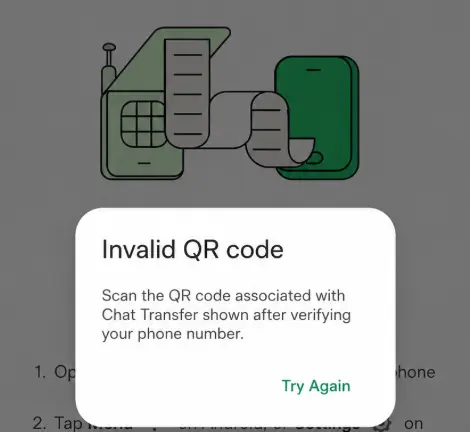
Fix WhatsApp Chat Transfer “Invalid QR Code” Error on Android & iPhone
Change Your Phone’s Display Theme to Light Mode
This is honestly a strange little issue with WhatsApp’s QR scanner. If your phone is using dark mode, the QR code on the new phone may appear perfectly clear, but WhatsApp on your old phone may simply refuse to read it. The funny part is that the same camera can scan a WhatsApp Web QR code without any trouble. Until WhatsApp figures out this issue and fixes it, switching your phone’s display theme from dark mode to light mode is a simple workaround that worked for me.
If your old phone is currently using dark mode, I would suggest trying this first. The QR scanner seems to read the code only when it appears against a completely white background. You can quickly swipe down from the top of your screen to open the notification panel and turn off dark mode without going into settings. 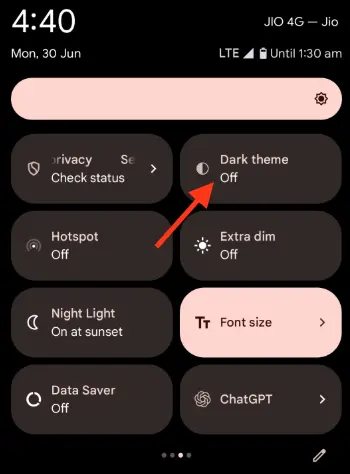
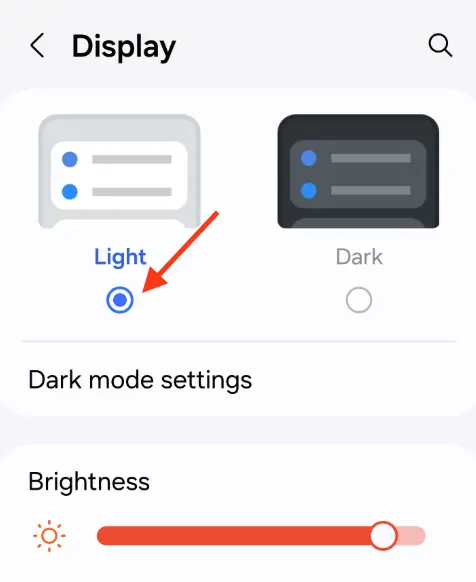
If you cannot find that option there, you can change it through your phone’s display settings instead.
- Open the Settings app on your old phone.
- Select Light Mode instead of Dark Mode under the Display settings.

- Now open WhatsApp and return to the chat transfer screen.
- Scan the QR code displayed on your new phone again.
Take a Screenshot of the QR Code and Scan It from Gallery
If changing the display theme did not help, here is another method worth trying. Instead of pointing your old phone directly at the QR code displayed on the new phone, take a screenshot of that code and open it in your gallery. You can then zoom in on the screenshot and let your old phone scan it from there. It sounds a bit unusual, but it is worth trying if WhatsApp keeps ignoring the original QR code.
- Keep the WhatsApp QR code open on your new phone.
- Take a screenshot of the screen showing the QR code.
- Open your gallery and find the screenshot you just took.
- Zoom in a little so the QR code appears larger on the screen.
- Now take your old phone and open the WhatsApp chat transfer scanner.
- Point its camera at the enlarged QR code on your new phone.
Scan the WhatsApp QR Code Using Your Phone’s Camera App
If WhatsApp still refuses to scan the code, try using your phone’s regular camera app instead of the QR scanner inside WhatsApp.
- On your old phone, open WhatsApp and go to Settings > Chats > Transfer Chats.
- Keep the transfer screen ready on your old phone.
- Now open WhatsApp on your new phone and begin the chat transfer process again.
- Continue until the QR code appears on your new phone.
- Instead of opening the QR scanner inside WhatsApp on your old phone, open its regular camera app.
- Now, point the camera at the QR code displayed on your new phone and see if it reads the code.
Update WhatsApp to the Latest Version
Before trying anything more drastic, check if WhatsApp has an update waiting in your app store. The currently installed version on your device may have bugs that affect the chat transfer process or QR code scanner.
If both phones have pending WhatsApp updates, install those as well before trying the transfer again.
Uninstall and Reinstall WhatsApp
I know uninstalling WhatsApp is probably the last thing you want to try when all your important chats are still on your old phone. But if you have tried the methods above and the QR code still refuses to scan, this is another option. WhatsApp support also recommends uninstalling and reinstalling the app for certain problems. So, if nothing else has worked, you can give this a try.
Before doing this, please check your chat backup on your old phone. I don’t want you to lose years of conversations while trying to fix a QR code issue. If your chats are not backed up, uninstalling WhatsApp could permanently remove them. I cannot guarantee that you will be able to recover your old conversations, so proceed only if you have a backup or are willing to take that risk.
To uninstall WhatsApp, press and hold its app icon on your old phone and select Uninstall or Delete App, depending on your device. Once the app is removed, open the Google Play Store on Android or the App Store on iPhone and install WhatsApp again. Complete the initial setup and try transferring your chats to the new phone once more.
I hope one of these methods helped you fix the WhatsApp chat transfer “Invalid QR Code” error and move your old conversations to your new phone. In my case, changing the display theme from dark to light did the trick, even though the QR code looked perfectly clear before that. It’s a strange little issue, and hopefully WhatsApp will look into it and fix it in a future update.
If you found another way to fix the WhatsApp Invalid QR Code error during chat transfer, please share it in the comments. Your method might save someone else a lot of time. Also, if this guide helped you transfer your WhatsApp chats, do share it with others who might be facing the same issue.