New messaging apps keep coming out every year, yet WhatsApp is still the one most people keep using. Even though a lot of users complain about recent updates, ads, and other changes, billions of people still open the app every day to send messages, photos, videos, and important files.
For a lot of people, WhatsApp holds years of memories and important conversations. It can have family photos, work chats, voice messages, documents, and contacts that cannot be replaced. When you buy a new phone or reinstall WhatsApp, the first thing you want is all of those chats back. That is why the Google Drive backup feature is so useful. It keeps a copy of your WhatsApp data online so you can move everything to another phone without losing your chats.
The problem comes when WhatsApp refuses to restore that backup. You might see the message, “Unable to restore your chats from this backup” or “Sorry, we were unable to restore any of your message history backups.” 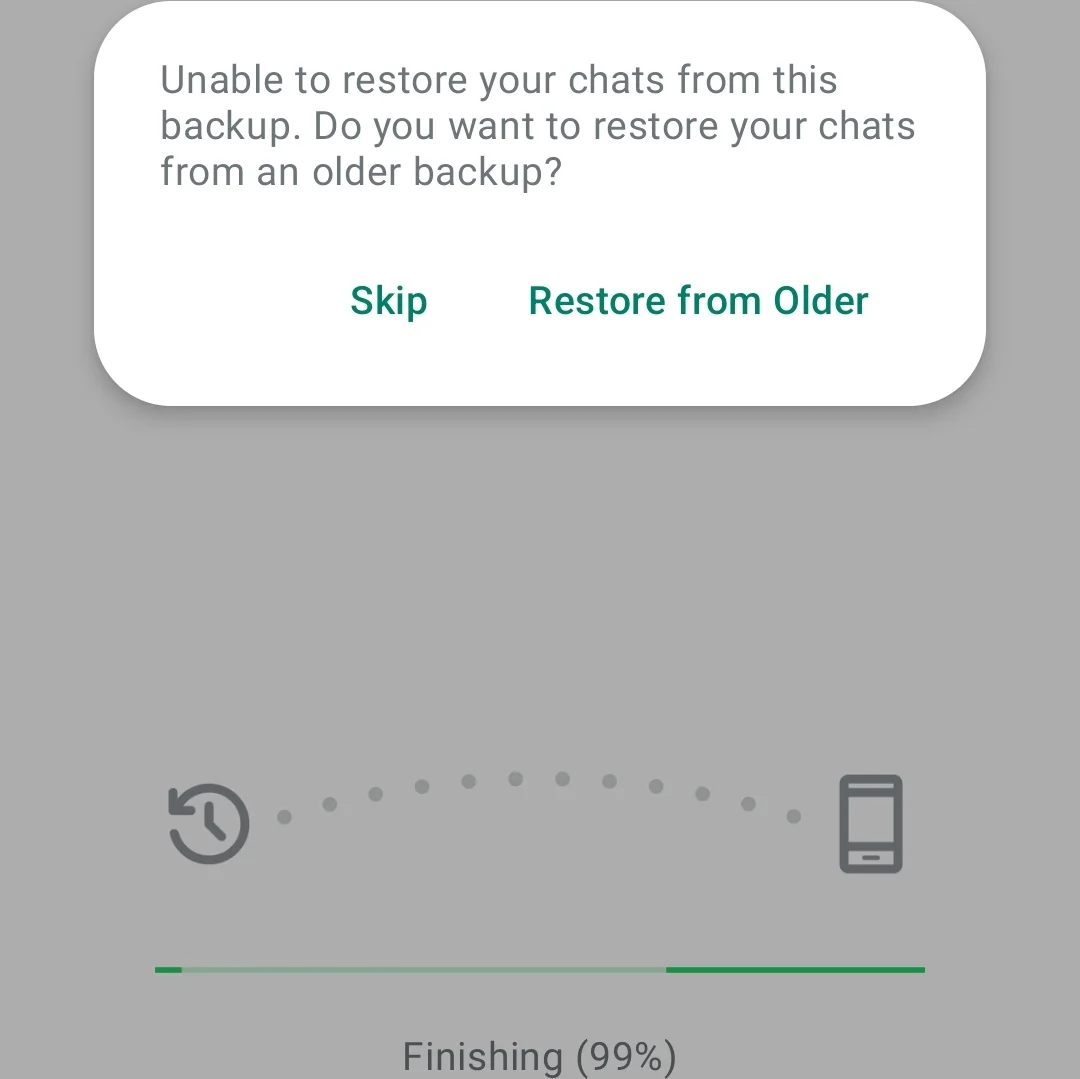
I know this because I went through the exact same thing. I switched to a new phone and had a backup that was more than 5 GB on Google Drive. Everything looked fine, but the restore stopped at random percent every single time and then failed. I spent almost an entire day trying different ideas. After trying one thing after another, I finally found a trick that brought my chats back. I will also share a few other methods that helped during my testing, so if your backup refuses to restore, there is still a good chance you can bring your chats and media back.
How to Fix “Unable to restore your chats from this backup” on WhatsApp on Android and iPhone
Before you try the fixes below, check if you’re using the latest version of WhatsApp from the Google Play Store or Apple App Store. If the app is already up to date and the restore still fails, continue with the solutions below.
Restart Your Phone
First of all, if the restore gets stuck at 69%, 99%, or any other percentage, don’t uninstall WhatsApp.
Swipe WhatsApp away from the Recent Apps screen to close it completely. Then go to Settings > Apps > WhatsApp and tap Force Stop. 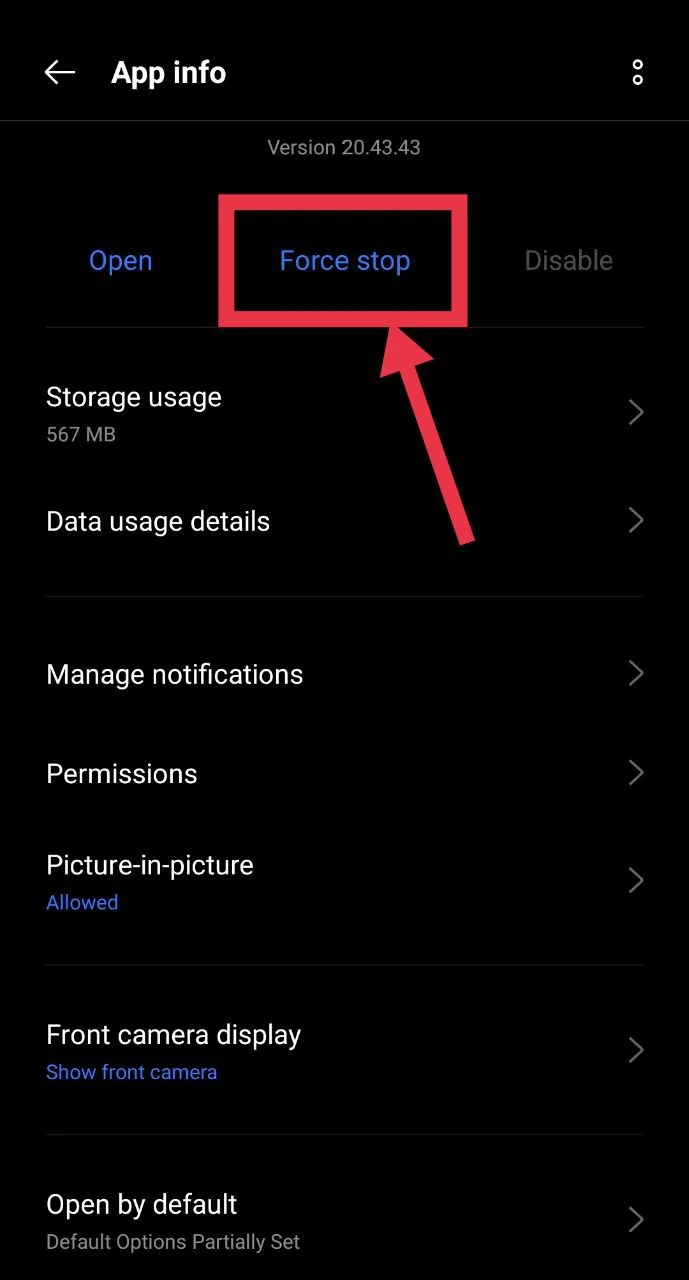
After that, press and hold the Power button and restart your phone. Once your phone turns on, open WhatsApp again. In some cases, the restore continues from where it stopped and completes successfully.
Restore WhatsApp Using a Local Backup File
If WhatsApp keeps saying it cannot restore your Google Drive backup, you can try using the local backup stored on your old phone.
- Delete WhatsApp from your new phone if it is already installed.
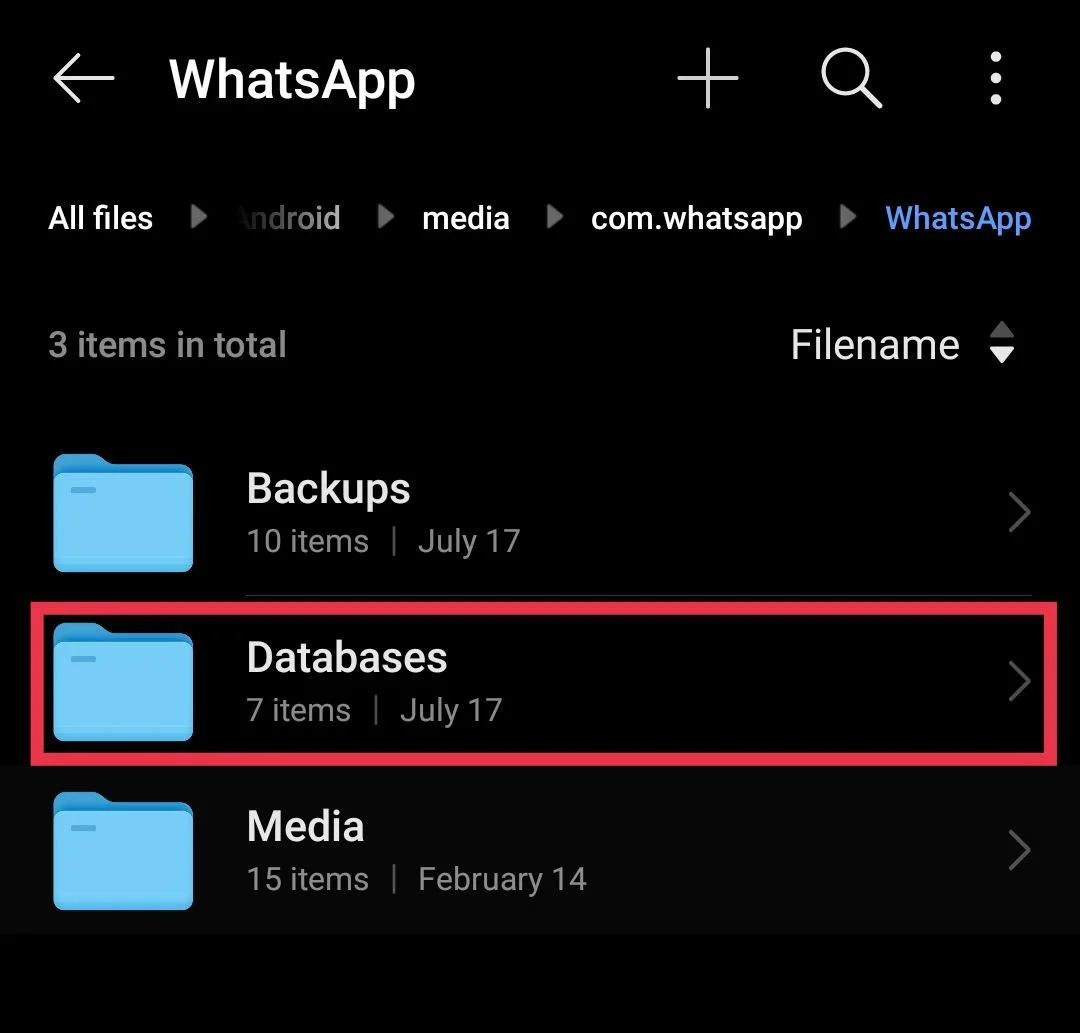
- On your old phone, open Internal Storage and go to this folder: Android > media > com.whatsapp > WhatsApp > Databases

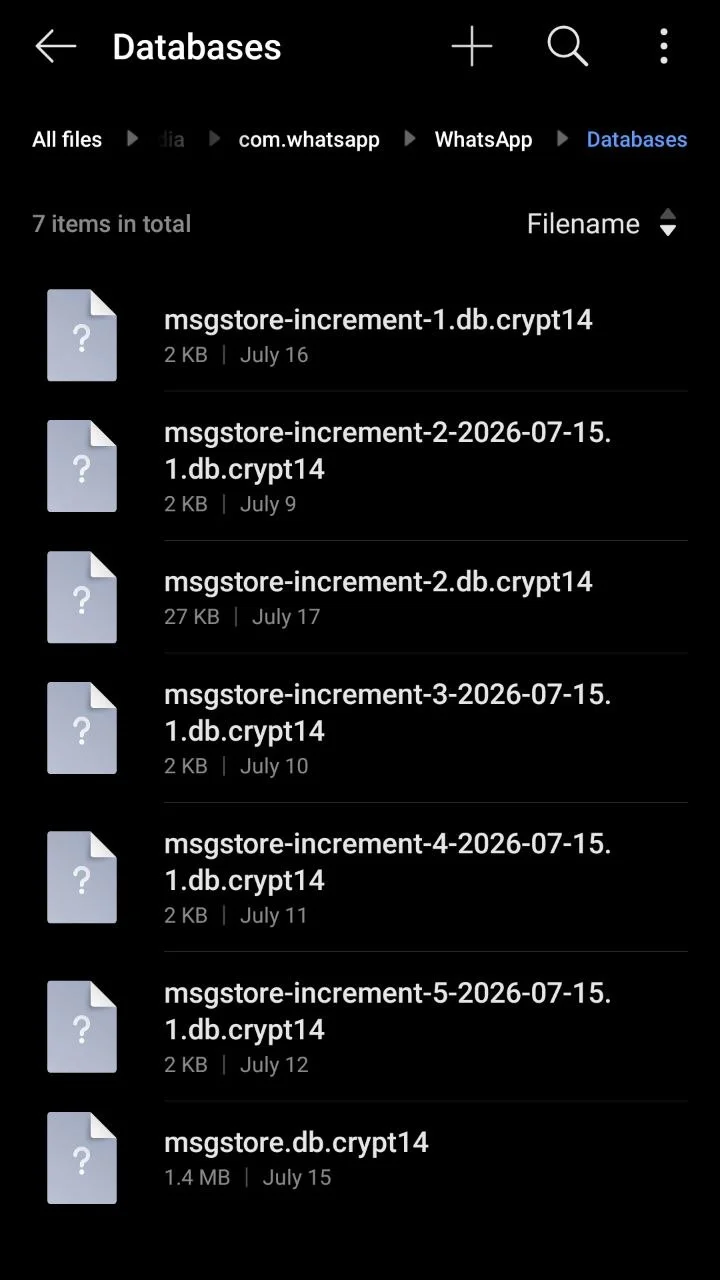
- Inside the Databases folder, find the latest backup file. It should look similar to this: msgstore YYYY MM DD.db.crypt14

- Transfer this backup file from your old phone to your new phone any file transfer method.
- On your new phone, create the same folder if it does not already exist: Android > media > com.whatsapp > WhatsApp > Databases
- Copy the backup file into the Databases folder on your new phone.
- Now, install WhatsApp again and verify your phone number.
- During setup, WhatsApp should detect the local backup automatically. Tap “Restore” and wait for the process to finish.
Remove Local Backup Files Before Restoring from Google Drive
If your WhatsApp backup is stored on Google Drive but the app keeps failing to restore it, a local backup file on your phone could be causing the issue. Clearing it before the restore may help.
- If your phone has an SD card, remove it before installing WhatsApp. This prevents WhatsApp from reading backup files stored on the SD card.
- Open your phone’s Internal Storage and go to: WhatsApp > Databases
- If you see any .crypt backup files inside the Databases folder, move them to another folder outside the WhatsApp folder. Do not delete them. Keeping a copy is always a good idea.
- Open Settings > Accounts on your phone and sign out of every Google account except the one that contains your WhatsApp Google Drive backup.
- Now, install WhatsApp and verify your phone number.
- When WhatsApp finds your Google Drive backup, tap Restore and wait for the process to complete.
Restore WhatsApp from a Local Backup File
If you do not have a Google Drive backup, you may still be able to restore your chats from a local backup stored on your phone. This method uses one of the backup files saved in your device storage.
- Open your phone’s File Manager.
- Search for crypt14 in the search box.
- Look for a file with a name similar to this: msgstore YYYY MM DD.db.crypt14
- Now, pick the backup file from the date you want to restore.
- Open the folder where the backup file is stored, then copy it.
- Go to: Internal Storage > Android > media > com.whatsapp > WhatsApp > Databases
- If there are already backup files inside the Databases folder, move them to another folder outside the WhatsApp folder. Do not delete them.
- Paste the backup file into the Databases folder.
- Rename the file from: msgstore YYYY MM DD.db.crypt14 to msgstore.db.crypt14
- Before installing WhatsApp, make sure it does not detect a Google Drive backup. If your Google account has a WhatsApp backup, the app will try to restore from Google Drive instead of the local backup.
- To check this, open Google Drive, tap the menu, then open Backups. If you find a Google account with a WhatsApp backup, sign out of that account on your phone.
- Sign in with a different Google account that does not have a WhatsApp backup, and sign out of any other Google accounts.
- Install WhatsApp, verify your phone number, and continue with the setup.
Since there is no Google Drive backup linked to the signed in account, WhatsApp should scan your phone for a local backup. If everything is in the correct folder and the file name is correct, the app should detect the backup and restore your chats from the local file.
Force Stop WhatsApp and Continue the Restore
If your WhatsApp restore process freezes at a certain percentage, such as 79%, it does not always mean the backup is damaged. In some cases, the app simply stops responding during the restore process.
- Wait a few minutes to make sure the progress is not still continuing in the background.
- If the restore remains stuck, open Settings > Apps > WhatsApp.
- Tap Force Stop to completely close the app.
- Now, open WhatsApp again.
- The app may continue the restore from where it stopped. You may be asked to enter your name, after which your existing profile photo may appear.
- After that, allow WhatsApp to complete the Connecting and Initializing process. Do not close the app while these steps are in progress.
Try an Older Version of WhatsApp
If you transferred your data to a new phone using Samsung Smart Switch, the version of WhatsApp that comes with the transfer may not restore your chats correctly. You can try installing an older version of WhatsApp as it helped some users complete the restore process.
- After Smart Switch finishes copying everything, don’t open WhatsApp yet.
- Instead, delete the app. If your phone asks if you want to keep the app data, choose Keep Data. This keeps all the WhatsApp files that Smart Switch already copied.
- Now download an older version of WhatsApp from a site like APKMirror or APKPure
- Then verify your phone number.
- WhatsApp should detect the transferred data and begin restoring your chats.
- Once the restore is complete, update WhatsApp to the latest version from the Google Play Store.
If your backup is stored on Google Drive instead of Smart Switch, you can still try this method. First, uninstall WhatsApp and remove its app data. Then install an older version of WhatsApp and check if it can restore your Google Drive backup successfully.
Not every Android phone lets you keep app data after uninstalling an app. Samsung includes this option, but other brands may remove both the app and its data together.
If your phone keeps the transferred WhatsApp data after uninstalling the app, you can install the older APK over it and continue with the restore. If uninstalling removes all WhatsApp data, this method may not be suitable because the transferred backup files could also be deleted.
Turn Off Google 2-Step Verification Before Restoring
A few users have found that Google 2-Step Verification can stop WhatsApp from reading a backup stored on Google Drive. If your backup is visible but WhatsApp still says it cannot restore it, try this as well.
- Open your Google Account settings for the account that stores your WhatsApp backup.
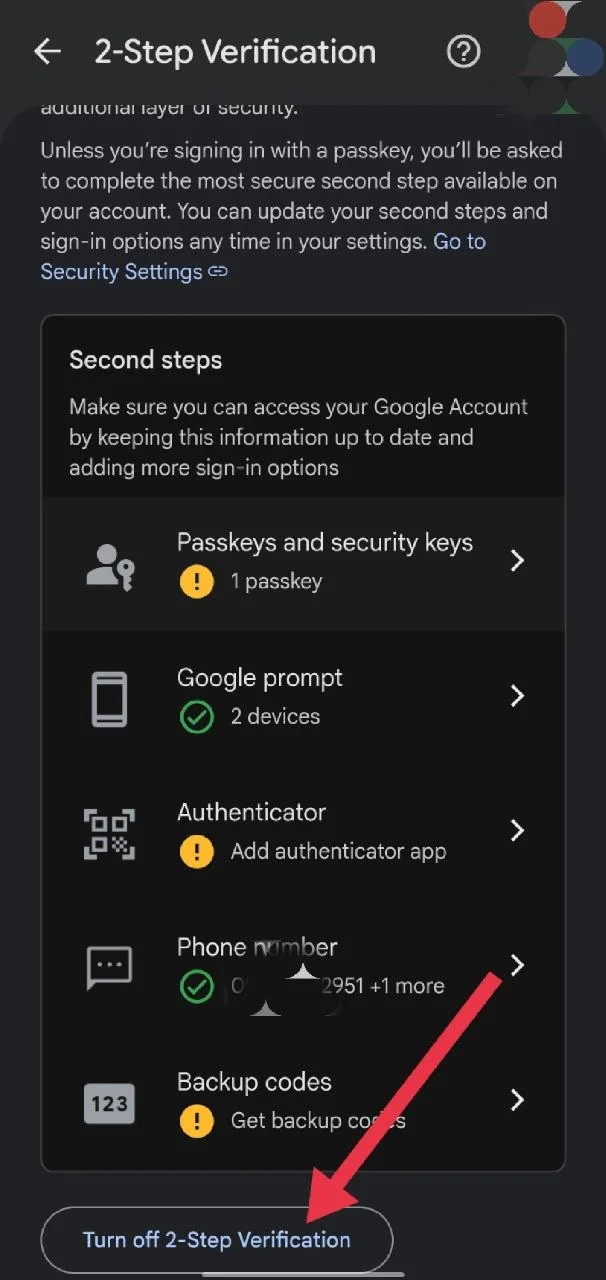
- Go to Security and temporarily turn off 2-Step Verification. (Google app > Profile picture > Manage your Google Account > Security & sign-in > 2-Step Verification > Turn off 2-Step Verification).

- On your phone, open Settings > Apps > WhatsApp and clear both the app data and cache.
- After that, uninstall WhatsApp.
- Now, install WhatsApp again from the Google Play Store.
- Before opening the app for the first time, open the WhatsApp app settings and allow all permissions.
- Then, open the WhatsApp and verify your phone number.
- When you see the option to “Restore” from another device, skip it. WhatsApp should then look for your Google Drive backup instead.
- Tap “Restore” and wait for the process to finish.
Tip: If the restore completes successfully, you can turn Two Step Verification back on in your Google Account settings. \
Other Fixes You Can Try
- Turn off VPN and Private DNS.
- Use a WiFi connection.
- Set Battery to Unrestricted for WhatsApp and Google Drive.
- Turn Battery Saver off.
- Allow Background Activity for both apps.
- Enable all app permissions.
- Clear the WhatsApp cache.
- Try backing up on both WiFi and mobile data.
- Try a different Google account.
- Upload a small file to same Google Drive, then try again.
That covers all the fixes I could find for the “Unable to restore your chats from this backup” error on WhatsApp.
I hope one of these methods helped you restore your chats. If you found another fix that worked, feel free to share it in the comments. It could help someone else recover their WhatsApp backup without spending hours trying different solutions.