The My H-E-B App has become a favorite choice for many shoppers who want an easy way to buy groceries without spending time walking through store aisles. With just a few taps, you can browse products, place an order, and choose home delivery or store pickup. It also helps customers keep track of their shopping lists and find products quickly, which is why many people use the app regularly.
Another reason people enjoy using the HEB App is the chance to save money through digital coupons and special deals. Many shoppers check the app before placing an order so they can add available coupons and lower their grocery bill. For families that shop often, these savings can make a real difference. When the app stops working, missing those discounts becomes one of the biggest concerns for users.
Lately, many customers have shared complaints about the HEB app not working. Some users say the app will not open, while others report login issues, loading problems, or errors when trying to place an order. At the same time, there are users who can still access the app without any trouble.
I came across a number of user reports while researching this issue, and a few solutions appeared repeatedly. Let’s go through them and see if one of them works for your situation as well.
How to Fix My HEB App Not Working Issue on Android and iPhone
Before you spend time trying every fix in this guide, make sure your internet connection is not the real culprit. A surprising number of app issues turn out to be nothing more than an internet issue.
Check If HEB Servers Are Down
Before trying any fixes, check if the problem is coming from HEB’s side. The HEB App has experienced server-related outages in the past, and during these periods, many users are unable to open the app or place orders.
A quick way to verify this is by visiting a third-party outage tracking website such as Downdetector. If you notice a sudden spike in reports from other users, there is a good chance that HEB’s servers are experiencing issues.
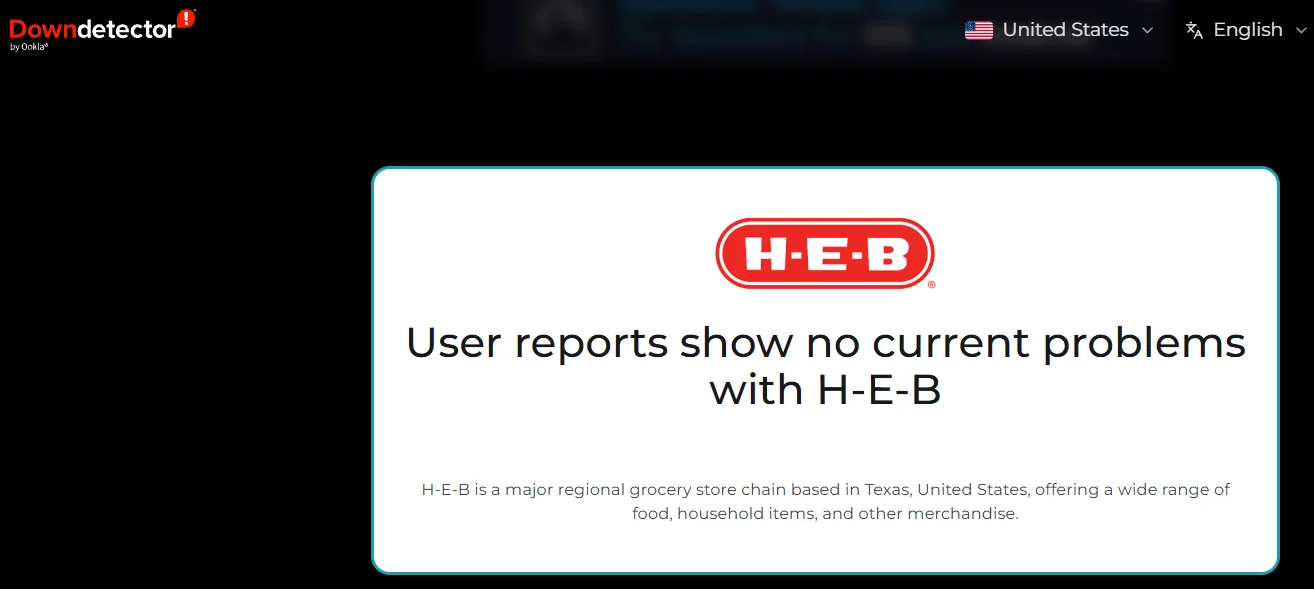
You can also search for terms like “HEB App not working” or “HEB down” on social media platforms such as X and Facebook. Users often post about problems as soon as they encounter them. If many people are reporting the same error around the same time, the issue is likely related to HEB’s servers rather than your device or internet connection.
If a server outage is causing the problem, there is not much you can do except wait for HEB to resolve it.
Log Out and Log In Again
A temporary issue with your account session can prevent certain parts of the My H-E-B App from loading correctly. Several users have shared that simply signing out of their account and signing back in allowed them to access the app without seeing the same errors.
Open the HEB App and sign out. After that, close the app completely, launch it, and proceed to log in again with your account details.
Restart Your Device
Most users already know how to restart a phone since it is one of the most basic troubleshooting methods and often helps with many common device-related issues. If you are not familiar with the process, simply press and hold the Power button, select Restart or Reboot, wait a few seconds, and then turn the device back on.
Close and Reopen the HEB App
Open the Recent Apps screen or App Switcher on your device and swipe away the My H-E-B so it is fully closed. Then launch it again and check if the problem is resolved.
On Android, you can take an extra step by force-stopping the app. Go to Settings > Apps > HEB > Force Stop, then confirm your choice. You can also press and hold the HEB App icon, tap App Info, select Force Stop, and then open the app again.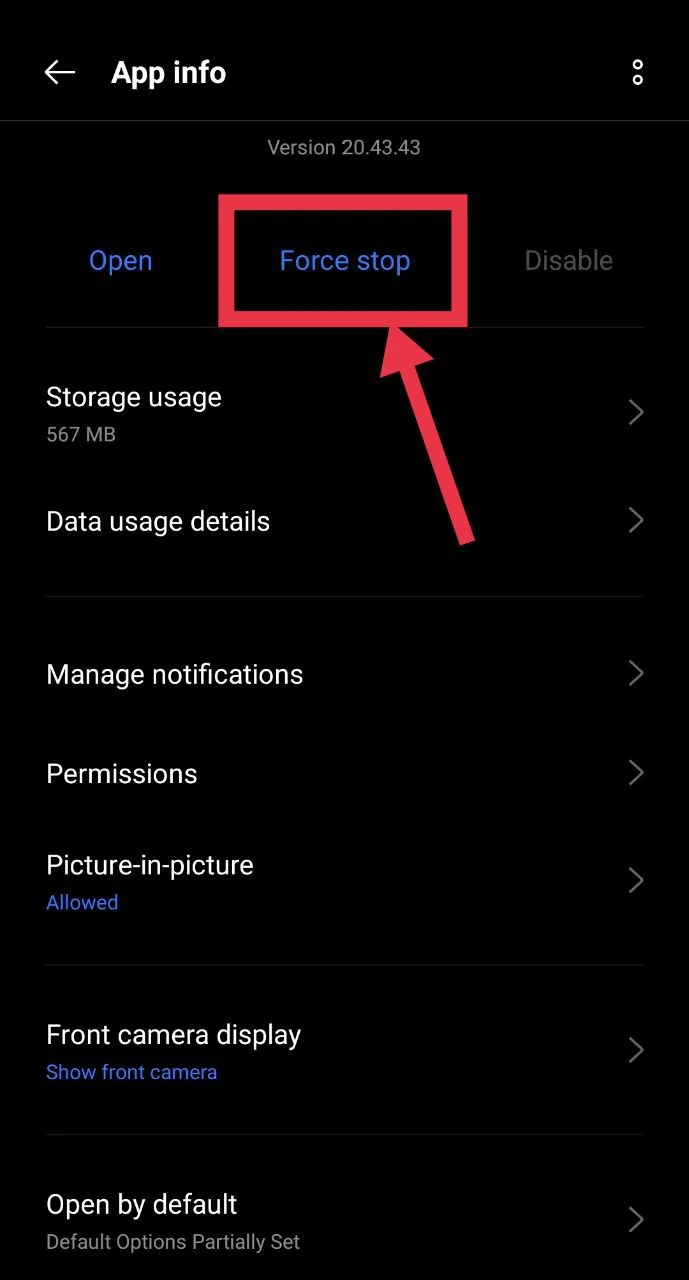
Update the HEB App
App developers regularly release new versions to address reported issues and improve compatibility with newer phone software. If you have not updated the HEB App in a while, your current version may be having issues.
So, open the Google Play Store or Apple App Store and check if an Update button is available for the HEB app. Install the latest version and wait for the process to finish.
Clear the HEB App Cache
If you are using an Android phone, clearing the app cache is another quick fix worth trying.
Press and hold the HEB App icon, tap App Info, then go to Storage & Cache and select Clear Cache. Open the app again and see if the issue has disappeared.
If the problem remains, return to the same screen and tap Clear Data as well. Keep in mind that clearing data will sign you out of the app, so you will need to log in again afterward. 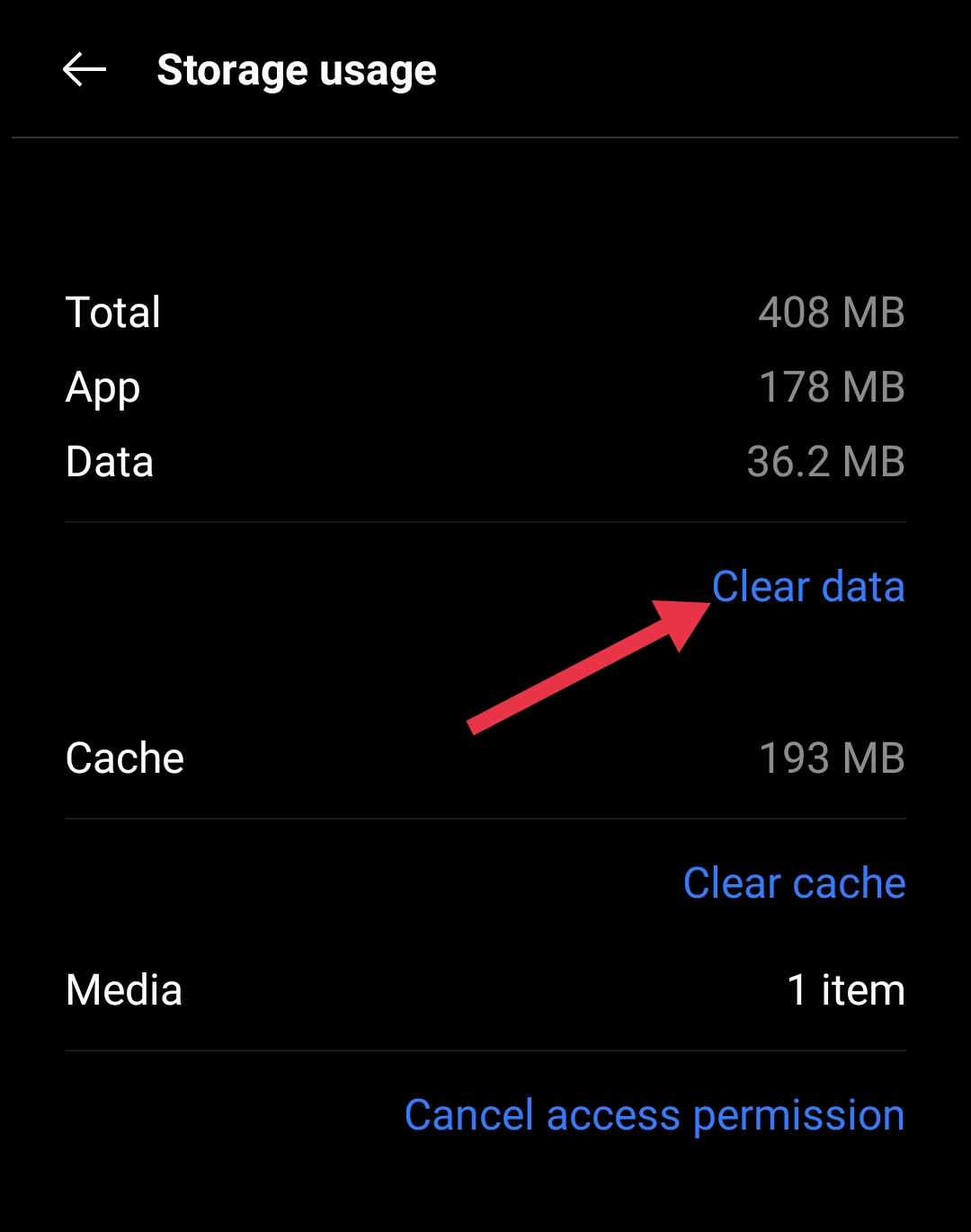
iPhone users will not find a cache clearing option in iOS, so you can skip this method and move on to the next solution.
Reinstall the HEB App
If the HEB App is already updated and the issue still remains, removing the app and installing it again is worth trying.
Press and hold the HEB App icon on your home screen or in the app drawer, then tap Uninstall App or Delete App. Once the app has been removed, download it again from the Google Play Store or Apple App Store. After the installation is complete, log in to your H-E-B account and check if the issue has been resolved.
Contact HEB Support
If the HEB App continues to show the same problem even after you have gone through all the fixes listed above, it may be time to reach out to the My H-E-B support team directly. They have access to account and service information that regular users cannot check, which can help identify the exact cause of the issue.
Visit the HEB Contact Us page and submit a support request with details about the problem you are facing. After that, wait for the reply from officials.
That wraps up this guide. From what I have seen across user reports, HEB outages tend to happen more often than many people expect. Quite a few times, the app itself is not the real problem. The issue is usually connected to HEB’s servers, which means there is very little users can do until the company resolves it on their end.
My suggestion is not to jump straight into complicated troubleshooting. First, check if other users are reporting the same issue online. If they are, give it some time and try again later. If not, work through the fixes shared above one by one. Hopefully, one of these methods helped you access the HEB app again.