Taking screenshots has become a normal part of using an Android phone. We use them to save important information, keep a copy of messages, remember online orders, or share something interesting with friends and family. It is one of those phone features most of us use almost every day without giving it much thought.
That is why it can be surprising when your phone suddenly shows a message saying “Couldn’t capture screenshot. Can’t save screenshot because you don’t have enough storage space” or claims there is not enough storage space available ween when there is plenty of free storage available on the device. In some cases, the error appears everywhere, even when trying to capture the home screen. Others may see a message saying screenshots are not allowed by the app or organization.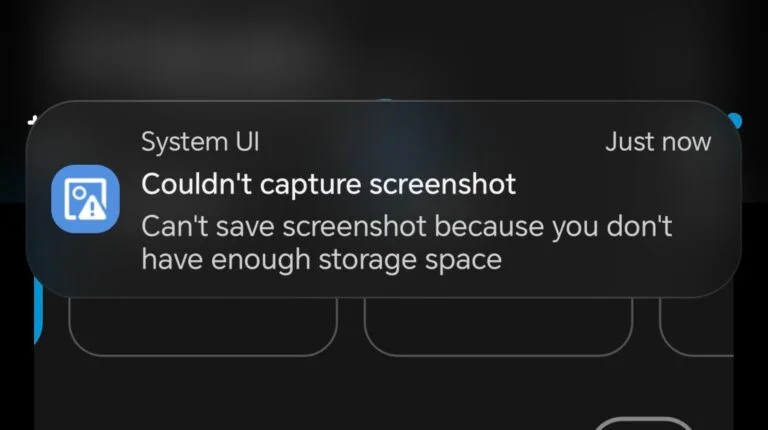
Over the past few months, many Android users have shared this issue on forums and community websites. The reports seem to be more common on Honor, Huawei, and OnePlus phones, although other Android devices can be affected, too. After looking through user experiences and discussions from different devices, we put together this guide with the fixes that helped many users solve the problem.
6 Quick Ways to Fix “Couldn’t capture screenshot” on Android
Check Available Storage Space
The first thing worth checking is your phone’s available storage. The error message itself mentions storage space, so it makes sense to verify that before trying anything else.
Open your phone’s Storage settings and see how much free space is available. A screenshot file is usually small, but Android still needs some free space to save new images and manage temporary files. As a general rule, having at least 1 GB of free storage is a good idea.
If your phone already has more than 1 GB of available space, there is no need to delete any files right now. You can move on to the next solution.
If your storage is nearly full, delete a few items you no longer need, like old videos, duplicate photos, downloaded files, and unused apps, to free up extra space.
Check for Software Updates
Checking for software updates is worth your time, especially if the screenshot error started appearing recently without any obvious reason.
For example, some Honor users recently reported a bug that prevented screenshots from being saved even when plenty of storage space was available. The company later released an update to fix the issue. Similar bugs can also appear on devices from OnePlus, Samsung, Xiaomi, Motorola, and other Android manufacturers.
Open Settings > About > Software Update and check if a newer version is available for your device. If you find one, install it and restart your phone once the update is complete.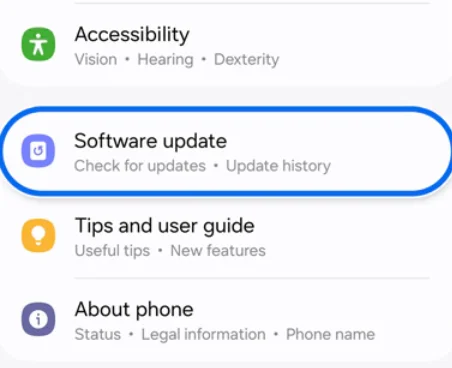
Try a Third-Party Screenshot App
If the built-in screenshot feature is still showing the error, you can try using a third-party screenshot app. This can be a useful workaround when the problem is linked to a system bug rather than a storage issue.
A good example is Screenshot Capture by Tri Core, but you do not have to use that specific app. There are many screenshot apps available on the Play Store that can perform the same task.
Several users have reported that while the phone’s default screenshot tool refused to save images, a third-party app was able to capture and save screenshots without any trouble. This suggests the issue may be affecting the system screenshot function itself rather than the device’s storage or hardware.
So, install a screenshot app and grant the required permissions. If it works, you can continue using the app until a future software update resolves the issue permanently.
Use the Partial Screenshot Feature (Honor Phones)
If you are using an Honor phone, the built-in Partial Screenshot feature may help. A few Honor users found that regular screenshots stopped working, but partial screenshots continued to save without any issue.
To try this, open the Control Center > Screenshot, and then tap on Partial Screenshot. Now, select the Rectangle option and drag it to cover the entire screen if you want a full-screen image. You can also capture only the specific area you need.
This is not a permanent fix, but it can be a useful workaround until Honor releases an update for your device. Keep in mind that it may not be practical in games or apps where a single tap immediately changes the screen, since you need time to select the capture area.
Restart Your Phone
When a phone stays powered on for a long time, certain background services may not work as expected. Since the screenshot feature depends on several system processes, a temporary issue in one of them can stop screenshots from being captured or saved.
Press and hold the power button, then select Restart. Wait for the phone to turn back on completely.
Wait a Few Days for an Automatic Fix
If the screenshot feature was working fine before and the problem appeared recently, there is a chance the issue is linked to a temporary software bug.
In some cases, users have reported that screenshot related errors disappeared on their own after a new update became available. This has been seen on Honor devices as well as other Android phones.
If you have already checked the above ways, you may want to wait a few days. While waiting, you can use a third party screenshot app or the Partial Screenshot feature if those methods work on your device. Once the bug is addressed by the smartphone brand, the normal screenshot function may begin working again without any additional changes from your side.