Instagram has changed a lot over the years. It is no longer just a place to post photos and reels. The app now includes follow suggestions, auto replies, creator tools, welcome messages, and many other features. Some people find these useful, while others just want a simple Instagram experience without random screens or automatic messages showing up again and again.
Lately, many users have been talking about the “Welcome to Instagram” page suddenly appearing, and it won’t let you return to your normal feed.
I dealt with this too and spent quite a bit of time trying different methods until I finally found what fixed it. I also came across a few other fixes that helped many users remove the welcome screen and stop Instagram from sending repeated welcome messages. Below, I am sharing all the methods that helped me and others fix the issue.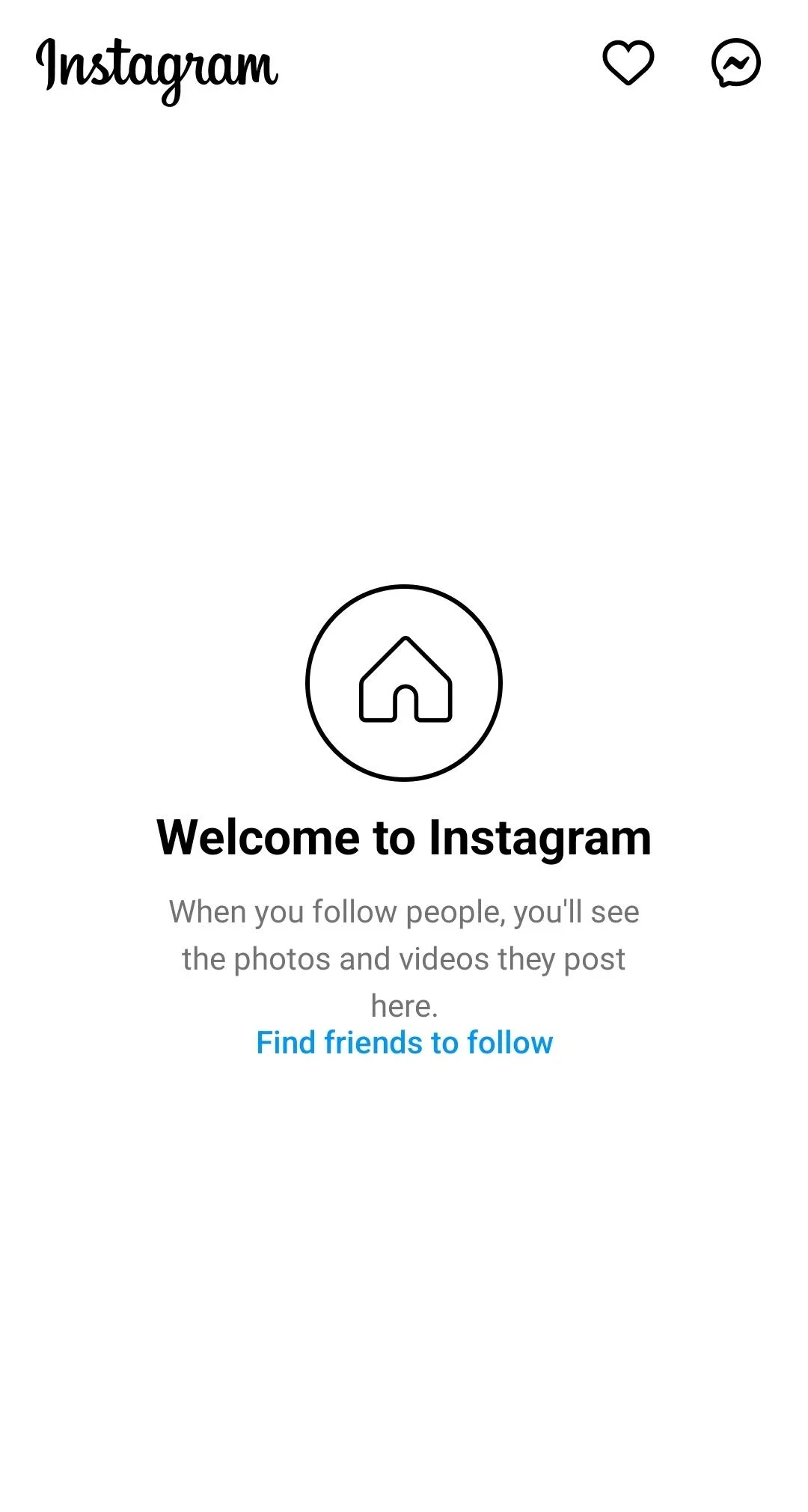
How to Remove Welcome to Instagram
Follow Suggested Pages on the Welcome Screen
This issue appears to happen when Instagram cannot find fresh posts to load on your homepage. One method that worked for many users was following a few accounts suggested on the “Welcome to Instagram” screen itself. Try following at least one active page shown in the recommendations, or click on the “Find friends to follow” button, then return to the Instagram home page and check if the screen disappears.
If the issue still remains, follow a few more suggested accounts and reopen the app once. In many cases, Instagram reloads the normal feed after adding new followed pages, which removes the stuck welcome screen.
This was the method that finally fixed the issue for me. On the “Welcome to Instagram” page, I followed one of the suggested accounts shown on the screen and then went back to the home page.
Update the Instagram App
In many cases, this turns out to be an Instagram app bug. For many users, this annoying welcome screen disappeared after updating Instagram to the latest version available in the app store. Open the Play Store or App Store and check if a new Instagram update is available. Make sure the app is updated to the latest version available.
Clear Instagram Cache or Reinstall the App
Temporary app data can also cause Instagram to keep showing the “Welcome to Instagram” page instead of the normal feed. On Android devices, try clearing the Instagram cache from your phone settings.
To do this, open Settings > Apps > Instagram > Storage, then tap Clear Cache. After that, reopen Instagram.
On iPhone, there is no direct option to clear app cache like Android. Instead, you will need to follow the method below.
Uninstall Instagram and Install It Again
If the welcome screen still refuses to disappear, try removing Instagram completely from your phone and setting it up again from scratch.
Press and hold the Instagram app icon from the app drawer or homescreen and tap delete/uninstall. After that, restart your phone once and download Instagram again from the Play Store or App Store. Sign back into your account and check if the app finally opens to the regular home feed instead of the welcome page.
I hope this guide helped you remove the “Welcome to Instagram” screen and return to your normal Instagram feed. If one method did not work right away, trying a combination of the fixes above helped many users solve the issue.
Feel free to share this guide with friends or anyone else dealing with the same problem. Also, if you discovered another method that worked for you, let us know so others can try it too.