Instagram has changed a lot since it first became a place for sharing photos. Today, people use it for short videos, updates, entertainment, business, and staying connected with friends. For young users in particular, spending time on Instagram has become part of everyday life.
As the app grew, Instagram also added more controls around content that may not be suitable for every audience. Posts showing things such as smoking, alcohol, or other sensitive subjects can sometimes receive a warning. That is where the message “This content may be inappropriate” can appear instead of showing the post directly.
Seeing that message can raise a simple question: why is Instagram showing it when the post itself may look harmless to you? Age settings, account settings, and the type of content in a post can all be linked to how Instagram handles sensitive material.
So, if you are here because you want to remove the “This content may be inappropriate” message and view posts without that warning, you are looking in the right place. The sections below cover the available ways to deal with this Instagram content filter.
How to Remove Instagram “This content may be inappropriate”
Change the Sensitive Content Setting
Instagram has a setting that controls how much sensitive content can appear on your feed. Changing this setting from Standard to More content can allow Instagram to show posts that may have been hidden behind this warning.
- Open the Instagram app and make sure you are logged in.
- Tap your profile icon in the bottom right corner.
- Tap the three-line menu in the top right corner
- Scroll down and tap Content preferences.

- Tap Sensitive content.

- Under the available options, change “Standard” to More content.

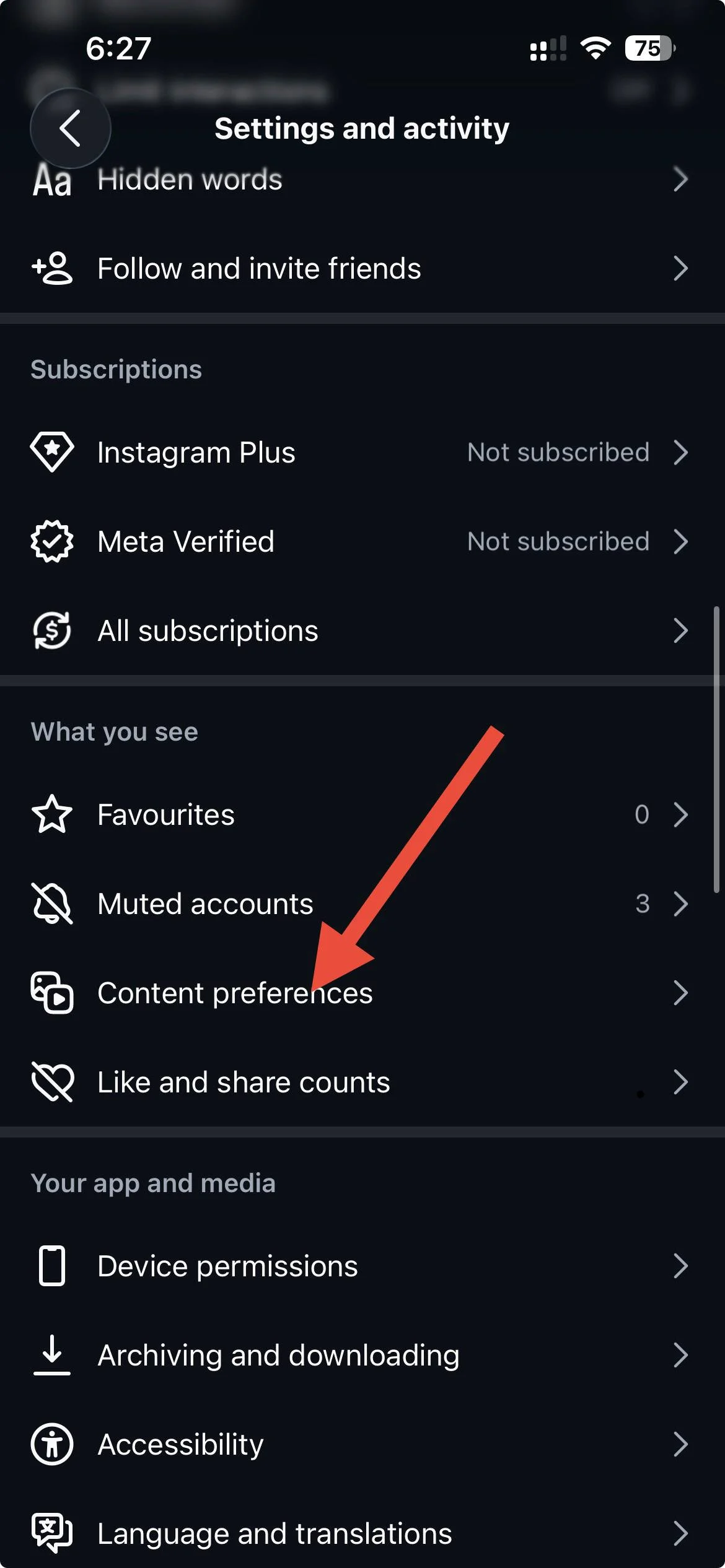
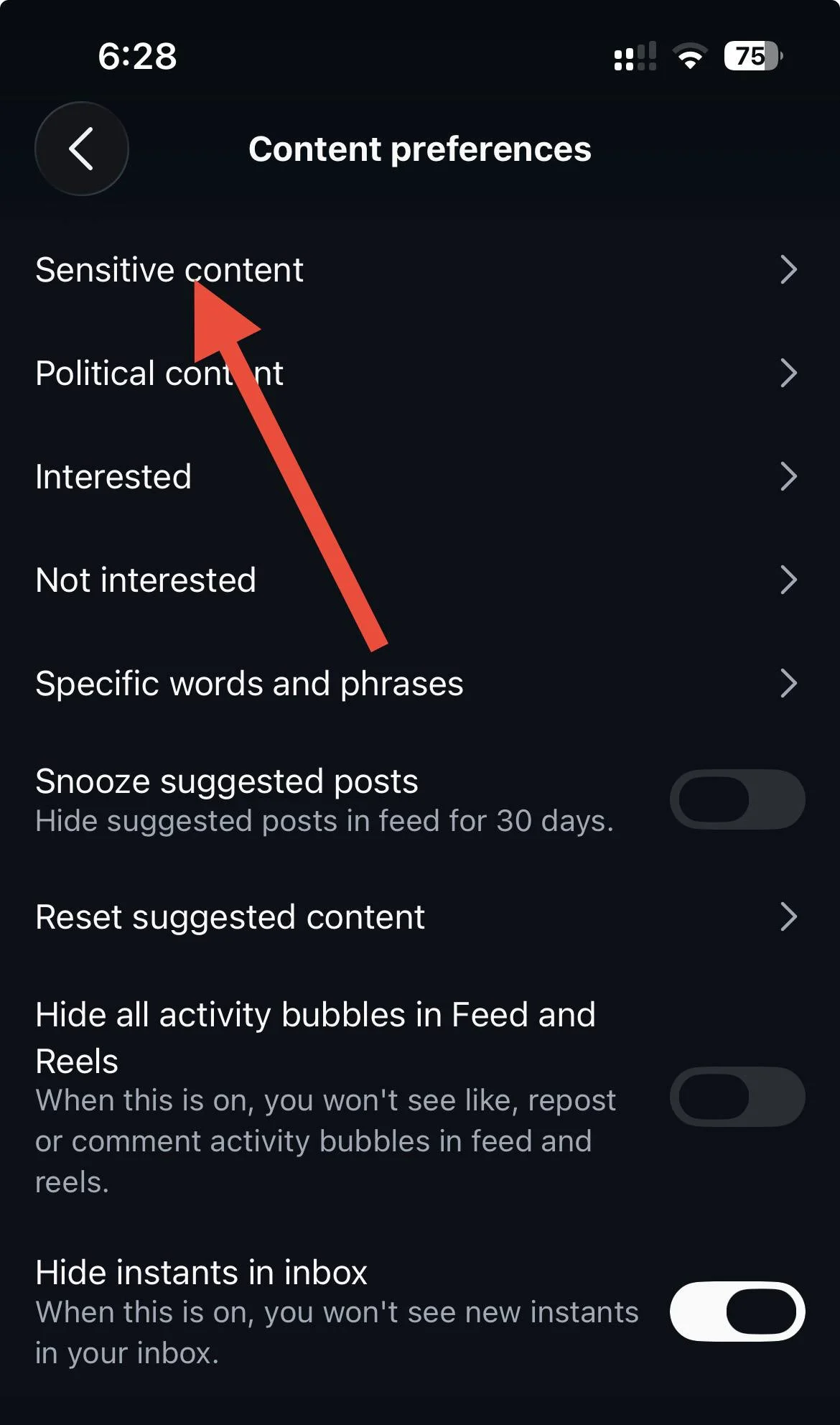
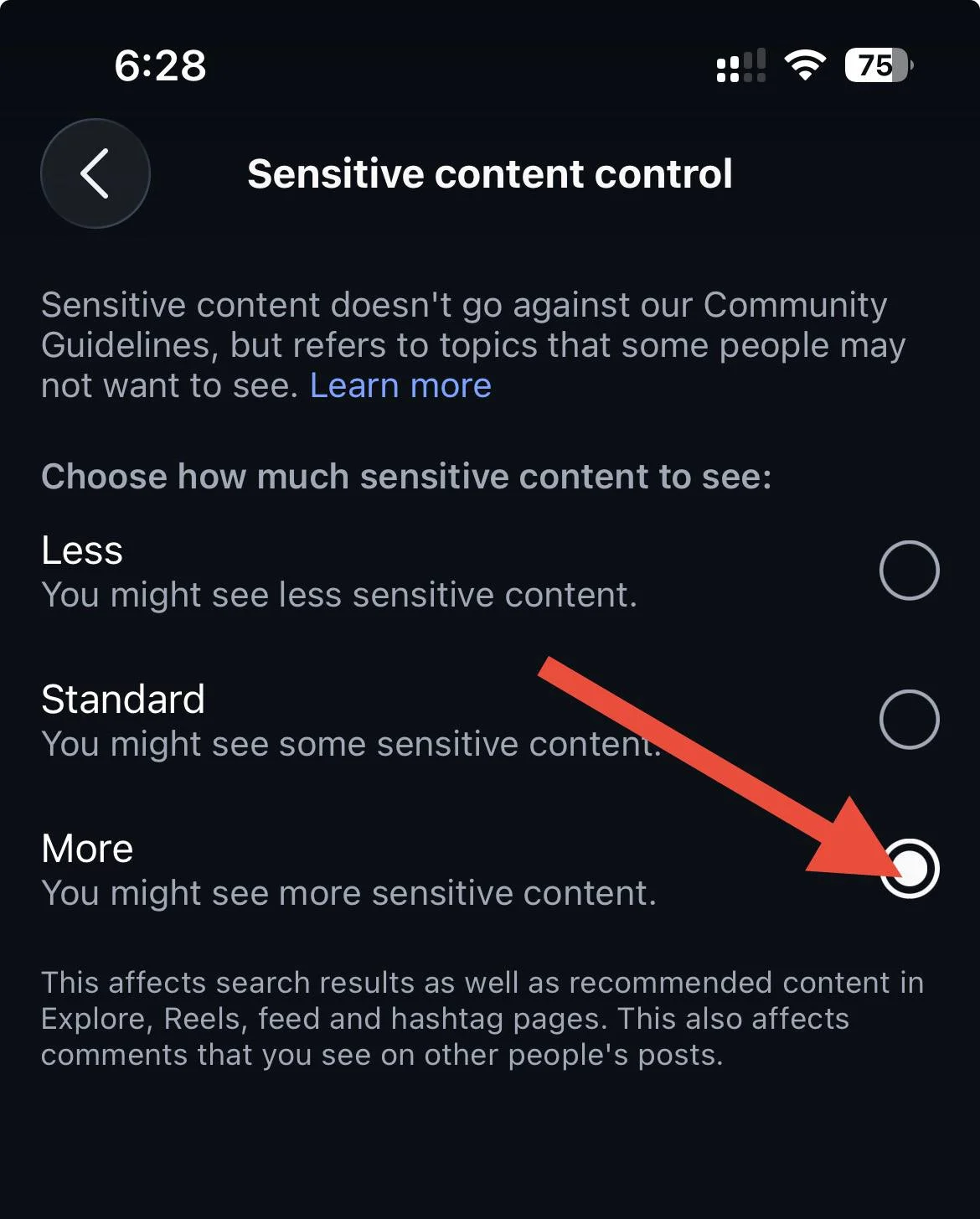
After changing this setting, Instagram may allow more posts with sensitive content to appear on your account.
Verify Your Age Through Teen Account Supervision
For some Instagram accounts, the More option under Sensitive Content Control may not appear until Instagram has confirmed that the account belongs to an adult. The Family Center section can provide an age verification option for accounts that are affected by teen account settings.
- Open the Instagram app and tap the three-line menu in the top right corner.
- Now, under Family Center section, select Supervision for Teen Accounts
- Follow the available age verification option and complete the verification process.
- After Instagram confirms your age, return to Sensitive content under “Content preferences”.
- Check the available options. The “More” option may now appear under Sensitive Content Control.
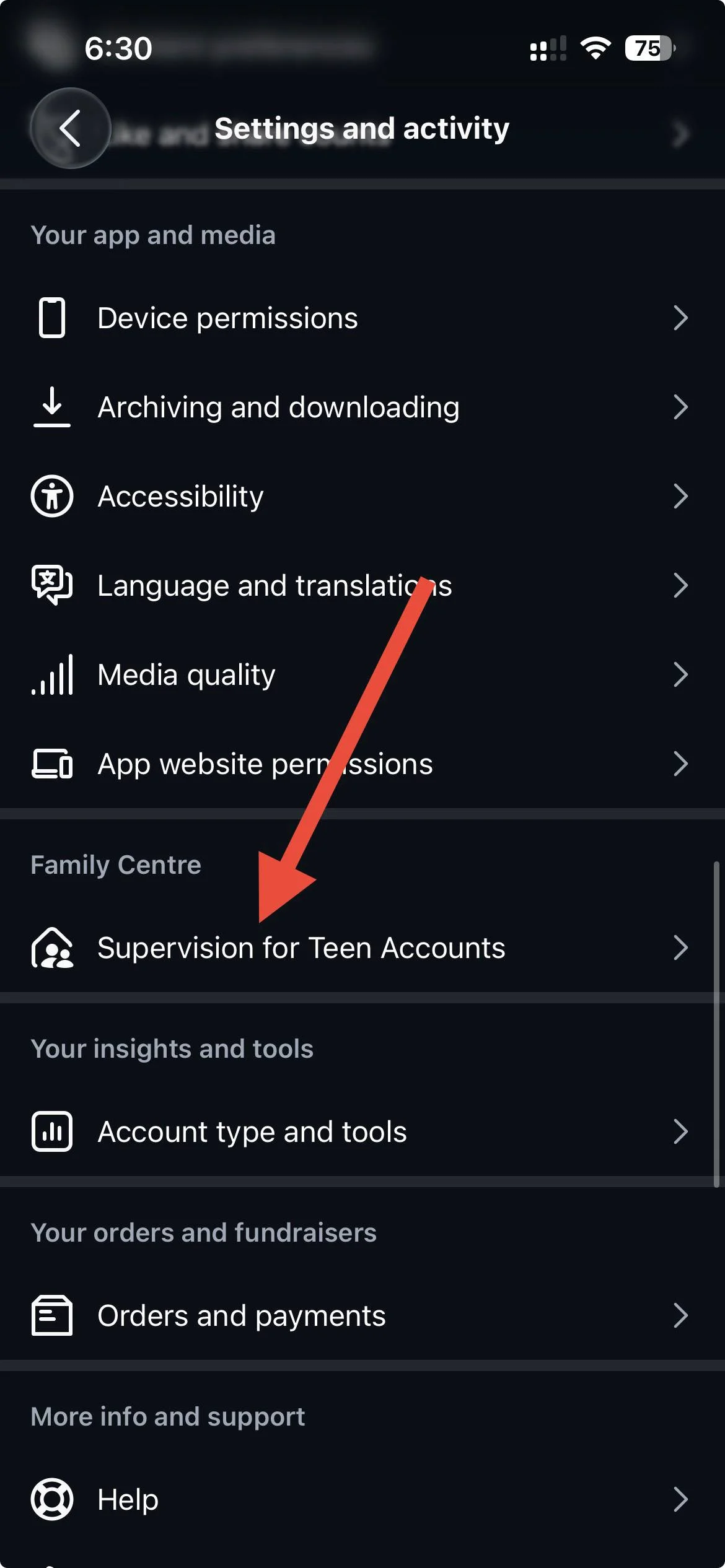
Once Instagram recognises the account as belonging to an adult, the additional sensitive content setting can become available.
Use Another Adult Account for Supervision Approval
If Instagram has flagged your original account and limits the More option, you may see a Content settings option instead. In that case, Instagram may require a parent or supervising account to approve the change.
- Open Instagram and switch to your original account.
- Click on the menu icon to go to Settings and activity and open Content preferences.
- If you see content settings instead of the usual sensitive content controls, open it.
- Select More content.
- Instagram may ask for approval from a parent or supervising account. Send the request to your alternate adult account.
- Now, log in to your alternate account, which must have an adult age set on the account.
- Open the supervision request and approve it.
- Return to your original account and check the content settings again.
Report the Issue to Instagram
If the “This content may be inappropriate” error on Instagram still exists and the warning appears to be linked to an account specific issue, reporting it to Instagram is the last option to try.
- Open the post showing “This content may be inappropriate”.
- Stay on the screen where the warning appears and shake your phone.
- Instagram should show an option to report a problem.

- Tap Report a problem and explain that you are an adult user but are still seeing the sensitive content restriction.
- Include relevant details about your account and the issue so Instagram has enough information to review it.
- Submit the report and wait for a response from Instagram.

Note: You can also report the issue without shaking your phone. Go to Settings and activity > Help and support > Report a problem, describe the issue, and submit your report.
But keep your expectations realistic here. Instagram often sends automated replies instead of a direct response, and a report does not guarantee that the setting will be changed. Still, if the restriction is caused by an account-specific error, Instagram may review it and resolve the issue. This is mainly the last option when the other available settings do not work.
ALSO READ: