Threads came from Instagram as a text-based social media app where people could share short posts, photos, and videos. It quickly drew attention after its launch, with a huge number of people joining in the early days. The initial buzz later settled down, yet the platform still has an active user base and continues to be used for everyday conversations and updates.
For regular Threads users, the app has become a simple place to follow people, read posts, and share thoughts. That is why an issue that affects profiles and feeds can be noticed right away. A number of users have recently reported seeing a “Content Not Available” message while trying to view their own profile or other profiles.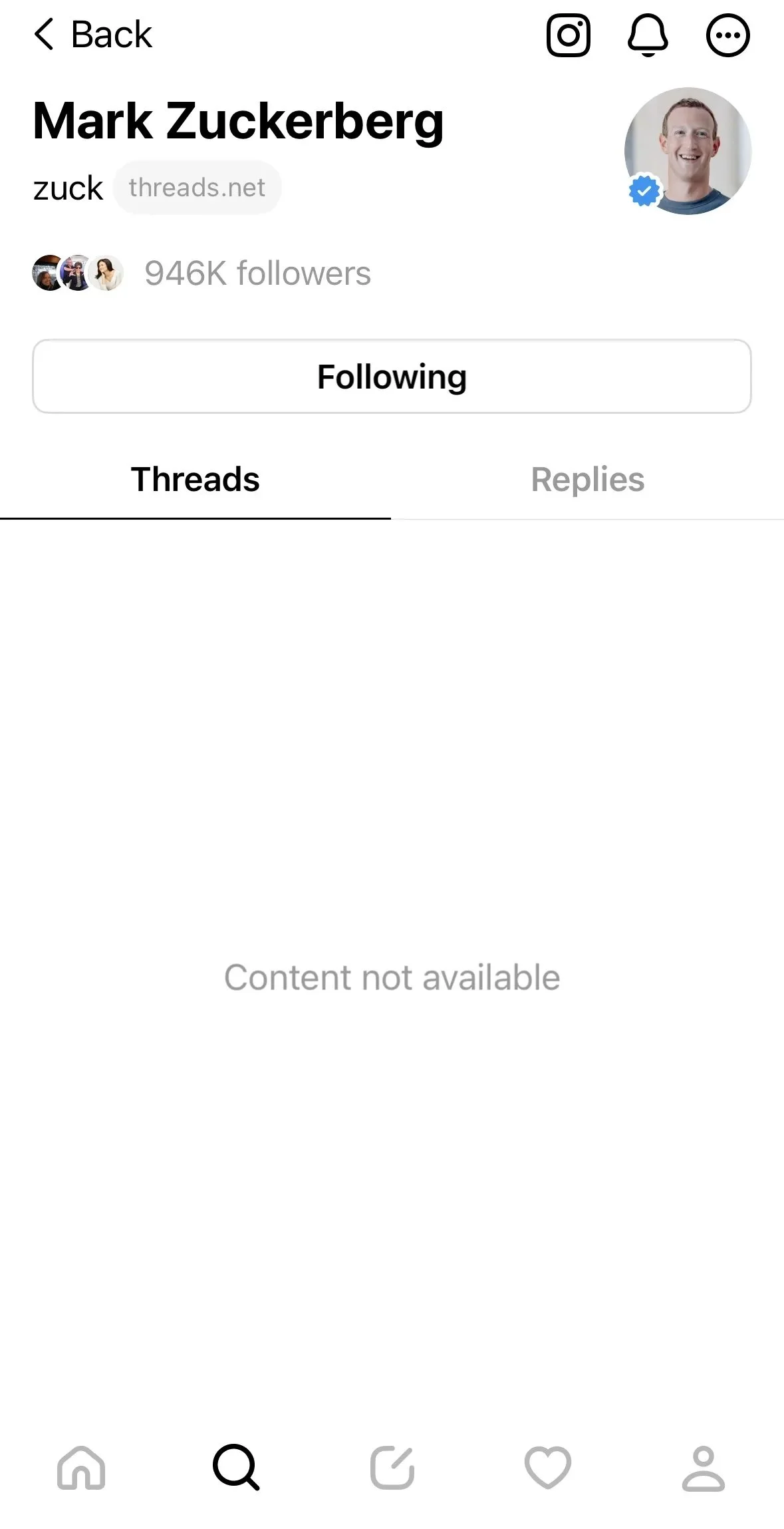
The issue does not always appear in the same way. Some users see a blank feed, while others cannot load notifications or access their profile content. On iPhone, reports also mention the message appearing repeatedly, while opening Threads through a browser may lead users back to Instagram.
So, what is behind the “Content Not Available” message on Threads, and what can you do when the app becomes difficult to use? Let’s look at the solutions below.
How to Fix “Content Not Available” on Threads App on Android/iOS
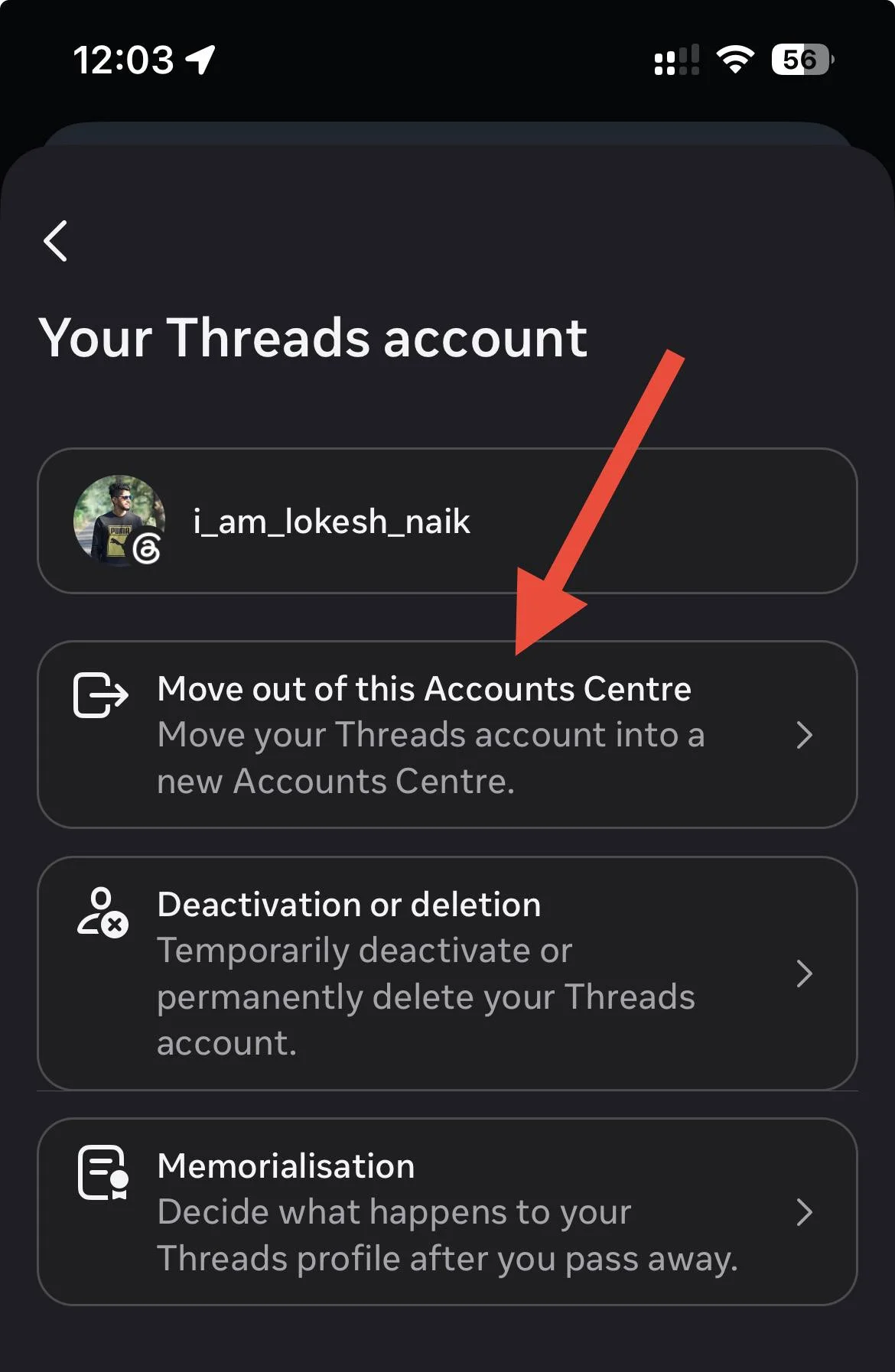
Remove Threads From Accounts Center
A useful thing to try is removing the Threads profile from the Accounts Center connected to Instagram. This is worth trying when Threads is still linked to your Instagram account, but the app is unable to load your profile, feed, or notifications correctly.
- Open Instagram and tap your profile in the bottom right corner.
- Tap the three horizontal lines in the top right to open the menu.
- Tap Accounts Center at the top.

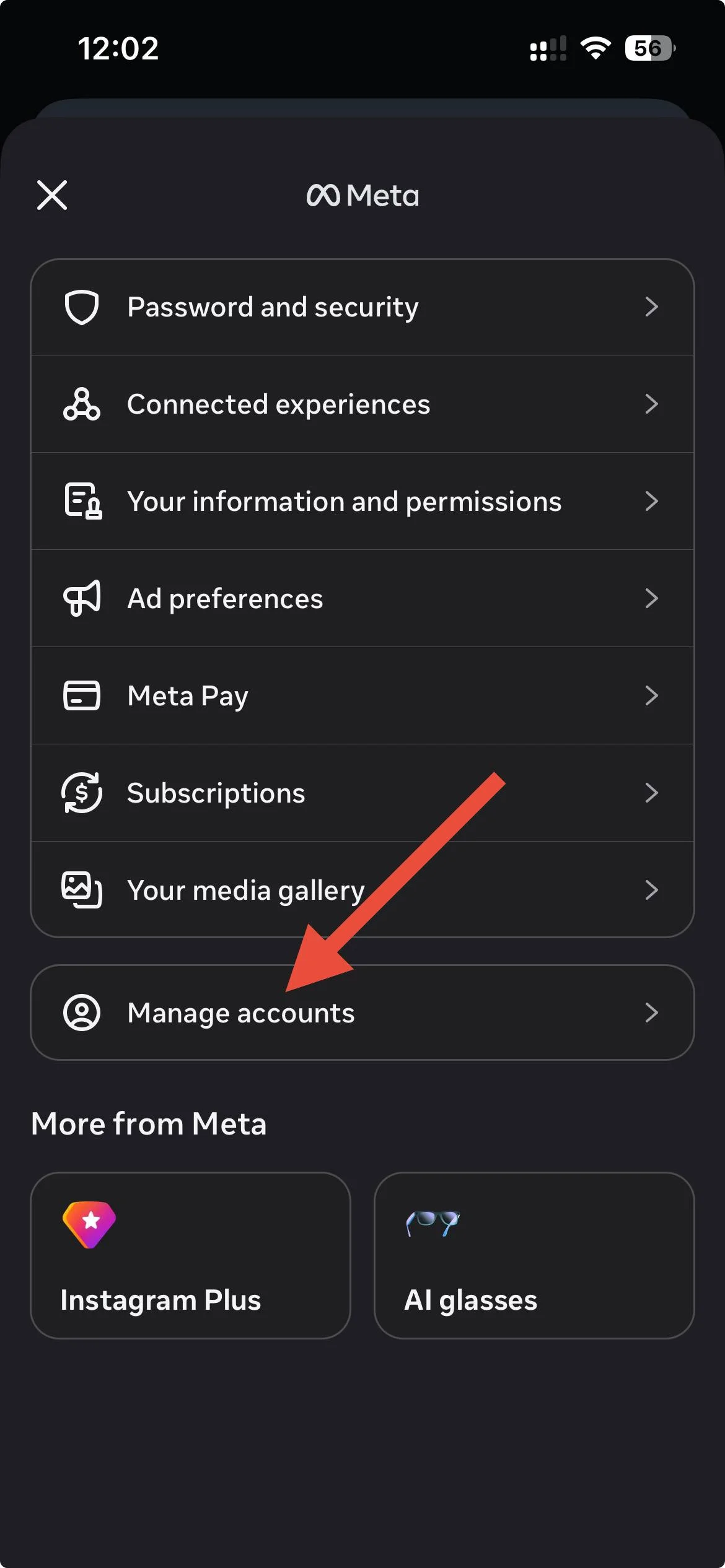
- Scroll down and select Manage accounts.

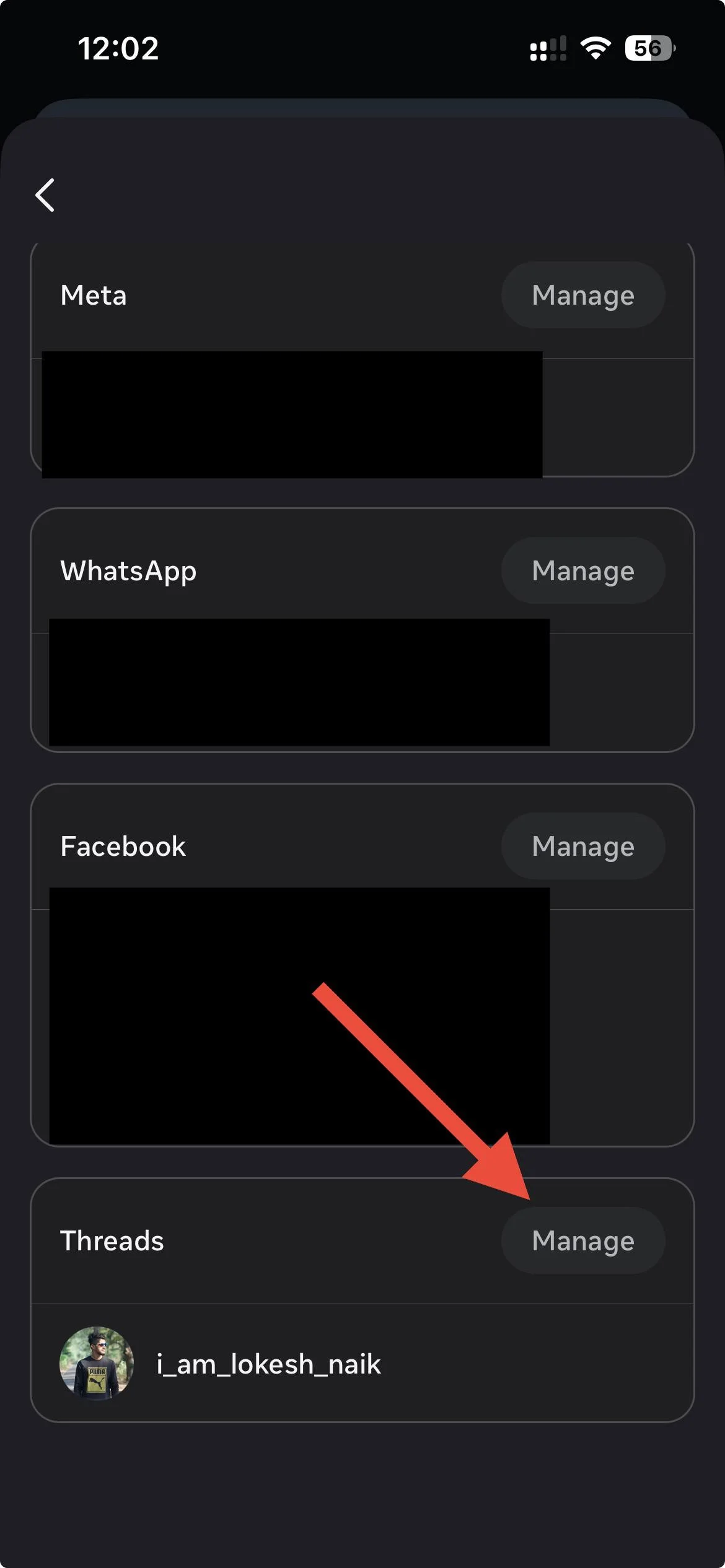
- Find Threads and tap the Manage button next to it.
- Select Move out of this Accounts Center.

- Tap Continue and confirm the removal.
- After the Threads account has been removed, check the email linked to your account. You should receive an email about the account removal. Open it and tap the link provided to secure your account.
- Follow the instructions on the page and create a new password for Threads.
- Once the new password is ready, open Threads and sign in using the new login details.

Log In to Threads Through an Incognito Browser
The “Content Not Available” error may appear in the Threads app while the same account still loads through the web version. A private or incognito browser window is worth checking here since it opens Threads without using the browser data from your regular session.
- Open your preferred browser like Chrome, Safari, or another browser on your phone and switch to Private or Incognito mode.
- Now, visit the Threads website
- Your phone may ask whether you want to open the page in the Threads app. Do not allow it to open the app. Stay in the browser instead.
- Sign in to Threads manually using your account details. Avoid using any option that sends you back to the Instagram app.
- Once you are signed in, open your profile and check the feed, posts, and other account content. After that, you can access the same on Threads app.
Reset Your Threads Login and Reconnect It to Instagram
This method takes a little more work, since it completely resets the way your Threads account is connected to Instagram. The important part is to remove the existing connection first, then create a fresh Threads password while the app is no longer installed. That also prevents the password reset page from immediately switching back to the app.
- Open Instagram and remove your Threads profile from the Accounts Center (steps mentioned in solution 1).
- Now, uninstall the Threads app from your phone.
- After that, open the Google Chrome browser on your phone and enable the Desktop site from the browser menu.
- Visit the Threads password reset page by clicking here and reset the password for your account.
- Choose a new password and save it somewhere safe. You will need these new login details shortly.
- Now, again, install the Threads app again, but do not open the app just yet.
- Open Instagram installed on your phone and add your Threads profile back to Accounts Center using the new password.
- Now open Instagram settings and find Also from Meta near the bottom.
- Select Threads from that section. Let the account open from Instagram and give the page a moment to load your profile and posts.
- Once the account has loaded, close the browser and any Threads related tabs.
- Finally, open the Threads app and sign in with the new password.
Force Stop Threads and Restart Your Phone
- Close Threads completely from the recent apps or app switcher. On iPhone, swipe up and remove Threads from the app switcher. On Android, open recent apps and swipe Threads away.
- Android users can also force stop the app from Settings > Apps > Threads > Force stop.
- Once Threads is fully closed, restart your phone using the normal Restart option. You can also simply ask your phone’s assistant to restart the device.
- After the phone starts again, open Threads and check your profile, feed, and notifications.
Update Threads
If your device still has an older version of the Threads app, it may not handle a newer server-side change correctly. So, check the App Store or Play Store for an available update and install it if one is listed.
Reinstall Threads
If Threads started showing the error after an app update, try reinstalling. Firstly, delete or uninstall the Threads app from your phone, then install it again from the App Store or Play Store to sign in. But remember your login credentials before uninstalling.
Check if Threads Is Down
If the “Content Not Available” message on the Threads app has appeared only in the last few minutes or hours, a temporary Threads server issue could be behind it. You can check Downdetector to see if other users are reporting problems at the same time. If you have been seeing the error for several days, though, a short server outage is less likely to be the cause, so it makes sense to continue with the other solutions.
Report the Problem to Threads
By this point, the issue may have been resolved using one of the earlier methods. If the same error is still showing, the last option is to report the problem directly to Threads so their team can look into your account.
Open Threads and stay on the screen where the error appears. Shake your phone to bring up the problem reporting option, then choose Report a Problem. Include the available logs and diagnostics, briefly explain what is happening, and send the report. But keep in mind that you will then need to wait for a response from the Threads team.
RELATED GUIDES:
- How to Turn Off Threads For You on Instagram
- How to Fix Threads Post Not Available
- How to Fix Threads Post Failed to Upload Error