Instagram keeps adding new features, but new problems keep showing up too. The app has become more packed over time, and because of that, users keep finding new errors while using different parts of Instagram. One issue people have been reporting lately is the “Failed to load earlier messages.” error. Your chats may stay blank, messages may not send, or new messages may never appear even after opening your inbox.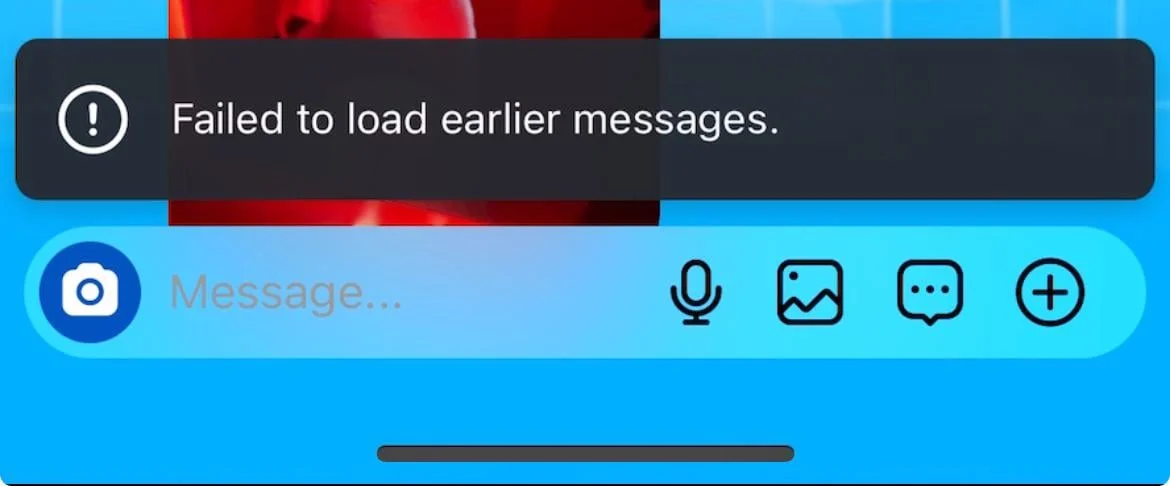
We have already covered a lot of Instagram errors and shared fixes that helped readers solve them. Today, we are back with another issue that is stopping people from using Instagram Direct Messages. This can happen on both the Instagram app and the browser, so you may not be able to read old chats or send new messages from either one.
If your Instagram keeps showing the “Failed to load earlier messages” error, keep reading. Below are the methods that have helped other users fix this issue, and one of them may work for you too.
How to Fix Instagram Failed to Load Earlier Messages on Android/iOS/Website
Wait for Instagram to Fix the Issue
Before trying anything else, I suggest waiting for a while. From what I have seen, this is usually an Instagram server side issue and it has been happening for a long time. The rest of the app may work fine, but the Messages section keeps showing the “Failed to load earlier messages” error. Then, after a few hours or a day, everything starts working on its own.
The same thing happened to me. I could not load my chats, new messages were not showing up, and sending messages did not work either. I did not change anything. After about a day, my messages loaded again without doing anything.
If you think Instagram might be having a server problem, check a trusted third party outage tracking website like Downdetector. If lots of people are reporting the same issue, there is a good chance the problem is on Instagram’s side. Instagram does not have an official service status page that shows current outages or feature specific problems, so these websites are the easiest way to see what is happening.
If there are no reports of a wider outage, or the error is still there after waiting for a day or two, continue with the next methods below.
Update Instagram App
If a new update is available, install it first and then check your Direct Messages again. Instagram often fixes known bugs through app updates, so this is always worth checking.
Temporarily Deactivate Your Instagram Account
If your messages still are not loading, temporarily deactivating your Instagram account is another method worth trying.
Before you try it, there is nothing to be worried about. Deactivating your account does not remove your photos, messages, followers, following list, or any other account data. Everything stays linked to your account and becomes visible again as soon as you log back in at any time.
Deactivation steps: open Instagram > Profile > Menu > Accounts Center > Personal details > Account ownership and control > Deactivation or deletion. Select your account, choose Deactivate account, leave it deactivated for 30 to 60 minutes, then sign back in.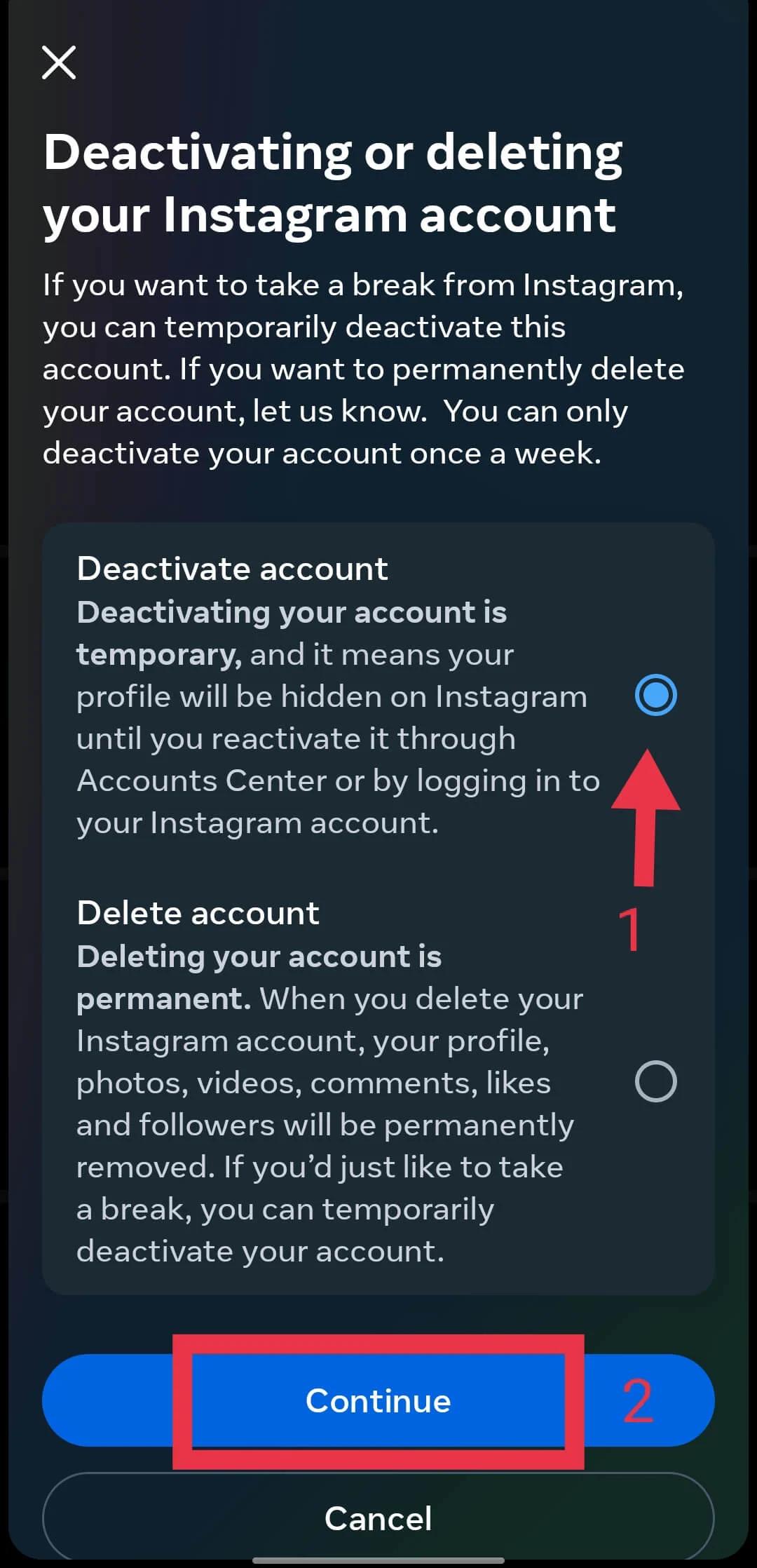
Clear Instagram Cache on Android
If you are using an Android phone, navigate to Settings > Apps > Instagram > Storage, then tap Clear Cache. If the error is still there, you can also try Clear Data from the same screen. Just make sure you know your Instagram username, email, or phone number and password first, since you will need to sign back into your account afterward.
If you use an iPhone, this option is not available because iOS does not let you clear the cache for individual apps. Instagram also does not include a built in cache clearing option like Snapchat. In that case, continue with the next methods below.
Log Out and Sign Back In
Open Instagram > Profile > Menu > Settings and activity, scroll to the bottom, tap Log out, then sign in again using your account details.
Reinstall Instagram App
It does not matter if you are using an Android phone or an iPhone, reinstalling the app is worth trying. I have seen plenty of cases where the app started working normally again after being reinstalled, even though nothing else had worked before.
There is nothing to worry about before uninstalling the app. Your chats, photos, videos, followers, and following list are stored on Instagram’s servers, not the app installed on your phone.
Report the Problem to Instagram
If none of the methods above made any difference, it is time to let Instagram know about the issue. Since this looks like a bug affecting your account, sending a report gives Instagram a chance to investigate it.
If you are using the Instagram app, open the screen where the error appears, then simply shake your phone and tap Report a problem. 
If you are using Instagram on a browser or desktop, open Profile > Settings > Report a problem, then follow the on screen instructions to submit your report. If you do not see that option, you can also use the Instagram Help Center instead.
RELATED GUIDES:
- How to Fix Instagram “We’re sorry, but something went wrong” Error
- How to Fix Instagram “An unexpected error occurred. Try logging in again”
- How to Fix Instagram “Something went wrong with your upload” Error