Instagram is a big part of daily life now. Many young people and even adults spend hours scrolling through Reels and short videos. For a lot of people, it is not just an app anymore; it feels like part of their daily routine, from chatting with friends to watching content.
At the same time, the app is not free from issues. Users keep facing different errors while using it. Even though there are many developers working on it, new problems keep coming up now and then, and some of them can stop you from using the app the way you want.
We have already shared guides on many Instagram issues earlier. Today, we are talking about another login problem where users see the message “Unable to login. An unexpected error occurred. Try logging in again”. Below, you will find a list of fixes that have worked for many people, and one of them should help you, too.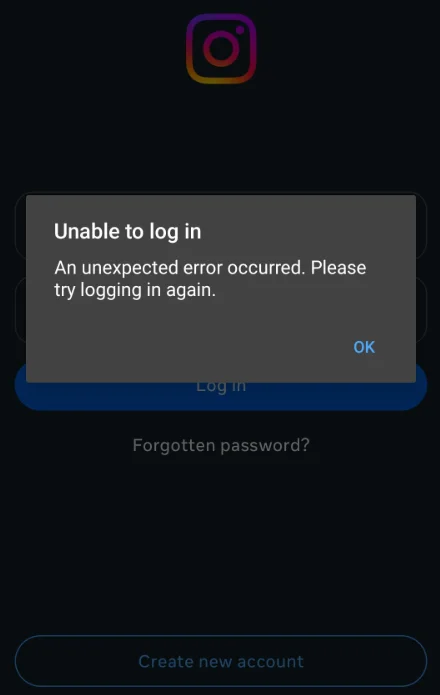
How to Fix ‘Unable to login. An unexpected error occurred’ on Instagram
Use an Older Version of Instagram on Android
If the login error is only happening in the app, one simple workaround is to use an older version of Instagram. Many users noticed that a previous version allowed login without showing this error. This method helps you bypass the issue in the current app version and log in without any trouble.
- Download an older Instagram APK file.
- Before installing, uninstall the current Instagram app from your phone.
- Install the APK file you downloaded. You may need to allow installation from unknown sources in your phone settings.
- Open the app and log in to your account.
Tip: Once you are logged in, go to the Play Store and update Instagram to the latest version.
Try Logging In Using Instagram Lite
Another simple way that worked for many users is using the Lite version of Instagram while reinstalling the main app. This method works because the Lite version uses a simpler setup, which can allow login even when the main app shows errors.
- First, uninstall the Instagram app from your phone.
- Before installing it again, download and install Instagram Lite from the Play Store.
- Open Instagram Lite and enter your phone number or login details.
- If you have multiple accounts linked to the same number, select your account and try logging in.
- While doing this, you can reinstall the main Instagram app in the background.
- Once you are able to log in through Instagram Lite, open the main app after installation and check your account.
Restart Your Phone
In some cases, the login error can be linked to a temporary IP block or a conflict on your device caused by multiple login attempts or network issues from your current connection.
As a quick fix, press and hold the power button and choose Restart or Reboot from the screen on Android devices. 
If you are an iPhone user, press and hold the side button along with the volume button until the power slider appears, then slide to turn it off and switch it back on after a few seconds.
Use a Work Profile App to Log In
If the main app is not letting you log in, you can try using a separate workspace on your phone. This method allows login in most cases because the app runs in a fresh environment. One thing to note is that you may not receive notifications from Instagram inside this workspace.
- Install an app like Parallel Space or Shelter from F-Droid, which can create a work profile on your device.
- Open the app and set up the work profile. This will create a separate space on your device.
- Inside this workspace, install or clone the Instagram app.
- Now, open the cloned Instagram and log in with your account details.
Use Instagram on a Browser
In some cases, you may notice that your account opens fine in a browser but fails only on the Instagram app. This usually means your account is fine, and the issue is limited to the app on your device, not the login details.
Since the browser login is working, it shows there is no issue with your account access. The problem is likely linked to the app version, cache, or device-level settings. In such cases, use the browser as a temporary option. If you are able to sign in there, try resetting your password from the browser and then use the new login details to sign in again on the app.
Update your Instagram App
If you are using an older version of Instagram, that may have bugs or compatibility problems that prevent you from signing in properly.
So, open the Google Play Store or the iOS App Store on your phone and check for any available updates for Instagram. If you find a newer version, install it and then try logging into your account again.
Clear Cache and Data on Android
If the login issue is still showing, try clearing the saved Instagram app files on your phone.
Open Settings on your Android phone, then go to Apps > Instagram > Storage. First, hit Clear Cache and open the app to check if login works. If the issue is still there, go back and tap Clear Data as well. Now open Instagram and enter your login details again. This step is only for Android users, and it often helps when the app keeps showing the same error.
Try Logging In From Another Device
If your current phone is facing login issues, there is a chance your device IP has been temporarily blocked by Instagram due to unusual activity. In such cases, restarting the phone may not fix the problem right away.
To check this, try signing in to your account using a different phone or device. If the login works there without any issue, it clearly indicates that the block is limited to your original device or its IP. You can then wait for some time or switch networks before trying again on your main phone.
Remove and Install Instagram Again
If nothing else has worked so far, it might be a good idea to reinstall Instagram, as it can make a difference.
Delete the app from your device first. After that, open the Play Store or App Store and download Instagram again. Once it is installed, open it and sign in to your account.
Factory Reset your Phone
If you have tried everything and still cannot sign in to Instagram, this is the last option you can think about.
Before you do this, make sure to back up your important data like photos, contacts, and files. Then go to your phone settings and choose the factory reset option. Once the reset is done, set up your phone again, install Instagram, and try signing in. We cannot guarantee this will fix it, but it has worked for many readers who were stuck with the same issue.
Hope this guide helped you fix the Instagram “An unexpected error occurred. Try logging in again” issue. If you found it useful, feel free to share it. If you discover any other method that works, let us know as well.