Right now, Instagram is part of everyday life for many of us. We use it to share photos, reels, and quick updates with friends or followers. For many people, posting is a daily habit, and for some it is even part of their work. So when posting stops working, it quickly becomes a real concern.
Lately, many users have been seeing an error that says “Something went wrong with your upload. Please try again later.” It has been noticed that this issue can happen repeatedly, even after trying multiple times. In some cases, users were still able to post from another device at first, but later the same problem started appearing on all devices. That is when it starts to feel serious, especially if you post every day.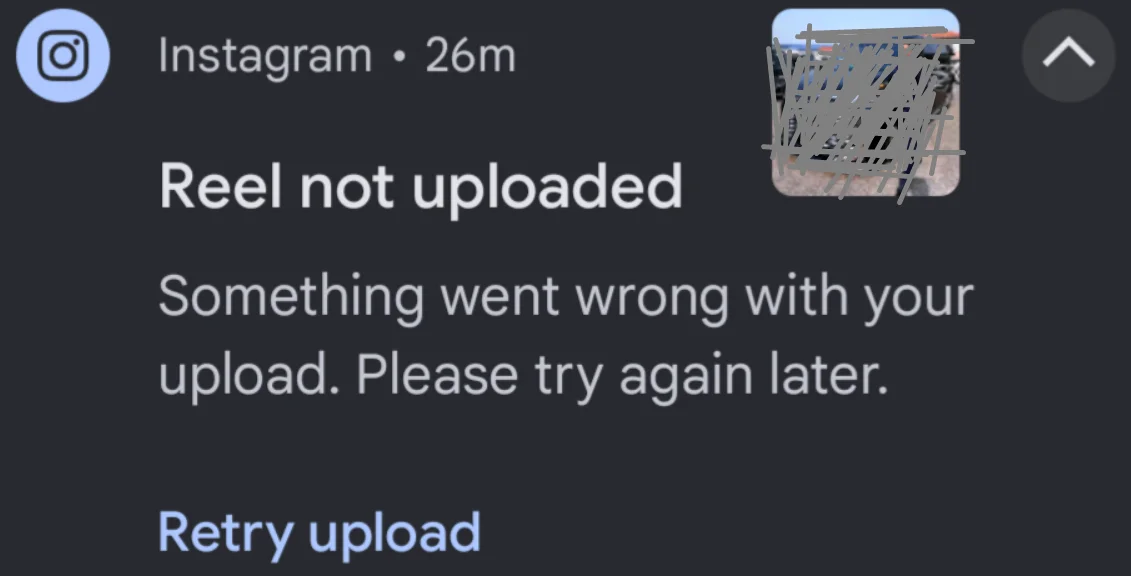
This issue is not limited to one type of post. Stories, reels, and regular uploads can all be affected. It can continue for hours without any clear reason, which raises a lot of questions.
Since I faced the “Something went wrong with your upload” error on Instagram myself, I’m sharing the exact steps I tried to fix it. I’ve listed them from 1 to 6 based on what I tested, and the first method is the one that worked for me.
6 Quick Ways to Fix Instagram “Something went wrong with your upload” Error on Android and iPhone
Before you try anything, first check if the issue is with Instagram itself. In recent days, there have been many times when apps from Meta Platforms went down for a while, and during that time posting, stories, or reels just did not go through for a lot of users.
You can quickly check this online by visiting server monitoring websites. You can also ask a friend if they are able to upload posts or stories right now. Another easy way is to open X and search for recent posts about Instagram to see what others are saying.
Leave the Instagram Beta Program and Install the Regular Version
If you are part of the Instagram beta program, this could be the reason behind the upload error. Beta versions are still being tested, so they may have bugs that affect posting, stories, or reels.
A simple fix is to leave the beta program from the Google Play Store. After that, uninstall the current Instagram app from your phone. Then download and install the normal public version again from the Play Store.
Update Instagram to the Latest Version
If you are not part of the beta program, the issue might be due to using an outdated version of Instagram. Older versions of the app can have bugs that affect uploads.
On Android, open the Google Play Store and check if an update is available for Instagram. On iPhone, go to the App Store, search for Instagram, and tap update if you see the option.
Close the App or Force Stop It
At times, the app may keep running in the background, and that can affect uploads on Instagram.
On Android, open the recent apps screen and remove Instagram from the list. You can also go to Settings > Apps > Instagram > Force Stop to fully close it. On iPhone, open the app switcher and swipe up on Instagram to close it.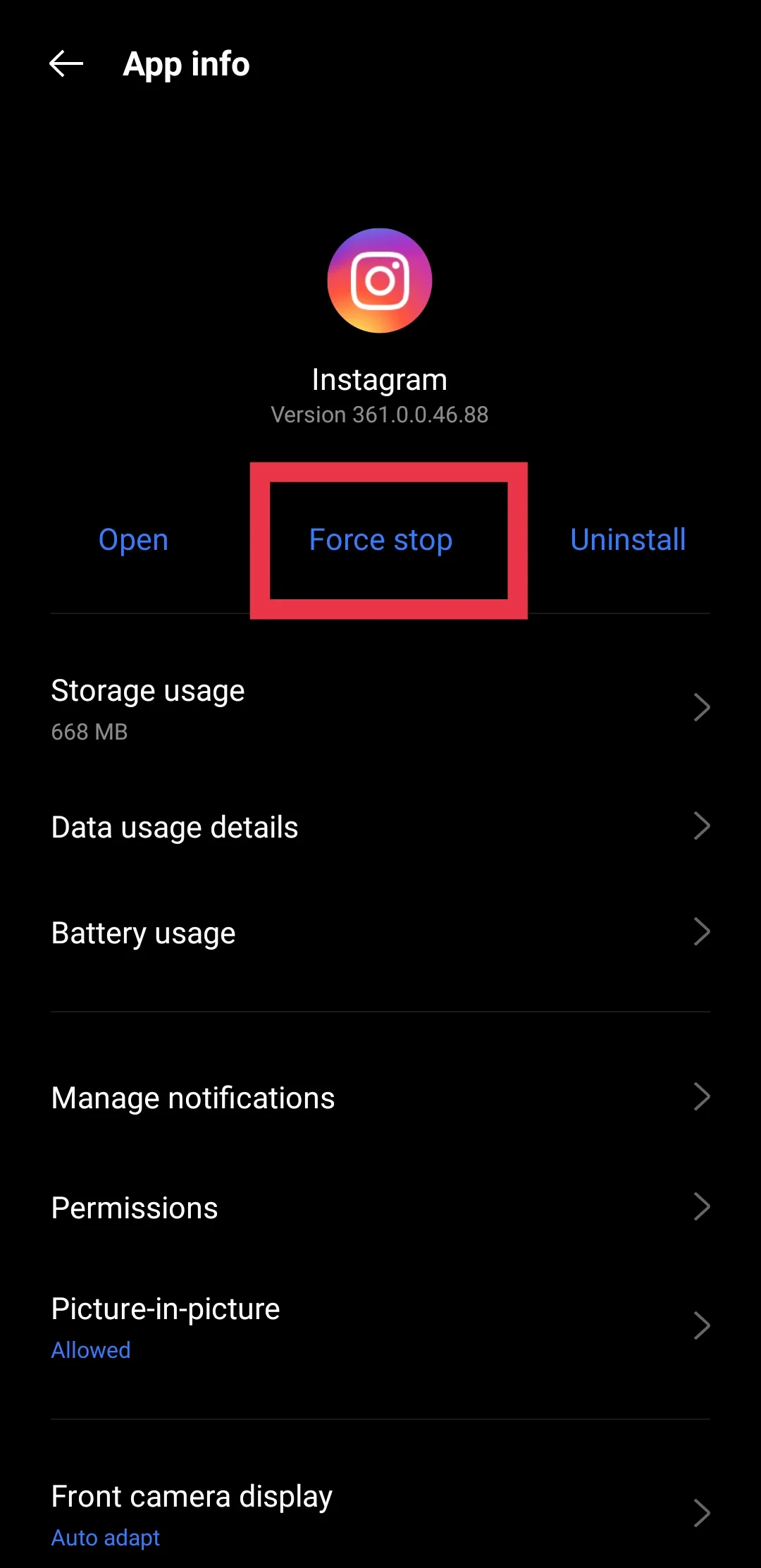
Restart Your Phone
Just turn your phone off and switch it back on after a few seconds. Once your device starts again, open Instagram and try uploading your post, story, or reel.
Clear Cache or App Data
On Android, clearing cache can help fix upload issues on Instagram by removing temporary files that may be causing problems.
Go to Settings, open Apps > Instagram > Storage. First, choose Clear Cache and check if the issue is fixed.
If it still continues, you can tap Clear Data as well. This will clear all the data of the app, and you will need to log in again.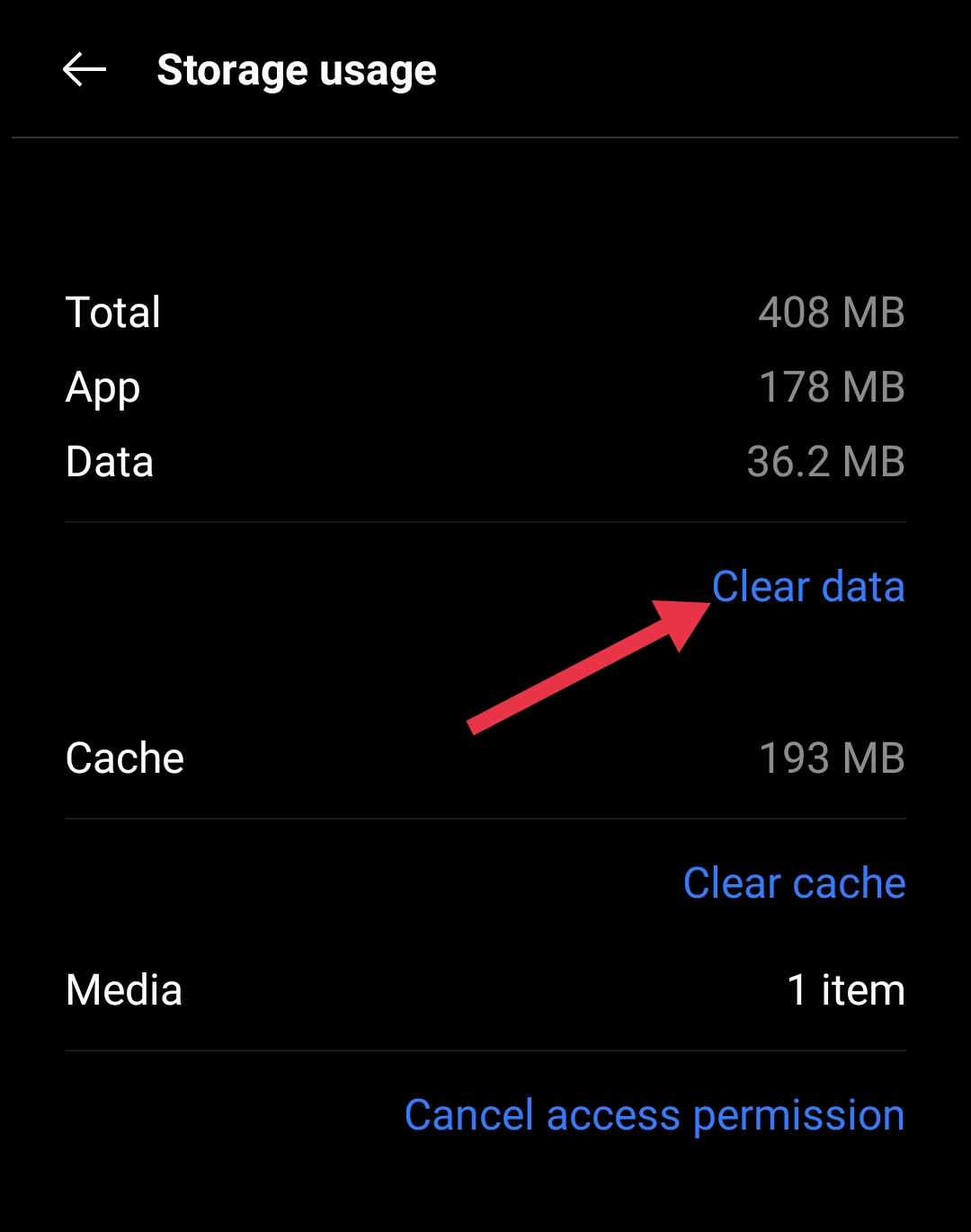
On iPhone, there is no direct option to clear the cache. Instead, you can try offloading the app. Go to Settings > General > iPhone Storage > Instagram > Offload App. After that, reinstall it from the App Store.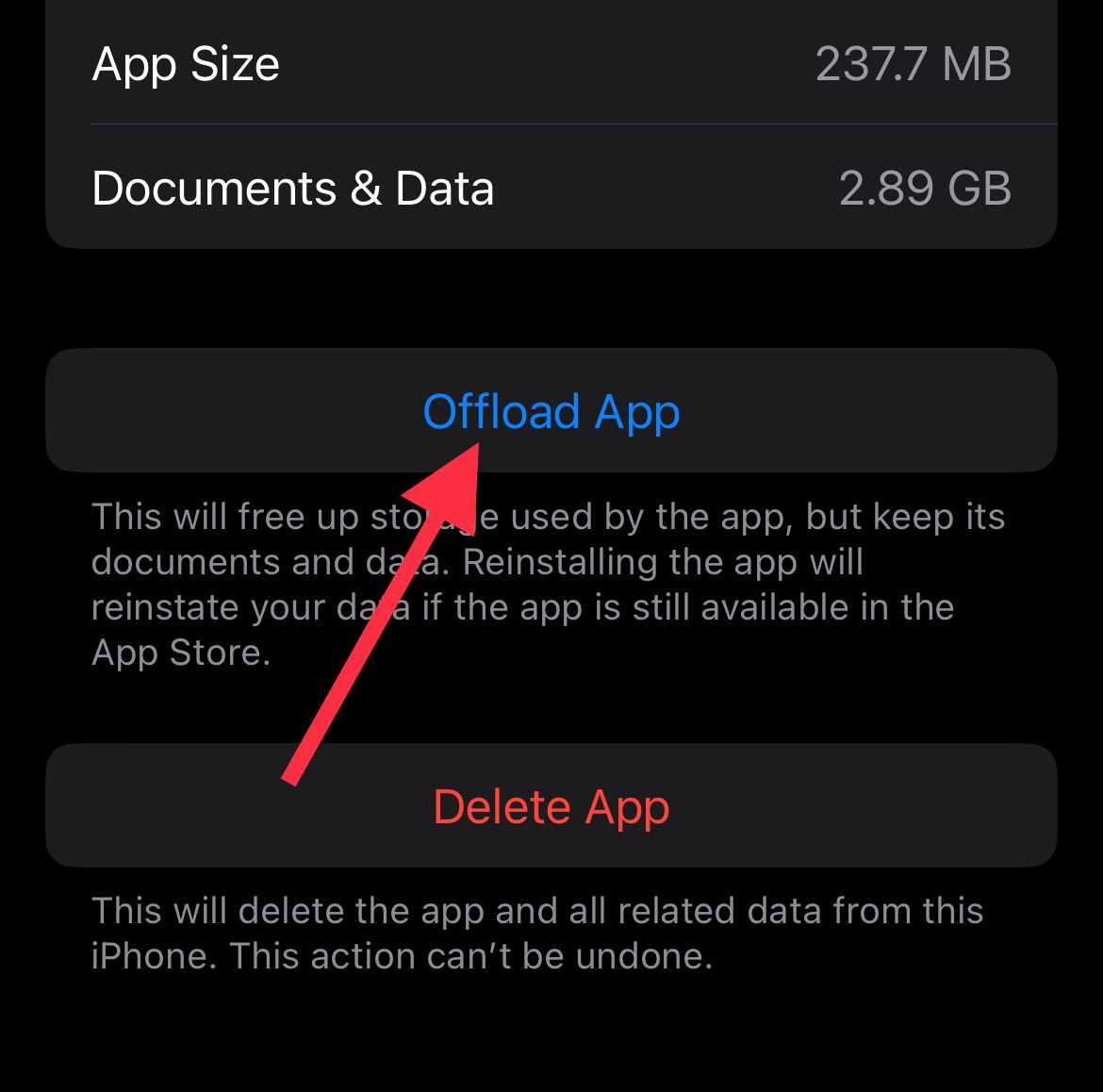
Reinstall the App
The last way of resolving the issue. This works on both Android and iPhone. However, you need to log in again after reinstalling the app.
Press and hold the Instagram app icon on your screen, then tap Uninstall or Delete App. After removing it, get the latest stable version of the Instagram app from the Google Play Store or the App Store.
RELATED GUIDES:
- How to Fix Instagram “Unable to upload this item” Error
- How to Fix Instagram Story Not Uploading
- How to Fix “Keep Instagram Open to Finish Posting” Error