Instagram Reels has become one of the biggest reasons people spend hours on the app every day. After the ban of TikTok in several regions, even more users shifted toward Instagram for short videos, messaging, and daily entertainment. Because of this huge popularity, even a small problem inside the app can quickly become frustrating for users.
At the same time, Instagram is also known for random bugs and login-related issues that suddenly appear without warning. We have already covered several Instagram-related issues and fixes in our other posts as well, since many users continue reporting different kinds of app problems that affect their overall experience.
One more issue that has recently started troubling users is the “We’re sorry, but something went wrong. Please try again later” error. Some users even think their account got hacked, banned, or deleted because of how serious the problem looks. If you are also facing the same issue, check out the sections below to find several tricks that worked for many users.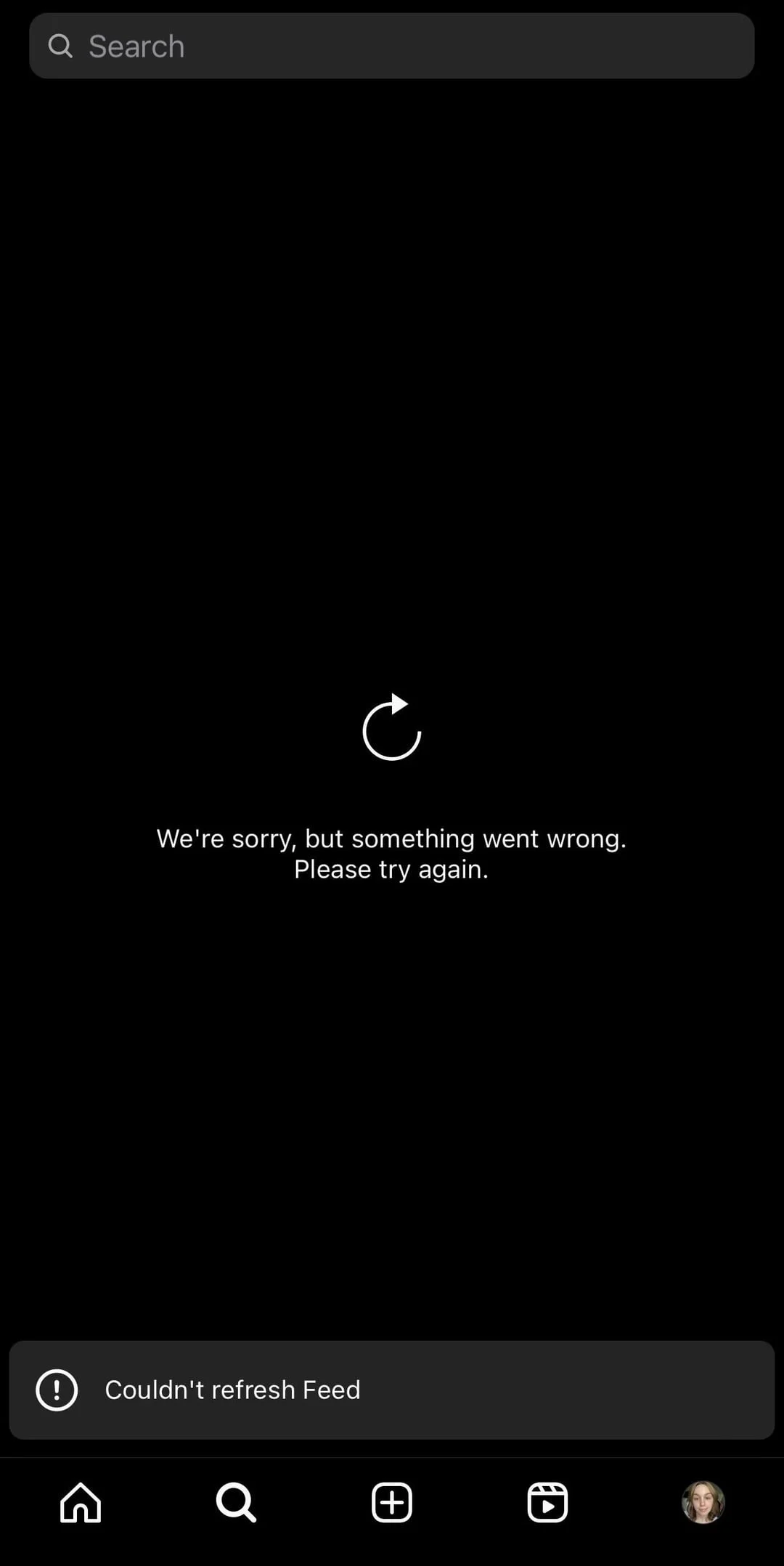
How to Fix Instagram “We’re sorry, but something went wrong” Error
Open Instagram Through Safari and Switch Back to the App
This solution mainly works for iPhone and iOS users because it uses Safari and the app switching method. Even if you are an Android user, you can still try this by borrowing an iPhone from a friend, logging into your account there, and then later using the same account again on your Android device.
Before starting, make sure the Instagram app is already installed on your iPhone and the problematic account is still signed in inside the app.
- Make sure the Instagram app is already installed on the iPhone and the problematic account is signed in inside the app.
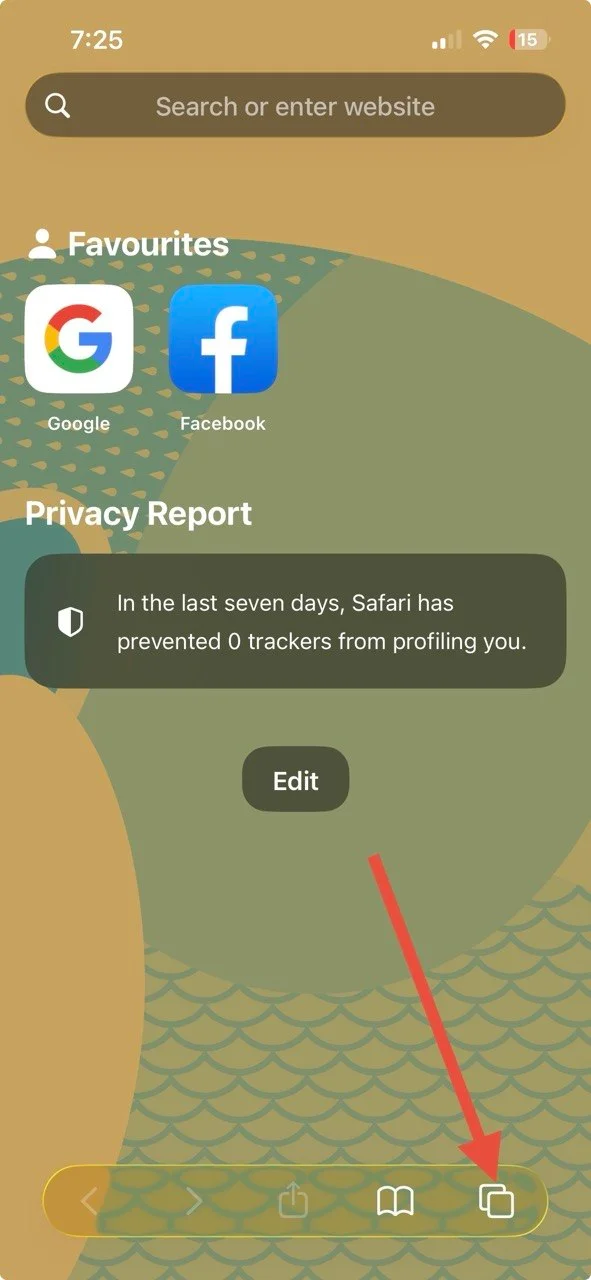
- Open Safari on the iPhone.
- Tap the tab button on the browser

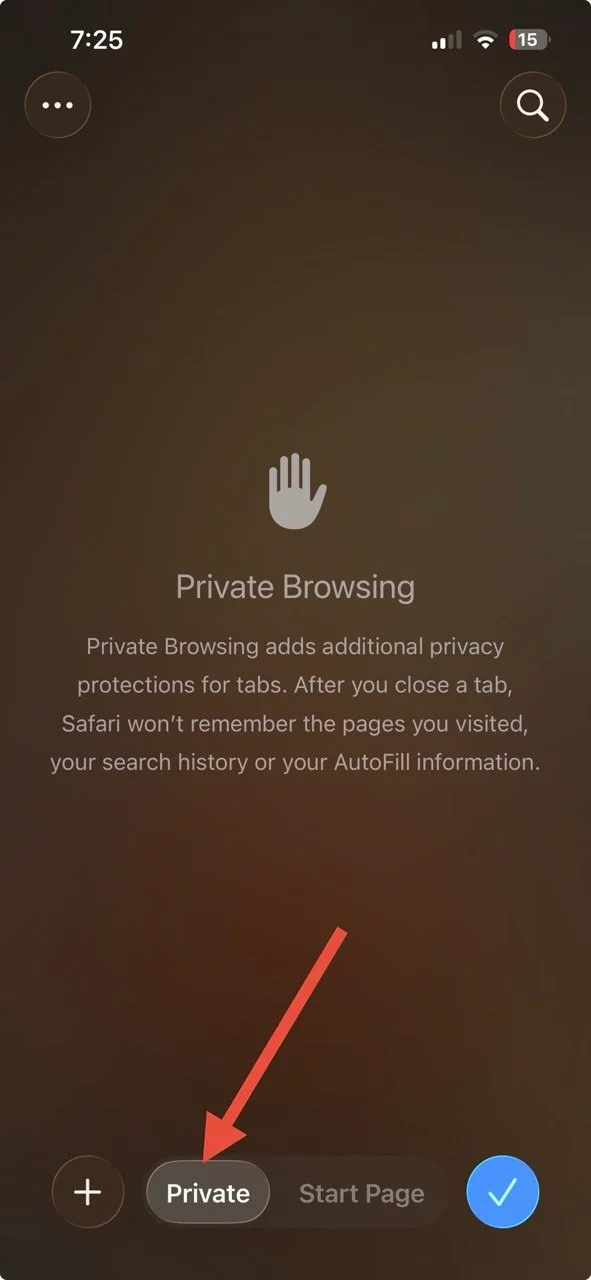
- Now, tap the Private button to open a new private tab.
- Search for “Instagram login” on Safari and click on the first result.
- Log in to the same Instagram account that is showing the error.
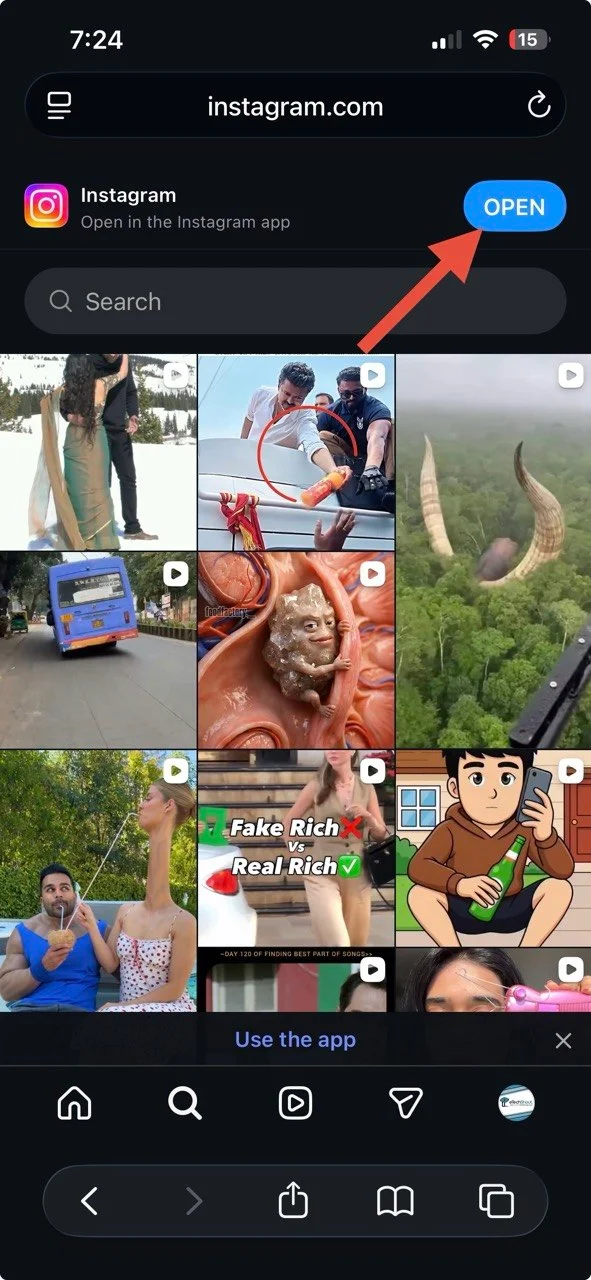
- After logging in, look at the top of the screen and tap the blue “Open” button that appears in Safari.
- This will redirect you to the Instagram app. Wait for a few seconds while the app loads.
- If the page still looks broken or stuck, go back to Safari again and press the blue “Open” button another time.
- Keep switching between Safari and the Instagram app a few times.
Finally, open your Instagram profile again and check whether the followers, posts, and account details are loading.
Check Your Internet Connection
In some cases, the error message on Instagram can appear due to the internet connection. Since Instagram needs a proper network connection to load your feed, profile, followers, and messages, even a small network problem can trigger random errors inside the app.
If the error appears while scrolling posts or opening your profile, first check whether your internet is working. After that, try switching between WiFi and mobile data to see if that helps.
Restart the Instagram App and Your Phone
Sometimes the error is only caused by a temporary app glitch or a background memory problem on your device. Before trying the next advanced methods, start with simple troubleshooting steps because they can fix many common Instagram issues within minutes.
First, completely close the Instagram app from the recent apps screen instead of just minimizing it. After a few seconds, reopen the app and check whether the error message is gone. If the issue still continues, restart your phone as well. If the problem still does not disappear after restarting both the app and phone, continue with the next solutions below.
Install the Latest Instagram Version
If the application has not been updated for a long time, certain features may stop working correctly, and errors can start appearing repeatedly.
Head over to the Play Store or iOS App Store on your device. If you notice an Update button for the Instagram app, install the newest version available for your device.
Clear Instagram Cache Files
On Android
- Open your phone’s Settings.
- Go to Apps and tap Instagram from the list.
- Open the “Storage & Cache” section.
- Press the “Clear Cache” button.


On iPhone
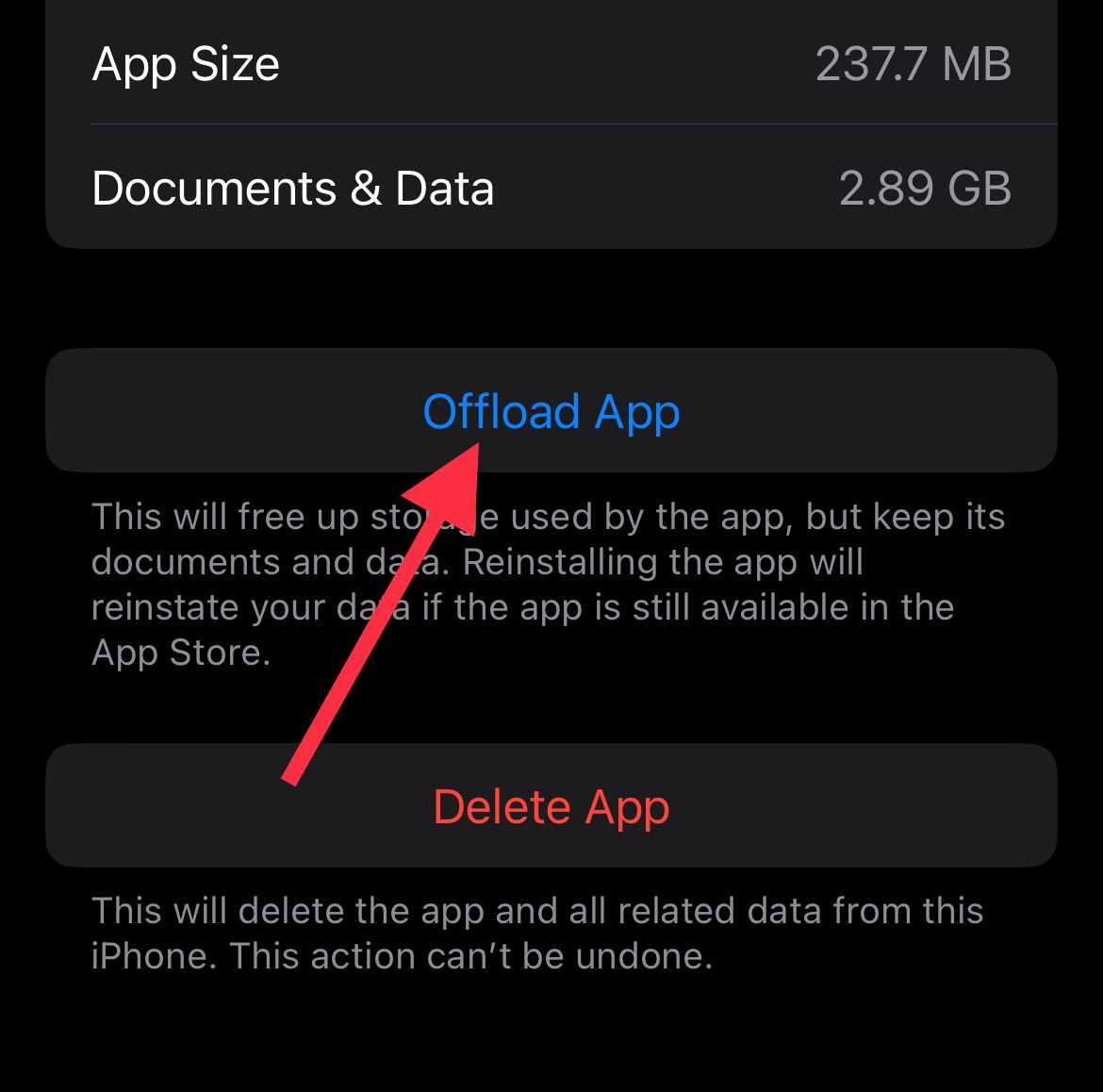
Unlike Android, iPhones do not provide a direct cache clearing option. However, Apple offers an “Offload App” feature that removes temporary app data without deleting anything.
- Open Settings on your iPhone.
- Tap General.
- Select iPhone Storage.
- Scroll down and open Instagram.
- Tap the “Offload App” option.

- Confirm the action when the pop-up appears.
- After the process finishes, tap “Reinstall App.”
Temporarily Disable Your Instagram Account
If the error still keeps appearing, you can also try temporarily disabling your Instagram account for a short time.
Note: Disabling the account will not permanently remove your photos, followers, chats, or account settings. Everything stays safe, and you can restore the account anytime simply by logging back in anytime.
- Open Instagram and go to your profile section.
- Tap the menu icon and open “Settings and Privacy.”
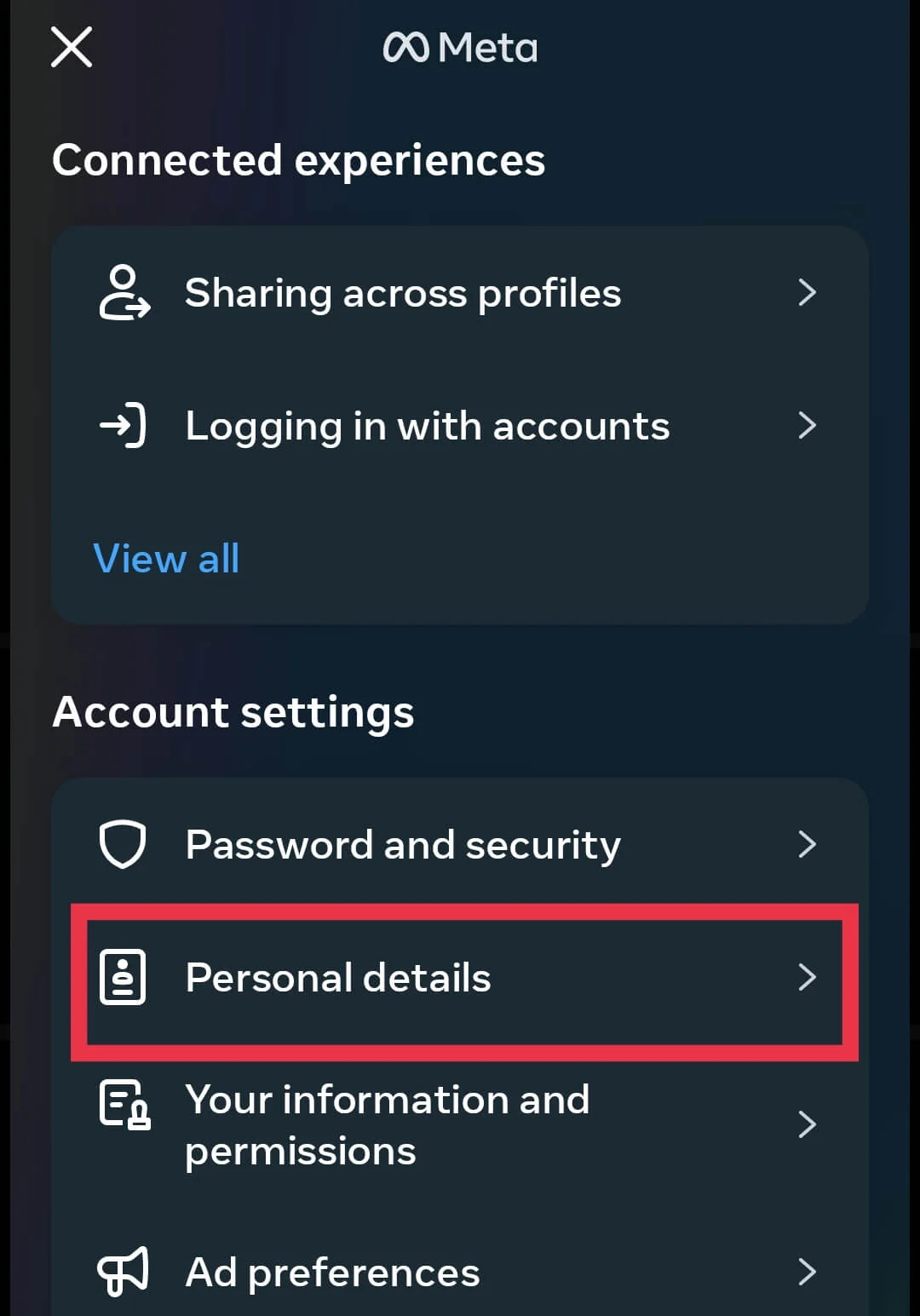
- Scroll down and open “Accounts Center.”

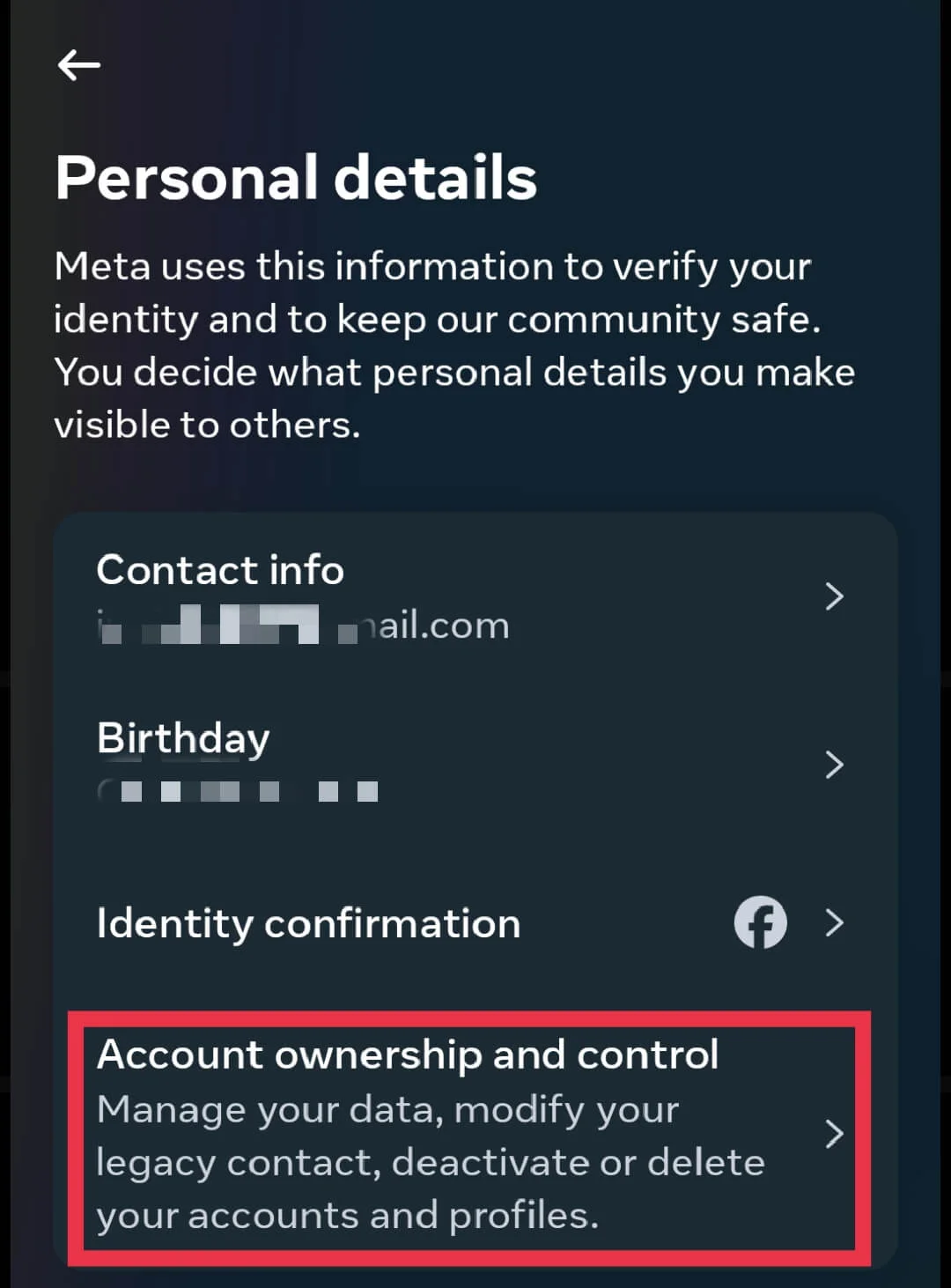
- Tap “Personal Details.”

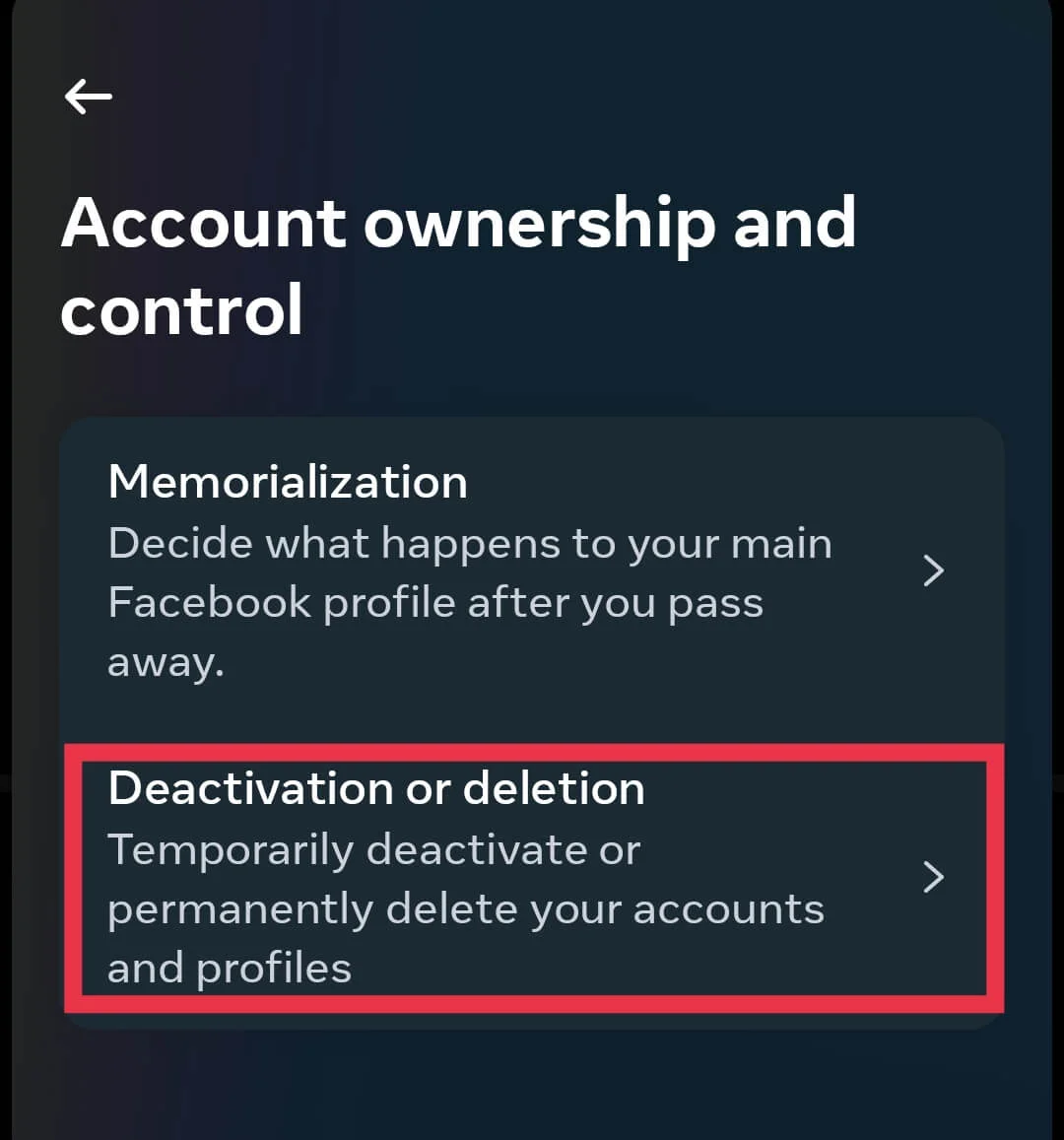
- Select “Account Ownership and Control.”

- Now open “Deactivation or Deletion.”

- Choose the Instagram account you want to disable temporarily.
- Select the deactivate option and continue with the confirmation steps shown on screen.
- After disabling the account, wait for around one hour before signing back in again.
- Finally, log in to your Instagram account and check whether the issue has been fixed.

Try Another Phone or Use a Computer
As we mentioned in the first solution, several users noticed that the issue disappeared after using an iPhone and trying the Safari switching trick. Because of this, the problem may sometimes be linked to a specific device rather than your actual Instagram account.
If you do not have an iPhone nearby, try signing into your Instagram account using another Android phone, tablet, or computer instead. After logging in, open your profile page or visit the Reels section and check whether the app works normally there.
Reach Out to Instagram Support
If you have already tested every method above and the “We’re sorry, but something went wrong” message is still appearing, the issue may be connected to your account itself instead of your device. In that situation, the best remaining option is to contact Meta or Instagram support directly and report the problem officially.
Shake the phone to submit a report explaining the error in detail. Once the support request is sent, Instagram may ask for additional information to verify the account or better understand the problem. So, keep checking your registered email inbox regularly over the next few days for replies, recovery instructions, or follow-up messages from the support team.\
RELATED GUIDES:
- How to Fix Instagram “Something went wrong with your upload” Error
- How to Fix Instagram “An unexpected error occurred. Try logging in again.”