If you landed here, then you probably already know about AnyDesk and what people use it for every day. AnyDesk lets you connect to another computer through the internet and control it from another place.
Over the years, many remote desktop tools entered the market, including TeamViewer, Chrome Remote Desktop, and Splashtop. Even with many choices around, a lot of users still prefer AnyDesk for daily remote access work because of its lightweight design, quick connection speed, and simple interface.
Still, there are times when the app shows the “Disconnected from the AnyDesk network” error while trying to connect to another device. This can appear even when your internet is working fine.
When this message appears, the remote session does not connect, and the app loses contact with the AnyDesk servers. Below, you will find a few methods that helped us fix the issue during testing.
9 Quick Ways to Fix “Disconnected from the AnyDesk network” Error
Check Date, Time, and Time Zone Settings in Windows
Even a small difference in time can make an AnyDesk connection error appear. During testing, the error disappeared right after setting the exact current time on the computer. Because of this, make sure your Windows clock matches the real current time as accurately as possible.
Open the Windows Date and Time settings and turn on both Set time automatically and Set time zone automatically. Also, check that the selected region and time zone are correct for your location. 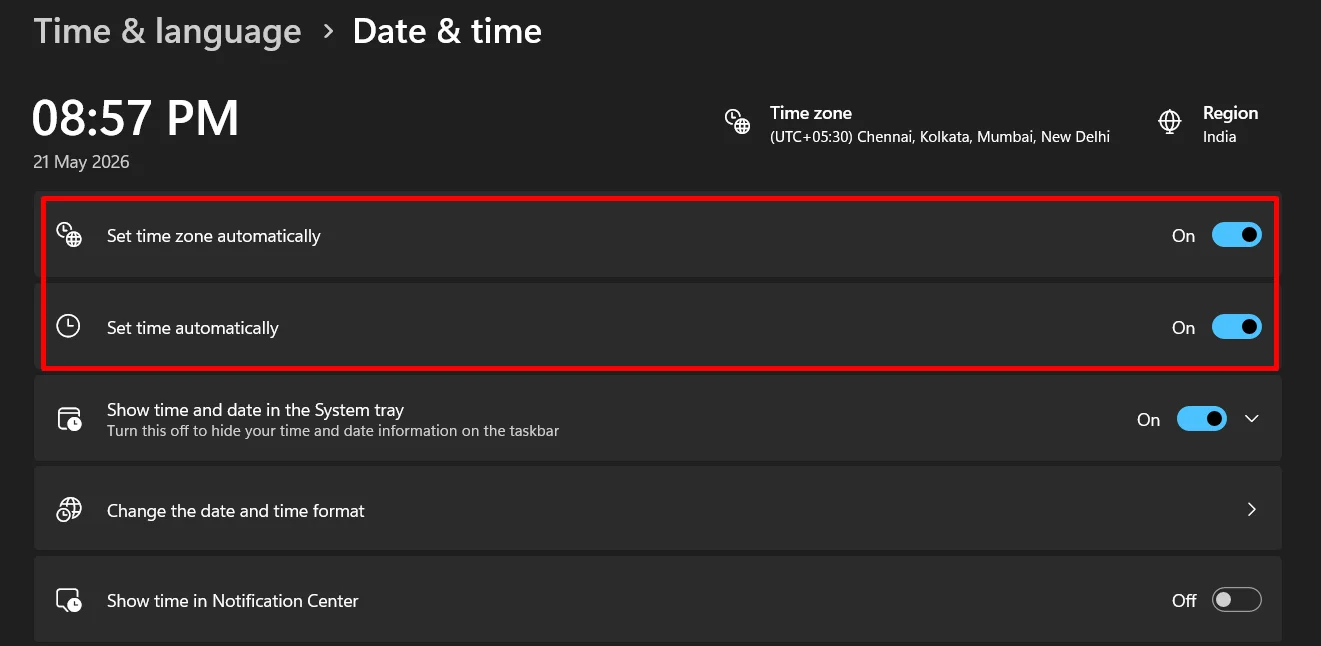
Install the Latest Windows Updates
If important system files or Windows components are outdated, AnyDesk may have trouble connecting with its servers.
Many newer AnyDesk versions are designed to work with the latest Windows updates and security changes. Many software rely on updated Windows services, security components, or system libraries.
So, go to Settings > Windows Update and check for pending updates. Download and install everything available, then restart the computer once the installation is complete.
Reset Network Settings Using Command Prompt
If you are comfortable using networking commands, you can try resetting the Windows network interfaces.
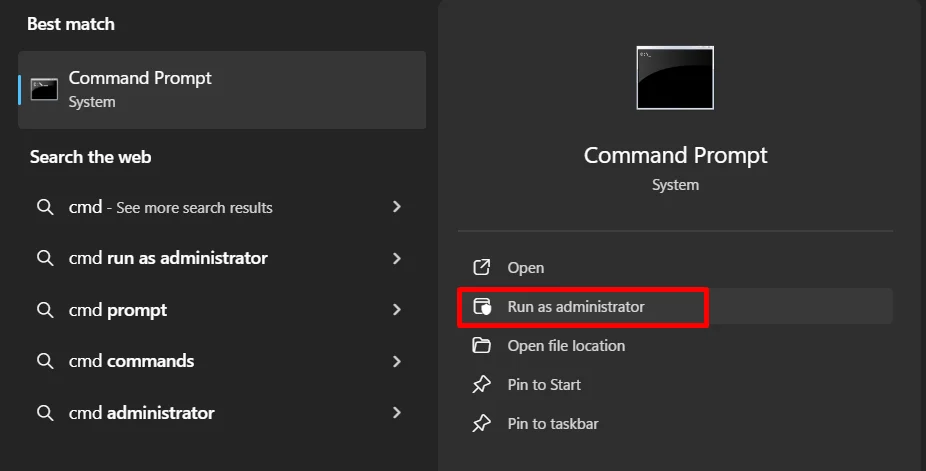
- First, open the Command Prompt as administrator. To do that, press Windows + R, type cmd, then open it using Run as administrator.

- After Command Prompt opens, type the following commands one by one and press Enter after each command:
netsh
winsock reset
exit
shutdown -t 0 -f -r
- The final command will instantly restart the computer. Once the PC turns back on, open AnyDesk again and check if the network error has disappeared.
Delete AnyDesk App Data Files
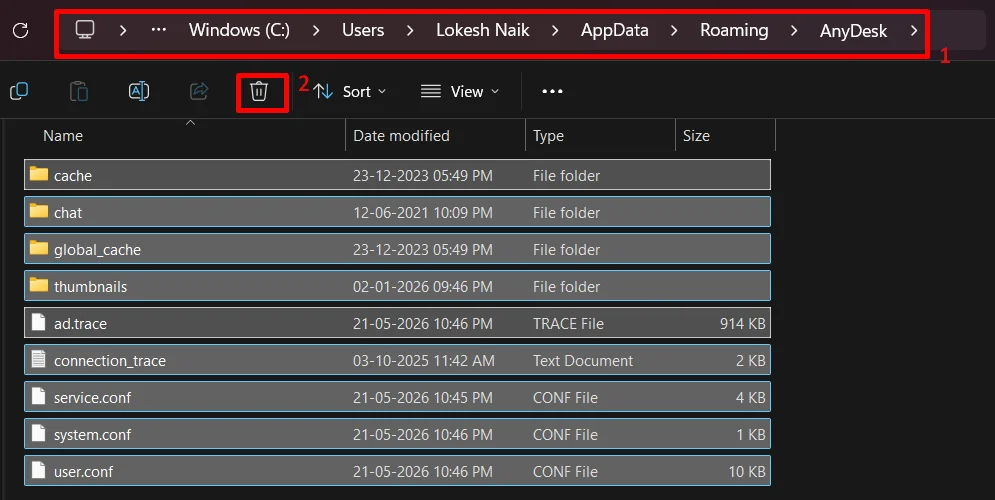
Another method worth trying is deleting the AnyDesk configuration files inside the system folders from Windows. Before deleting anything, double-check that your computer shows the correct date, current time, and time zone (Check first solution).
- Close AnyDesk completely on your computer.
- Open File Explorer and go to the location: C:\Users\<UserName>\AppData\Roaming\AnyDesk
- Delete the AnyDesk folder found there. (Note: Replace <UserName> with your actual Windows username.)

- Now, open the second location: C:\ProgramData\AnyDesk
- Then delete the AnyDesk folder from this location as well.
Allow AnyDesk Through Windows Firewall
Windows Firewall can also block AnyDesk from connecting to its network servers. If the app does not have permission to pass through the firewall, remote connections may fail, or the network error may continue appearing.
This method only works for the installed version of AnyDesk. If you are using the portable version, these settings may not appear in the firewall app list.
Follow these steps to allow AnyDesk through Windows Firewall:
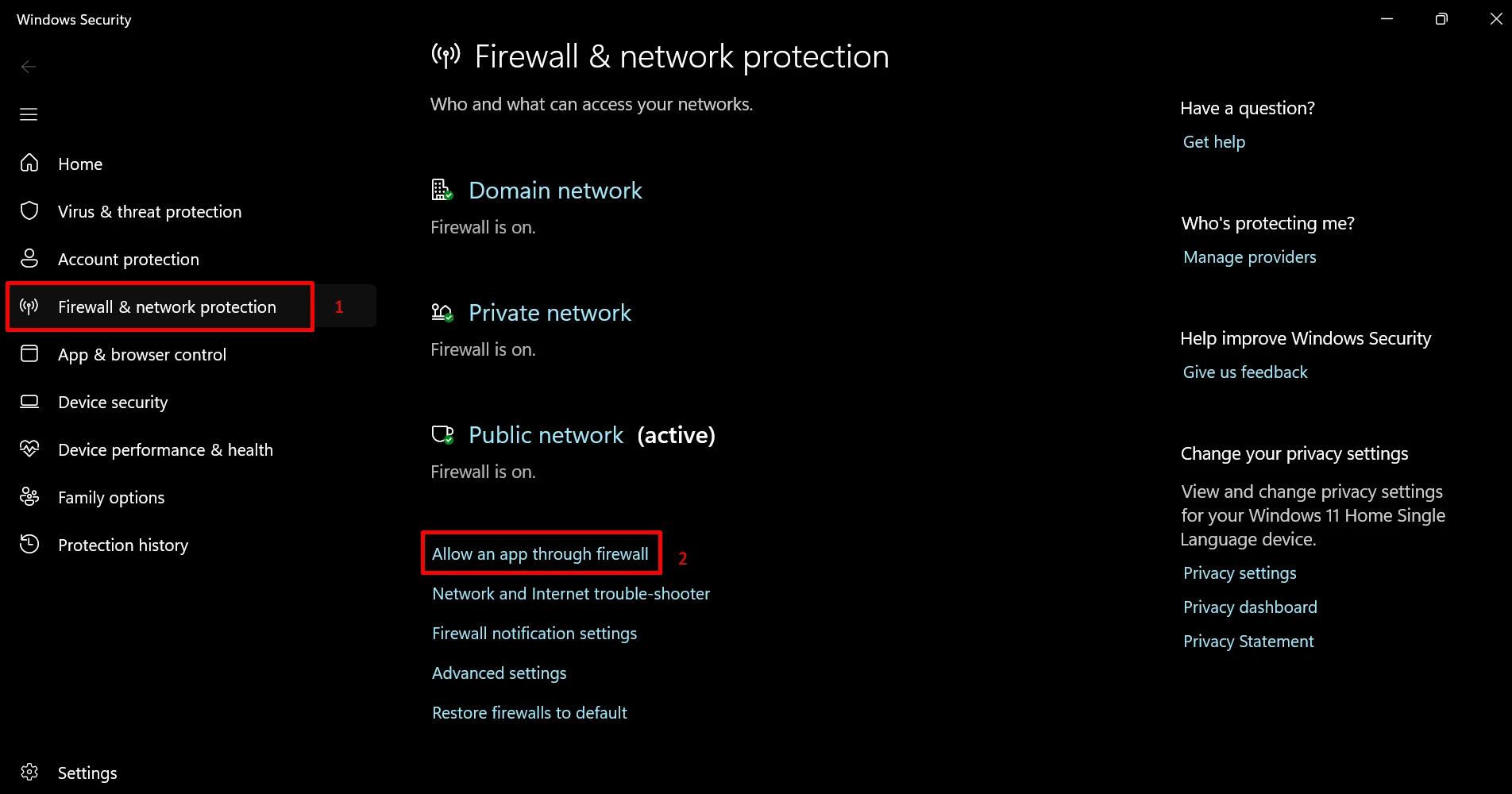
- Open Windows Search, type Firewall, then select Firewall & network protection from the results.
- Inside the Firewall settings page, click Allow an app through firewall.

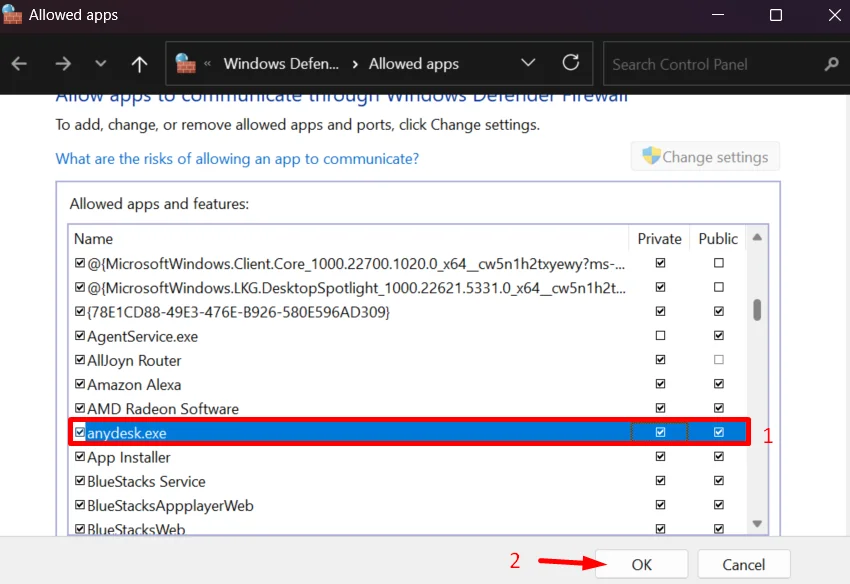
- Make sure both the Private and Public checkboxes are selected for the AnyDesk software (If the checkboxes cannot be changed, click Change settings first.)
- Click OK to save the changes.

- After that, restart the computer, then open AnyDesk again and check if the connection error is fixed.
Temporarily Disable Antivirus Protection
In some cases, third-party antivirus programs can block network connections used by AnyDesk. If the security software mistakenly treats AnyDesk as an unknown connection, the app may fail to connect to its servers. To test this, temporarily turn off the antivirus protection on your computer, then restart your PC.
Flush the DNS Cache
- Press Windows + R on your keyboard to open the Run dialog box.
- Type cmd and press OK.
- In the Command Prompt window, type the command ipconfig /release and press Enter.
- Next, enter the ipconfig /renew command and press Enter again
- After that, type the final command ipconfig /flushdns and press Enter.
- Once all commands finish running, close Command Prompt.
Check for AnyDesk Updates
You should also check if a newer version of AnyDesk is available. The version currently installed on your computer may contain connection-related bugs or compatibility issues with recent Windows updates.
Try Another Remote Desktop App
If the “Disconnected from the AnyDesk network” error still appears even after trying all the methods above, you can test another remote desktop application for the time being.
There are several remote access tools available that can be used for remote support, office access, and file sharing. Some widely used options include AnyViewer, TeamViewer, and Chrome Remote Desktop.