No matter which OS you use, you must be someone who often prefers Chrome over other browsers. Even though it is known to use more system resources, its user-friendly design and ability to open almost any website without trouble have kept it popular for a long time. Since it comes from Google, many people trust it by default. Most Android users rely on Chrome because it comes preinstalled on almost every Android phone, as the operating system itself is built by Google.
Being made by Google builds a lot of trust, but that does not mean it always works without flaws. From time to time, Chrome shows random errors that catch users off guard. One moment, a page is loading fine, and the next moment, the screen flashes the “Aw, Snap!” message. Many users face this issue at least once, and it can stop you right in the middle of what you were doing.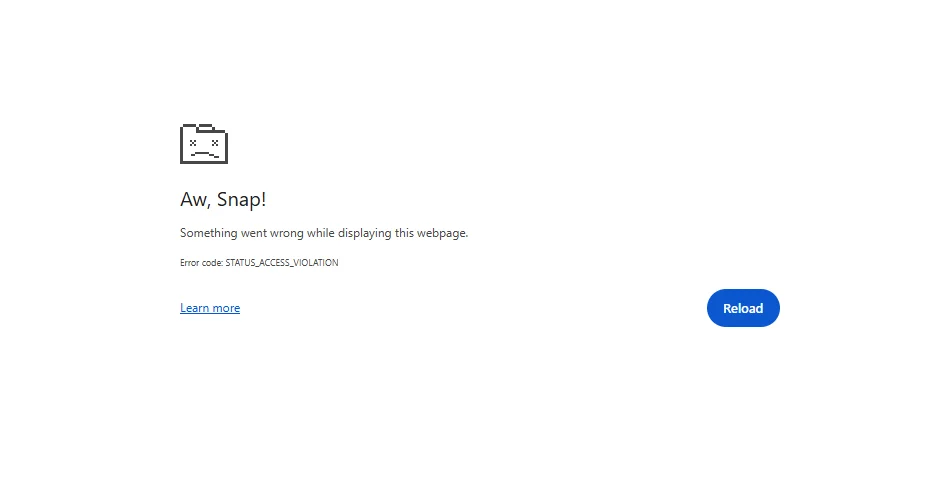
That “Aw, Snap!” screen quickly tests your patience as it blocks access to the page. Before moving ahead with the fixes, we want to quickly point out one thing. This error behaves the same way across devices. It does not change based on where you are using Chrome.
It works the same on Windows, Android, Mac, and even other operating systems. Because of that, the steps you try next follow the same approach everywhere, which makes fixing it a lot simpler.
What Does the ‘Aw, Snap!’ Error Mean on Chrome Browser and What Causes It
When Chrome shows the “Aw, Snap!” error message, it simply means the browser failed to open the page you tried to visit. In most cases, Chrome starts loading the site but gets stuck halfway and shows the error message. Instead of showing a clear reason, it displays this single message to tell you that the page crashed and could not be displayed.
This error usually appears when the Chrome browser struggles to handle part of the page. It could be related to your internet connection, a browser add-on or extension, or your device running low on memory. If you keep many tabs open or other apps running in the background, Chrome may not have enough space to load a new page fully.
Other than these reasons, corrupted browser data, third-party browser extensions, and malware can also make this error appear. In rare cases, it may even happen due to a temporary loading issue that goes away after refreshing the page.
9 Quick Ways to Fix “Aw, Snap!” Error in Chrome Permanently on Android, Windows, and Mac OS
Reload the Page
The first thing we always suggest trying is loading the page one more time. Many times, the “Aw, Snap!” message shows up due to a short hiccup while the page is opening. Chrome may fail once, then load the page just fine on the next try.
So, just click on the reload icon near the address bar, or press F5 on your keyboard. 
On Windows or Linux, you can also use Ctrl + R. On a Mac, use Cmd + R. If you are on a phone, open the three-dot menu and tap the “Reload” option.
If the page still does not open, wait a few minutes before trying again. The issue may be coming from the website itself, not your browser.
Close Extra Tabs or Try Incognito
Many people have a habit of keeping a large number of tabs open. It is common to see browsers with twenty, thirty, or even more pages sitting in the background. Each open tab uses a part of your device memory, and when that number grows, Chrome can struggle to load new pages.
If you notice the Aw, Snap! message, try closing tabs you are not using at the moment to reduce the load on your system and give Chrome more room to handle the site you want to view. 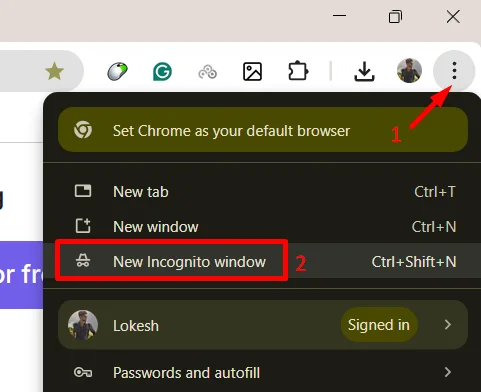
You can also check the same page in an Incognito window to open the session without any extensions and stored site data. If the page loads fine there, it points toward saved data or add-ons causing the error in your normal window.
Tip: Close all tabs and open Chrome again before visiting the page.
Check your Internet Connection
Even if your phone or PC shows it is connected to the internet, the signal or speed may not be strong enough at that moment, causing the page you are trying to access to hang or fail while loading.
One quick thing you can try is turning airplane mode on and off. This forces your device to reconnect to the network. You can also restart your router or modem to clear any temporary network issues that may be slowing things down.
If you are using a VPN or proxy, turn it off for a while and try opening the page again. These tools can interfere with page loading at times. If they cannot resolve the issue is likely with your internet source.
If possible, switch to a different network and test the page again. For example, try using mobile data instead of Wi Fi.
Restart your Device
At times, your device just needs a restart to get rid of temporary issues. On Windows, close all open apps first so nothing important is left unsaved. Click the “Start” button, choose the “Power” icon, and select Restart. Wait for the system to turn off and come back on fully. On a phone, press and hold the power button and choose Restart.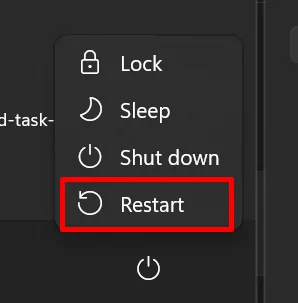
Turn Off Browser Extensions
Many of us add extensions to Chrome to save time or handle daily tasks faster. These tools come from third-party developers, and not all of them work well with Chrome all the time. When one of them causes trouble, Chrome may fail to open a page and show the “Aw, Snap!” message.
- To check this, open Chrome and click the three-dot menu.
- From there, go to More Tools > Extensions.

- You will see a list of everything installed on your browser. Use the toggle next to each extension to turn them off.
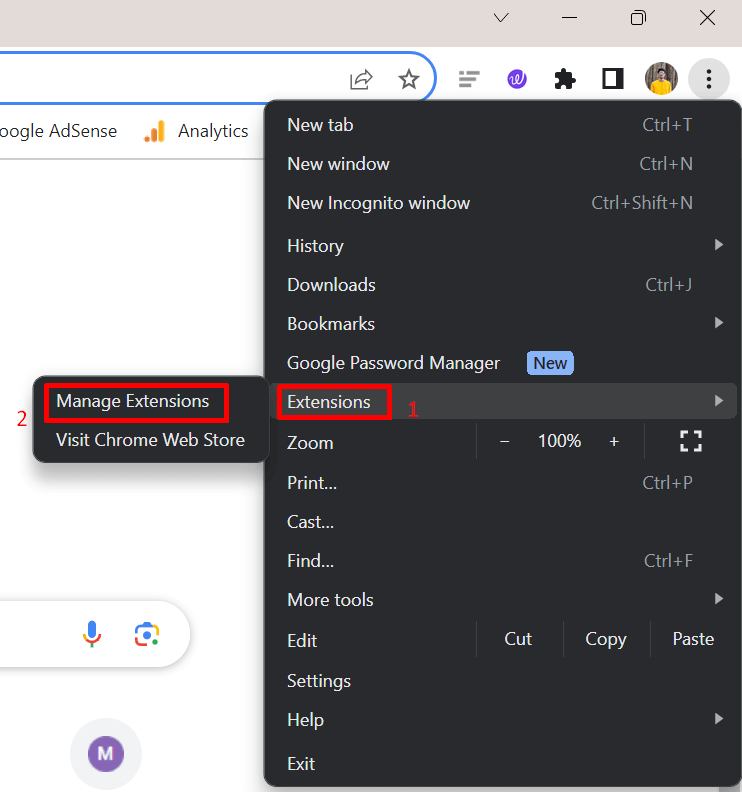
After disabling all extensions, try loading the page again. If the page opens without errors, it means one of the extensions was causing the issue. Go back to the extensions page and turn them on one at a time. After each one, load the page again.
Update Chrome to the Latest Version
Today’s websites change fast and rely on newer browser features to load their content. When the Chrome version currently you’ve installed on your device is old, it may struggle to keep pace with these changes.
- Open the Chrome browser on your PC
- Now, click the three-dot menu at the top right.
- From there, open Help and then choose About Google Chrome.

- After this, Chrome will automatically look for updates and begin installing them if one is available.

Scan your Computer for Malware
Earlier, Chrome had a built-in option called “Reset and clean up” that could scan your system for harmful software. That option is no longer available in the latest versions, so Chrome itself cannot run this scan anymore.
If you are on Windows, the best option now is to use Windows Defender or any popular antivirus software to find malware or unwanted programs that may interfere with Chrome.
Clear Browser Cache and Cookies
Over time, Chrome stores a lot of temporary data to load sites faster. When this data piles up, it can slow the browser and even cause pages to crash with the “Aw, Snap!” message.
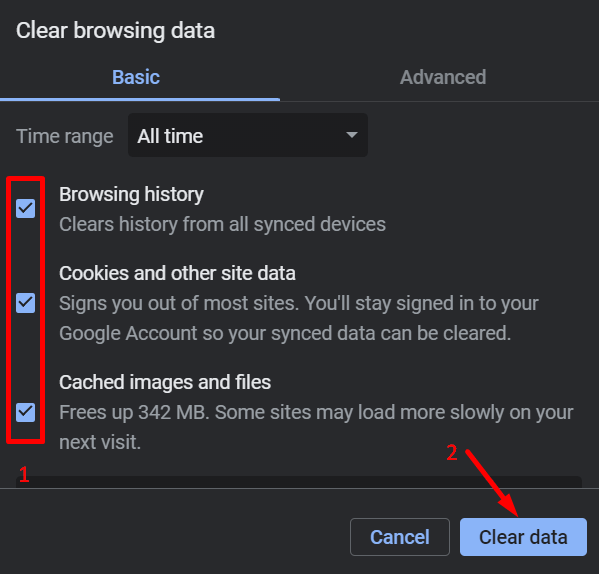
- So, try clearing browser data by opening Chrome
- Then click the three-dot menu in the top right corner.
- Go to Settings, then open Privacy and security, and select Clear browsing data.
- Now, set the time range to All time and tick Cookies and other site data and Cached images and files.
- After that, click Clear data.

Reset Chrome Settings
If nothing you tried so far has helped, this is the point where resetting Chrome is worth a shot. This brings Chrome back to its original state without touching your bookmarks or saved passwords.
- Open Chrome, click the three-dot menu, and head into Settings.
- Scroll down to the Reset settings section.
- There you will find the “Restore settings to their original defaults” option that restores Chrome to how it was when you first installed it.

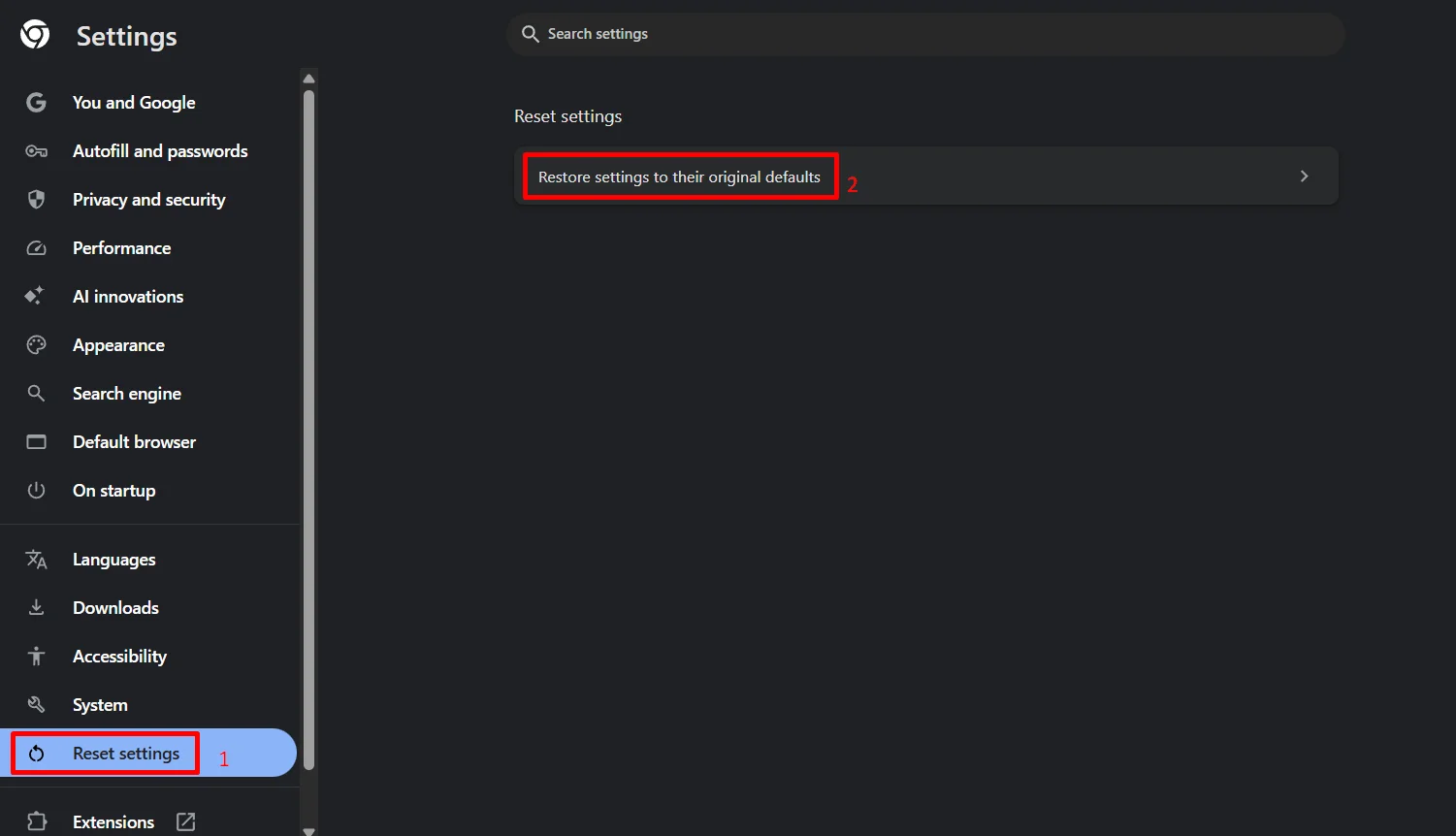
Note: Before you confirm, Chrome will let you know what changes. Your extensions, pinned tabs, and custom settings will be removed, but your bookmarks and saved passwords will stay safe.
RELATED GUIDES: –
- [FIX] No Internet. Chrome will let you know when this page is ready
- Fix Installation Failed. The Google Chrome Installer Failed to Start Error