When Messenger was first introduced as a separate app, the goal was simple. It was meant to make chatting faster and easier without needing to open Facebook every time. Over the years, Messenger has grown into a heavy app filled with features like calls, stories, payments, bots, and media sharing. Even with regular updates, users still face lots of issues that interrupt everyday conversations.
Recently, many users have noticed a strange issue while receiving messages. Instead of seeing the message right away, Messenger briefly shows a warning that says the message is not available on this app version.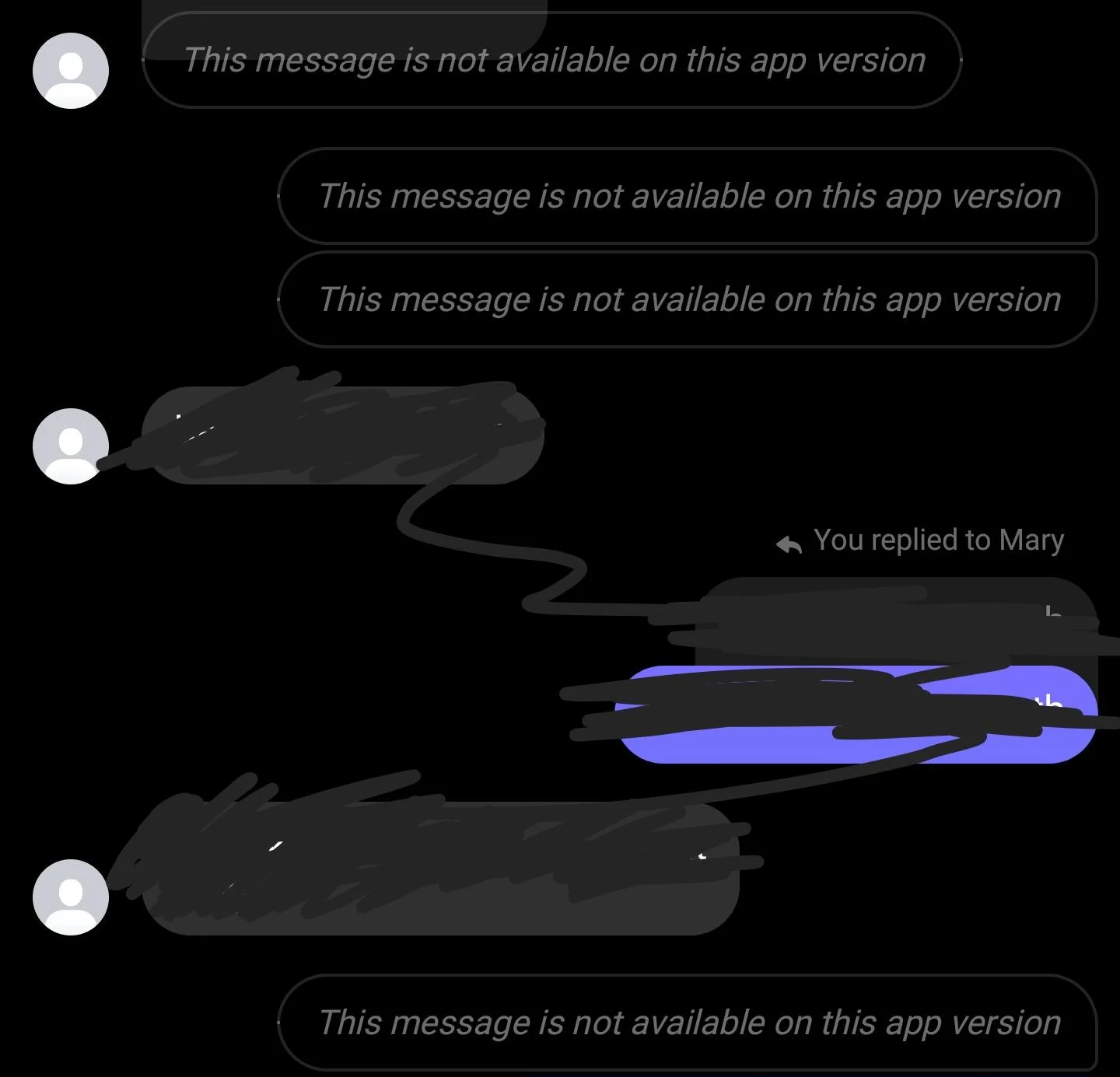
The problem becomes more frustrating when it affects older chats, photos, or important conversations. Users often worry that messages are missing, deleted, or permanently lost. Since the error appears without warning and sometimes fixes itself after a moment, it leaves people unsure about what it really means. This has led many users to search for answers and look for a proper explanation behind this unusual Messenger behavior.
How to Fix Messenger “This message is not available on this app version”
Share Photos Directly From Your Phone Gallery
One simple trick that worked for many people is sharing photos straight from the phone gallery instead of sending them from inside the app. This method pushes the file directly without relying on the in-app media loader.
- Just open your phone’s photos app
- Now, select the image you want to send
- Tap the share option, and choose the app from the list.
- Then select the person you want to share with and tap the Send button.
Turn Off Secure Storage in Messenger
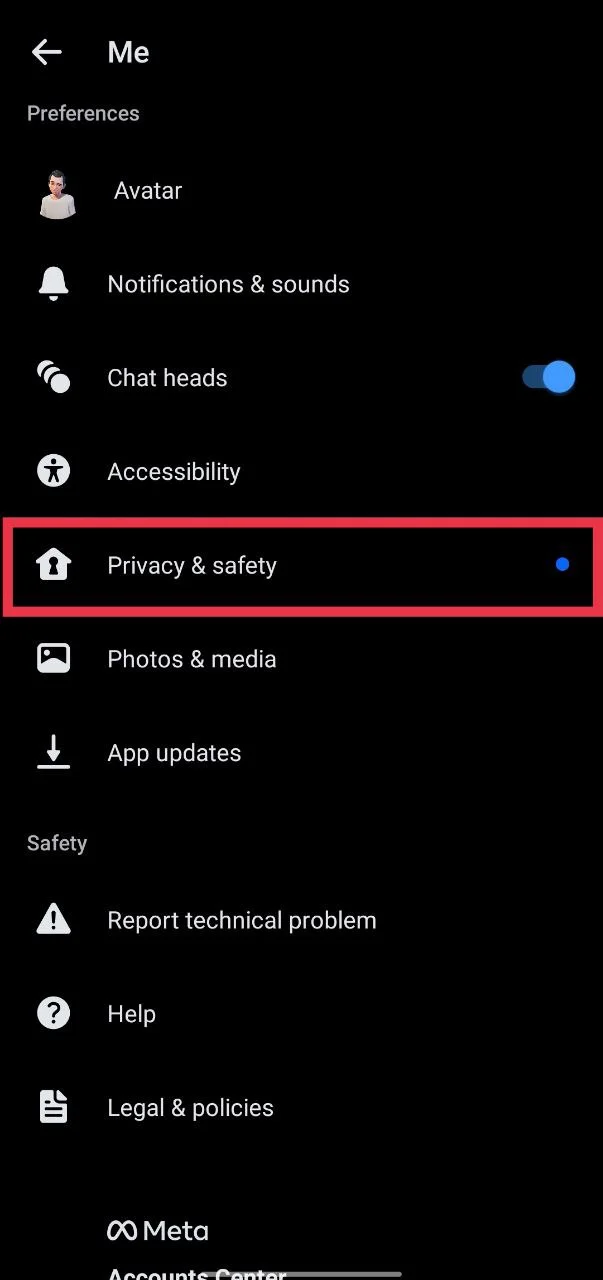
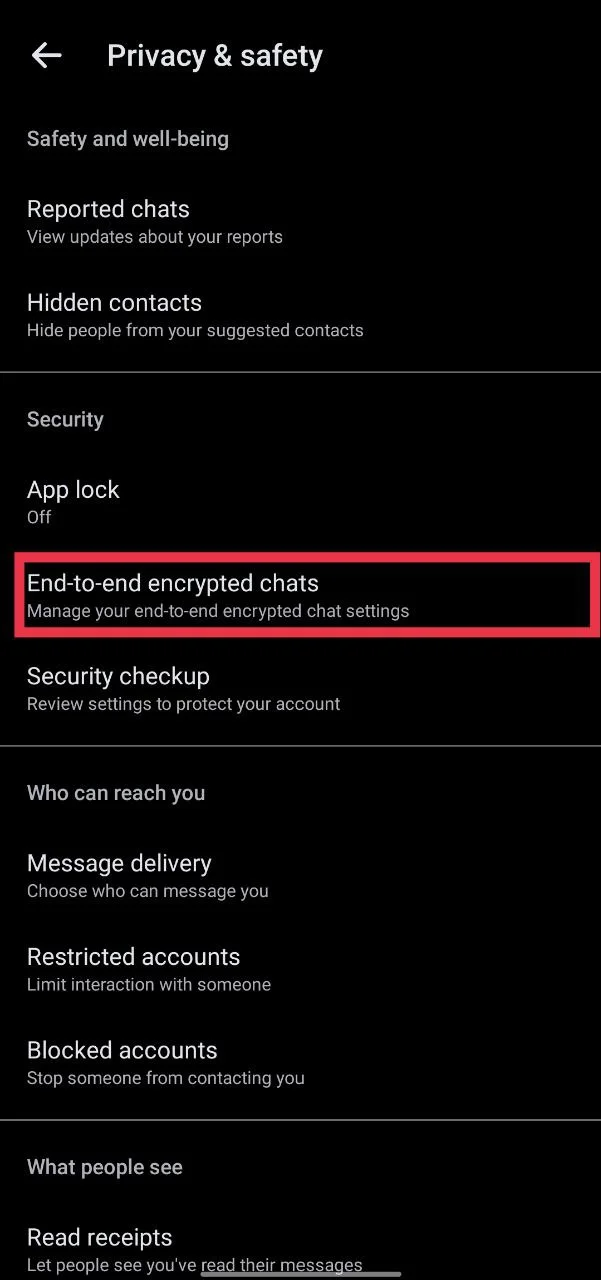
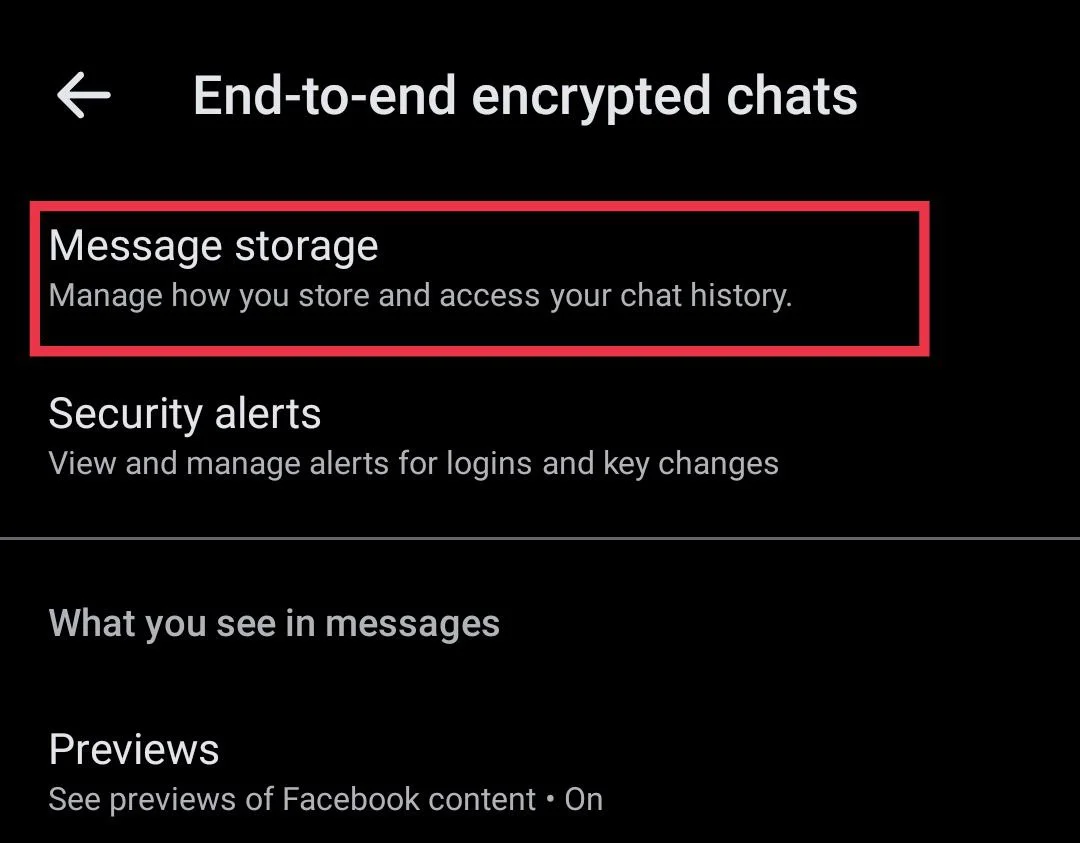
Some users have reported that this issue is linked to Messenger secure storage, which is part of end-to-end encrypted message settings. Disabling this option has helped the error disappear for many people.
- Open Messenger and tap on Settings
- Go to Privacy & safety

- Select End-to-end encrypted chats

- Tap on Message storage

- Turn off Secure storage.
Forward Media Through Your Own Chat
In this method, you need to send the photo or video to yourself before sending it to others. While this does not fix the root cause, it can help you share media without running into the same error repeatedly.
- Open the chat where the image or video is stuck or is not sending
- Send the same image or video to your own Messenger chat
- Now, press and hold on that media message
- Select Forward and choose the person or group you want to send it to
Even though this method feels unnecessary and inconvenient, it can be useful when media messages refuse to send or briefly show the not available message. It is a practical temporary option until the issue is properly resolved.
Send the Unedited Version of the Video
Many users have noticed that this problem mainly occurs with edited videos. This error often appears when trying to send videos that were trimmed, cropped, or otherwise modified, causing them to fail and briefly show the “This message is not available on this app version” message. At the same time, unedited videos from the same device usually go through without any error message.
If you are facing this issue, try sending the original version of the video instead of the edited one. Once the unedited clip is delivered successfully, you can use that version to share it again if needed. This small change often makes a difference.
This suggests that Messenger may have difficulty processing certain edited media formats.
Update the Messenger App
While this step does not help everyone, it is still worth trying. App updates often include bug fixes and background improvements that can resolve similar issues. Even if your app looks up to date, installing the latest version may fix temporary glitches reported by many users.
Use Facebook or Facebook Lite as an Alternative
Since Messenger Lite has been discontinued, you can try accessing your messages through the main Facebook app instead. After uninstalling the Messenger app, open Facebook and check if your messages load there without showing the error.
You can also install the Facebook Lite app and use it in the meantime. It is lighter, uses fewer resources, and may handle messages differently.
RELATED GUIDES:
- How to Fix “This App Version is Deprecated” on Messenger
- [100% FIX] Messenger “Please restart Messenger to rejoin this chat” Error
We hope this guide helped you fix the issue. If the problem still continues, you can also try uninstalling and reinstalling the Messenger app.
If any of the methods worked for you, let us know which one helped. Also, feel free to share any other solution you discovered, so it can help others facing the same problem.