Facebook has been around for a long time, and people still use it every single day. It is where friends and family stay connected, businesses reach customers, and communities share updates. Even after so much competition from newer social media platforms, Facebook has stayed strong by growing its platform and bringing other big social media apps under the same company.
Still, that does not mean everything works all the time. A lot of users have recently seen the “Account Temporarily Unavailable” error out of nowhere. One minute Facebook is working fine, and the next minute posts stop loading, the app signs you out, and every login attempt shows “Sorry, something went wrong” or “Account Temporarily Unavailable.” For a lot of people, the same message even appears in a web browser and app, making it impossible to open their account.
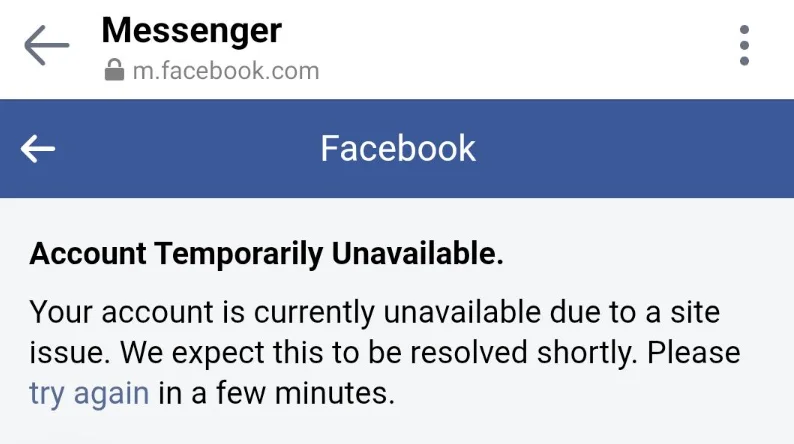
If this is what you are seeing right now, keep reading. I have put together the fixes that have helped users bring their Facebook account back. Just follow each method one by one until you can sign in again.
How to Fix Facebook Account Temporarily Unavailable Complete Guide)
Remove the Old Computer Session From Your Facebook Account
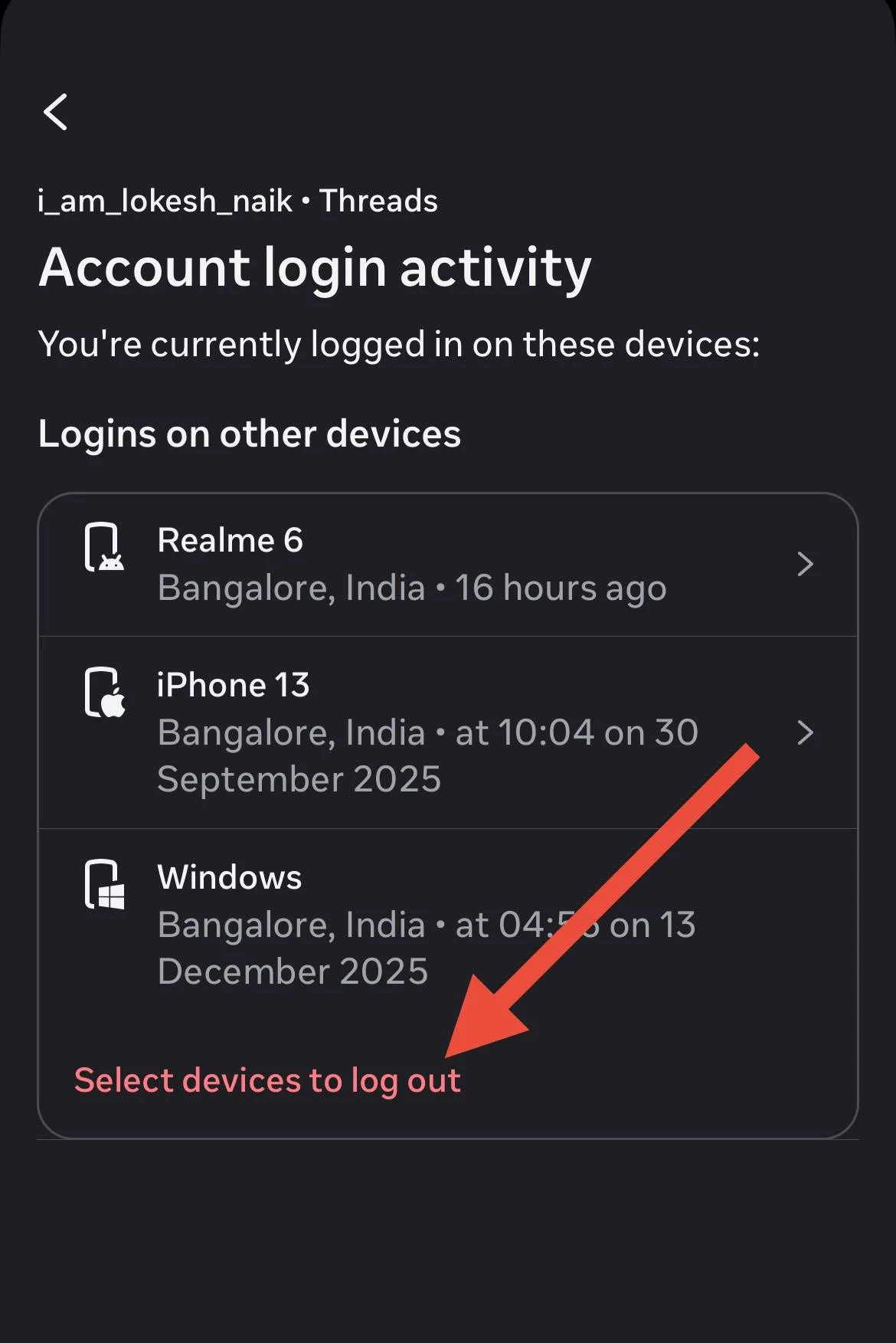
One fix that worked for quite a few people was signing out of the old computer session from the Facebook app on their phone. In their case, Facebook was still opening on the mobile app, but every login attempt on the computer ended with the “Account Temporarily Unavailable” message. As soon as the PC session was removed, they were able to sign in from the browser again.
- Open the Facebook app.
- Tap your profile picture or the three line menu in the top right corner on Android or the bottom right corner on iPhone.
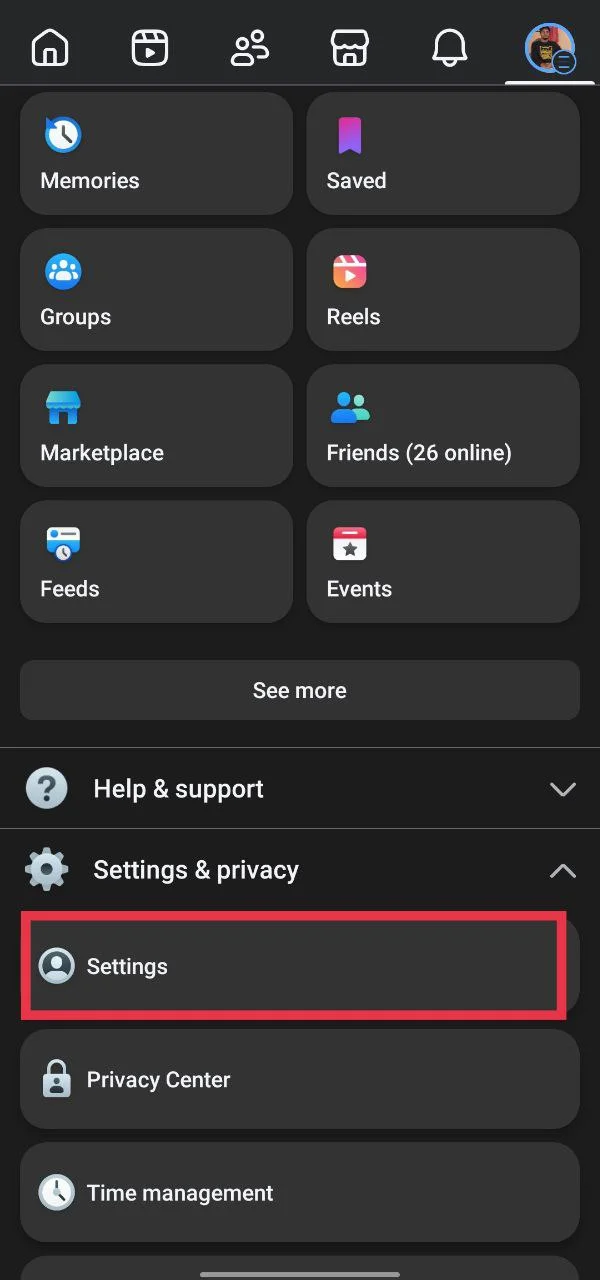
- Tap Settings & Privacy, then open Settings.

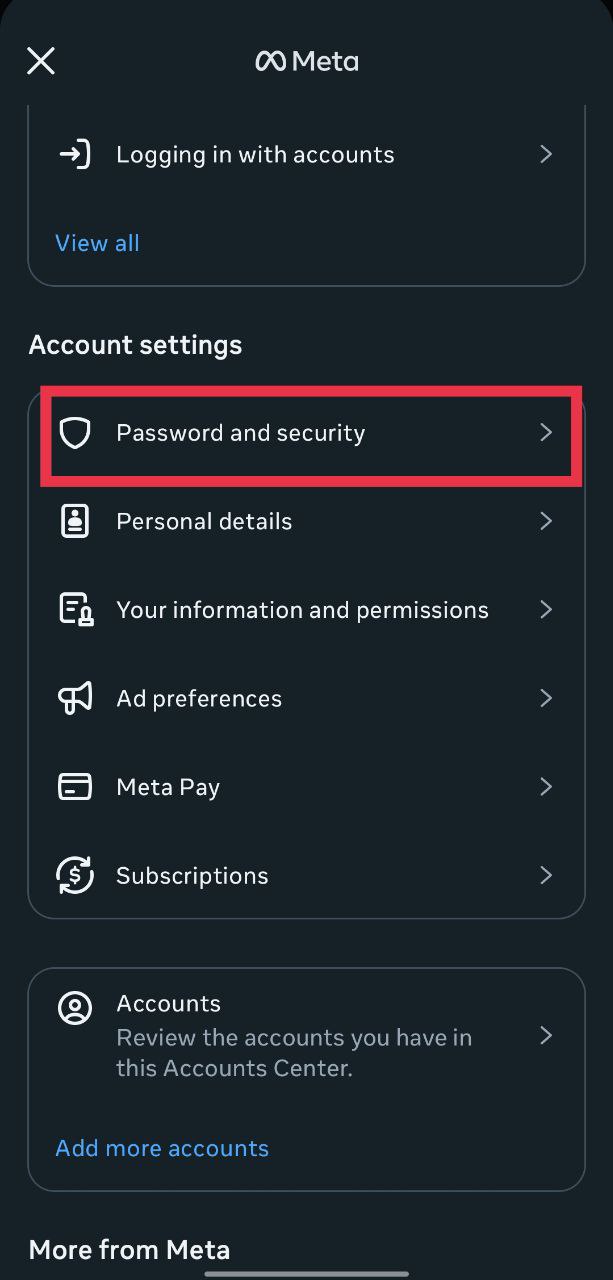
- Open Accounts Center at the top of the page.

- Tap Password and security.

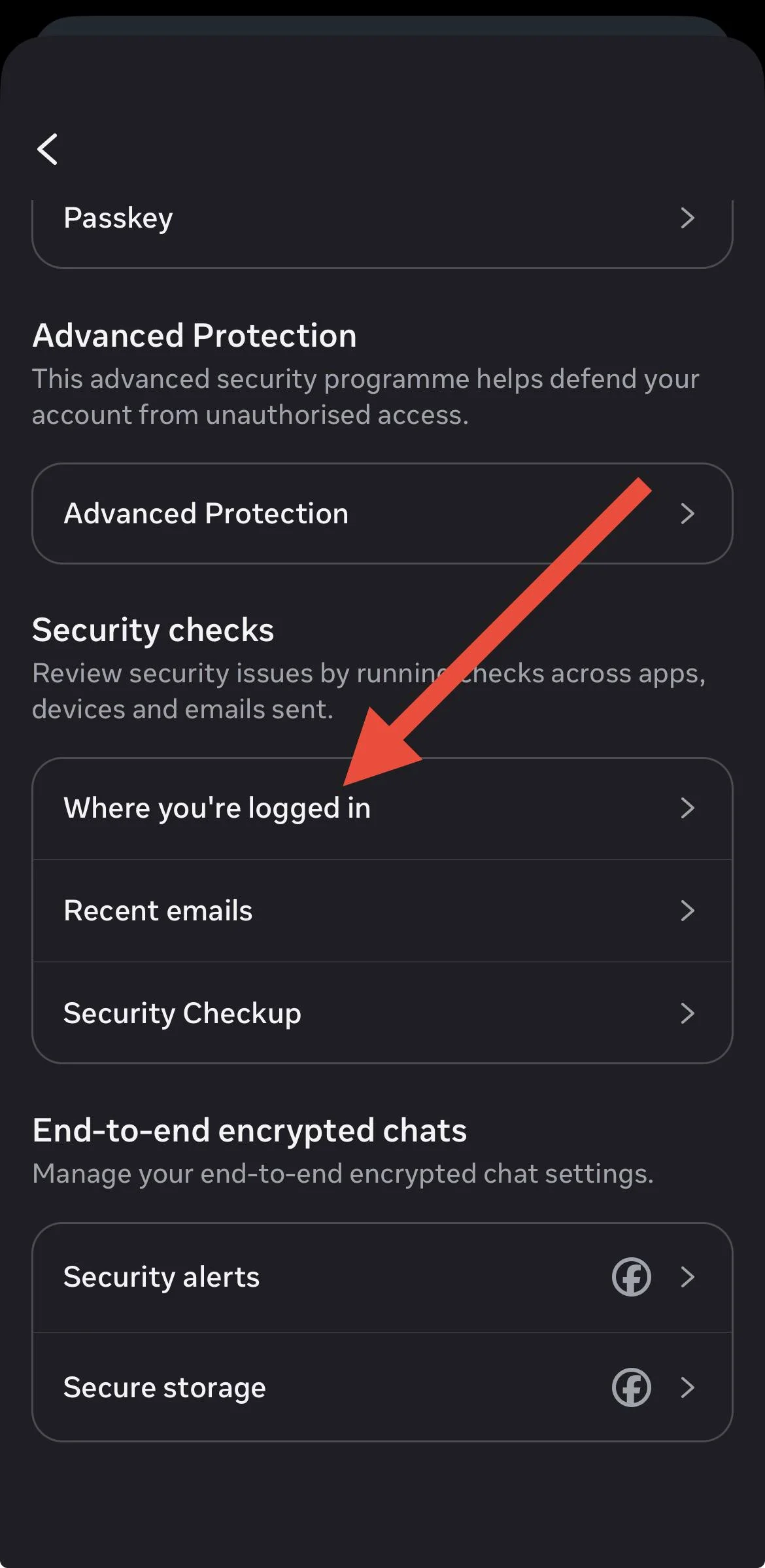
- Select Where you’re logged in.

- Choose your Facebook account.
- You will now see every device where your account is signed in.
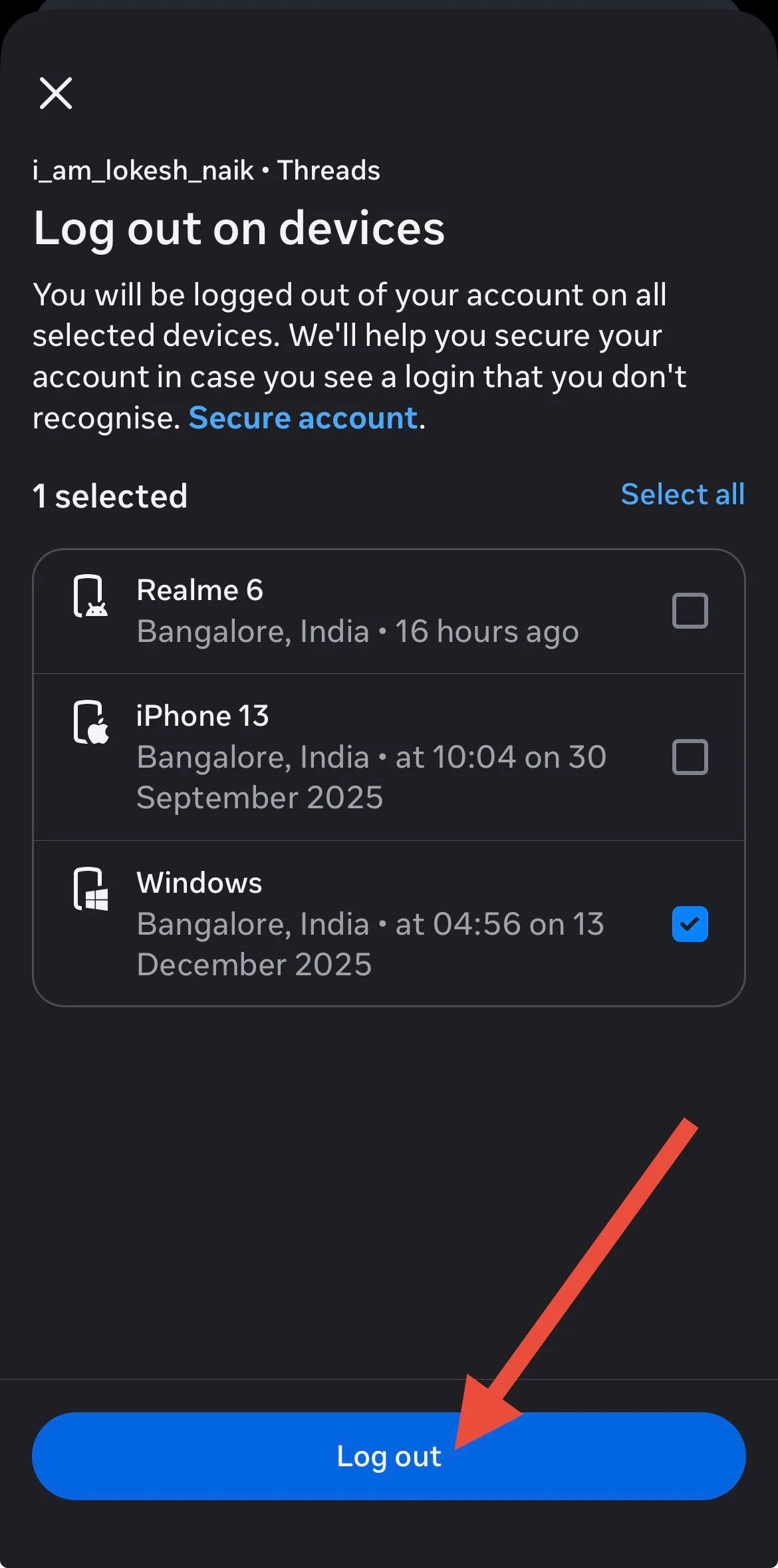
- Select your old computer, or tap Select devices to log out

- Now, choose your device, and click Log out.


Recover Your Facebook Account and Reset the Password
If the above method did not help, you can try accessing your account through Facebook’s account recovery page. During the recovery process, Facebook will ask you to confirm that the account belongs to you.
- On a device where you have used your Facebook account before, open your mobile browser.
- Go to facebook.com/recover/account
- Enter the phone number linked to your Facebook account.
- Wait for the verification code, then enter it on the next screen.
- Create a new password for your account.
- Facebook may ask a few security questions, such as your linked email address or phone number. Answer them to continue.
- Once the process is complete, sign in again using your new password.
Clear the Facebook App Data or Browser Cache
Old temporary data and cache files can cause the app or website to keep showing the same error every time you open it. If you are using the Facebook app on Android, open Settings > Apps > Facebook > Storage. Tap Clear Cache first and try signing in again.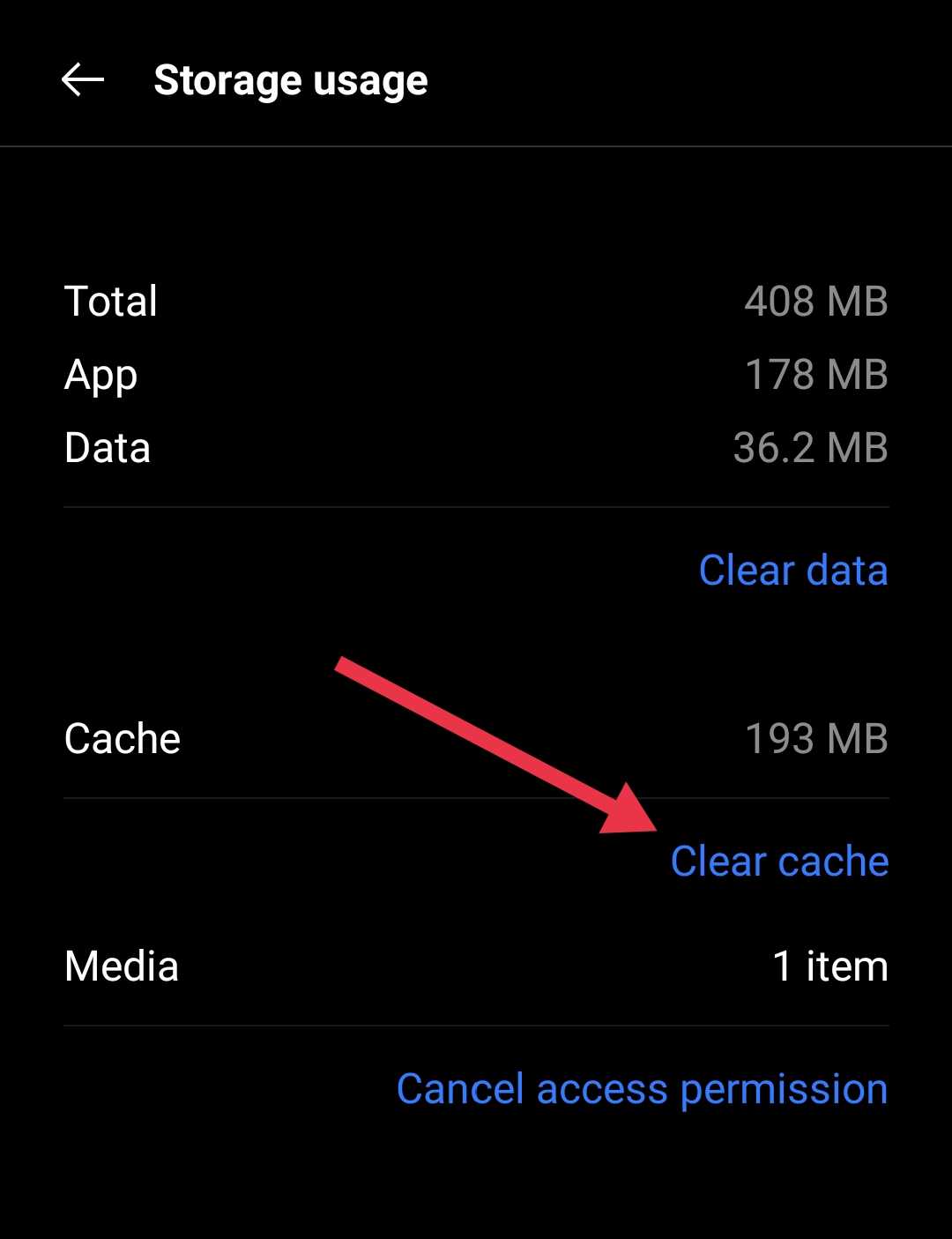
If the error is still there, go back and tap Clear Data, then open the Facebook app and log in again.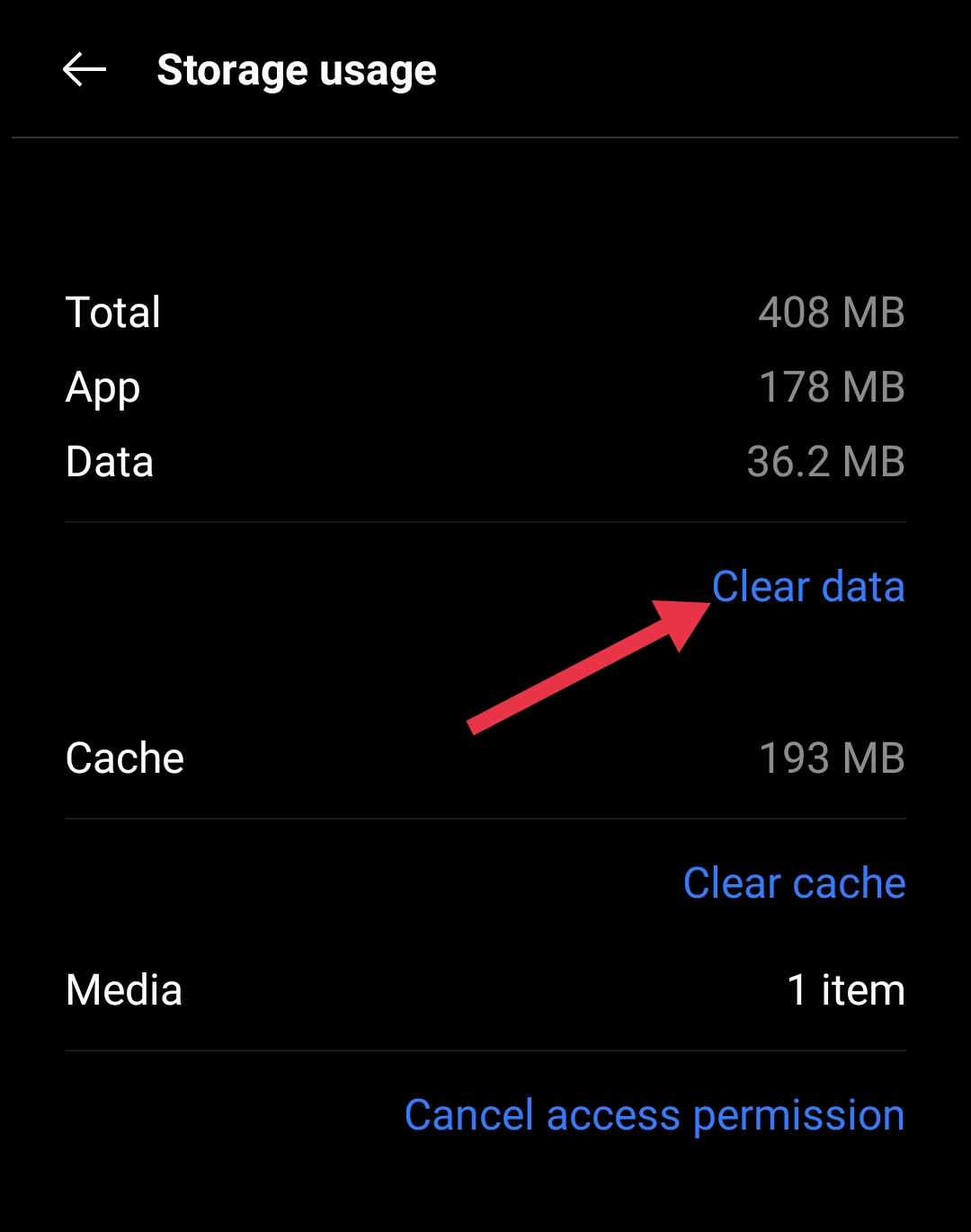
If you are trying to sign in from a web browser, clear the browser’s cache and cookies. Once that is done, close every browser window, open it again, visit Facebook, and sign in one more time.
If you are using a browser on your computer, press Ctrl + Shift + Delete on Windows or Command + Shift + Delete on Mac to open the Clear Browsing Data window instantly.
If you are using a mobile browser, you probably already know where these options are if you use your browser often. Just open the Menu, head to Settings or History, delete the cache and cookies.
Use the Facebook Mobile App for Now
Quite a few users noticed that this error only appeared on the desktop version of Facebook. If you have only been trying to sign in from your computer, check the Facebook app on your phone.
If the app lets you access your account, you can continue using Facebook from there while waiting to see if the desktop login starts working again. This is not a permanent fix, but it can help if you need immediate access to your account.
Check if Facebook Is Down
Sadly, Facebook does not have an official server status page. When there is a widespread issue, people usually report it on platforms like X and Reddit. You can also check websites like Downdetector, which monitor outages and show if other users are reporting the same problem. If thousands of reports appear around the same time, there is a good chance the issue is affecting other users as well.
Contact Facebook Support
One thing I noticed while looking into this issue is that it has been reported by users for years. Even now, new reports continue to appear, which suggests Facebook has not completely resolved it for everyone.
If none of the methods above worked and you still cannot access your account, your next option is to contact Facebook Support. Just keep your expectations realistic. Most replies begin with automated messages, so it may take some time before your case is reviewed.
If you have Meta Verified or a Meta Verified Business account, you have a much better chance of speaking with a real support agent. You can explain the problem directly, and they may be able to look into your account more closely.
While waiting for a response, you can create a new Facebook account if you need immediate access to Facebook. It is not an ideal solution, but it can help you stay connected until your original account issue is resolved.
RELATED:
- How to Fix Facebook Account Ownership and Control Not Showing
- How to Fix Fix “Can’t Perform the Action You Requested” on Facebook