Facebook Marketplace is a useful part of Facebook for finding items listed by people and sellers nearby. Yet, Marketplace may not always appear or work as expected. You might see a message saying “Marketplace isn’t Available to You,” or the Marketplace page may simply fail to load.
A common sign is a message saying “Marketplace isn’t Available to You.” Others may see “Something went wrong” while trying to open Marketplace, particularly after setting up Facebook on a new phone. In some cases, the Marketplace section may may not load at all.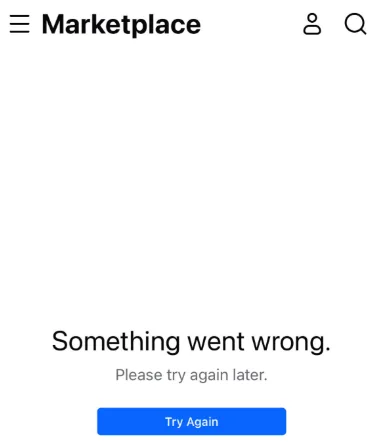
The issue can also look different from one device or account to another. Someone may be able to use Facebook normally while Marketplace remains unavailable, which can make it hard to understand what is actually causing the problem.
So, what is stopping Facebook Marketplace from working, and why does it happen on some accounts or devices?.
Why is Facebook Marketplace Not Working?
Facebook Marketplace may stop working for a few different reasons, and not every case is caused by a technical issue. Your account needs to meet certain requirements before Marketplace is available. For example, users must generally be 18 or older, although the exact age requirement can vary by location.
Account activity can also matter. Newer accounts and accounts with little activity may not have access to Marketplace. In some cases, access can also be limited because of location restrictions or because Facebook has found a violation of its Terms of Service, Commerce Policies, or other rules.
A problem on Facebook’s server side is another possibility. An outdated Facebook app can also cause issues, particularly when the app version on your device is no longer fully compatible with the current service.
If your account meets the basic requirements and there is no policy related restriction, a technical issue may be behind the problem. The troubleshooting methods below cover the common technical causes one by one.
How to Fix Facebook Marketplace Not Working (Easy Fixes)
Check If You Meet Facebook Marketplace Requirements
Before trying technical fixes, it is worth checking if your account is actually eligible to use Facebook Marketplace. Facebook has a few basic requirements, and Marketplace access can be limited when an account does not meet them.
Age is one of those requirements. You need to be considered an adult under the laws of your country. For example, the age requirement is 18 in the US, while it is 20 in Thailand. Your location also matters because Marketplace is only available in certain countries.
If Facebook has incorrectly marked your account as being under the required age, you may be able to verify your age. An accepted ID can be used for this, such as a driver’s license, national identity card, passport, or birth certificate.
Facebook also accepts two documents from a different list in some cases. These can include a student card, library card, refugee card, employment verification, diploma, or loyalty card. Once your age has been verified, Marketplace access may become available if age was the reason for the restriction.
You can check Facebook’s official information about Marketplace availability and age requirements and see which countries are supported. For the accepted documents, check Facebook’s age verification requirements.
Check If Facebook Marketplace Is Available in Your Country
Facebook has not made Marketplace available in every country, so the feature may not appear on your account if your country or region is not supported.
To check this, open Facebook Marketplace and look at the available access for your location. You can also use Facebook’s official Marketplace page to check if the service is available in your country: Facebook Marketplace
If Marketplace has not been launched in your country yet, there is no account setting that can add the feature. You will need to wait until Facebook makes Marketplace available in your region.
For a country where Marketplace is already available, access can still depend on your account and location details.
Make Sure You Are Using Your Main Facebook Profile
Facebook can let you have multiple profiles under the same account, but Marketplace access is tied to your main profile. The main profile is the first profile you created on Facebook.
So, if you have switched to another profile, Marketplace may not be available there. Switch back to your main Facebook profile and check Marketplace again.
The age of the account can also matter here. A newly created Facebook account may not have Marketplace access right away. Facebook places limits on newer accounts as part of its efforts to reduce spam and protect the Marketplace community.
Also, inactive accounts can have limited access. An account that has not been used much may not qualify for Marketplace access until it has some normal activity over time. So, if your Facebook account is new or has been inactive for a long period, the missing Marketplace option may be related to the account itself rather than your device.
Check Facebook Marketplace Policies
Facebook has rules for what people can sell on Marketplace, and listings that do not follow those rules can be removed. In some cases, access to Marketplace can also be restricted.
So, check the Facebook’s Commerce Policies and Community Standards to make sure your listings follow the required rules.
The item itself matters too. Facebook does not allow every type of product on Marketplace. For example, animals are not approved items for sale. If you see a message such as “There are issues with your product,” the listing may contain an item that Facebook does not allow.
Check the item and listing details carefully before posting again. If your Marketplace access was limited because of a policy issue, reviewing these rules can help you understand why the restriction appeared.
Update the Facebook App
App updates often include changes needed to keep different Facebook features working with the current version of the service.
Open the App Store on iOS devie, or the Google Play Store on Android, and check for an available update for Facebook. Install the latest version shown for your device, then check Marketplace again.
Facebook has also had app bugs in the past that affected Marketplace. For example, an earlier issue caused blank grey boxes to appear in Marketplace for some users, and a later Facebook update fixed the issue. So, if Marketplace suddenly started showing a strange layout or missing content, an app update is worth checking.
Check Your Internet Connection
Marketplace needs a working connection to load product listings, images, and other content. A slower internet connection can leave the page stuck loading.
For example, public Wi Fi can be slow when a lot of people are using it at the same time. Try turning off Wi Fi and using mobile data for a moment. On Android, you can do this from the quick settings panel, while iPhone users can switch it from Control Center.
Restart Your Device
- On Android, press and hold the Power button and choose Restart.

- On iPhone or iPad, use Settings > General > Shut Down, then turn the device back on.

Uninstall and Reinstall Facebook
On Android, open Settings > Apps > Facebook, uninstall the app, then download it again from the Play Store. On iPhone or iPad, press and hold the Facebook icon, choose Remove App > Delete App, and then install Facebook again from the App Store.
RELATED GUIDES:
- How to Fix Facebook Marketplace Search Not Working
- How to Fix Unable to Send Message on Facebook Marketplace
- How to Fix Facebook Marketplace Not Showing All Listings on Android & iPhone
- How to Fix Facebook Marketplace Messages Not Showing on Messenger
- How to Fix Facebook Marketplace Limit Reached
Other Tips to Try
If Facebook Marketplace is still not working, a few quick checks may be worth trying:
- Restart your phone
- Log out and log back in
- Clear Facebook cache on Android
- Try Facebook in a web browser
- Try another device
- Check Facebook again later.