Facebook has been around for a long time, and it is one of those apps people still open every single day. Friends, family, groups, videos, Marketplace, and file sharing all live in one place, which is a big reason it has stayed relevant while a lot of other social media apps slowly faded away.
Lately, a few Android users have run into a strange problem while downloading files from Facebook Lite. After tapping a file in a Facebook group, a popup appears with the message “Allow Facebook Lite to use your phone’s storage.” The odd part is that tapping App Settings opens the permissions page, but there is no Storage permission anywhere to turn on. This has been reported on phones like Samsung, Google Pixel, and a few other Android devices.
If the same error message keeps showing up every time you try to download a file, keep reading. The methods below have helped many users access Facebook group files without seeing the same popup again.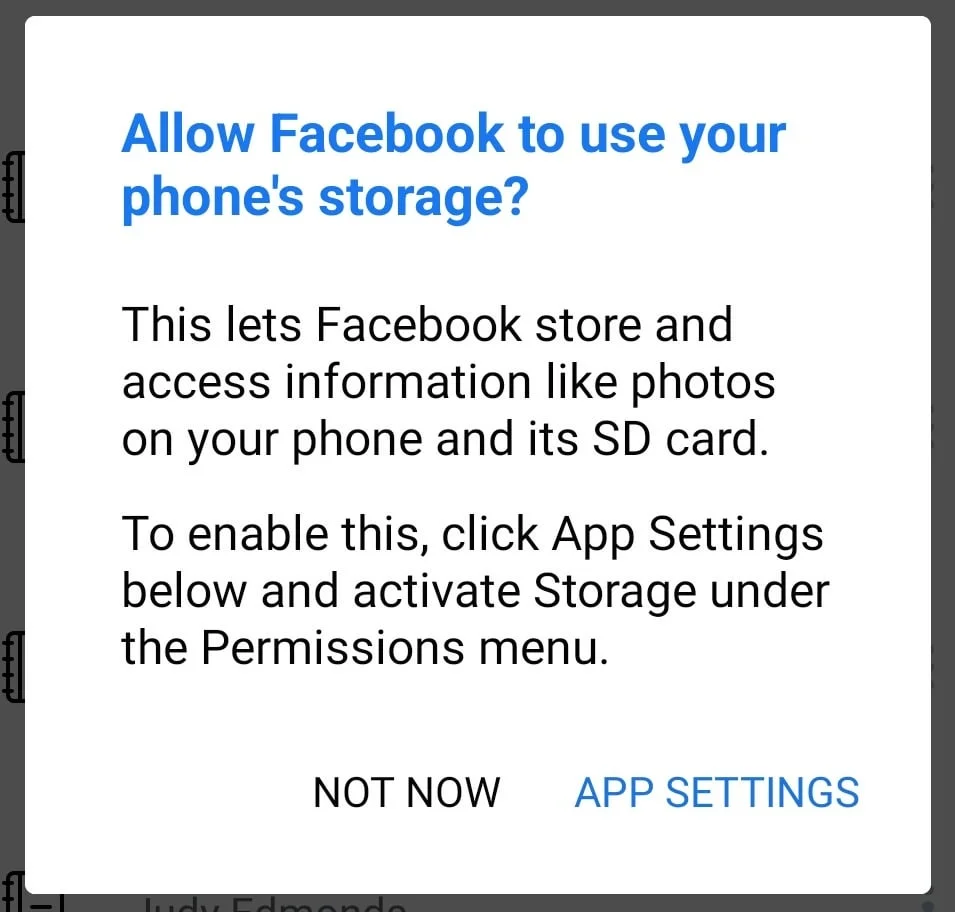
How to Fix “Allow Facebook Lite to Use Your Phone’s Storage” Error
Check the Storage Permission Manually
Instead of tapping the Allow Facebook Lite to Use Your Phone’s Storage popup, try looking for the permission yourself in your phone’s settings. On some Android phones, the shortcut from the popup may not take you to the right place.
Open Settings and go to Apps > Facebook Lite > Permissions. If your phone has a Storage permission, turn it on. On newer versions of Android, you may not see a Storage option at all because Google replaced it with Photos and videos, Music and audio, or Files and media, depending on your Android version.
If you cannot find any storage related permission for Facebook Lite, your phone is likely using the newer Android permission system. In that case, move on to the next solution below.
Grant Facebook Lite Storage Permission Using Permission Manager X
If the Storage permission is missing from the Facebook Lite app settings, you can manually enable it with Permission Manager X. This method uses ADB over Wireless Debugging, so follow each step carefully. It is mainly intended for Samsung phones where Facebook Lite comes preinstalled and does not show all available permissions.
Note: This method changes Android app permissions. Avoid changing any permission other than the one mentioned below.
- Open your browser then download and install F Droid app from here, which is a free app store for open source Android apps.
- Now, open F Droid and search for Permission Manager X and install it on your phone.
- Aftr that head overe to device Settings.
- Go to About phone > Software information.
- Tap Build number seven times until you see a message confirming that Developer Options has been enabled. [If asked, enter your phone PIN or password.]
- Go back to the main Settings page.
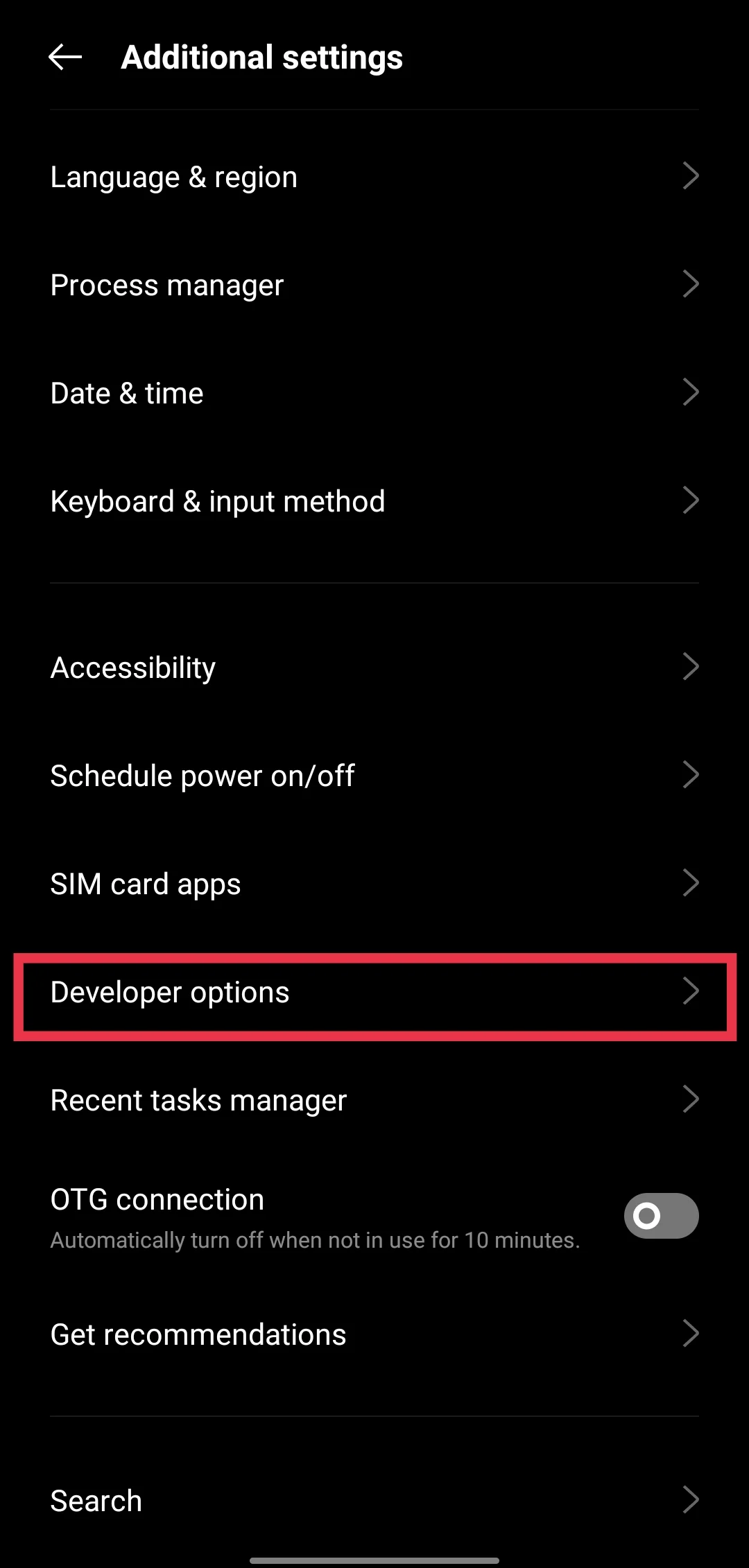
- Open Developer options

- Then turn on Wireless debugging.
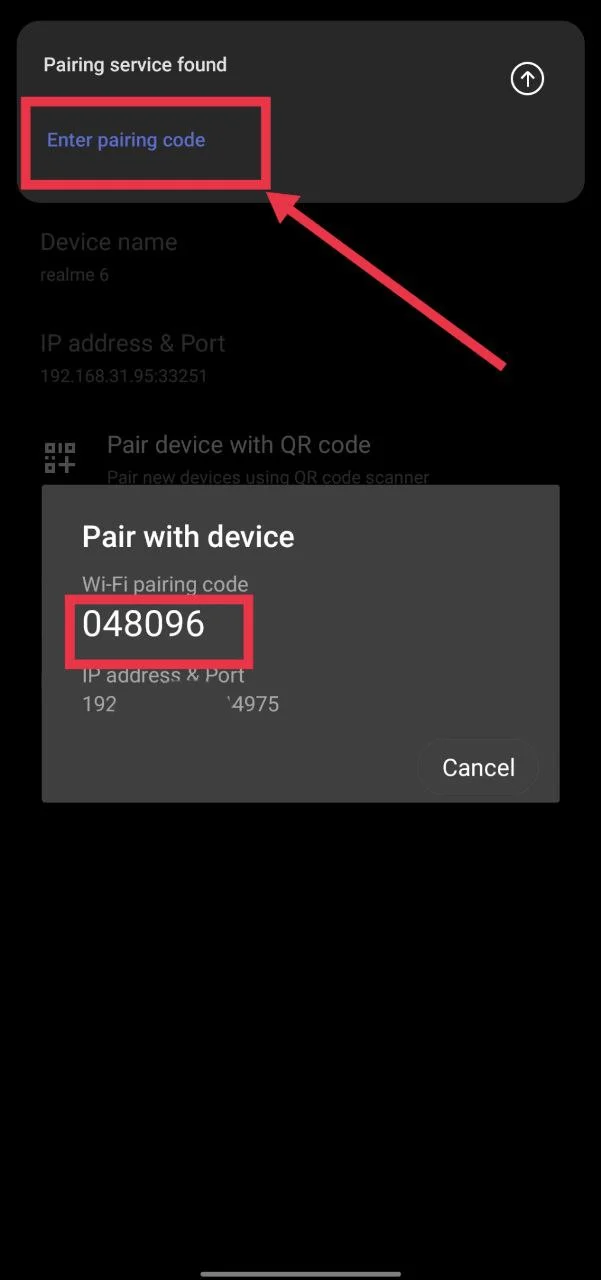
- Tap Wireless debugging, then choose Pair device with pairing code.

- Keep this screen open because you will need the pairing code and connection details in the next step.
- Now, open Permission Manager X.
- If needed, use split screen so both Permission Manager X and the Wireless debugging page stay open. The pairing code can change if you leave the Wireless Debugging screen.
- Follow the instructions inside Permission Manager X to connect through ADB over WiFi.
- Once the connection is complete, find and open Facebook Lite in Permission Manager X.
- Look for the permission named: android.permission.WRITE_EXTERNAL_STORAGE
- It is marked as Dangerous. Turn this permission On.
- Open Facebook Lite and try downloading the file again.
- The storage permission popup should no longer appear.
- After confirming everything works, go back to Developer options.
If you do not want Facebook Lite to keep this permission, you can return to Permission Manager X later and disable it.
Download the File Using Chrome
If Facebook Lite keeps asking for storage access, try downloading the file from the Facebook website instead. This avoids the permission popup and only takes a minute.
- Open Google Chrome and visit Facebook official website.
- Browse to the Facebook profile/page/group that contains the file you want to download
- Tap the three dot menu in the top right corner of Chrome and select Desktop site.

- Once the page reloads, click on the file and long-press on it and download it as you normally would.

Save the PDF with a PDF Reader
A lot of Facebook groups share useful files like PDF guides, notes, manuals, work documents, forms, and other resources. On some Android phones, tapping Download does not save the file where you expect. Facebook may even show a notification saying the download is complete, but when you open the Downloads folder or search your phone, the PDF is nowhere to be found, even with hidden files turned on.
The file is often not missing at all. Instead, Facebook opens it through a PDF reader without creating a copy in your phone’s local storage. That is why it looks like the download never happened, even though Facebook says it finished.
Open the PDF from the Facebook notification or from the Facebook group again. If your PDF app has a Save As or Save to device option, use it to save the file to a folder on your phone. After that, you should be able to find it in the location you selected.
If your current PDF app does not have this option, try opening the file with “ReadEra”. It has helped many users because it automatically saves the PDF to the Downloads folder when the file is opened. It also shows the exact folder where the PDF is stored, making it much easier to find later.
This is worth trying if Facebook says the file was downloaded, but you still cannot find it anywhere on your device. It can save a lot of time without changing any phone settings.
Update Facebook Lite and Your Phone
It is easy to overlook updates when you are trying to fix a download problem. Still, they are worth checking. Facebook Lite can have a bug that has already been fixed in a newer release. The same goes for your phone’s software, as Android updates often include fixes that improve how apps handle permissions.
Open the Google Play Store, search for Facebook Lite, and install any available update.
While you are at it, check your phone for a system update too. On Android phones, head to Settings > Software update > Download and install. If your device finds a new update, install it and restart the phone.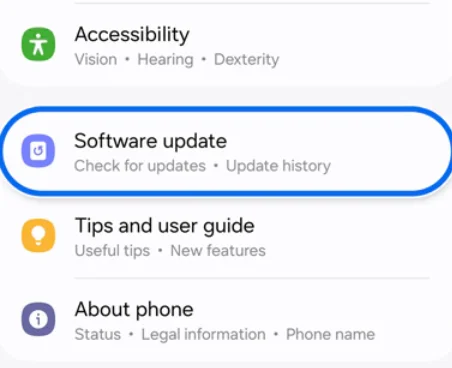
That’s all for this guide. Hopefully one of these fixes helped you get past the “Allow Facebook Lite to use your phone’s storage” message. If you solved it in a different way, drop it in the comments. I’d love to add it to this guide so it can help more people. Also, tell me which fix worked on your phone.