Facebook has come a long way from what it used to be. Today, millions of people open the app every day to stay in touch, check updates, and see what is happening around them. A lot of young people spend hours on it, not just for chatting but also for news and trending content.
One thing many people enjoy the most is reading comments. It is quite common to open a post or Reel and then scroll through hundreds of comments and replies. In many cases, the comments feel more interesting than the post itself, and it easily pulls you in for a long time.
Lately, many users have noticed an issue where comments are not showing at all. Instead, the screen stays blank or shows a message saying something went wrong. I faced this too, so I spent some time trying different methods to fix it. Here is what helped me.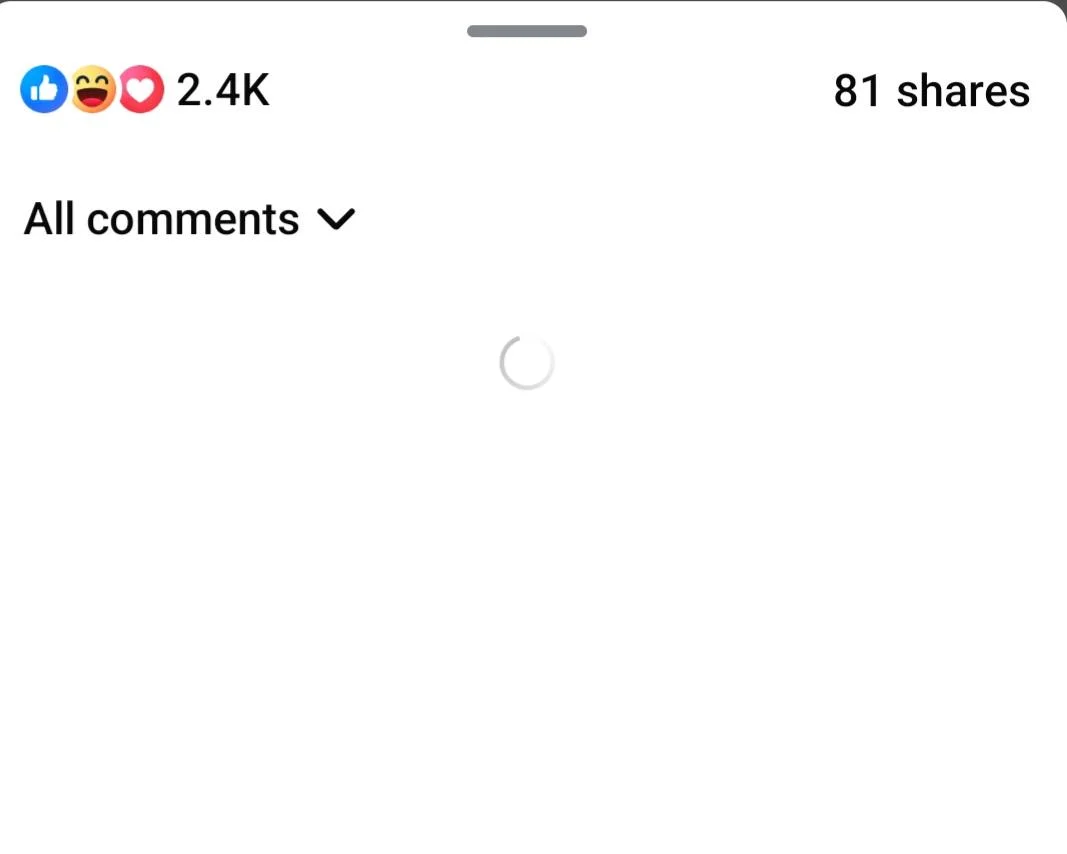
How to Fix Facebook App Not Showing Comments on Posts & Reels
Before jumping into the fixes, just check a couple of basic things. I have noticed many times that when the internet connection is slow or not working well, the comments simply do not load. So make sure your internet is stable and working fine.
Also, take a moment to see if Facebook itself is having any issues. Lately, there have been times when certain features stop working for many users at once. You can check other parts of the app or visit a few websites to confirm if there is any outage.
If everything looks fine and the comments are still not showing, then you can go ahead and try the methods below.
Leave Beta Version and Reinstall Facebook
Many users end up joining the beta program without even realizing it. Others join on purpose to try new features before everyone else. It sounds exciting at first, but the early version also comes with new bugs, so you might run into issues like this.
I was trying different fixes for a while, and this method is the one that finally worked for me. It involves leaving the beta version of the app and doing a clean reinstall, which helped bring the comments section back.
- Open the Google Play Store and search for the Facebook app.
- Scroll down on the app page until you see the beta section, then tap on Leave and confirm to exit the beta program.

- Close both the Facebook app and the Play Store completely.
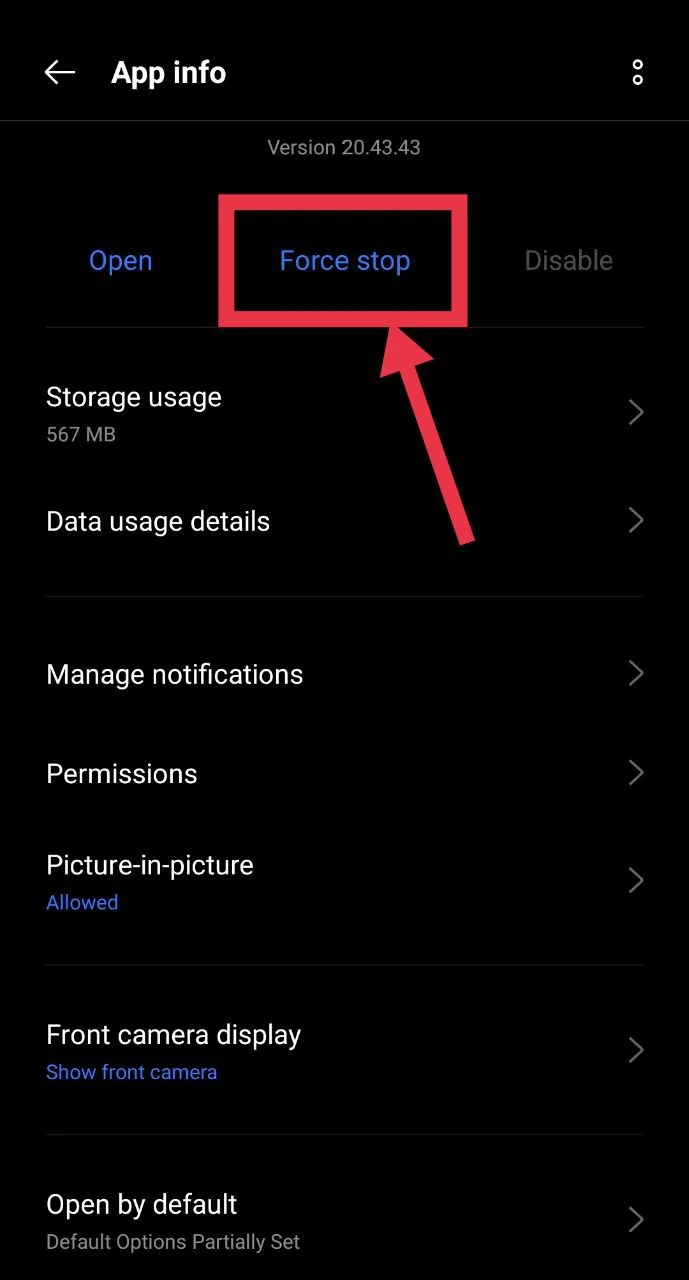
- Now, go to your phone’s Settings > Apps > Facebook and tap Force Stop.

- Go back and tap on Storage, then Clear cache of Facebook app.

- Now uninstall the Facebook app from your device.
- Go back to the Play Store and install Facebook again.
- Open the app, log in with your credentials.


Update the Facebook App
In many cases, issues like this come from recent bugs in the app. When a lot of users start reporting the same problem, the developers usually notice it quickly and release a new update with a fix. So it is always a good idea to check if a newer version is available.
So, just head over to the Play Store or App Store, check if an update is available for Facebook, and install the latest stable version.
Force Stop and Clear Cache (Android)
- Open your phone’s Settings.
- Go to Apps or Apps & notifications.
- Tap on Facebook.
- Tap Force Stop to completely close the app.
- Now go to the Storage section.
- Tap on Clear Cache to remove temporary files.
Uninstall and Reinstall the App
If you are not part of the beta program, or if the earlier methods did not help either, just reinstall the app on your phone. You already know how to uninstall any app, so remove Facebook the same way and then install it again from the Play Store or App Store.
Before doing this, make sure you remember your login details. Once you install the app again and sign in, check the comments section.