Facebook Messenger is one of those apps most of us use every day to chat, call, and stay in touch. Earlier, it was part of Facebook, but later it became a separate app so people could use messaging faster and with more features. Over time, it has added voice calls, video calls, and many other options that have made it more useful for daily communication.
In recent times, many people have started noticing problems while using Messenger on Android phones. This is seen a lot on Samsung phones, but it also happens on other Android devices, even those not on the latest version. Users have shared that their keyboard stops responding, touches feel delayed, and in some cases, the phone even goes black and restarts on its own. These issues were not there earlier for many users, which makes it more annoying.
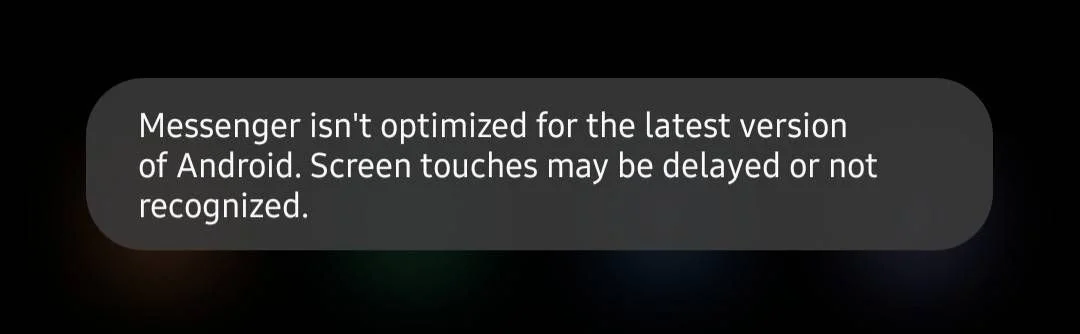
One message that keeps showing up is “Messenger isn’t optimized for the latest version of Android. Screen touches may be delayed or not recognized.” It does not stay limited to Messenger. It also appears while switching to apps like Instagram, Google, Chrome, and even system apps. I faced this myself and tried different ways to fix it. After testing a few methods, I found what actually worked, and I am sharing that below.
11 Quick Fixes for “Messenger isn’t optimized for the latest version of Android” Error
Update Android System WebView Manually
A big reason behind this error can be an outdated version of Android System WebView. This is a system part that helps apps show web content inside them. When it is not updated, it can lead to touch delay, keyboard issues, and the same error showing again and again across different apps.
First, open the Play Store and search for “Android System WebView”. If you see an Update button, install it right away and then check if the issue is gone. But in some cases, the Play Store may say it is already on the latest version even when it is not.
If you do not see any update option, you can install the latest version yourself from sites like APKMirror. Just download the newest file and install it on your phone. Make sure you pick the version that matches your device.
I ran into this issue myself, and updating Android System WebView manually solved the problem for me, and the error message stopped appearing after that.
Update Messenger App
Make sure Facebook Messenger is updated to the latest version. New updates often include fixes that can resolve errors like this.
Join or Leave Messenger Beta Program
Another thing you can try is checking the beta status of Facebook Messenger. The beta version of the app usually receives newer updates earlier than the regular version, and these updates may fix issues like this one.
If you are already using the beta version of Messenger, try leaving the beta program from the Play Store and then update the app again. This will move you back to the regular version, which may work fine on your device. 
If you are not part of the beta program, you can join it from the Messenger page on the Play Store. After joining, wait a bit and check for updates. You should see a newer version available to install.
This method has helped in cases where the issue is linked to the app version, so it is worth giving it a try.
Turn Off Chat Bubbles in Messenger
This issue can also be linked to chat bubbles or chat heads in Facebook Messenger. These floating chats stay on top of other apps, and that can affect how touches work on the screen. Turning them off has helped many people fix the problem.
- Open Settings on your phone
- Tap on Notifications
- Go to Advanced Settings and then Floating notifications
- Choose Bubbles and toggle it off
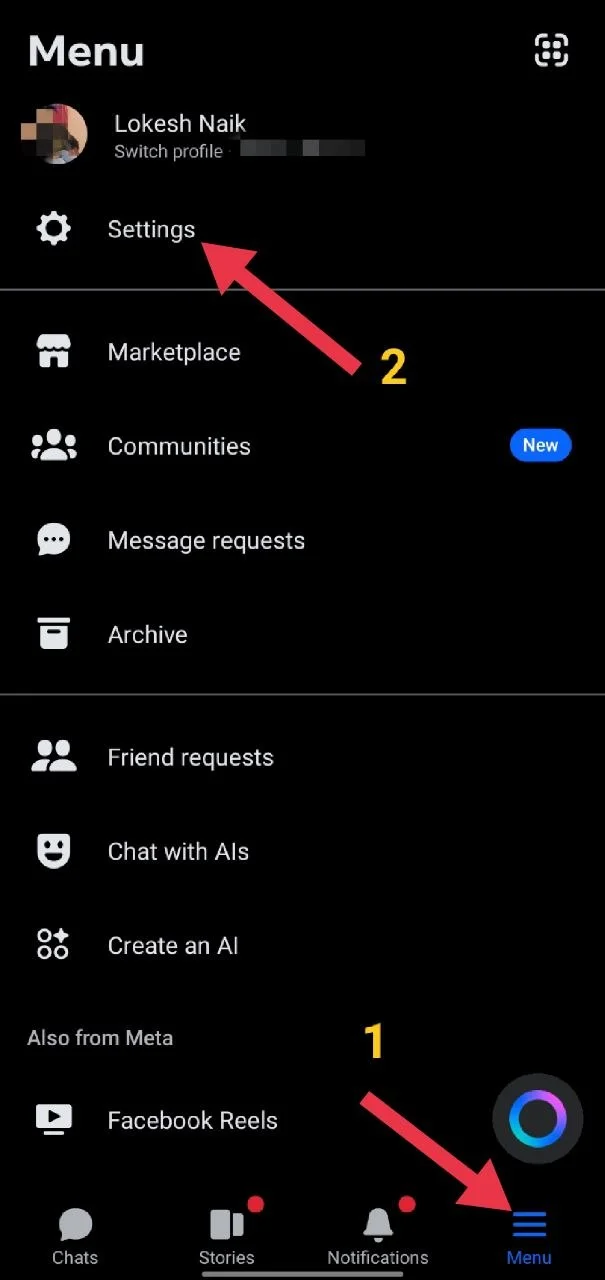
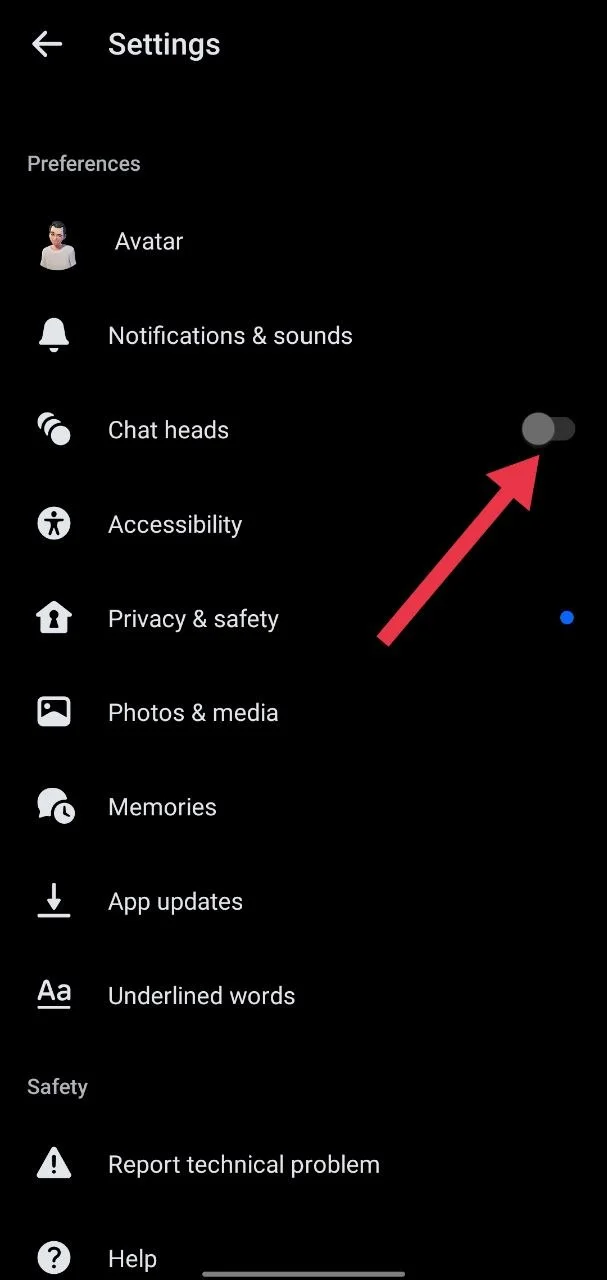
If that did not fix the issue, try turning chat heads off directly inside Messenger:
- Open Messenger
- Tap on the menu icon
- Go to Settings

- Now, toggle off the Chat heads option.

Disable Floating Window Permission for Messenger
One more thing you can try is turning off the floating window permission for Facebook Messenger. This setting lets Messenger stay on top of other apps, and that can affect how your screen responds to touch.
To do this, swipe down from the top of your screen and tap the settings icon on the top right. Then go to Apps and open Messenger from the list. Now, find the option called Floating window or Appear on top and switch it off.
Many people have seen this fix the issue when it was linked to screen overlay settings.
Turn Off “Draw Over Other Apps” for Messenger
If you do not see the floating window option on your device, you can try turning off the Draw over other apps permission for Facebook Messenger. This setting allows Messenger to appear on top of other apps.
Go to Settings > Apps > Messenger > Permissions > Draw over other apps. Now, turn this option off.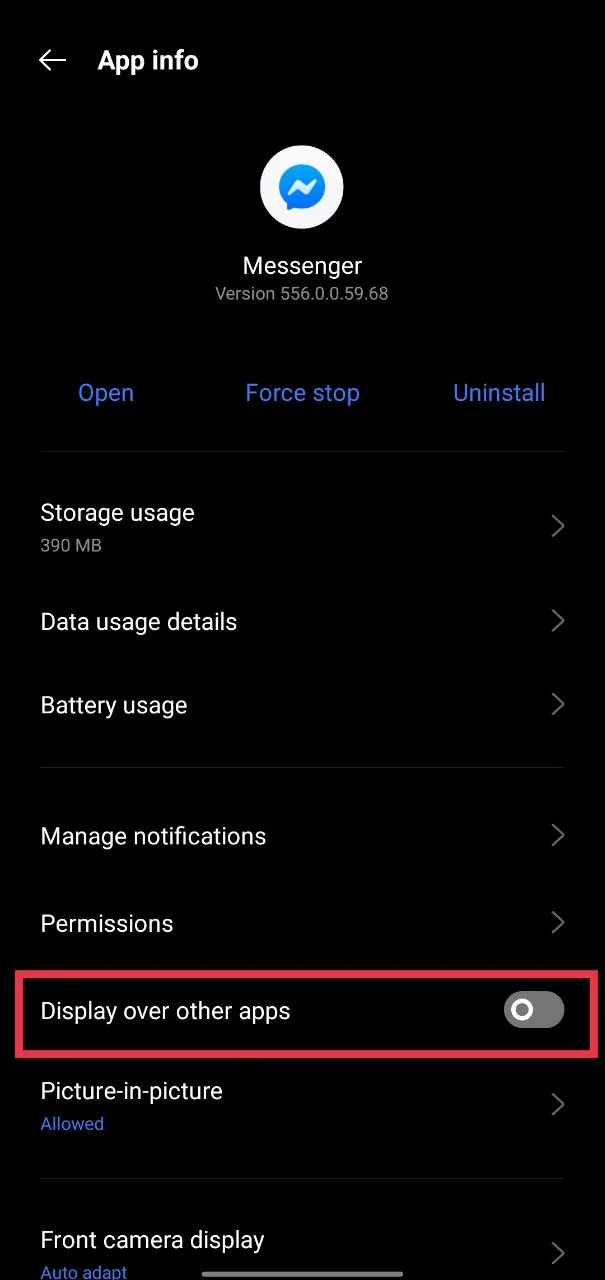
Force Stop Messenger App
If the issue is still there, you can try force stopping Facebook Messenger. In many cases, the screen may freeze and not let you open other apps or even settings normally. In that case, swipe down from the top of your screen and tap the settings icon from there. Then go to Apps > Messenger > Force Stop.
Restart Your Device
A quick restart can fix many common issues on any device, whether it is Android, iOS, Windows, or Mac. It helps clear temporary problems that build up during use.
Just press and hold the power button, then tap on restart. Once your phone turns back on, check if the issue is gone.
Clear App Data and Cache
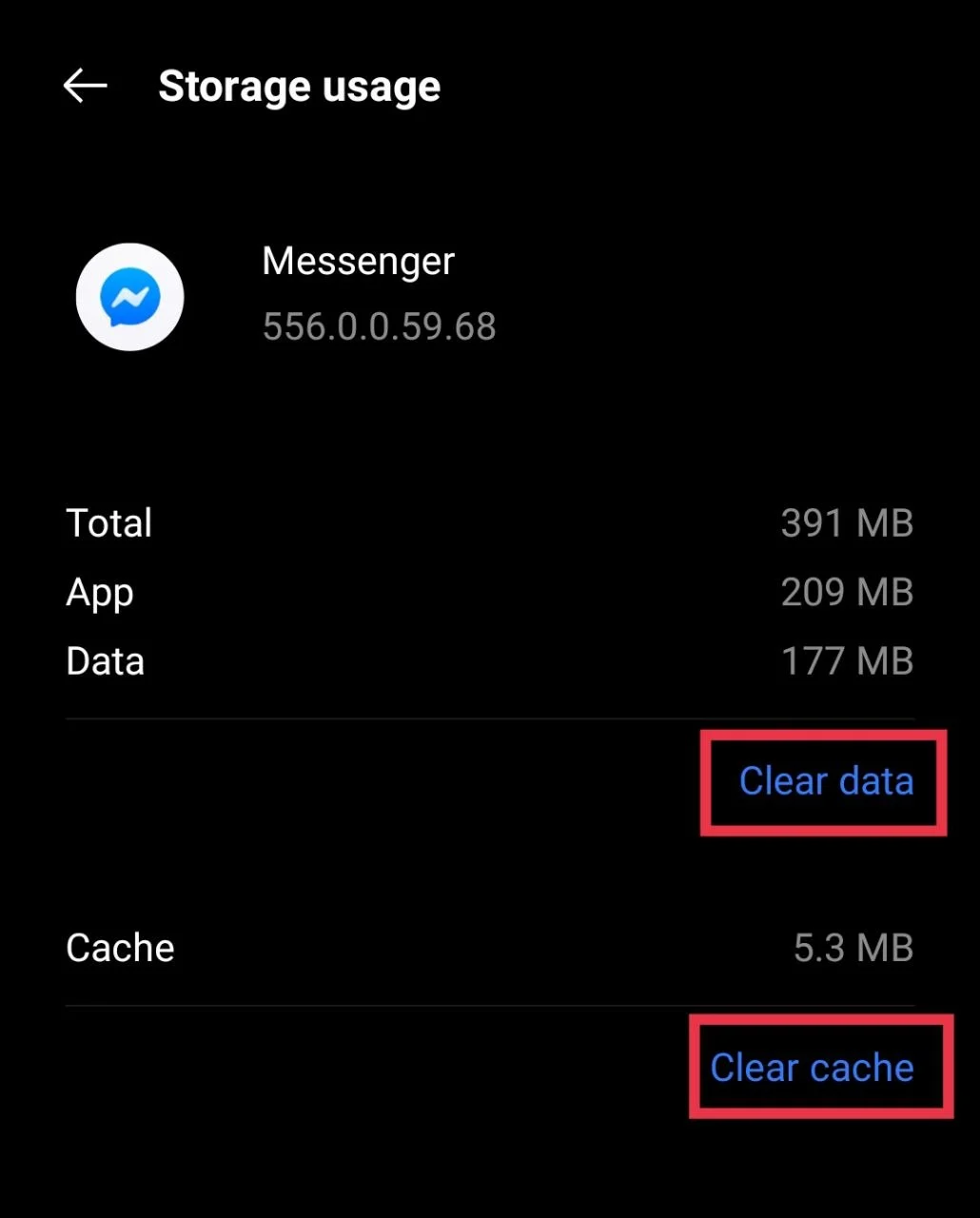
You can also try clearing the data and cache of Facebook Messenger.
- Open Settings on your phone
- Go to Apps or Installed Apps
- Tap on Messenger
- Tap on Storage
- Select Clear Cache, then tap on Clear Data.

Uninstall and Reinstall Messenger
If the issue still continues, you can remove and reinstall Facebook Messenger. Go to Settings > Apps and select Messenger, then tap Uninstall. After that, open the Play Store and install the Messenger again. Once done, sign in and check if the issue is gone.
Update Device Software
It is also a good idea to check for system updates on your phone. Many devices receive updates over time, including security patches and fixes for issues like this. Even if major Android version updates are not frequent on mid-range or budget phones, smaller updates still roll out and can help.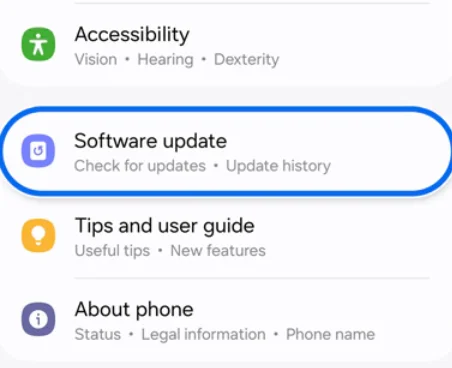
Go to Settings > About > Software Update and check if any update is available. If you are using a flagship device, there is a good chance you may already have a newer Android version waiting to be installed. Even security updates can include fixes that solve problems like this, so install any pending updates.
RELATED:
- Quick Fixes for Facebook Messenger “Please restart Messenger to rejoin this chat” Error
- How to Fix Facebook Messenger “This message is not available on this app version”
These are all the methods I tried, and I am pretty sure one of them will help fix the “Messenger isn’t optimized for the latest version of Android” error. Let me know which one worked for you, or if you found any other way that helped.