Facebook has grown into a huge part of daily life. People open it again and again to check updates, share posts, and see what friends are doing. Because of this, many of us spend a lot of time scrolling through it. Still, the app is not always trouble-free. At times, it shows errors that stop you from doing what you want. One common error that many users face is the message saying, “Can’t perform the action you requested. Try again later.” It usually pops up when you are trying to like, comment, or share a post. These kinds of issues happen quite often in both the main Facebook app and the Lite version. If this message has been showing up for you, keep reading because here is a simple guide that will help you fix it.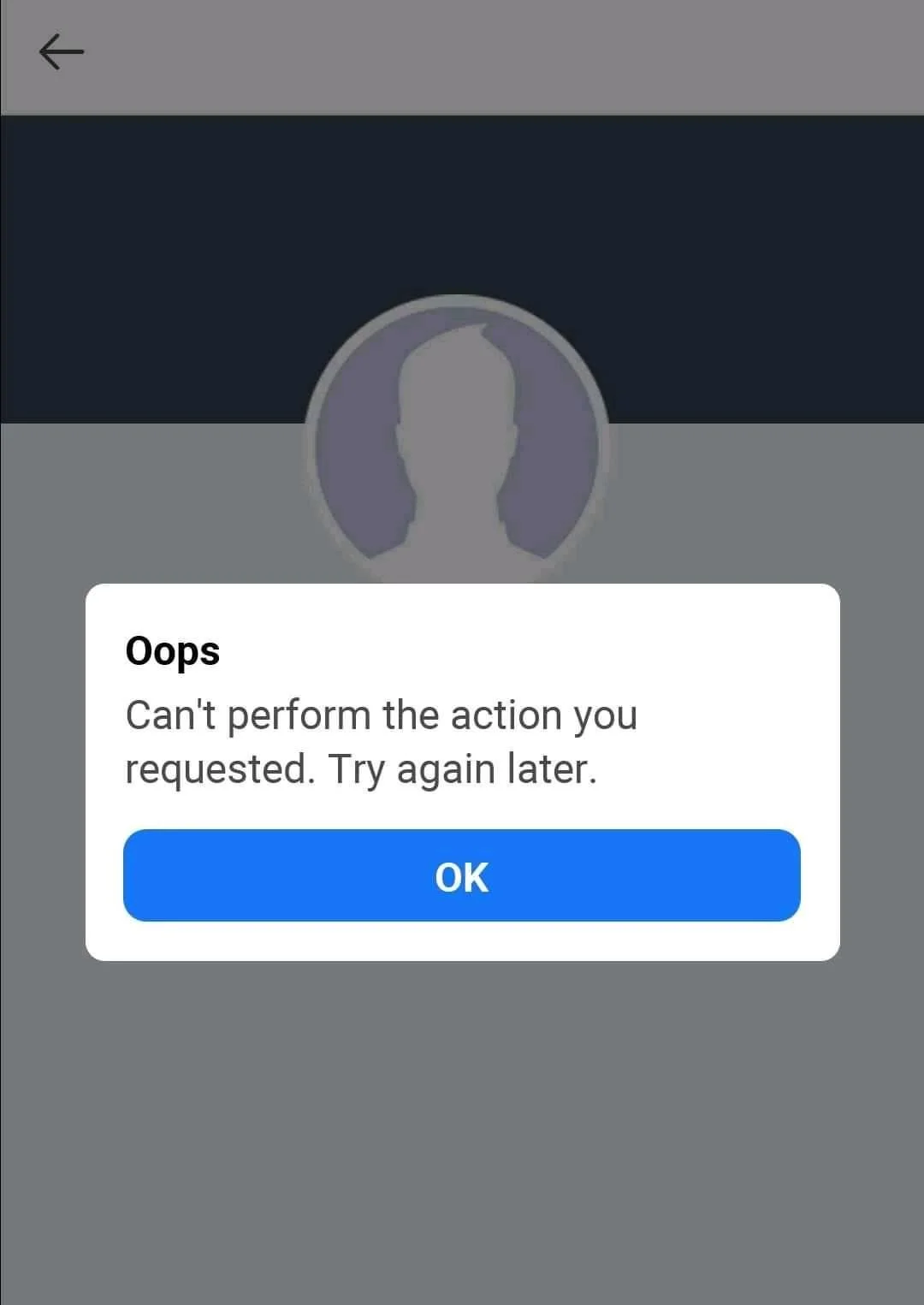
How to Fix Facebook “Can’t perform the action you requested. Try again later”
Force Stop the App
This often works as the quickest fix before trying anything else. It does not matter if you are using Facebook or Facebook Lite. Just close it from your recent apps or app switcher and open it again.
If you are on Android, you get an extra option. Go into your phone settings, select Facebook or Facebook Lite in the list of apps, and tap on “Force stop.”
Clear Facebook App Data
In case the error keeps showing up, the next thing you can try is clearing the app data. On Android, this removes saved files from the app, but you will need to log in again, so make sure you have your login details handy.
- Open your phone settings
- Go to “Apps” or “Apps and notifications”
- Scroll down and tap on “Facebook” or “Facebook Lite”
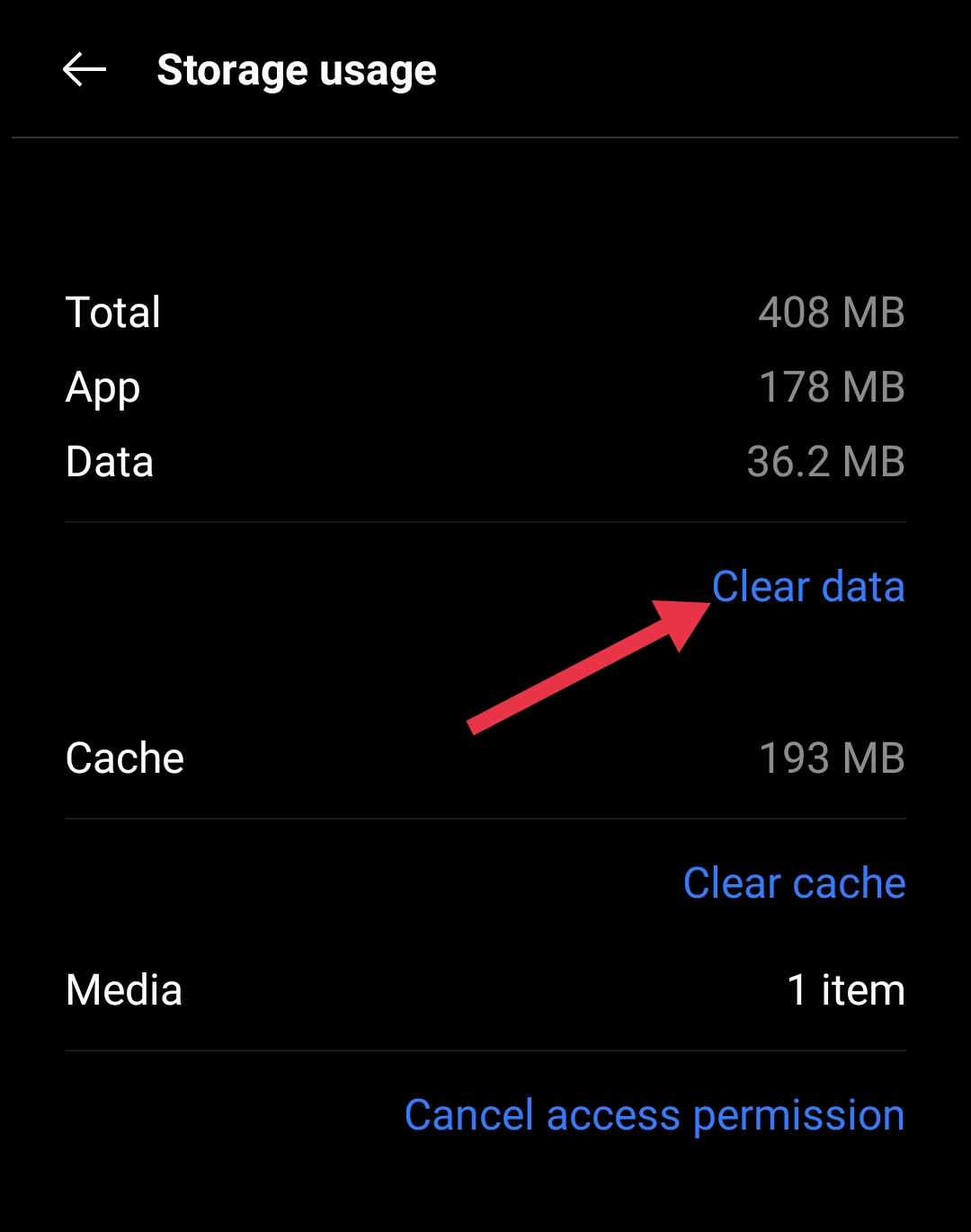
- Tap on “Storage” (On some phones like Samsung, you might see “Manage storage.” On Xiaomi or Realme, it can show as “Clear data” or “Manage space.” On OnePlus, you may see both “Clear cache” and “Clear storage” options)
- Tap on “Clear data”

- Confirm by tapping “OK”
- After that, restart your phone
After restarting, open Facebook Lite and log in again.
Uninstall and Reinstall the App
If the error is still showing, one of the most effective ways to deal with it is by uninstalling the app and then installing it again. This works for both the regular Facebook app and the Lite version.
From my own experience, this step feels more reliable than quick fixes. To uninstall on Android, you can hold the app icon from the home screen or app drawer, tap on the “Uninstall” button, and confirm. On iOS, press and hold the app icon until it starts shaking, then tap the X or “Remove App” option and confirm.
Once the app is removed, go to the Play Store or App Store, download it again, and sign in.
Try the Other App Version
If a specific feature is not working on Facebook or Facebook Lite, a simple trick is to switch between the two. For example, if you are using the regular Facebook app and one feature keeps showing “Can’t perform the action you requested. Try again later”, try opening the same feature on Facebook Lite.
Many times, the feature works fine there without any error. This is an easy way to keep using Facebook without waiting for the app to fix itself.
Check on a Web Browser
If the app keeps showing the error, try opening Facebook in a web browser. So, open Facebook.com on any of your preferred browsers, like Chrome, Firefox, or Safari, on your phone or computer, and log in with your account.
This helps you see if the problem is only happening in the app or if it is affecting your account too. Often, the web version works fine even when the app keeps pushing the error message, so you can still like, comment, and share while figuring out the app issue.
Reset your Password
Occasionally, Facebook shows errors like this if there is an issue with your account login or security. A simple way to fix this is by resetting your password.
So, log out of Facebook from the app settings like you normally would. Then, on the login page, tap “Forgot Password” and follow the steps to create a new one. Once your password is updated, log in again to the app.