Facebook Marketplace is a feature created by Facebook to help people buy and sell items within their local area. It became widely available in 2016 and has grown into one of the most active online trading platforms. Since it is built into Facebook, anyone with an existing account can use it right away, which has helped it reach millions of users around the world.
As you know, communication plays an important role in every marketplace deal. Buyers and sellers depend on Messenger to ask questions, share product details, and confirm meeting plans. So, chatting with the person who buys/sells makes the entire buying and selling process convenient.
However, many users have reported that their Facebook Marketplace messages do not appear in Messenger. If you are facing the same problem, this post will guide you to resolve it instantly.
8 Ways to Fix Facebook Marketplace Messages Not Showing on Messenger
Check the Correct Location of Marketplace Messages
If you are new to Marketplace messaging, you might not see your chats simply because you are checking the wrong place. Marketplace conversations are stored separately from your regular personal messages, so it is important to look in the correct section.
On Mobile
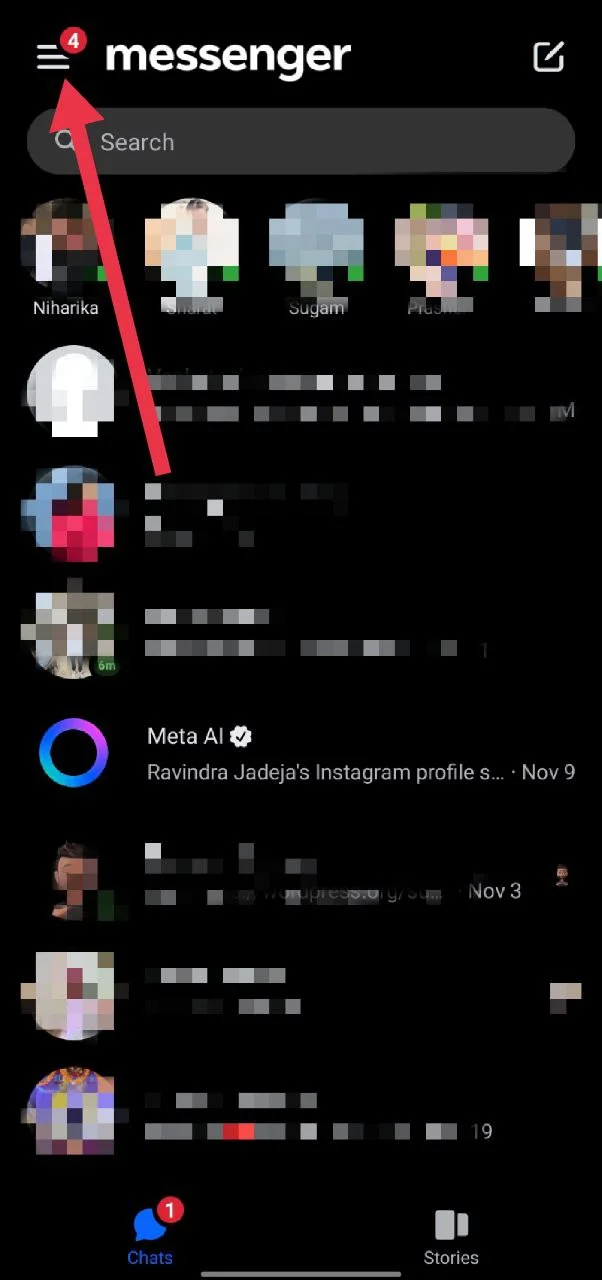
- Open the Facebook or Messenger app on your phone and make sure it’s logged in
- Now, tap the menu icon with the horizontal lines.

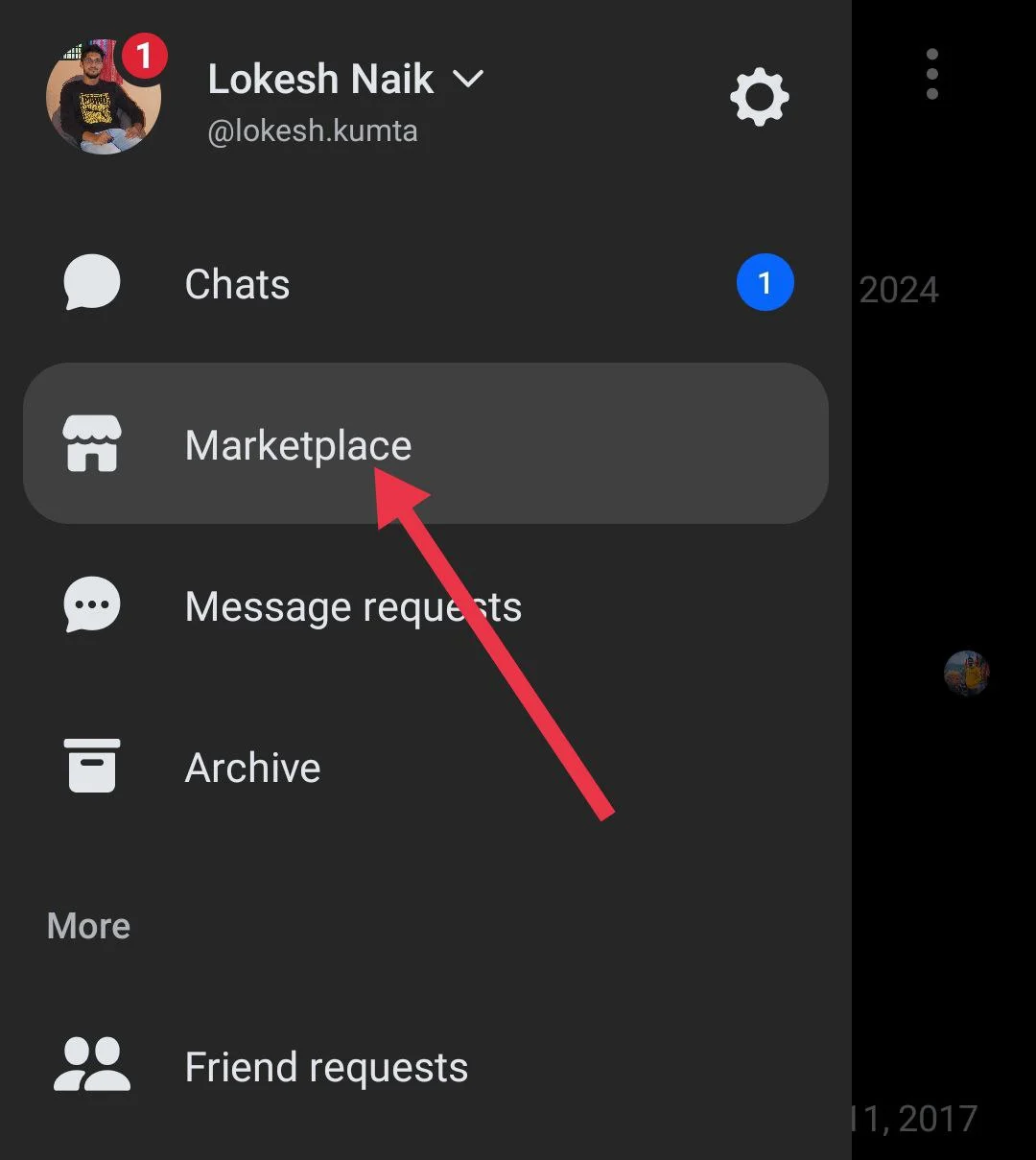
- From the side menu, select “Marketplace” to see all your buying and selling chats.

On Desktop
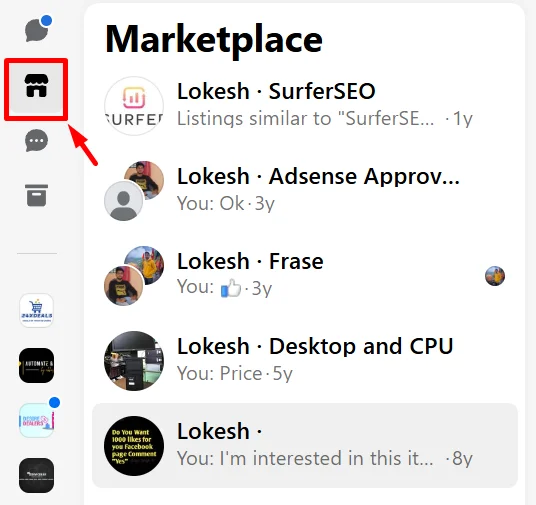
- Go to the Messenger website and sign in.
- On the left side, click the Marketplace icon that looks like a small shop.

- A window named Marketplace Chats will appear, showing all of your Marketplace-related conversations.
Check Messages Through the Product Listing Page
If you are unable to find a buyer’s message in the Marketplace tab inside Messenger, you can try viewing it directly from your product listing. This method helps you locate conversations linked to a specific item you are selling.
- Open the Facebook app and go to Marketplace

- Now, tap your profile icon at the top right corner.

- Under the Selling section, select “Your listings” and choose the product you want to check.

- Now, navigate to the “Chats” section, then open the conversation you are looking for.
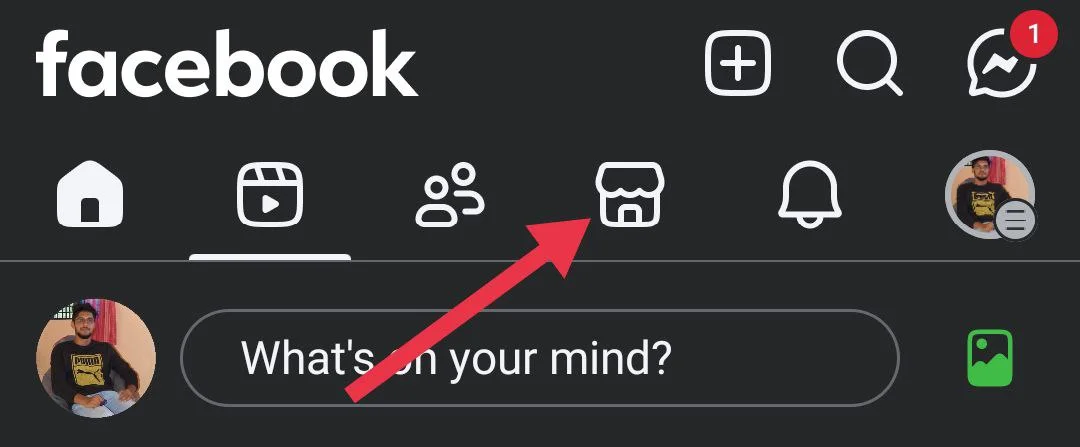
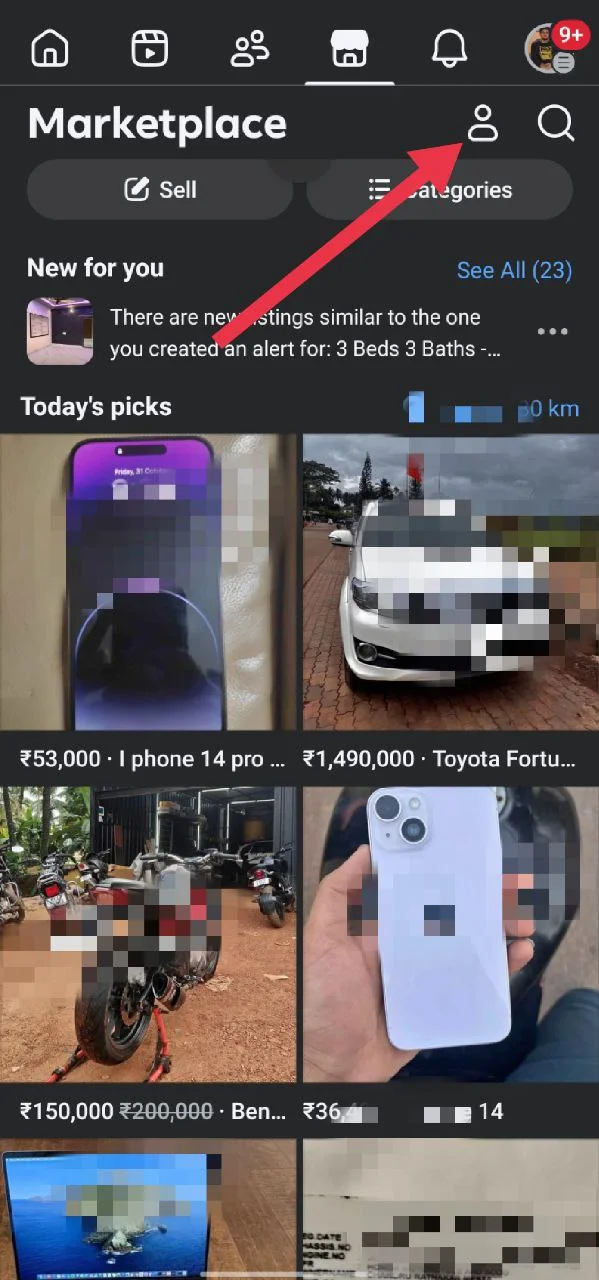
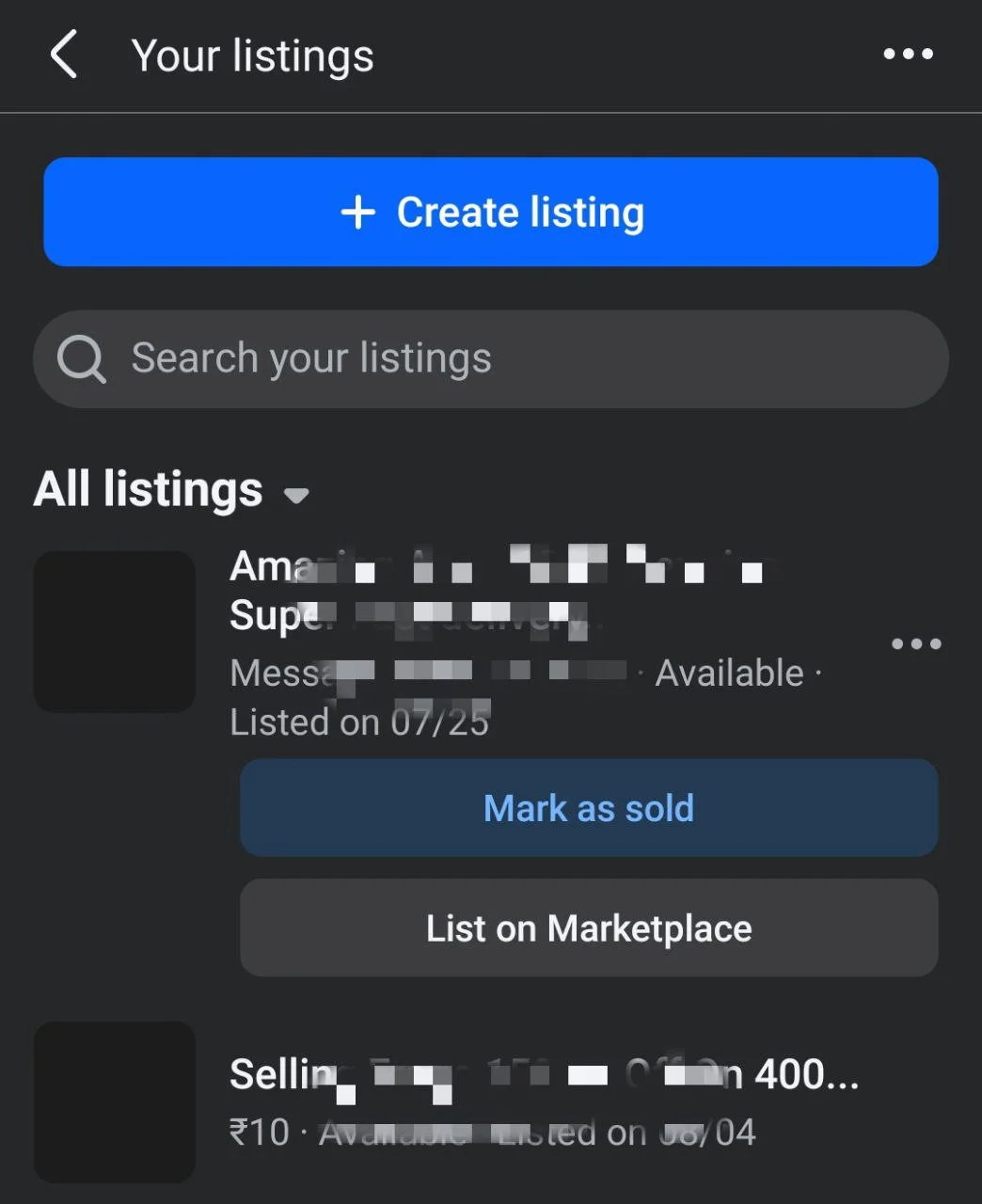
Check Your Archived Messages
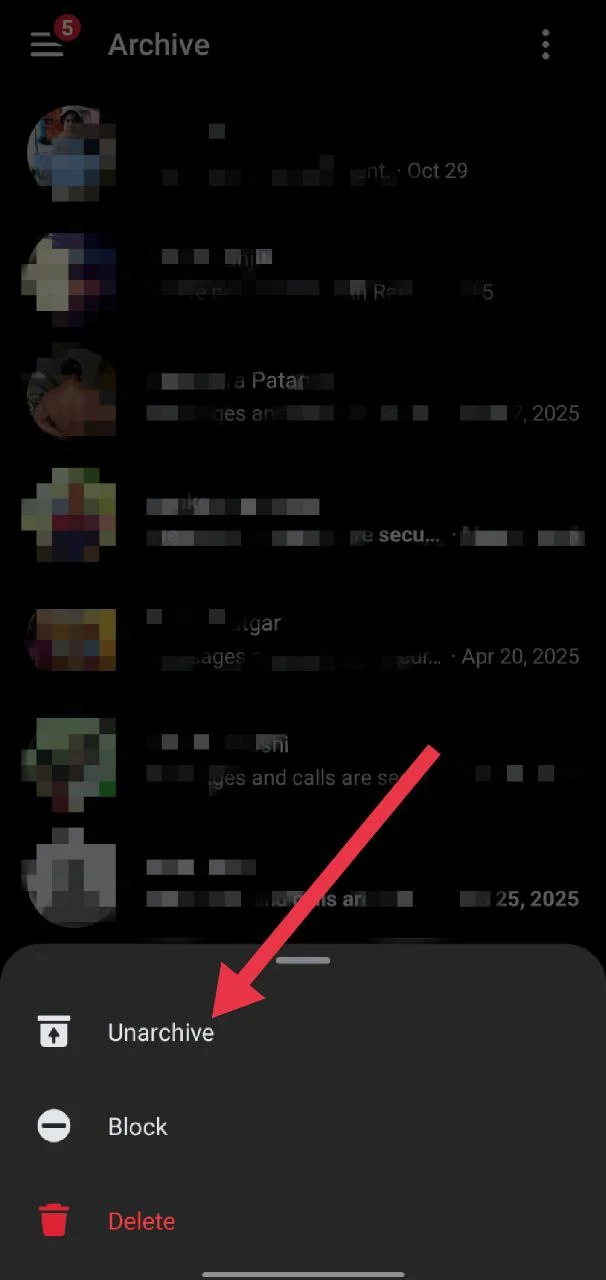
Sometimes Marketplace chats disappear because they were archived by mistake. Archived conversations do not appear in your main Inbox, so you need to look in the Archive section using the steps below to find them.
- Open the Messenger app and tap the menu icon at the top left
- Now, select “Archive”

- Tap the Marketplace conversation you had earlier to open it.
- If you want to move it back to your Inbox, long-press the chat and select “Unarchive.”

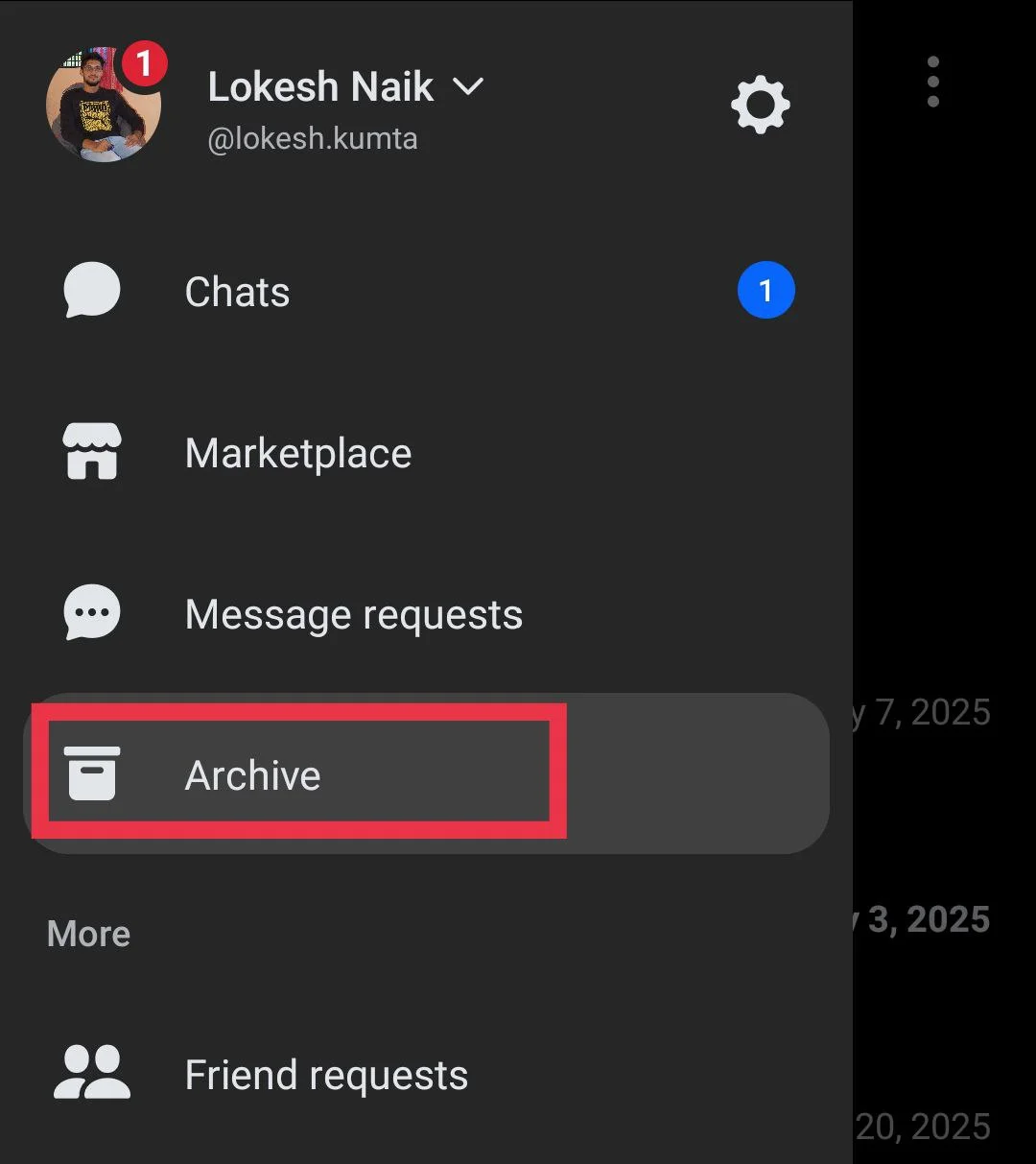
Update the Facebook & Messenger App
If the version you are using right now has bugs, it may be the reason why your Facebook Marketplace messages are not showing. Install the latest version of the Facebook Messenger app from the App Store or Play Store, and then reopen the app to see if your Marketplace messages appear.
Clear the Messenger App Cache on Android
- Long-press the Messenger app icon and open App info. (You can also go to “Settings” and select “Apps”).
- Go to “Storage and cache” and select the “Clear cache” option


iOS does not provide an option to clear the Messenger app cache directly. Instead, you can use the method below.
Offload the Messenger App on iOS
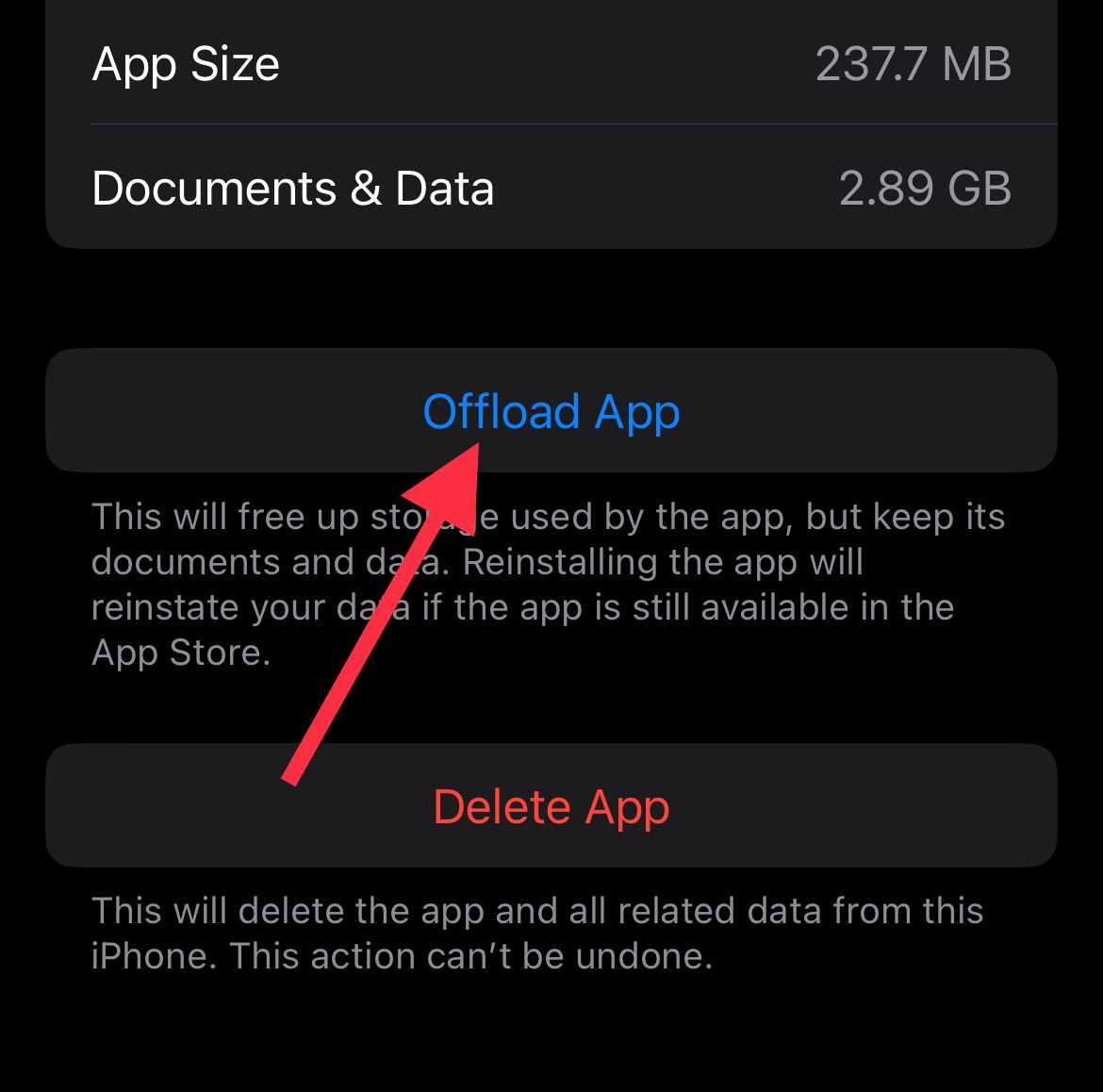
As we said earlier, iOS doesn’t have cache clear option. So you can try offloading the app, which removes the app data while keeping your documents and settings.
- Open the Settings app on your iPhone
- Select General > iPhone Storage.
- Tap on Messenger > Offload App.

- Then reinstall it from the App Store.
Check Marketplace Messages on a Computer
Another reliable way to view your Marketplace messages if it is not showing on the app is by using the desktop version of Messenger. The issue of disappearing chats mostly affects mobile users, so logging in from a computer or laptop often works. It may not be the most convenient method, but it is a useful option when other solutions do not work.
Use the Messenger Search Bar
Another helpful method is to use the search bar in the Messenger app. Type a word from the conversation or the name of the person you were chatting with. If the chat is still available, it may show up in the search results even if it is not visible in your main Inbox or Marketplace tab.