People love Dropbox because it keeps their files close and easy to reach. It is where many of us store work documents, personal files, and shared folders that we open almost every day. The whole point of using Dropbox is to download what you need fast, without thinking twice about it.
Dropbox users often run into different error messages while working with their files. Download issues are just one of many problems people face from time to time. Because of this, we have recently created a few guides that focus on common Dropbox errors.
When file access is blocked, even briefly, it can slow your day down. Files you need right away remain online, and everyday tasks begin to take more time than expected.
Since I faced the “There was an error downloading your file” issue on Dropbox myself, here are the simple methods I tried that helped fix the problem and download files successfully.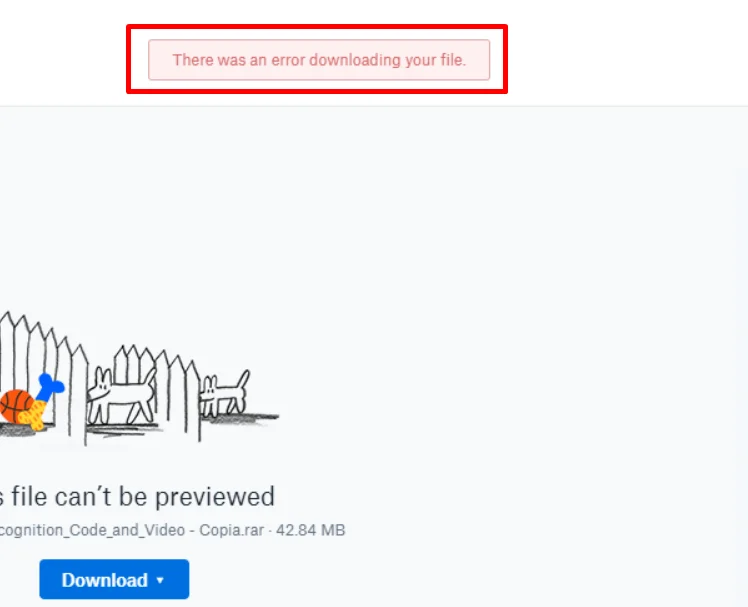
7 Quick Fixes for Dropbox “There Was An Error Downloading Your File” Error
Use the Dropbox Desktop App
I faced the same issue myself, and this method worked without any trouble. Instead of downloading files from the browser, I installed the Dropbox desktop app on my PC.
After signing in, I chose to sync only the folder I needed. Dropbox then downloaded the files directly to my computer through the app, not the browser. The files came through without showing any error message. So, if the browser keeps showing a download error, the desktop app is a solid option.
The same idea applies to mobile users, too. If downloads fail on the mobile browser, try using the official Dropbox app instead. The app is available on Android and iOS, and many users find that files download without any issues when using the mobile app.
Download Files in Smaller Groups
If you see an error while downloading a large folder, the size of the download is often the reason. When too many files are requested at once, it may show an error message. This usually happens with folders that contain a large number of files or very large file sizes.
Dropbox free and trial plans allow about 20 GB per day with a large number of downloads. Mid-level plans like Plus, Professional, Family, Standard, and Business allow much higher daily limits, usually up to 200 GB or even 1 TB, depending on the plan. Advanced and Enterprise plans support the highest limits, going up to 4 TB per day.
A simple way to avoid this is to download in smaller groups. Open the folder, choose a few files or subfolders, and download them in batches instead of all at once.
Disable VPN

If a VPN is active on your device, it can block Dropbox from downloading files. Many websites do not allow traffic that comes through a VPN, and Dropbox can react the same way. This is one of the things worth checking.
To turn off a VPN, open the VPN app you are using and look at the main screen. If it shows that the VPN is connected, tap or click that option once. The status should change to disconnected or show a button like connect or on. After the VPN is off, head back to Dropbox and try the download again.
Use a Private or Incognito Window
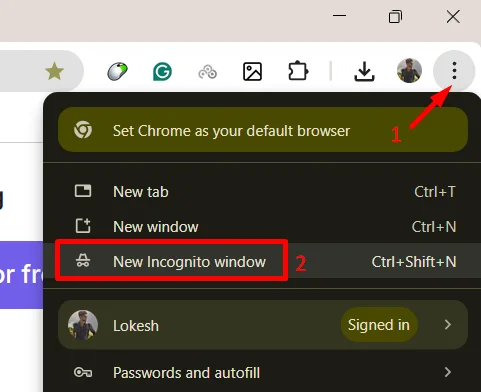
Another easy thing to try is downloading the file using a private or incognito window in your browser. As incognito/private windows open a clean session without saved data, it can solve the issue with file downloads.
- Open your browser menu and choose New Incognito Window or New Private Window.

- A new window will open that does not use your usual browsing data.
- Now, sign in to your same Dropbox account there and try downloading the file again.
Clear Browser Cache and Cookies
Your browser saves small bits of data over time, and that stored data can block file downloads.
- On Windows and Linux, press Ctrl + Shift + Delete to open the clear browsing data screen in most browsers. Select cache and cookies, then confirm.
- On Mac, press Command + Shift + Delete to open the same screen. Choose cache and cookies, then continue.
If you are using a mobile browser and have not cleared it in a long time, you can do that as well. Open the browser menu > history or privacy section, which is usually placed in a similar spot in most browsers, and clear the cache from there before trying the download again.
Change Your Browser
Another easy check I often suggest is try opening Dropbox in a different browser than the one you usually use. If you are using Chrome, switch to Edge or Firefox. If you are on Safari, try Chrome or Firefox instead.
Each browser handles downloads in its own way. A file that fails to download in one browser may work fine in another without any extra steps. You do not need to change your main browser for good, this is just a quick test.
Check the File Name and Use a Share Link
Check the file name and see if it has a comma in it. In some cases, special characters like commas can stop a file from downloading. Try renaming the file and removing the comma, then save the change and try the download again.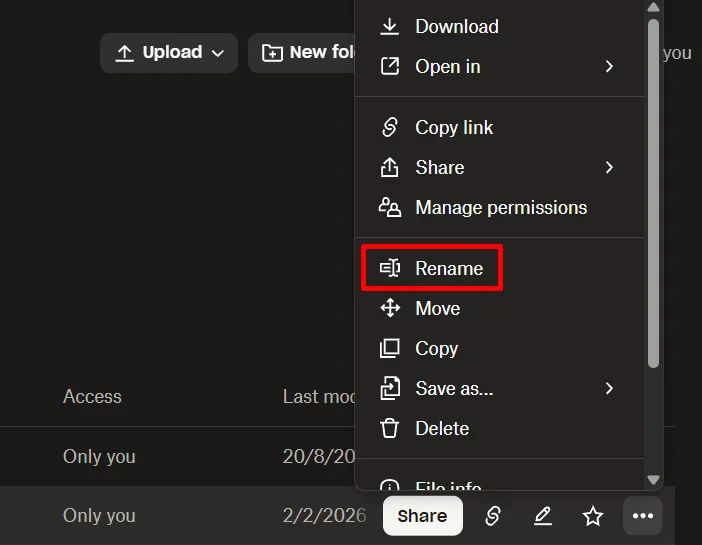
If that does not work, use the share option for that file. Copy the share link and paste it into a different browser or open it in an incognito window. Once the file opens through the link, try downloading it from there.
RELATED GUIDES:
Hope this solved the Dropbox “There was an error downloading your file” error for you. Which method worked on your side, or did you find another way to fix it? Feel free to share your experience with us.