The McDonald’s app is how many of us order food straight from our phones. You can look at the menu, pick a nearby location, and place an order without standing in line. For readers who like sticking to one app and skipping other food apps, this one feels familiar and easy to use.
Problems show up when the app does not open, closes right away, or blocks login. For some users, a clear message appears on the screen saying “Your device is not compatible. For security reasons, this app will not run on your device. Consider restoring it and try again.” Seeing this when hunger hits can quickly kill the mood, mainly for people who rely only on the McDonald’s app for ordering.
The app also has a points system where users earn points each time they place an order, and these points can later be redeemed for free food items. When the app stops working, those reward points cannot be used either, which adds to the frustration for users who save them for future orders.
These McDonald’s app issues appear on both Android and iPhone. Below are troubleshooting steps for both operating systems.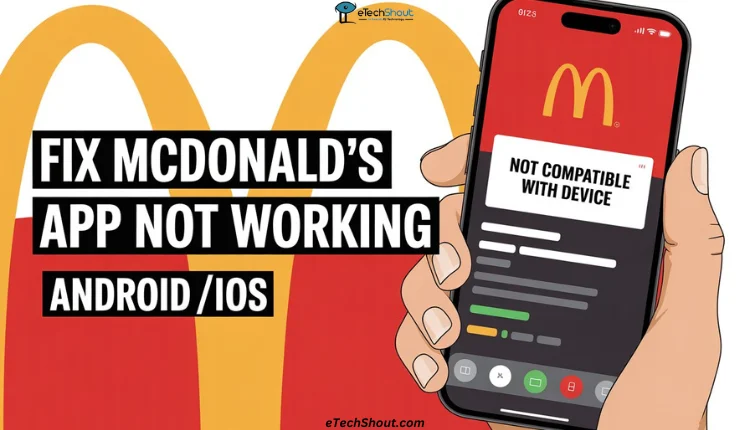
11 Easy Ways to Fix McDonald’s App Not Working on Android and iPhone
Uninstall Third-party App Stores
If you see the message “McDonald’s app not compatible with device,” the error often points to third-party app stores installed on your phone. Unofficial app stores like HappyMod, Aptoide, ApkDone, and even apps like Lucky Patcher can trigger this warning inside the McDonald’s app.
Third-party apps usually use APK files that do not carry the same level of security checks as apps downloaded from the official Play Store. These apps are not fully encoded with trusted protection layers. Because of this, the McDonald’s app treats them as a possible risk. The app uses strong security rules to make sure no one can use it as a backdoor entry into their system.
Even if you did not install the McDonald’s app from those sources, having third-party app stores on your phone is enough to cause the issue.
To fix it, open your phone settings > apps, and uninstall every third-party app store. After that, restart your phone and install the McDonald’s app again from the official store.
Uninstall and Reinstall the McDonald’s App
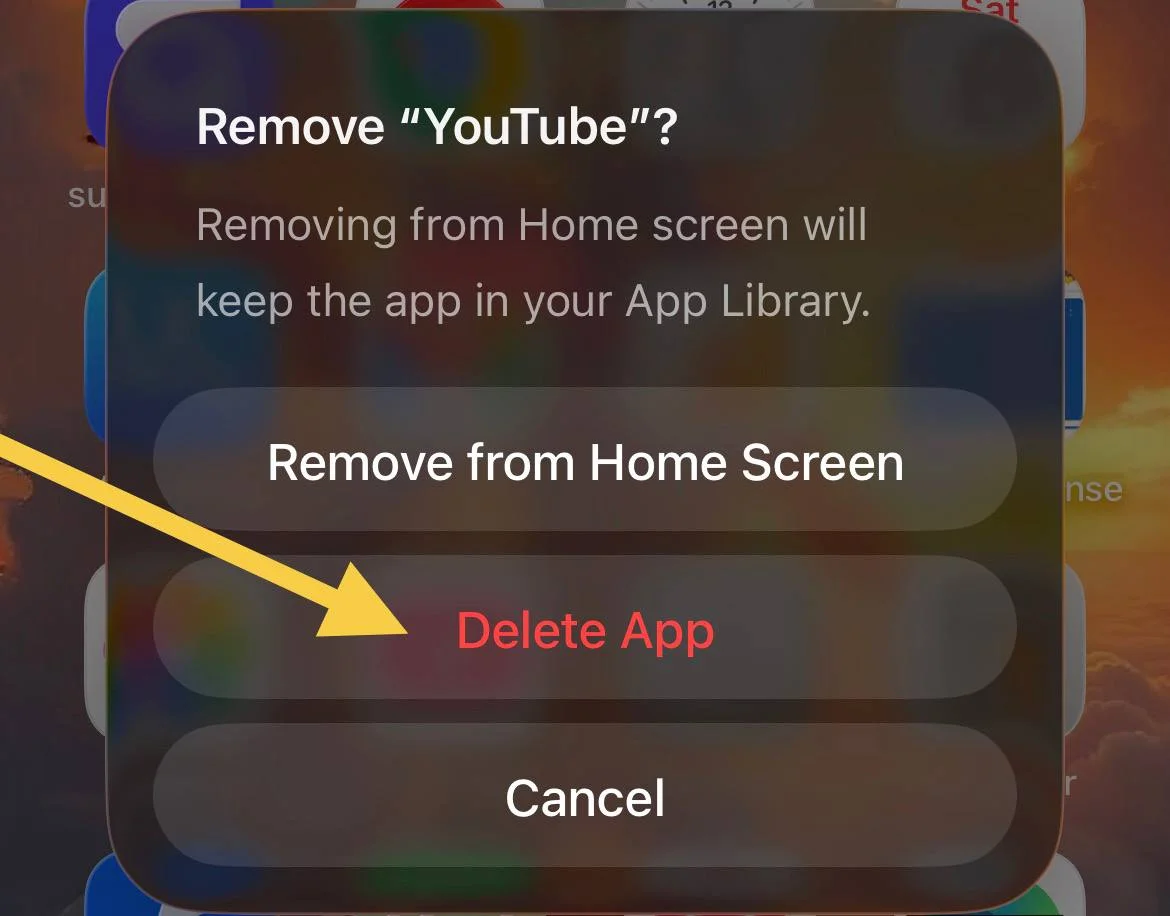
- On iPhone: Press and hold the McDonald’s app icon and tap on the Remove App option, then select Delete App. After that, install the McDonald’s app again from app store.

- On Android: Long-press on the McDonald’s app icon from the app drawer and tap Uninstall. Then install the McDonald’s app from the Play Store.
Switch to Mobile Data Instead of Wi Fi
If the McDonald’s app is not working for you while placing an order, turn off the Wi Fi and use mobile data instead. Many times, the issue comes from the Wi Fi network itself. Public or shared Wi Fi connections can be slow. Mobile data usually gives your phone a more direct and reliable connection. When you switch to your carrier network, the app often loads faster.
On Android phones, pull down from the top of the screen twice and tap the Wi Fi icon to turn it off. On an iPhone, swipe down from the top right corner and tap the Wi Fi icon. Once Wi Fi is off, keep mobile data on and open the app again to see if it works.
Close and Reopen the McDonald’s App
If the McDonald’s app stays stuck on the loading screen or does not open at all, closing it and opening it again can help. Fully close the McDonald’s app on your phone. After that, open the recent apps screen and clear all running apps. Once everything is cleared, tap the McDonald’s app icon again.
Check if the McDonald’s Server is Down
The McDonald’s app depends on online servers to work. If the server is offline, the app will not load, log in, or place orders, even if everything on your phone looks fine.
Server downtime can happen during maintenance or when too many users access the app at the same time.
To confirm the server issue, check the server status of McDonald’s using Downdetector. If reports show an outage, the only option is to wait until the servers are available again.
Turn Off Your VPN

A VPN routes your internet traffic through another server and can change your location. The McDonald’s app may block access when it detects this type of connection.
Open your VPN app and turn the service off. After that, open the McDonald’s app and check if it loads and allows orders.
Restart your Android or iPhone
On Android
- Press and hold the Power button.
- Tap Restart from the menu.


On iPhone
- Press and hold Volume Up and Side or Volume Down and Side together.
- Drag the slider to turn the phone off.
- After the screen goes dark, press and hold the Side button until the Apple logo appears.


Enable Location Permission Access
The McDonald’s app needs location access to show nearby stores and allow orders.
- Open your phone settings and go to Apps.
- Tap the McDonald’s app > Permissions
- Now, select Location and set the permission to “Allow only while using the app.”
Update the McDonald’s App
App-related issues often appear when the app version no longer matches the current system requirements. Official updates fix known bugs and improve compatibility.
Open the Play Store on Android or the App Store on iPhone. Check for any available updates for the McDonald’s app.
Clear McDonald’s App Cache on Android
If you are an Android user, open Settings > Apps > McDonald’s app > Storage and cache > Clear cache.
Log Out and Log Back In
- Open the McDonald’s app and tap More.
- Go to Profile and select Sign Out.
- After signing out, log in again using the correct email and password.
If the login details are entered incorrectly, the app may show an Unable to log in message. Make sure your credentials are correct before trying again.
RELATED GUIDES:
This is how you can resolve the McDonald’s app not working issue on both Android and iOS. Let us know which method worked for you, and if you know any other way that helped fix the issue, feel free to share it in the comments.