Mega is a cloud storage app that many editors and creators use to save and download large files. A lot of people find Mega links through Telegram, Instagram pages, and community posts, hoping to open folders and grab files fast. For anyone working with limited phone storage, Mega feels like a handy option to keep work moving.
That mood changes fast when a link suddenly shows or “file link unavailable”, or “folder link unavailable,” even though the same link opens fine for someone else. You tap the link, try opening it in the app, copy it to a browser, and still end up stuck on the Mega home screen.
This situation hits harder when you are editing under time pressure or waiting on files to finish a project. That is why many users look for clear answers. After going through the same problem ourselves, we put together this article to clear your doubts and help you make sense of what is happening.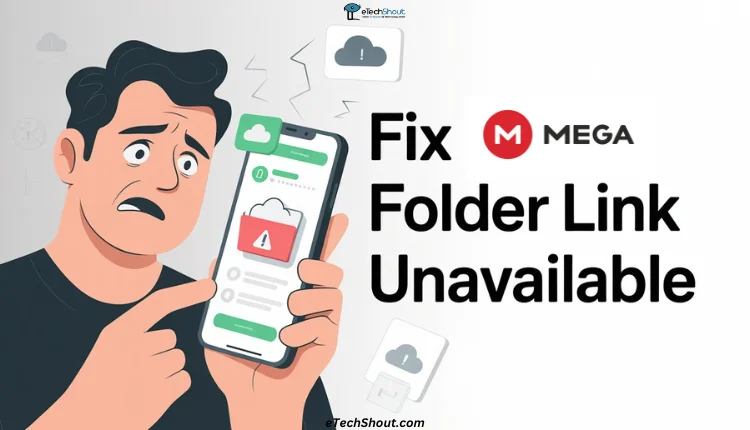
How to Fix Mega Folder Link Unavailable on iPhone, Android and PC
Check with the Person Who Shared the MEGA Link
The files inside a MEGA link are fully controlled by the person who created that link. When someone shares a folder link instead of a single file, they can add files, remove them, or empty the folder anytime without changing the link itself. So even if you saved the link earlier, what is inside it may not be the same now.
MEGA can also step in and remove links if they receive reports. This often happens because of copyright or legal complaints. It could be about one file or the whole folder. If the content breaks copyright rules, the creator may delete the files on their own or be asked to take them down.
This is more common with paid access pages like Patreon. Selling copied files, music, or edits without rights can draw legal attention. Because of that, creators may remove content quickly to avoid trouble.
So if a folder link no longer opens or shows as unavailable, it usually means the person who shared it changed or removed the contents. The best move here is to contact the seller or creator who gave you the link and ask them directly.
Open the Link in Incognito Mode or a Different Browser
Sometimes, issues like this occur due to the saved browser data. You can try opening the same link in incognito mode, as it loads the page without using stored cookies or previous sessions.
You can also try copying the link and opening it in a different browser. For example, if you normally use Chrome or Firefox, test the link in another browser to see if it opens there.
If the folder opens in incognito mode or another browser, the issue is likely tied to your current browser session.
Sign Out and Sign Back
Your MEGA account session can lose sync, and when that happens, shared links may stop opening even though they are still active. A quick sign-out is the best way to reset your session and clear any temporary access issues.
After signing out, fully close the MEGA app or browser tab. Open it again, sign back into your account, and then try opening the folder link once more.
If you are using the MEGA app on your phone, make sure the app is fully closed before signing in again.
Try Opening the Link Using a Different Mega Account
In some cases, the issue may be tied to the MEGA account you are currently using. Opening the same link with another account can help confirm this. You can ask a friend to test the link or create a second MEGA account just for checking.
If the folder opens there, it shows the issue is linked to your original account access and not the link itself.
Update the MEGA App on Your Phone
If you are using MEGA on your mobile, the outdated version currently installed on your device might be the reason the links are not working. Older versions of the app may fail to load shared folders or show link errors even when the link is still active.
So, check if an update is available for MEGA on the Google Play Store or iPhone App Store and install the latest version right away to check the link again.
Allow Photo and Media Permissions for the MEGA App
If MEGA does not have permission to access your photos or media files, shared links may not open as expected. Even if you thought these permissions were already allowed when installing the app, they can remain disabled and block access to folder links.
- On Android, open Settings > Apps > MEGA > Permissions, and allow access to photos and media.
- On iPhone, open Settings > MEGA > Photos, and allow access.
RELATED: How to Fix Mega Stuck on Loading Screen
Hope this guide cleared all doubts related to the “folder link unavailable” error. If it still does not help, you can try reinstalling the app or contact at support@mega.io