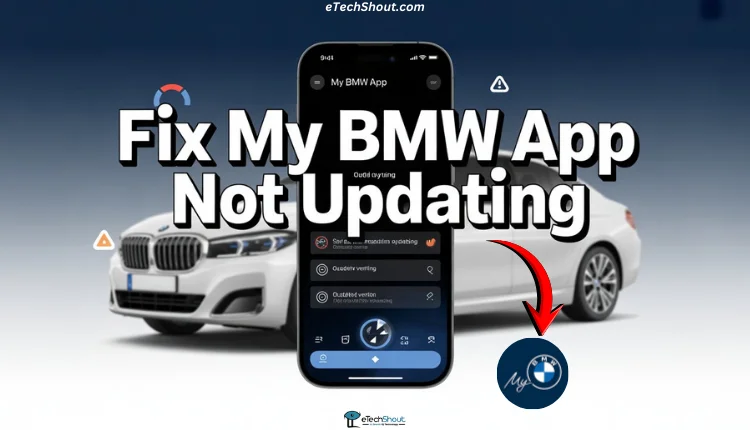
The My BMW App is one of those apps that quickly becomes part of daily life if you own a BMW. It lets you stay connected with your car straight from your phone without needing to step outside or sit inside the vehicle. You can check where your car is parked, see fuel or battery details, control locks, and even plan trips ahead of time. The layout is clean, easy to understand, and that is a big reason many BMW owners enjoy using it and rate it highly on app stores.
For many drivers, this app feels less like an extra tool and more like a helpful companion. It keeps important car details in one place and saves time during busy days. From keeping an eye on service needs to using remote features, the app adds comfort and peace of mind. That convenience is exactly why BMW owners rely on it so often and talk positively about their experience with it.
Still, there are times when the app stops updating the latest car information. When that happens, it can feel frustrating to open the app and see old data. It takes away the confidence users usually have while checking their car status. If this is happening to you, I have shared several reliable ways that can help fix the My BMW app not updating issue in this post.
7 Easy Ways to Fix My BMW App Not Updating Issue
Update the My BMW App
If the My BMW App has been sitting on your phone without updates for a long time, that can lead to trouble. The team behind the app keeps releasing new updates to fix small issues and improve how the app works. When those updates are missed, the app may not behave as expected.
I suggest opening the Play Store or App Store and checking if a new version of the My BMW App has been released. If you see an update, install it right away. After the update finishes, restart your phone and then open the app again.
Update Apps and Services and Restart in Diagnostics Mode
Another useful step is to update all apps and services from your phone settings. Head into the settings menu, look for app updates, and make sure everything linked to your system services is using the latest version.
After updating, click on diagnostics mode reboot. Also, make sure your car is parked in a place with good mobile network access. If the car cannot connect to the network, the app may fail to show new information even when everything else looks fine.
Trigger a Manual Update From Your Car
One thing many people do not realize is that a BMW does not keep sending data to the servers all the time. The car only shares updates when there is a change, like charging level, locking or unlocking, or doors opening and closing. If nothing changes, the app may keep showing old details.
You can push a new update by using a remote action from the app. Try locking or unlocking your car using the app and then wait a few moments. This often forces the car to send fresh data to BMW servers. BMW works in a different way compared to brands like Tesla, where cars stay connected all the time. That is also why BMW cars usually have very low battery drain when they are turned off.
Check My BMW App Server Status
The My BMW App depends fully on BMW servers to share live car details. If those servers are down, the app may stop showing new updates even when everything on your side looks fine.
Sadly, there is no official page from BMW that clearly shows the My BMW App server status. There are also no trusted third-party sites that track its server activity. What you can do instead is check social media platforms like X, Reddit, or Facebook. Search for recent posts from other BMW users and see if many people are talking about the same issue. If several users are facing it at the same time, it usually points to a server-side issue that BMW needs to fix.
Clear the My BMW App Cache Android Only
If you are using an Android phone, there is one simple step I always recommend trying. Over time, the My BMW App stores temporary files on your device. These files help the app load faster, but they can also stop new car details from showing.
- Press and hold the My BMW App icon and open App Info.
- Tap on Storage and then select Clear Cache.


This option is only available on Android. iPhone users do not see a cache clear option like this, so this step does not apply to iOS devices.
Reinstall the My BMW App
If none of the earlier steps helped, I suggest reinstalling the app, as it often fixes update issues that do not respond to other steps. Uninstall the My BMW App from your phone and then install it again from the app store. After signing back in, open the app and check your vehicle status.
Visit a BMW Service Center
If the app still does not show new updates after trying everything, the issue may be linked to the car itself. The My BMW App only shows information that comes directly from your BMW. If the car is not sending data, the app has nothing new to display.
In this case, visiting a BMW service center is the best option. The technicians can check the vehicle software, connectivity modules, and related hardware.
I hope this guide helped you fix the My BMW app not updating issue. If any of these steps worked for you, do share this guide with other BMW owners who may be facing the same problem. Also, let us know which solution helped you the most.
If you found another way to fix the issue, feel free to share it with us. Your experience could help many other readers who are dealing with the same situation.