Duolingo has become an essential tool for learning a new language. It got popular because it made lessons short, fun, and easy to keep up with, and millions of people now use it every day. For many people, it feels like a habit or even a part of their daily routine.
These days, with AI tools growing fast and giving people different ways to learn, Duolingo has more competition than ever before. That makes it even more important for the app to keep users happy and engaged. Still, there are times when problems show up, like Duolingo error 500.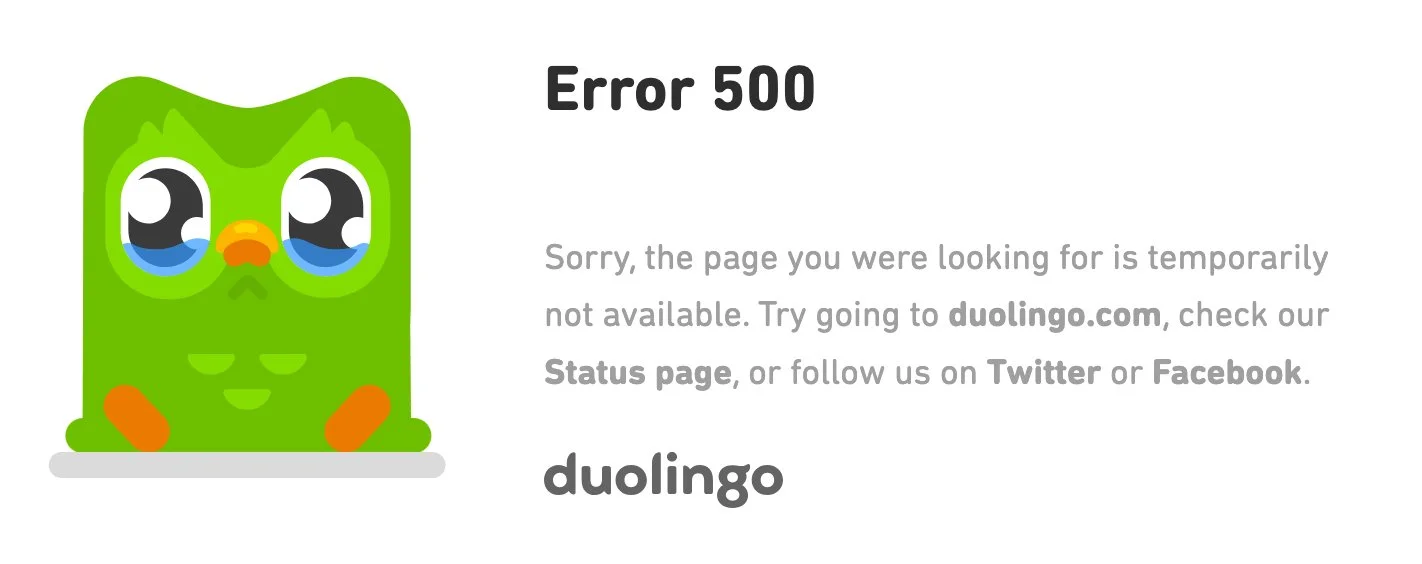
Running into an error like 500 on Duolingo can break the flow when you are all set to practice. It is a code that usually points to a server issue, which means the problem is not always on your side. Still, there are times when simple checks and small fixes from your end can make a difference. Since Duolingo has millions of active learners, errors are bound to appear once in a while. There are practical ways you can try to solve it and continue learning without waiting too long, which are listed below.
4 Easiest Ways to Fix Duolingo Error 500 on Any Device
Use Incognito Mode
At times, Duolingo error 500 can be linked to saved data in your browser, such as cookies or cached files. While these small files usually help websites load faster and remember your preferences, they can also create issues in the long run if the cache is not cleared.
As a test, try opening Duolingo in incognito or private browsing mode. In this mode, your browser does not use the existing cookies or cache from your regular sessions.
On Chrome, click the three dots in the top right corner and select “New Incognito Window.” In other browsers like Firefox, Edge, and Opera, the steps are almost the same. Just click on the three lines or dots at the top right and choose New Private Window or New InPrivate Window, depending on the browser. In Safari, go to the menu bar at the top, click File, and then select “New Private Window.”
In the private window or incognito mode, go to the Duolingo website and log in to your account. If it works without showing an error, it means the issue might be related to cookies or cache in your regular browser. In that case, clearing your browser’s cookies and cache using the steps given below should solve the problem.
Clear Cache and Cookies on Your Browser
If Duolingo works fine in incognito or private mode but still shows error 500 in normal browsing, the problem is likely due to cookies and cache saved in your browser.
On Mobile Devices
- Open your browser app
- Head over to “Settings”
- Select “Clear browsing data” or “Clear history and website data.”
- Select “Cookies and Cached images and files.”
- Tap “Clear” to remove them.
On Windows, Linux, and Mac OS
The most efficient way to clear cookies and cache on Windows, Linux, or Mac is by using a keyboard shortcut. On most browsers, press Ctrl + Shift + Delete on Windows or Linux, and Command + Shift + Delete on Mac. This opens the clear browsing data window, where you can select cookies and cached files to remove. 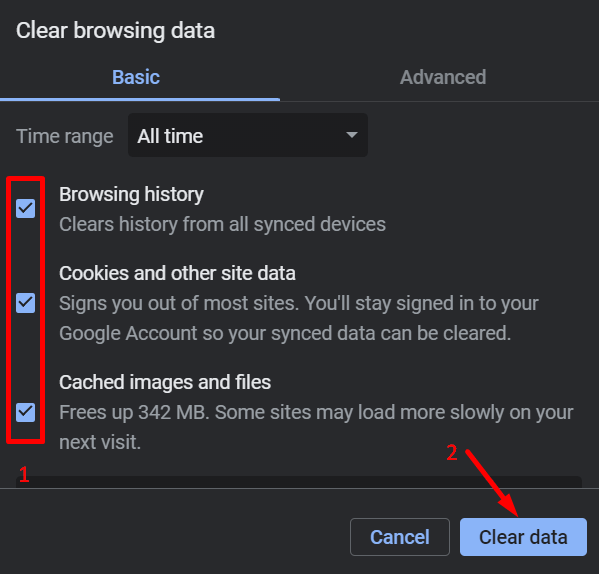
Check Duolingo Server Status
Whenever the Duolingo error 500 pops up on the website with the message “The page you are looking for is temporarily not available”, it could be related to the server being down. Officially, sometimes the platform goes down for various reasons, with or without the company knowing. If it is for maintenance, they usually notify users, but if not, they don’t. The server status page on their official website shows this. On the server status page, you can also see that the site faces issues almost every month at least. So, this could be the reason why the error is showing up.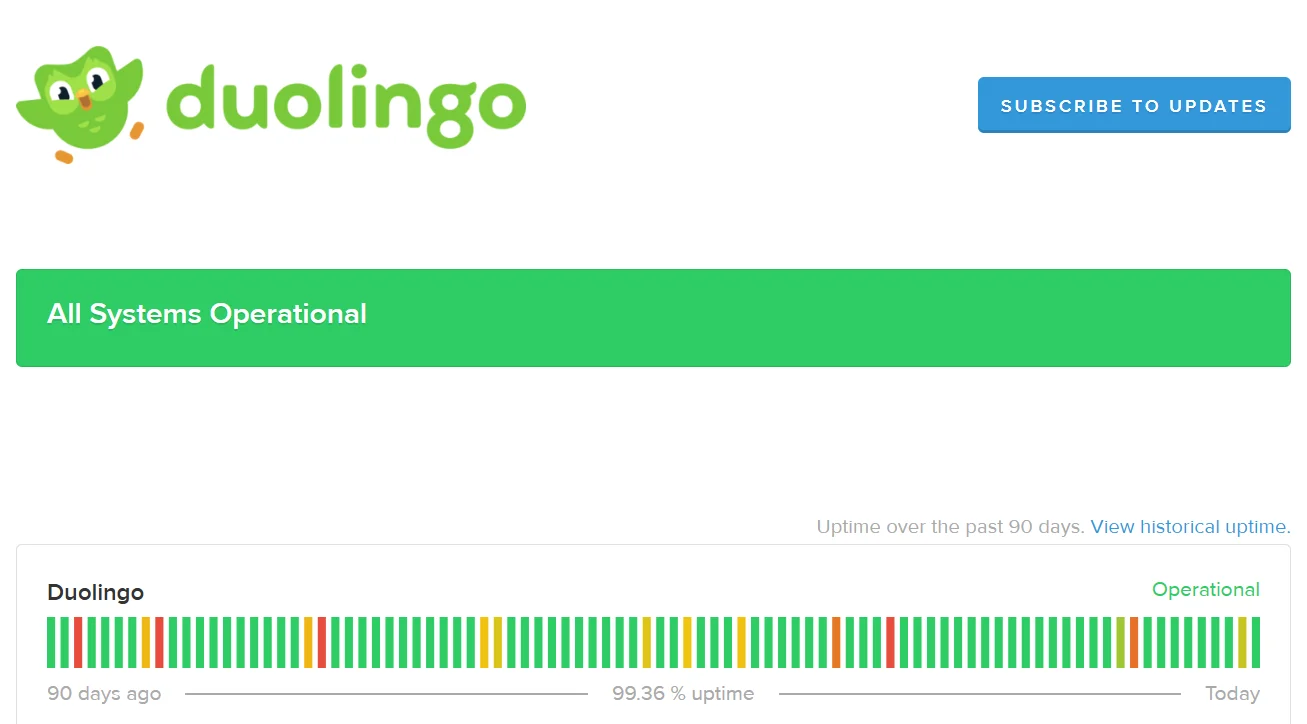
In such a situation, you need to wait until they fix it. Another way to check if the page shows no issues but the error still appears, check their official X handle or Facebook page for the latest updates, or even search for recent posts by other users to see if they are facing the same problem.
Use Duolingo App
If the fixes above don’t help, the easiest way out is to switch to the Duolingo mobile app. The app works really well on both Android and iOS, and the interesting part is that errors like 500 usually show up more on the website than in the app. That’s why it’s smart to keep the app on your phone. So next time the website throws up that error, just open the app instead of waiting around.
While these are some effective ways to fix error 500 on Duolingo, there might be other methods we missed that you know. Share them in the comments so other users can benefit too.