Have you ever encountered the frustrating “Webpage not available” error message while browsing online? This issue, often accompanied by the code “net::ERR_HTTP_RESPONSE_CODE_FAILURE,” can occur on various platforms, not just limited to specific browsers. Many users, including those using Instagram and its Threads app, face this problem when trying to access certain websites or features.
Personally, I’ve experienced this error while trying to access content on Instagram’s Threads app. It’s not just about one app or browser; this issue can affect multiple websites and apps across different devices. You might encounter this error while using Android, iOS, or browsing with Chrome, DuckDuckGo, or other browsers.
It’s essential to understand that this problem isn’t isolated to a particular app or browser but can be a broader issue affecting web access.
In this post, we’ll break down why the “net::ERR_HTTP_RESPONSE_CODE_FAILURE” error happens and share some simple ways to fix it. 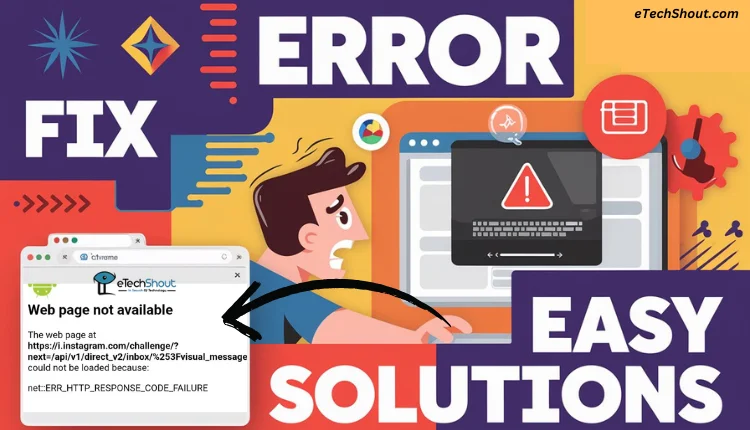
What Does net::ERR_HTTP_RESPONSE_CODE_FAILURE Mean?
This error pops up when your browser or app struggles to load a webpage because the server isn’t responding properly. You might see it in Chrome, DuckDuckGo, or even apps like Instagram and Threads.
It usually happens because of strict privacy settings blocking certain website features, old cache and cookies, or the app not having the right permissions. In some cases, the problem isn’t with you, but with the website itself, which might be down or experiencing problems. 
Easy Ways to Fix net::ERR_HTTP_RESPONSE_CODE_FAILURE
Switch to a Chromium-Based Browser
If you’re using a privacy-focused browser like DuckDuckGo and running into this error, it could be due to its strict security settings. Some websites require certain tracking or data collection to function properly, and DuckDuckGo’s built-in protections might be blocking them. It could stop you from accessing certain sites or lead to random errors.
An easy fix is to use a Chromium-based browser like Kiwi, Edge, or Opera. It supports Google extensions, including ad blockers, and lets you use Google’s autofill feature. This gives you a better browsing experience while still keeping some privacy.
You can still use DuckDuckGo for private email and app tracking protection. But if some websites don’t work, having a second browser like Kiwi or Opera can help.
Clear Temporary Files and Cache of the Browser
Sometimes, the temporary files and cache in Chrome or whatever browser you’re using can mess things up, causing errors or making websites load weirdly. You can fix these issues by clearing them out, and your browser will perform better.
On Android (Through Settings)
- Open Settings on your phone.
- Go to Apps (or Installed Apps).
- Find and select Chrome or any other browser you use.
- Tap Storage.
- Select Clear Cache (and Clear Data if needed, but this will log you out of websites).


On Browser (Directly in the App)
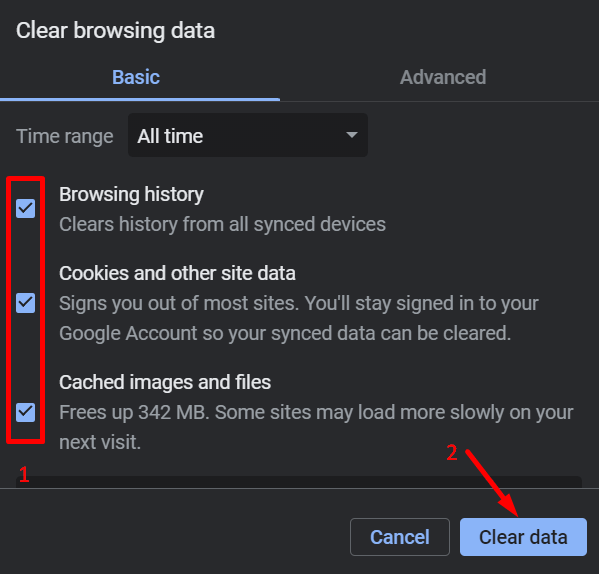
- Open Chrome and tap the three-dot menu in the top-right corner.
- Go to Settings > Privacy and security.
- Tap Clear browsing data.

- Select Cached images and files and Cookies and other site data (optional).
- Now, select a time range (You can also select All time for a complete reset).
- Tap Clear data.


Reinstall the App
If you’re having this issue on apps like Instagram or Threads, reinstalling the app can often fix it.
- Press and hold the app icon, then tap Uninstall.
- Once done, go to the Play Store or App Store, search for the app, and download it again.
- Open the app, sign in, and see if it’s working fine now.
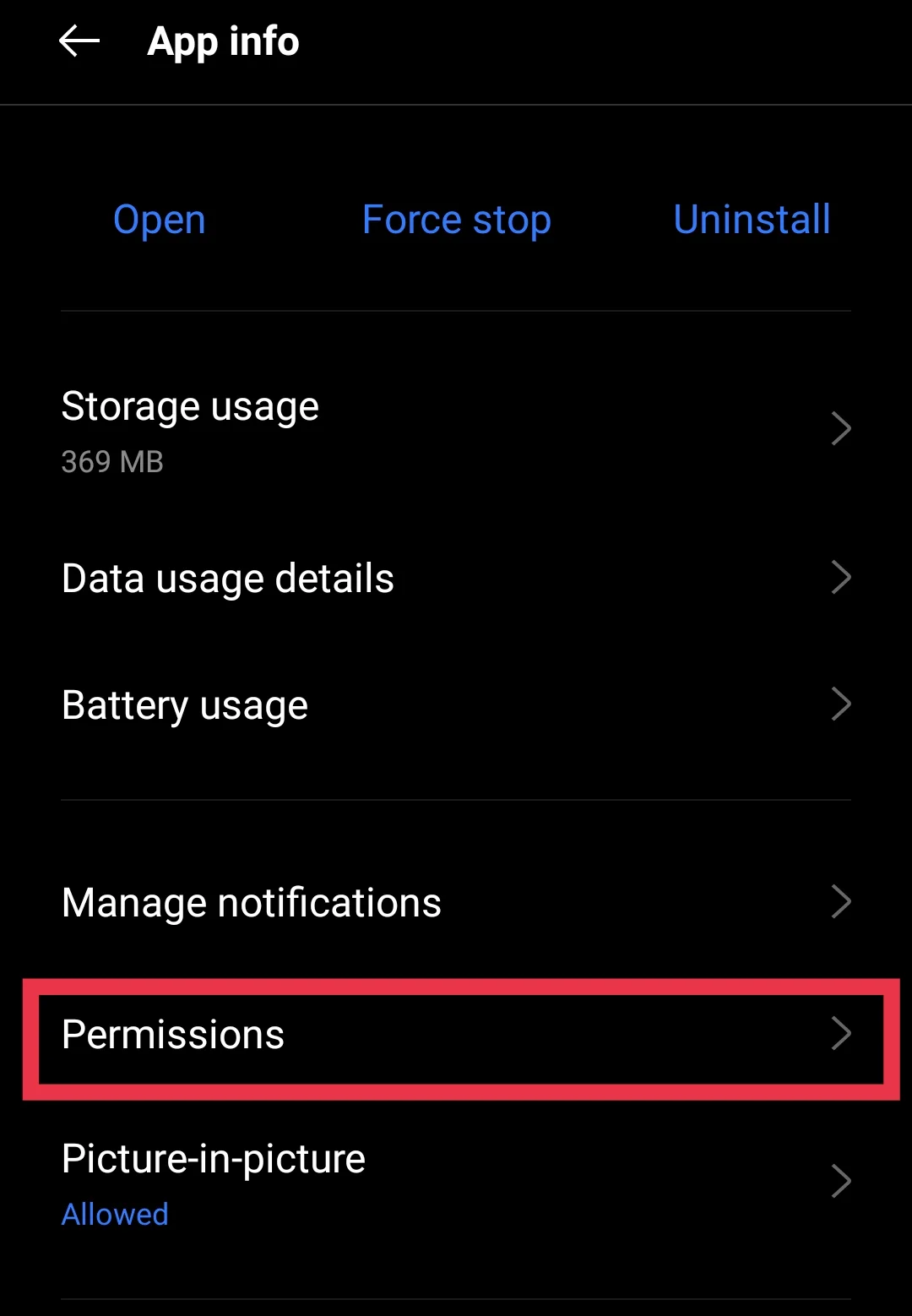
Make Sure the App Has the Right Permissions
Sometimes, an app might not work properly because it doesn’t have the permissions it needs. If it can’t access your storage, camera, or location when needed, you might run into errors. Apps like Instagram and Threads, for example, need access to storage, camera, and location to work.
- Open Settings on your phone.
- Go to Apps (or Installed Apps).
- Click on the app that’s giving you trouble (like Instagram or Threads).
- Tap Permissions and make sure everything it needs—like Storage, Camera, or Location—is allowed.

- Restart the app and see if it’s working now.
Try Using a VPN
If you’re getting the net::ERR_HTTP_RESPONSE_CODE_FAILURE error, your network or internet provider might be blocking the site or app. A VPN (Virtual Private Network) can help by changing your location and letting you access it without restrictions.
Just install a VPN app, connect to a different server, and try again. If the issue was due to network blocks, this should do the trick!