If you’re an Android user, you may have come across the error message, ‘Unable to start capture: resources are being used by another app,’ when trying to record or capture something with your camera app. 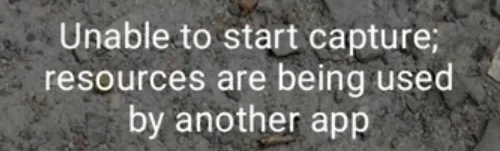
Although this issue is commonly found on Motorola devices, it can occur on other smartphone brands as well. In this post, we’ll guide you through simple steps to fix this error message on your phone.
How to Fix ‘Unable to start capture resources are being used by another app’ on Android
Restart Your Device
Rebooting your device is a quick and effective fix for the error. This will clear temporary bugs, and reset any processes that might be blocking the camera. It’s a simple yet best way to resolve the issue without diving into app settings. 
Force Stop Camera App
Another effective way to fix camera errors is by force-stopping the camera app. Go to your Android device Settings > Apps > See All Apps > Camera, then tap Force Stop. Alternatively, you can press and hold the camera app icon from the app drawer, select “App Info”, and then tap “Force Stop”.
If you suspect another app might be using the camera in the background, you can follow the same steps to force stop that app and check if the camera works properly afterward.
Clear Cache and Data for the Camera App
To fix the “Unable to start capture: resources are being used by another app” issue, follow these steps to clear the cache and data of the Camera app:
- Find the Camera app in your app drawer.
- Press and hold the app icon until a menu appears.
- Select App Info or tap the “i” icon.
- On the App Info page, select Storage & Cache.
- Tap Clear Cache to remove temporary files stored by the app.

- If clearing the cache doesn’t solve the problem, return to the Storage & Cache section.
- Tap Clear Storage to delete all saved data, including app settings.

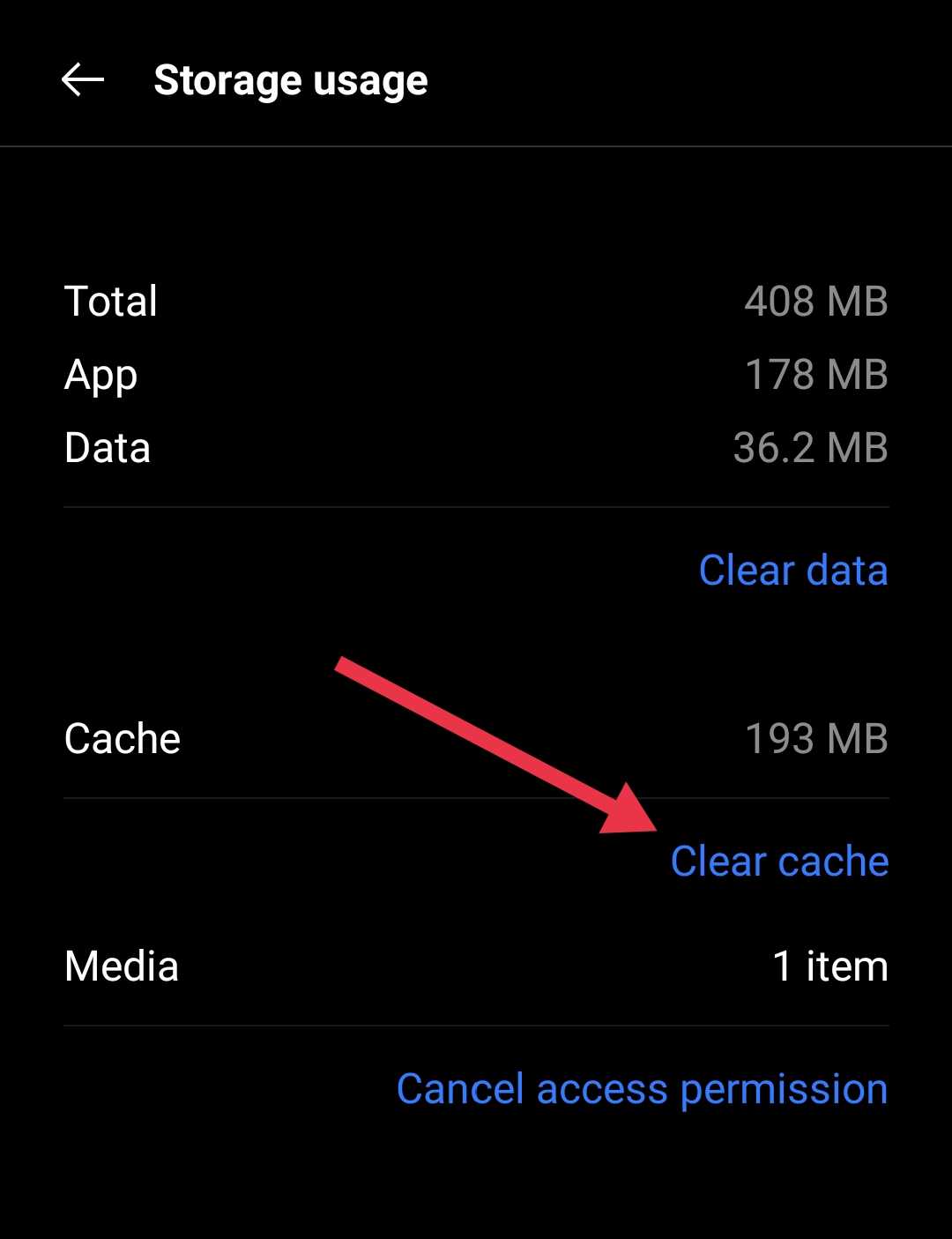
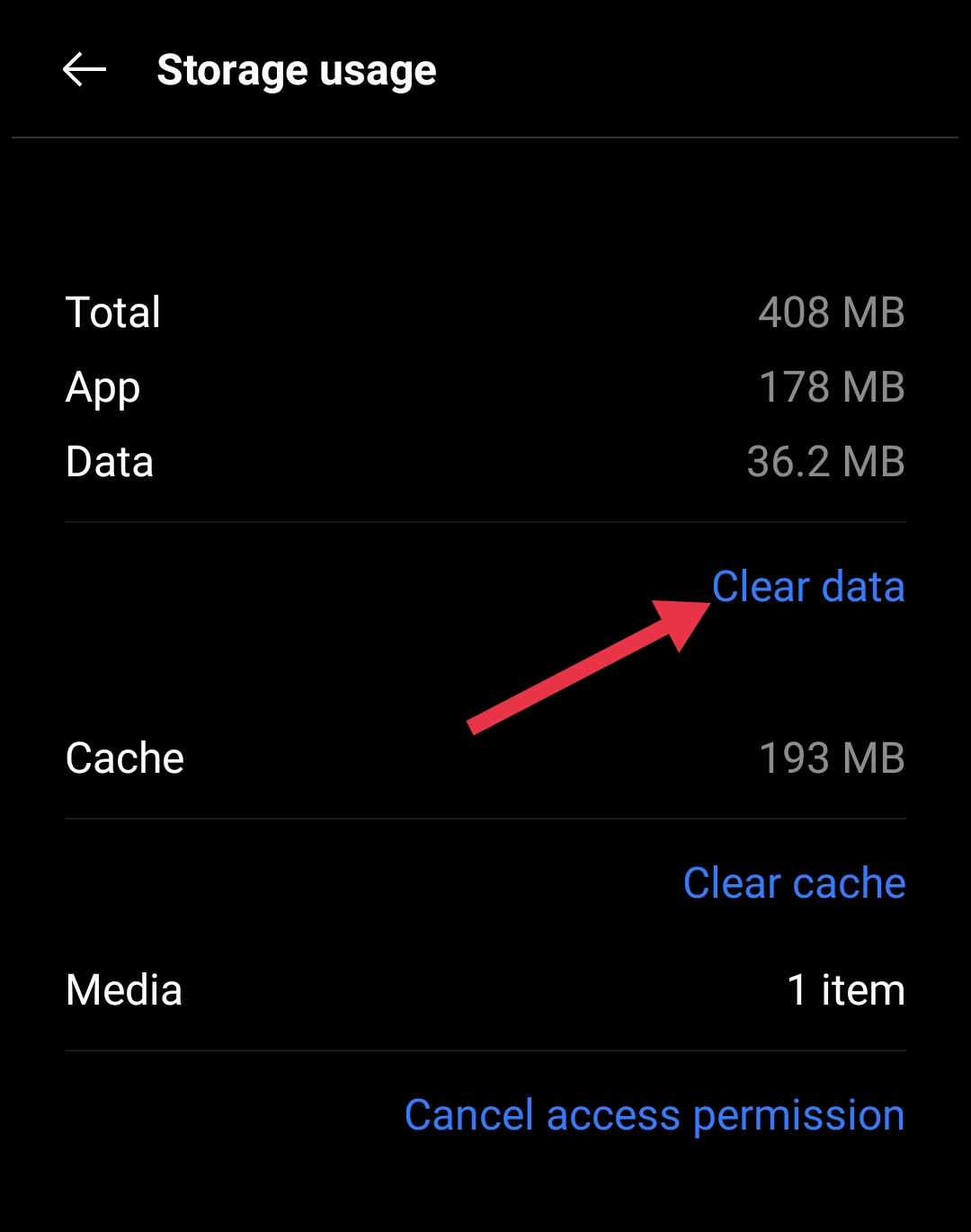
Alternatively, you can go to device Settings > Apps > See All Apps > Camera > Storage & Cache, then tap Clear Cache and Clear Data.
Check Camera Permissions
Unnecessary or suspicious apps with camera access can interfere with the proper functioning of your camera, causing errors like “Unable to start capture.” It’s important to regularly check which apps have permission to use your camera and manage them accordingly.
- Open Settings on your device.
- Navigate to Security & Privacy, then go to Privacy and select Permission Manager.
- Tap on Camera to view the list of apps with camera access.
- Review the apps listed. Some apps like Snapchat, Instagram, Facebook, and photo editing apps may require camera access, but revoke permissions for apps you don’t use or find unnecessary.
- Confirm your changes and exit.
ALSO READ: How to fix ‘unable to use camera as the front camera is being used’ error
Factory Reset
If the previous methods don’t resolve the issue, you can try performing a factory reset on your phone. However, before proceeding, ensure you back up all important files like photos, videos, contacts, and other essential data, as this process will erase everything stored on the device.
Hardware Issue
If none of the solutions work, the problem could be related to hardware. Visit an official service center if your device is still under warranty. Even if it’s out of warranty, you can still get it inspected there. If the repair costs are too high, consider taking your device to a trusted local mobile repair shop for a more affordable solution.