Telegram has seen a steady rise in popularity over the years. Even though many people still use other apps like WhatsApp for daily communication, Telegram continues to hold its place on millions of devices. Users are drawn to it because of its powerful features, speed, and flexibility. In many ways, Telegram feels like a different kind of messaging app, one that often introduces new features that are later adopted by other platforms.
Telegram has built a reputation for offering tools that go beyond basic chatting. Features like large group support, channels, bots, and strong privacy options have made it popular across the world. Because of this, users expect the app to work smoothly at all times. However, users may face unexpected problems, including errors or sudden account restrictions, which we have also discussed in earlier posts.
One error message that often angers users is “This phone number is banned.” It usually appears because of Telegram’s rules that manage how the platform is used. Before trying random fixes, I will explain why this ban shows up and how you can unblock your Telegram number in the next sections.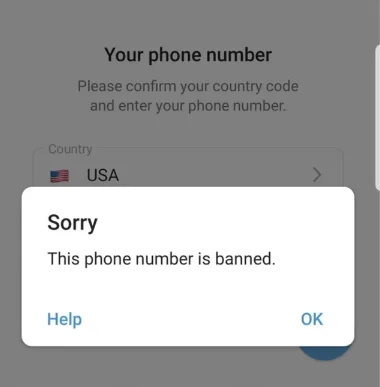
Why Telegram Says This Phone Number is Banned?
Telegram bans a phone number when it thinks the account is not following its terms and conditions. This can happen because of how the account is used or what is shared on it. Telegram watches activity closely, and if it feels that a user is crossing limits, it may block the number to keep the app safe for others.
Many bans happen because of reports or rule checks. Posting hateful messages, spreading false news, bullying people, or sending threats can lead to a ban. Using fake names, copying someone else’s identity, sharing adult content, or talking about illegal work like drugs or hacking can also cause this issue. Even profile details like your name or bio can lead to trouble if they include offensive words.
Sometimes the ban is linked to account behavior, not messages. Using a virtual number that cannot receive codes, typing the wrong password many times, sending too many messages in a short time, adding lots of contacts quickly, or using bots can look unsafe. When Telegram sees activity that feels risky, it may ban the number to protect users and the platform.
How to Fix “This phone number is banned” Telegram Error
Wait for the Temporary Ban to End
In many cases, Telegram blocks a number for a short time due to unusual activities like too many login attempts, repeated code requests, or actions that look like spam. These bans are usually temporary and do not mean your account is gone forever.
So, wait for about 24 to 72 hours before trying to sign in again. Do not keep entering your number or requesting codes during this time, as this can extend the ban period and delay access even more.
Telegram also removes accounts that stay inactive for six months. Once that happens, the same phone number can be used to create a new account again. So patience is important here, as waiting often solves the issue on its own.
Use the Help Button
When Telegram blocks your number, you may see a “Help” button on the ban screen. Tap this button, and Telegram will prepare an email for you automatically. Make sure you do not change the message in any way. Do not remove text, add extra details, or attach files or screenshots. Just send the email as it is.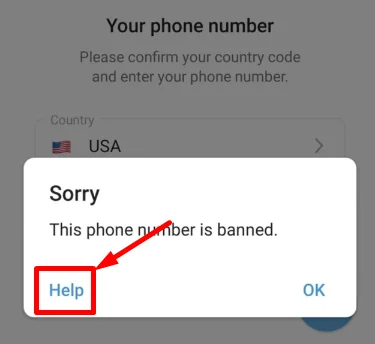
After sending it, give Telegram some time to review your case. This usually takes a few days. During this waiting period, we suggest you avoid repeated login attempts.
Once a few days have passed, try signing in again using your number. In some cases, Telegram removes the ban after reviewing the request.
There is no promise that this method will work, but some users do see their numbers unblocked. Telegram rarely sends a reply. In most cases, they do not say anything at all. They either remove the ban quietly or leave the number blocked without any update.
Use a Real SIM Card Number
If you plan to use Telegram regularly, a physical SIM card number is always the safer option. Using a virtual or VoIP number on Telegram is a risky choice. Many temporary number services are shared, reused, or already flagged by online platforms. Because of this, Telegram may block such numbers without warning, and in many cases, the ban is permanent.
Temporary numbers are also unreliable. You may not receive the login code when you need it, or the number may stop working suddenly. This can lock you out of your account with no easy way to recover it. Many online services actively block these numbers to prevent spam and misuse.
Contact Telegram Support Directly
If your number was blocked by mistake during signup, reaching out to Telegram support can help. One simple way is through X (Twitter). You can message the account smstelegram and share your phone number along with a short explanation. The support is usually available in English and Russian.
If private messages are blocked or you prefer in-app help;
- Open Telegram and go to Settings.

- Tap Ask a Question and then click OK

- Now, from the menu, select Skip and proceed to volunteer.

- A support bot will guide you through the steps to report your problem.

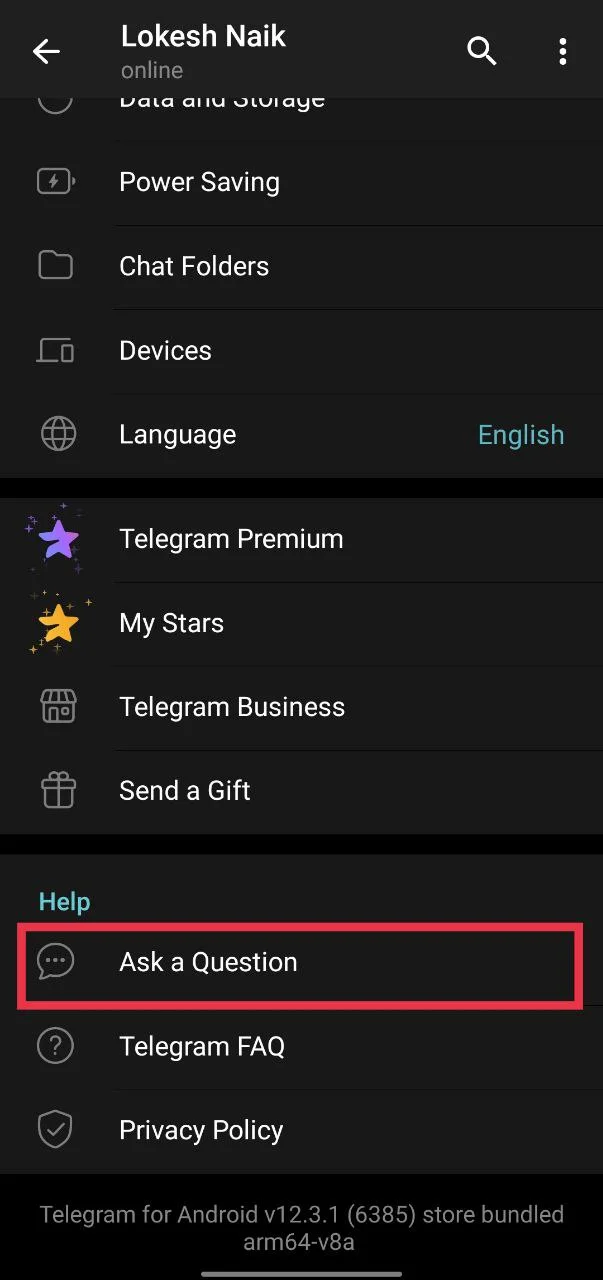
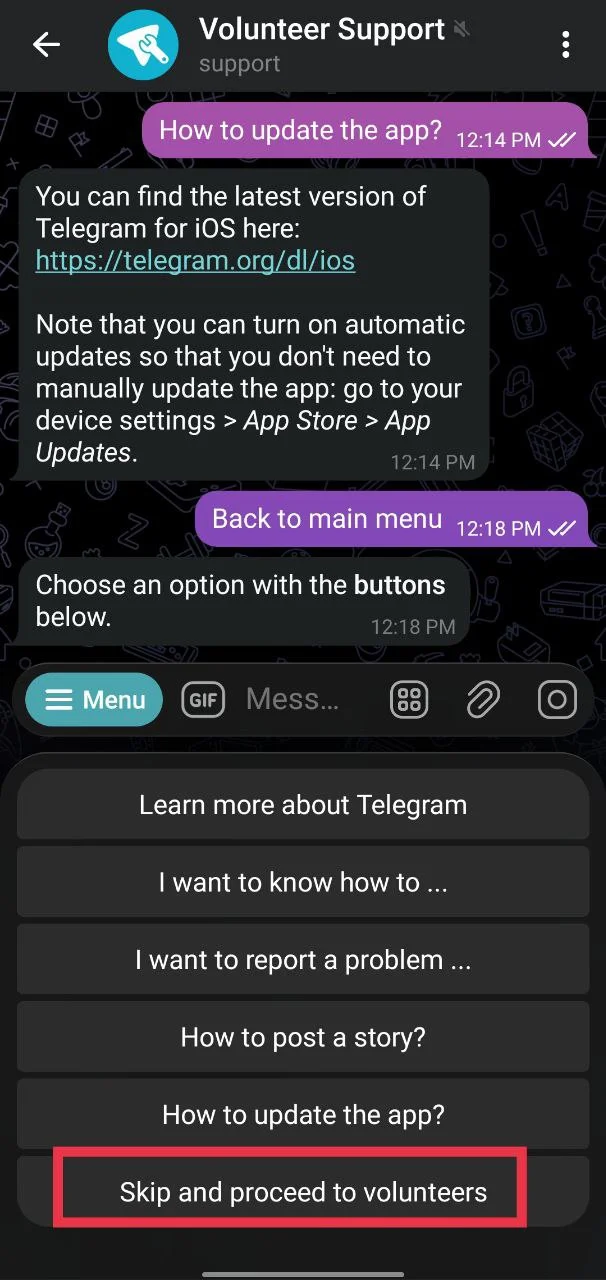
In many cases, a volunteer replies within an hour, making this a helpful option when your number is banned without a clear reason.
Email Telegram Support
If you believe your number was blocked without a valid reason, you can contact Telegram through email.
Telegram provides a few email addresses based on the issue. You can write to spam@telegram.org for spam-related blocks, abuse@telegram.org for account misuse reports, and recover@telegram.org for account recovery requests.
Contact Telegram Support Through the Website
You can also reach Telegram support using a web browser. Open the official Telegram support page and fill out the form shown there. Write a short and clear explanation of your issue so they understand why your number was blocked.
Next, enter your email address and your phone number with the correct country code. Make sure the details are accurate, as Telegram may use them to review your request.
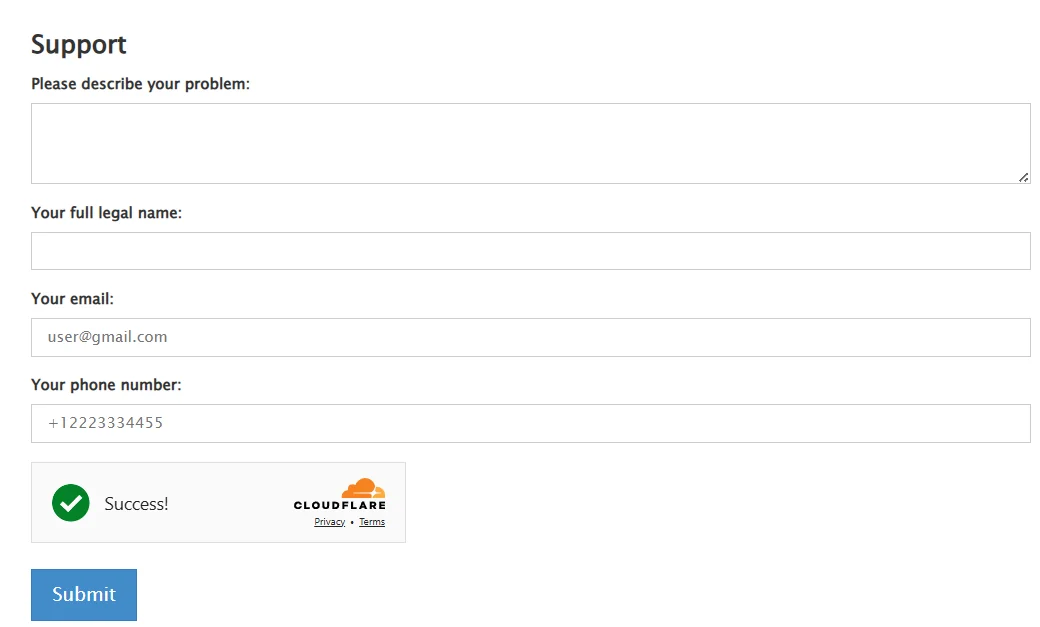
Once everything is filled in, click the Submit button. After that, all you can do is wait. Replies are not instant, and most of the time you will not hear back at all. Telegram usually reviews the request quietly. If the ban is lifted, you will notice it only when your number starts working again.
RELATED GUIDES:
If none of the requests work and Telegram keeps the ban in place, using a new SIM card might be the last way forward. Telegram clearly prefers real numbers, so temporary or online numbers usually lead to more trouble. If your main number really matters, waiting six months can help since Telegram clears inactive accounts and allows that number again. If waiting is not possible, creating a fresh account with a real physical SIM is the safest move.