X, still called Twitter by many people, is a huge social media site used every day for videos, photos, and quick updates. Since Elon Musk took over, a lot has changed, and many new users joined while others stayed curious. Even with all this growth and attention, the platform still has its share of small tech troubles that users run into during daily use.
Video playback errors are one of those issues that can show up without warning. These errors are not linked to who owns the platform or recent changes at the top.
Surprisingly, this playback error shows up more often on Android phones than on iPhones, with Pixel devices seeing it the most, so this guide is specially made for Android users who use X. 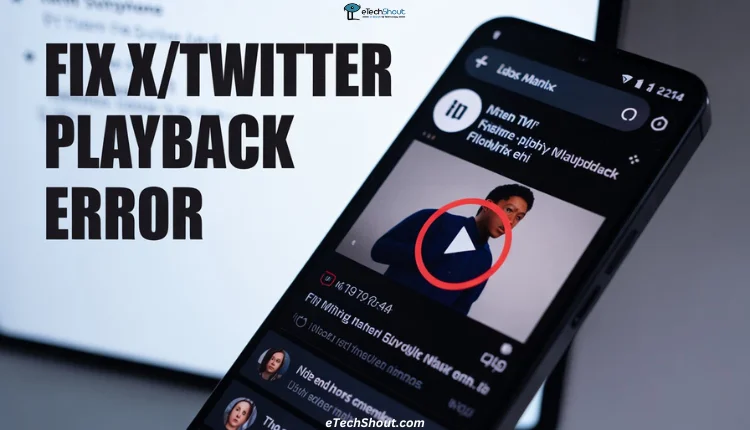
What is Playback Error on Twitter or X
Clearly, there is no single reason why this playback error appears from time to time on Android devices. It is mostly linked to optimization limits, which is why iOS devices do not face this issue as often. In many cases, the cause can be a bug, stored cache data, or a problem within the device itself that affects video playback on X.
How to Fix X/Twitter Playback Error on Android
Update the X/TwitterApp
When a feature stops working inside an app, the app version is often the reason. You might not have updated the Twitter app in a long time, and that can lead to video playback trouble. Apps receive regular updates to add features, increase performance, and fix known bugs that affect daily use.
If your app version is outdated, it may struggle to handle newer video formats or platform changes. So, if your Twitter app has remained outdated for a while, it’s time to update the app.
Restart the Device
No matter which phone you use, restarting is always a good first move when an app stops working as expected. Many people have noticed that restarting the device surprisingly fixes the error, which confirms that it clears temporary activity on the phone and helps solve the issue.
So, press and hold the Power button on the side of your device until the power menu appears. Then tap Restart. Your phone screen will turn off for a moment and turn back on again.
Clear App Cache and Data
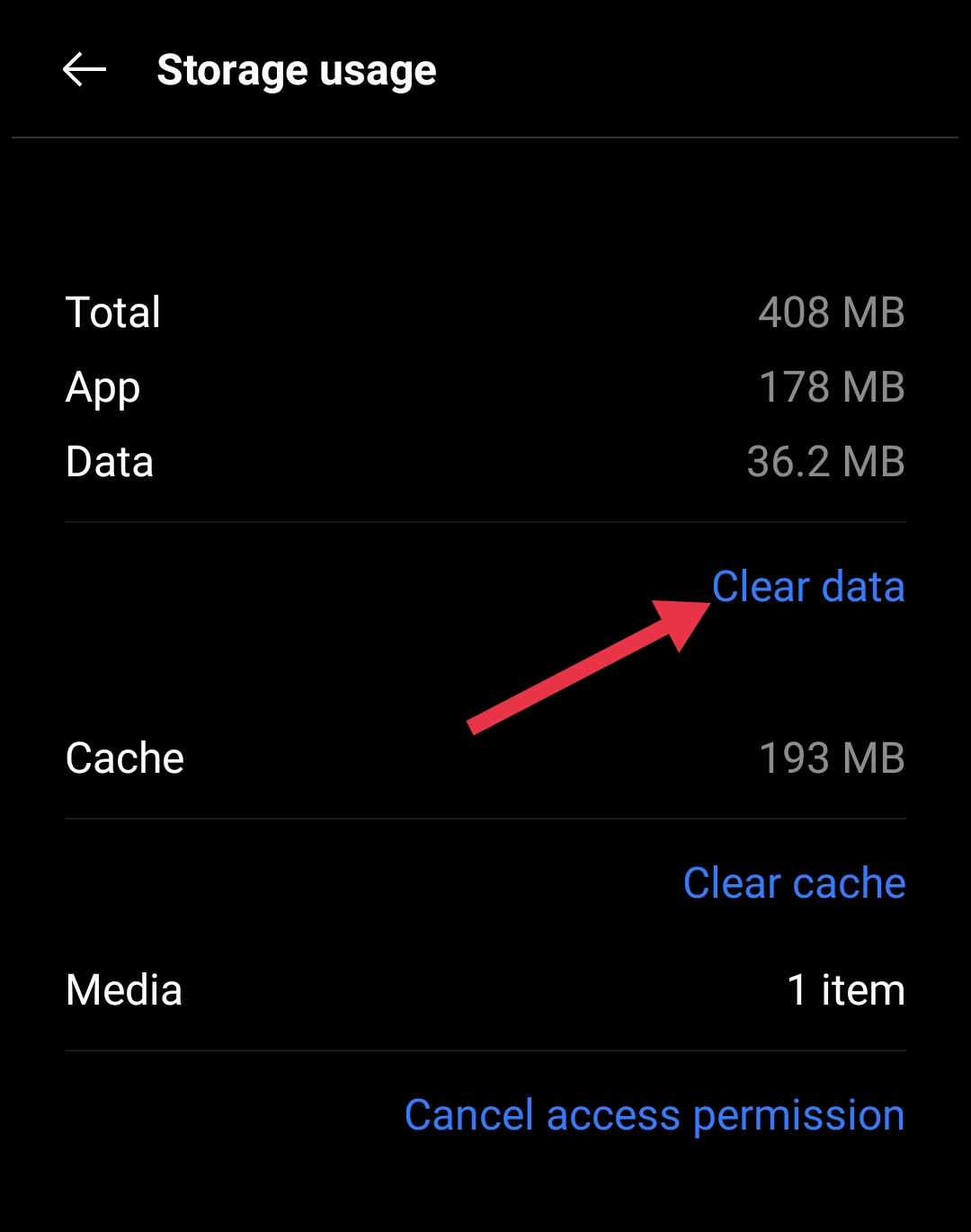
Another option you can try is clearing the Twitter app cache and data. Over time, unwanted files can pile up inside the app, and that can affect the overall performance of the app.
Open your Android phone Settings > Apps > Installed Apps > Twitter > Storage > Clear cache and then Clear data. After that, re-login to the Twitter app.
Force Close and Reopen the X App
If videos stop playing, try closing the X app and opening it again. Swipe up and hold or press the menu button on the navigation bar to open the app switcher screen. Then swipe away the X app to close it fully. After that, tap the X app icon to open it again.
Switch off VPN
Since a VPN reroutes your internet traffic, it can interfere with how video data reaches your phone. So, we suggest you try disabling the VPN once to check.
If videos start playing after it is turned off, then the connection route was likely the cause. You can turn the VPN back on later if needed or connect to a different server that handles Twitter videos more reliably.
Avoid Using X While Your Phone is Charging
Many users have reported a strange issue where this playback error appears more often while the phone is charging. This is seen a lot on Pixel devices, which makes it even more surprising. There is no specific fix for this bug right now, but unplugging the charger while watching videos on X seems to help in some cases. We also suggest keeping an eye on the latest app and system updates, as future updates may address this issue.
RELATED:
- How to Fix “Cannot retrieve posts at this time” on X or Twitter
- How to Fix “Something isn’t right. Try your request again later” on Twitter/X
We hope this helped fix the X/Twitter playback error on your device. If you found a workaround that is not mentioned here, feel free to share it so it can help others as well.