Walmart has grown from a small store into one of the biggest names in retail, and millions of people rely on it every day. With so many shoppers, it helps to have simple tools that make life easier. One of those tools is the Walmart receipt lookup, which lets people check their past purchases without digging through old paper slips.
This tool comes in handy when someone needs a receipt for a return or just wants to keep track of what they bought. It saves time and makes it easier to find important purchase details whenever you need them.
It is something Walmart shoppers depend on, but there is one issue. The Walmart receipt lookup is not showing for many people. If you are trying to pull up your Walmart receipt, here is where to begin before you move to the fix.
7 Working Methods to Fix Walmart Receipt Lookup Not Working
Check if the Entered Information Is Correct
The first thing you should do is make sure the details you typed into the Walmart receipt lookup page are correct. Even a tiny error in your city name, card information, or date can stop the tool from finding your purchase. This is one of the most common reasons the receipt lookup fails to show anything.
The quickest way to confirm your details is to go back and review every field you filled in. If you notice anything that looks slightly off, fix it and try again. A small slip, like a wrong digit or a mixed-up location, is enough to block the search.
If everything looks accurate and the receipt still will not show, try replacing the card number with another card you may have used or adjust the date range. If none of the pages load or the form refuses to process your info, you can also check Walmart’s support page or a service checker to see if the lookup tool is having issues for everyone, not just you.
Check Walmart Server Status
The next thing to check is whether Walmart is the only service having trouble. Try opening another app, or load any random website in your browser. If everything else works, there is a good chance Walmart’s system is having issues.
You can confirm Walmart’s status in a couple of ways. The company usually shares updates on its support channels, where you can see if any features are down or under maintenance.
Down Detector is another helpful tool. You will see notices like “possible problems at Walmart” if many people are reporting issues at the same time. You can also submit your own report. There is even a live map that shows if certain areas are seeing more trouble than others.
Use the Walmart App
If the Walmart website loads but the receipt lookup will not show your purchase, the site may be dealing with heavy traffic. This usually happens during large sale periods, and the search tool may stop responding for a while instead of showing an error message.
The most practical approach is to switch to the Walmart app and check your order from there. After installing the app on your Android or iOS device, sign in and open your recent orders. You can tap the order you want and then click the “See details” button to view the information you need.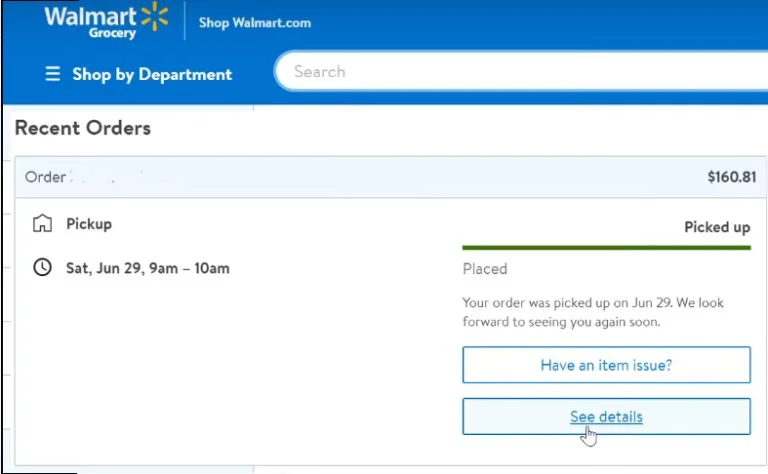
Waiting a bit can also help if the app is slow, since these delays often clear on their own once the rush settles. The app usually handles busy periods better than the website, though it is not guaranteed every time.
Clear the Cache of the App
While it may not happen often, a damaged Walmart app cache can stop the app from loading your receipt information. You could rely on the website instead, but clearing the cache inside the app only takes a moment and is usually worth trying.
Remember that this step may reset certain in-app preferences. It will not remove your Walmart account, but you may notice the app taking a moment to load again the first time you open it. You do not have to clear your data or uninstall the app for this step.
How to clear the Walmart app cache
- Open your device settings.
- Navigate to Apps > Walmart from the list.
- Open the Storage page.
- Tap Clear Cache to remove the temporary files.


If you use an iPhone, the steps will be different since iOS does not provide a direct cache clear button.
Try Location Lookup
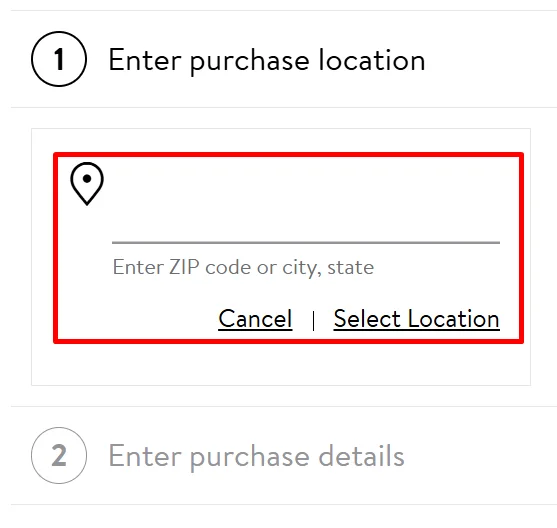
If the receipt lookup still will not show your purchase, you can try using the location-based search instead. This method is helpful when the item was bought in a physical Walmart store rather than online. It gives you another path to find the receipt you need.
We will not list every detail about the tool here, but the main steps are simple.
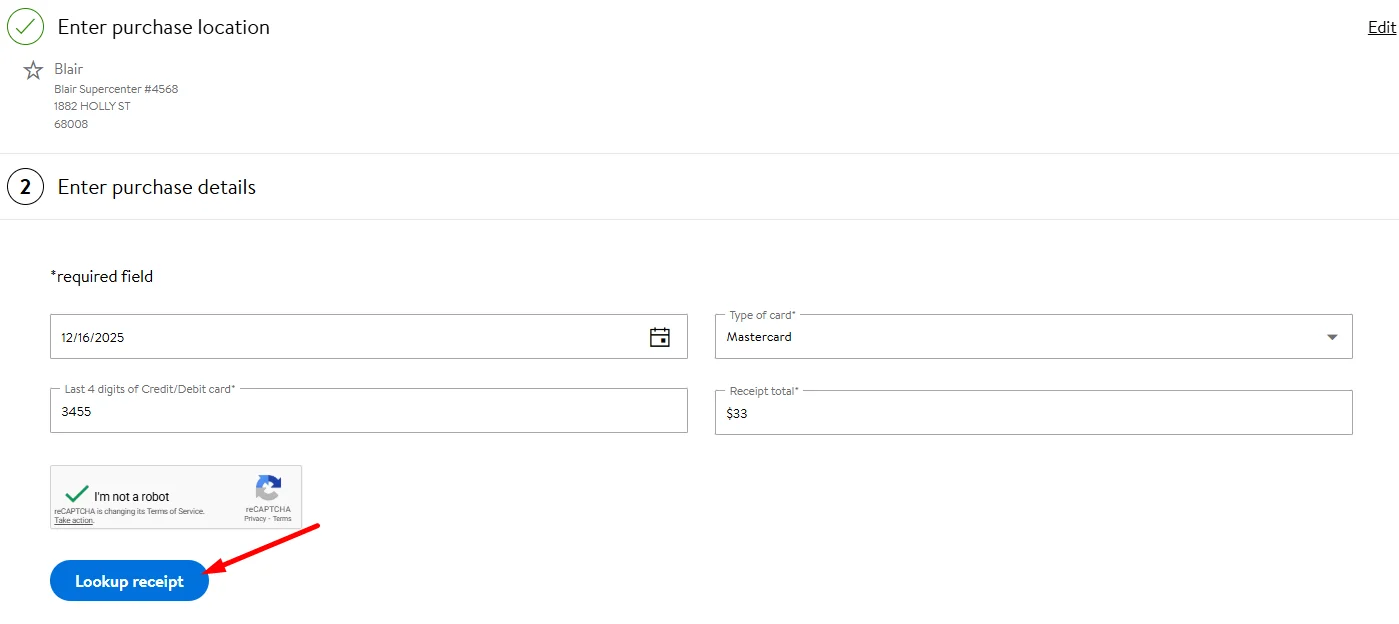
- Choose the state and ZIP code of the store you visited.

- Pick the date when you made the purchase.
- Select the card type you used.
- Enter the last four digits of your card.
- Type in the total amount from your receipt.
- Click on the Lookup receipt button to search through the store location system.

Reinstall the App
If Walmart’s servers are not the problem, it is worth checking if the app on your device is causing the issue. Swipe up from your recent apps to close it and open it again to see if it loads your receipt search. If you are using the website instead, close your browser fully and open it again. If nothing changes, you can uninstall the Walmart app and install it once more before moving on to the next step.
Contact Customer Care
If all else fails and you still cannot pull up your Walmart receipt, reach out to customer support and let them take a look from their side. At this point, it is unclear what might be blocking the receipt lookup for you, but speaking with a support representative will usually sort out most problems, as they can check details that are not visible on your device.
Last but not least, you can always call 1 800 925 6278 to talk to Walmart’s customer service experts. Keep in mind that this number can have very long wait times.
ALSO READ:
- 13 Best Fake Walmart Receipt Generator Tools
- How to Fix Walmart Pay Not Working (Easily)
- How to Cancel Walmart Plus Free Trial & Subscription
- Fix “The user trying to submit review is opted out” on Walmart