Acer is one of the most renowned computer hardware brands and is known for its high-quality monitors. However, even the best products can face technical issues, and this is also true for Acer monitors. As an example, consider the Acer monitor blinking blue light issue, an issue that can be irritating for any Acer monitor user.
In this article, we will explore the causes of the blinking blue light issue and provide 5 working methods to fix Acer monitor blinking blue power light.
Why is My Acer Monitor Blinking Blue Light?
If your Acer monitor is blinking blue light, it could indicate a variety of issues, including a malfunctioning power supply, faulty capacitors, dead transistors, or even a dead monitor. There is no doubt that this issue is frustrating, however, you can identify the issue and resolve it in several ways.
How to Fix Acer Monitor Blinking Blue Light (5 Solutions)
An issue with the power supply
The first step is to make sure that the monitor is properly connected to a power source. Ensure that the monitor’s power cord is firmly plugged into the outlet and that the outlet is working properly.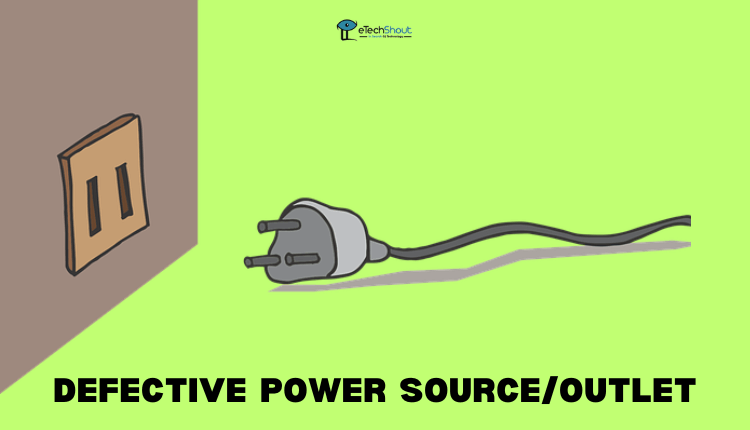
If the power cable isn’t connecting tight, try unplugging it and plugging it back in. If you have connected the power cable securely and the monitor still flashing blue light, switch to a different outlet or power source to see if the issue is with the outlet or power strip.
Try using another HDMI cable
Another simple solution to this issue is to try using another HDMI cable. Start by making sure that the HDMI cable is properly connected between your Acer monitor and computer. The cable needs to be securely plugged in and the connection should not be loose. 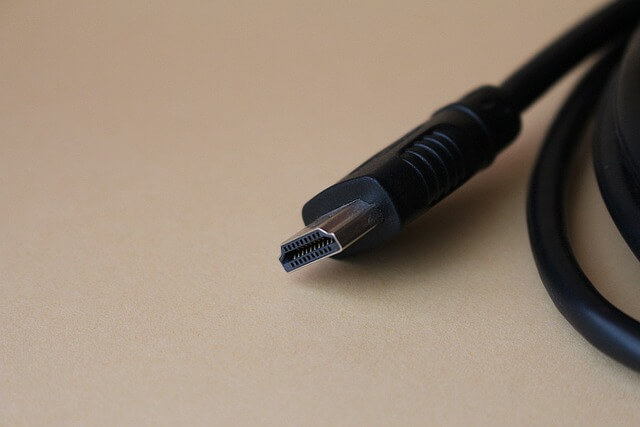
As long as the connection seems secure and the blue light on the Acer monitor is still blinking, perhaps you should try another HDMI cable. When cables are worn out or damaged, and it can cause various complications.
If you are buying a new HDMI cable, make sure it’s compatible with your computer and monitor from Acer. If you’re not sure what type of HDMI cable you need, check the specifications of your devices.
Power reset
When your Acer monitor blinks blue light but there is no picture, the monitor power reset may help.
Here are the steps for performing a power reset on the Acer monitor:
- Turn off your Acer monitor and unplug it from the power source.
- Hold down the power button of the monitor for 30 seconds.
- Release the power button and plug the monitor back into the power source.
- Turn the monitor back on and check if it has resolved the issue.
Contact Acer customer support
If you’re experiencing a blinking blue light no signal issue with your Acer monitor, the best course of action is to contact Acer customer support. The blinking blue light may indicate an issue that needs professional assistance in diagnosing and resolving.
If you are contacting Acer customer support, let them know when the blinking blue light occurs, and how often it occurs.
The customer support representative may ask you to troubleshoot the issue by providing you the step-by-step instructions or the Acer customer support team may send a professional technician to your home or workplace to fix it.
In most cases, the Acer monitor no signal blinking blue light issue is covered by warranty, which can save you the cost of repairs or replacement. If the monitor is not covered under warranty, you might be able to get an estimated repair cost or other options.
In the event that Acer’s customer care is unable to solve the problem, you can also reach out to a qualified technician in your area.
Dead monitor
A dead monitor occurs when the display fails to function entirely. Monitors can stop working for several reasons, such as the age of the monitor, issues with the cables or connections, or monitor-related hardware failures.
If you suspect your monitor is dead, you can try a few things to identify it. To begin, make sure everything is plugged in and connected properly. Ensure that the monitor and power outlet are both securely connected by the power cable.
In case your connections are fine, connect your monitor to another computer or device and see if that works. Nonetheless, if the monitor still doesn’t work, there may be a problem with the monitor. It is best to contact Acer customer support or your local PC repair shop to ensure that your monitor is dead and can’t be repaired.
Even if it can be repaired, but costs nearly as much as a new monitor, it isn’t worth spending that much money. Instead, buy a new monitor. If you are thinking to buy a new monitor to replace a dead one, you should take several factors into consideration.
- Panel Type: A variety of types of screens are available in the market, including IPS, TN, and VA. Every type has its pros and cons, especially when it comes to color accuracy, response time, and viewing angles. Find out what type of panel is best for you by doing some research.
- Screen Size: Select a monitor that fits your needs. Having a larger monitor can be useful if you need to work or be productive on your computer. It may be more appropriate for you to use a smaller monitor if your computer is used for gaming or entertainment.
- Resolution: A monitor’s resolution determines how clear and sharp the image looks. The higher the resolution, the more detail, and clarity the display will provide, though it will require more processing power.
- Refresh Rate: The more refresh rates, the smoother the motion is in fast-paced games or videos. Choosing the appropriate refresh rate depends on the type of content you will view on the monitor.
- Brand and Warranty: Be sure to check the monitor’s brand and warranty before purchasing.
By following the above methods, you can potentially resolve the blinking blue light problem on your Acer monitor. We’d love to hear your thoughts on this article in the comments section.